
Click Tracking & Conversion Attribution
Dengage can track link clicks on the Call To Action buttons of your WhatsApp marketing messages, so you can measure recipient engagement and attribute conversions to your WhatsApp campaigns. When click tracking is enabled for a button, every tap on it is recorded and reported in your campaign analytics, including unique clicks.
Click tracking is configured while you create your WhatsApp content, and the platform confirms it automatically while you prepare your campaign. This page explains how the mechanism works and how to enable it.
How Click Tracking Works
Click tracking on WhatsApp works at the button level, and whether it can be enabled is determined by how the button was defined in your WhatsApp content:
- Click tracking can only be enabled on Dynamic URL buttons. While creating your WhatsApp content, you can add a Call To Action button with Type of Action: Visit Website and URL Type: Dynamic. Static URL buttons cannot be tracked.
- For clicks to be tracked, the button must use Dengage's click tracking URL. You do not need to type this URL: in the Add Button dialog, click Use click tracking URL next to the URL field and Dengage fills it in for you, with
{{1}}at the end as a dynamic variable. You will fill in its value while creating your campaign, just like any other variable.
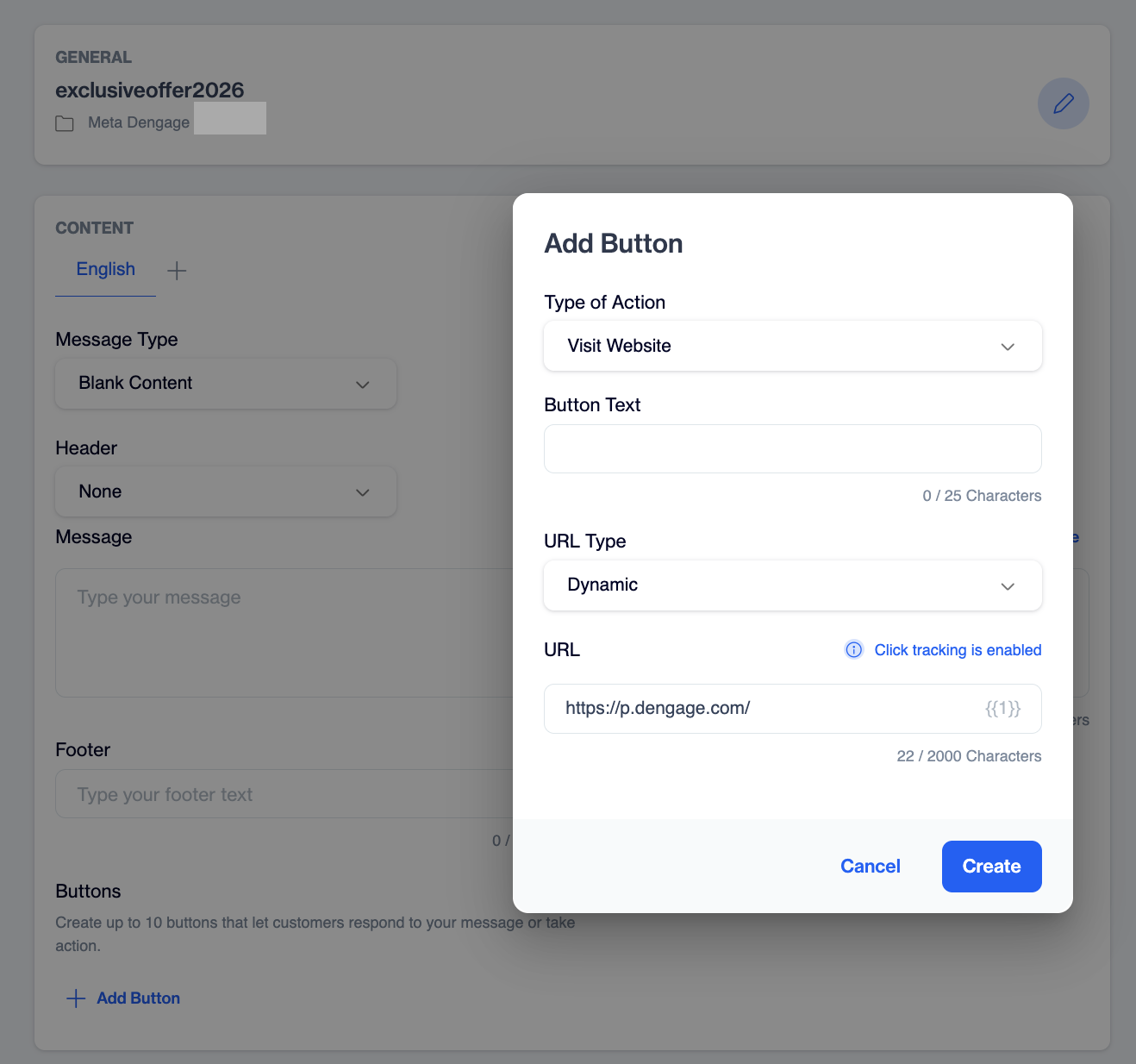
Adding a tracked Call To Action button while creating WhatsApp content. Clicking Use click tracking URL fills in the URL and sets URL Type to Dynamic.
You do not need to switch anything on at send time, the platform checks each button automatically. When you select the template in the WhatsApp send node and open Content Customization, an information message under each Call To Action button tells you whether click tracking will apply:
- "Click tracking is enabled" the button's URL was defined in the required format when the content was created, so clicks on this button will be tracked.
- "URL click tracking is not available. To enable tracking, the URL must be in the correct format." the button's URL does not match the required format. The message includes a link to the required format. The button is still delivered and clickable, but its clicks are not reported.
Because tracking is decided per button, a single template can contain both tracked and untracked buttons.
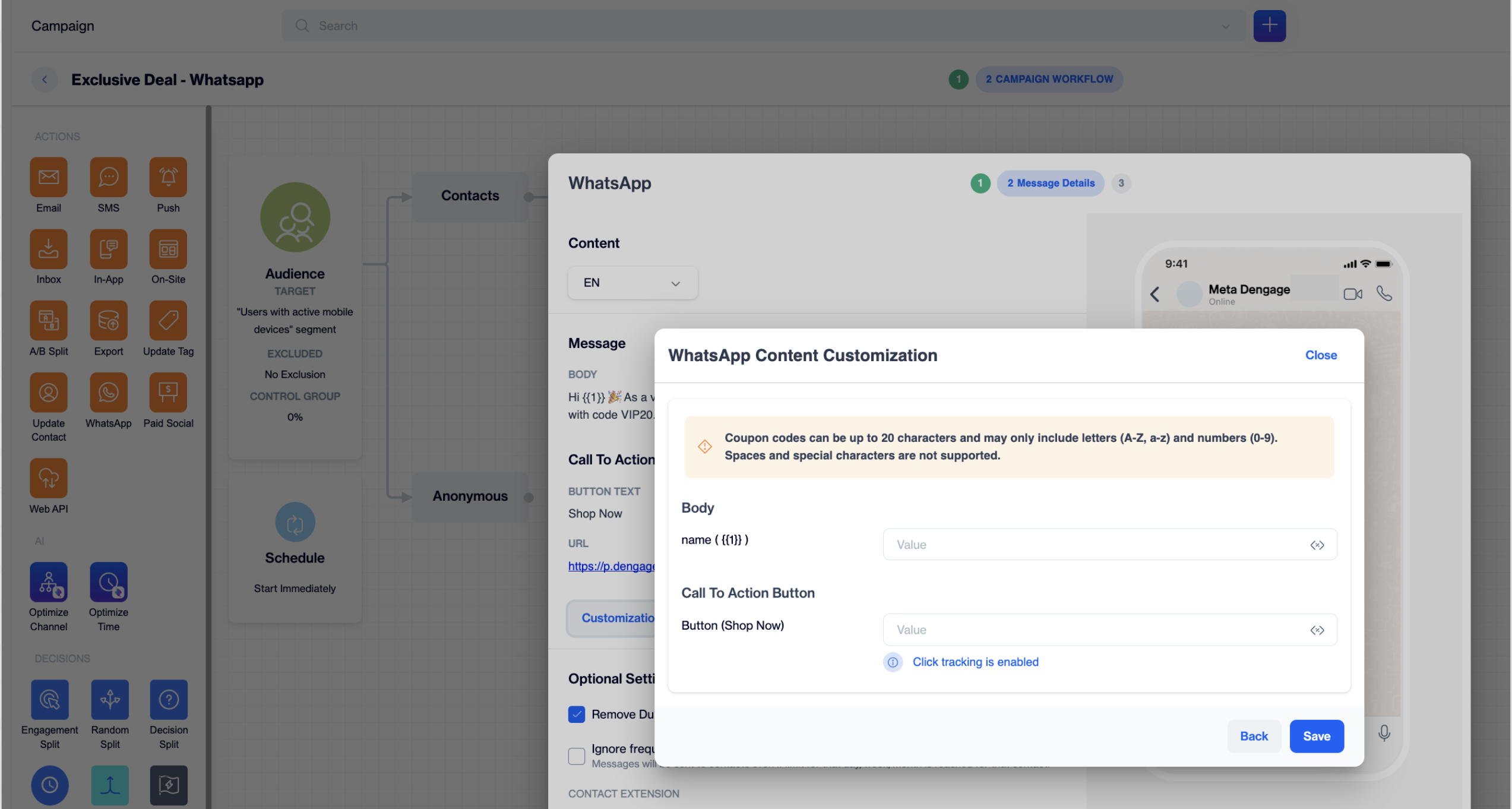
WhatsApp Content Customization - button showing "Click tracking is enabled"
Required URL Format
| Environment | URL Format |
|---|---|
| TR prod | https://p.dengage.com/{{1}} |
| EU prod | https://eu-pub.dengage.com/{{1}} |
| RU prod | http://rupub.dengage.com/{{1}} |
| US prod | http://us-pub.dengage.com/{{1}} |
NoteWhen the button URL follows this format, the "Click tracking is enabled" information message on the Content Customization step confirms that tracking is active for that button.
Enabling Click Tracking
Step 1. While creating your WhatsApp content
- Go to Content > Messaging > WhatsApp and create a new content, or edit an existing one. (See Whatsapp for details on creating WhatsApp content.)
- In the content editor, click Add Button and select Type of Action: Visit Website.
- Enter your Button Text, then click Use click tracking URL next to the URL field. Dengage sets URL Type to Dynamic and fills in the click tracking URL, with
{{1}}as the dynamic variable. The option changes to Click tracking is enabled. - Click Create, complete the rest of your content, and submit it for approval as usual.
If your templates are created on your provider's platform (CM.com or Karix) instead of in dengage, the same rule applies: define the button as a dynamic URL button and use the required URL format as its URL. Click tracking is then confirmed in the same way when you select the template in your campaign.
Step 2. While creating your campaign
- Go to Campaign > Flows, click New, and select One-Time or Recurring. Enter the campaign details (name, folder, schedule).
- Choose your audience on the Campaign Flow screen, drag the WhatsApp node onto the flow, and double-click it.
- On the Account & Template screen, select your Provider, Account, Sender, and Template, then click Next.
- On the Message Details screen, open Customization for each language to fill in the variable values of the header, body, and buttons, including the
{{1}}value of your tracked button. - Check the information message under each Call To Action button. Buttons defined with the required URL format show "Click tracking is enabled"; for the others, click tracking is not available.
Viewing Click Data in Reports
Once click tracking is enabled, unique clicks are included in your WhatsApp campaign reports. You can use this data to measure click rates, compare button performance, and attribute conversions from your WhatsApp campaigns.
Updated about 12 hours ago