
Analytics Event Definition
Create and manage Analytics Event Definitions to track user actions, and make these events available for targeting, personalization, and measurement across campaigns.
Analytics Event Definitions let you define which user actions should be captured, how long they are stored, and which details (attributes) are recorded with each event. These events are required to use Event History–based targeting in In-App and Onsite campaigns.
Define Events
To create and store events on the client side:
- Go to Settings > Campaign Configurations > Analytics Event Definition.
- Click New to create a new event.
- Fill in the following fields:
- Event Name: Enter a descriptive name for your event (e.g., Page View).
- Event Code: This field is automatically generated based on the event name.
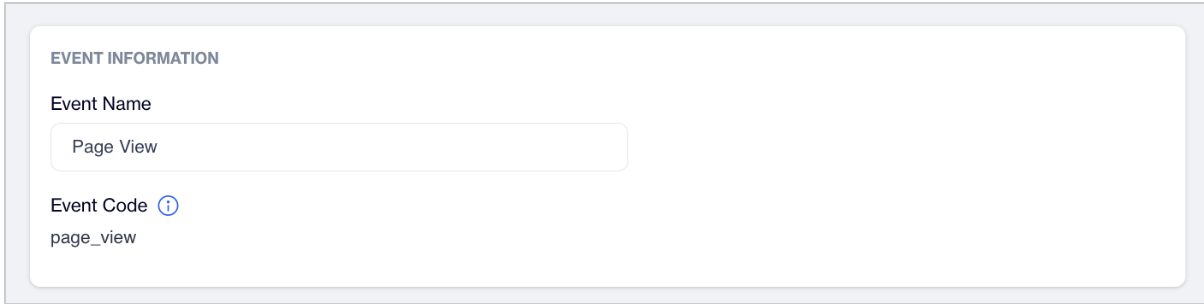
Event Information
Event Settings
Configure the following options under Event Settings:
- Store on the client: Toggle On to ensure the event is stored client-side. (This must be enabled for the Event History filter to function.)
- Maximum Event Count: Set the maximum number of events to be stored. (minimum 1, maximum 10,000).
- Event Time Window: Define how far back the event data will be stored (minimum 1 hour, maximum 30 days).
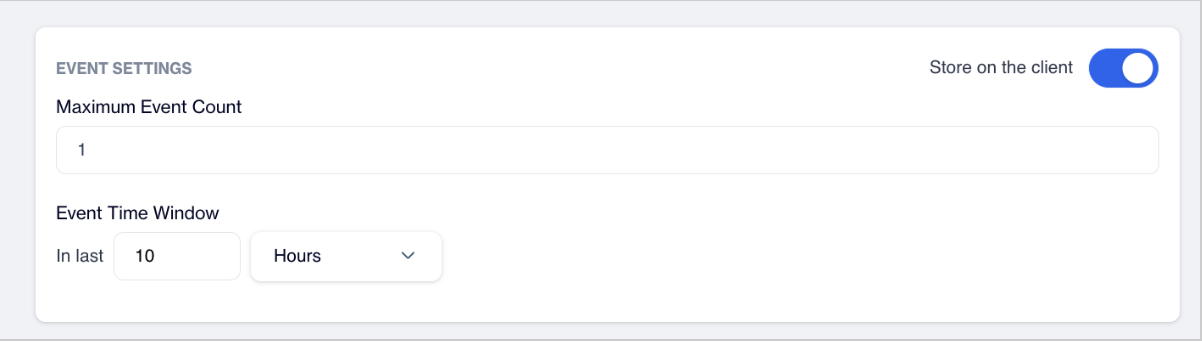
Event Settings
Event Attributes
Each event can have multiple attributes that provide additional details about the event.
For example, an event named Page View can include various attributes such as Page Title, Product ID, Category Path, or UTM Source. These attributes can be used to refine your event-based filters and build more precise targeting conditions.
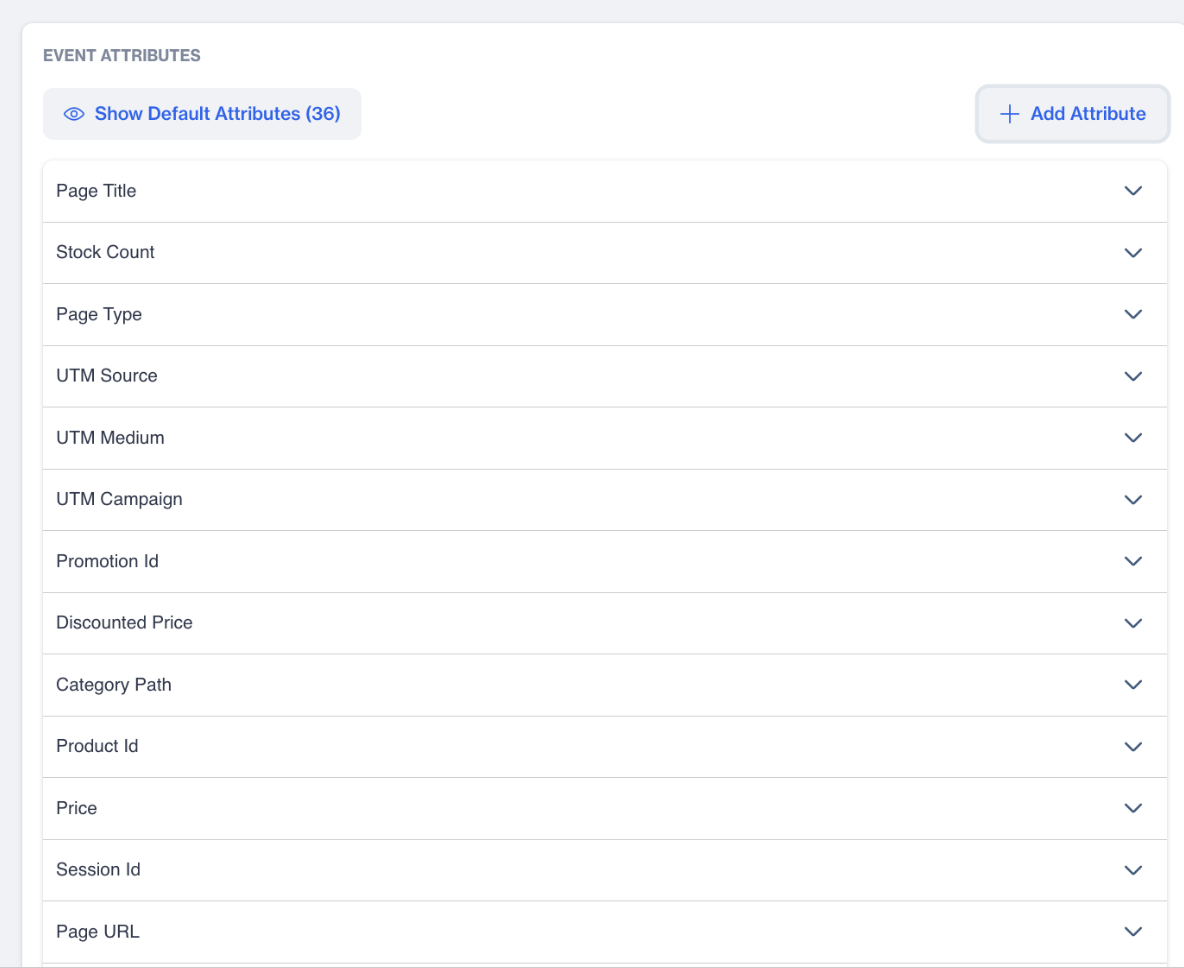
Event Attributes
To view or customize attributes:
- Under Event Attributes, click Show Default Attributes to see available options.
- To add a custom one, click Add Attribute, and fill in the following fields:
- Attribute Display Name: The visible name of the attribute (e.g., Page Type). Choose from the dropdown menu.
- Attribute Data Type: The format of the data (e.g., Text, Number, Decimal). This field is automatically filled based on the selected attribute.
- Attribute Name: The internal name used in event tracking. This field is automatically filled based on the selected attribute.
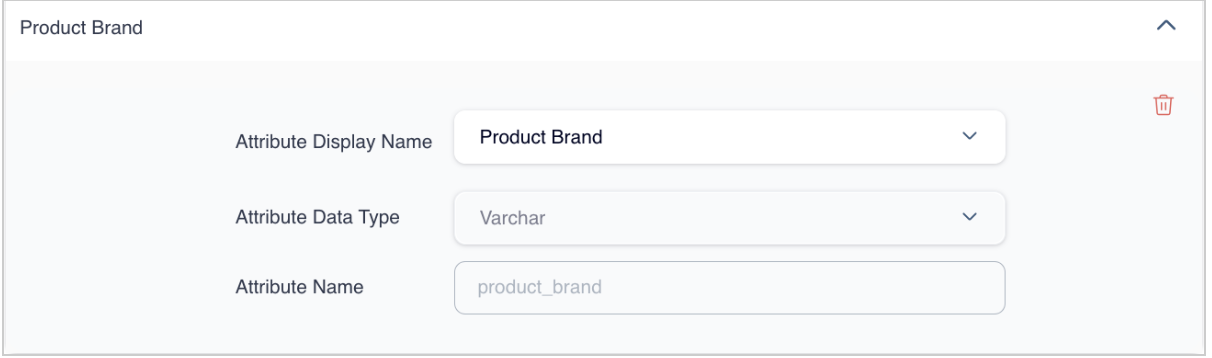
Add Attribute
Click Save when you've completed the event and attribute setup. The event is now actively tracked on the client side and ready to be used in Event History filters for In-App and Onsite targeting, allowing you to target users based on what they did, how often they did it, and with which specific attributes.
Updated 3 months ago