
Export to Microsoft SQL
The Microsoft SQL (MSSQL) Data Export Node allows users to export data directly to a Microsoft SQL database from the Automated Flow module. Depending on the SELECT permissions on your SQL server, you either select the schema and table from a dropdown or enter the table name manually. Afterward, you map your Dengage columns to the columns of the Microsoft SQL table.
Before you start, define Microsoft SQL as a remote target. See Prerequisite: Defining Microsoft SQL as a Remote Target on this page.
Key Terms
- SELECT permission: the database permission to read tables. Dengage uses it to list the schemas and tables of your server.
- Schema: a named group of tables in your database.
- Automated Flow: a flow in Data Space that combines triggers and actions to run data operations automatically. See Automated Flows.
- Data Export node: the action node of an Automated Flow that sends data to a remote target.
- Data Space Update node: the action node of an Automated Flow that writes data into tables in Data Space. It uses the same kind of column mapping.
- Remote Target: an external destination, defined in Settings, that Dengage exports data to. See Remote Targets.
What You Can Export
The Data Export node offers Microsoft SQL as a remote target for these data sources:
- Table: an existing table, for example master_contact. After you select the table, Manage Filters lets you add filters and filter groups.
- Segment: an existing segment, from the Segment or Predefined Segments tab.
- SQL Editor: the result of your own SQL query. Write the query on the Source SQL Query screen and click Validate and Preview. You can continue only after the query is validated. A valid query shows the message "This query is valid" and a preview of the result.
- Incremental Logs: transactional and marketing logs. This source works only with a Recurring trigger and the Daily period, and stays disabled until the trigger is configured that way. With "Occurs every", the minimum interval is 15 minutes. See Exporting Incremental Logs to Databases via Remote Target.
The Permission Change Logs source does not offer Microsoft SQL as a remote target.
Note: The maximum export size is 7168 MB.
How to Access
- Navigate to Data Space > Data Flow > Automated Flows > Data Export Node:
- From the main menu, go to Data Space > Data Flow > Automated Flows. Click New, select Automated Flow, name the flow and click Next.
- In the flow editor, first add and configure a Recurring Node, then add the Data Export Node and click Configure on it.
- On the Select data source screen, choose the data source and click Next. Select the table or segment, or enter the query, and click Next.
- On the Select Remote Target screen, choose Microsoft SQL and one of your Microsoft SQL remote targets listed under it.
- Microsoft SQL Option in Data Export Node:
- After selecting Microsoft SQL, click Next to proceed to the schema/table selection screen.
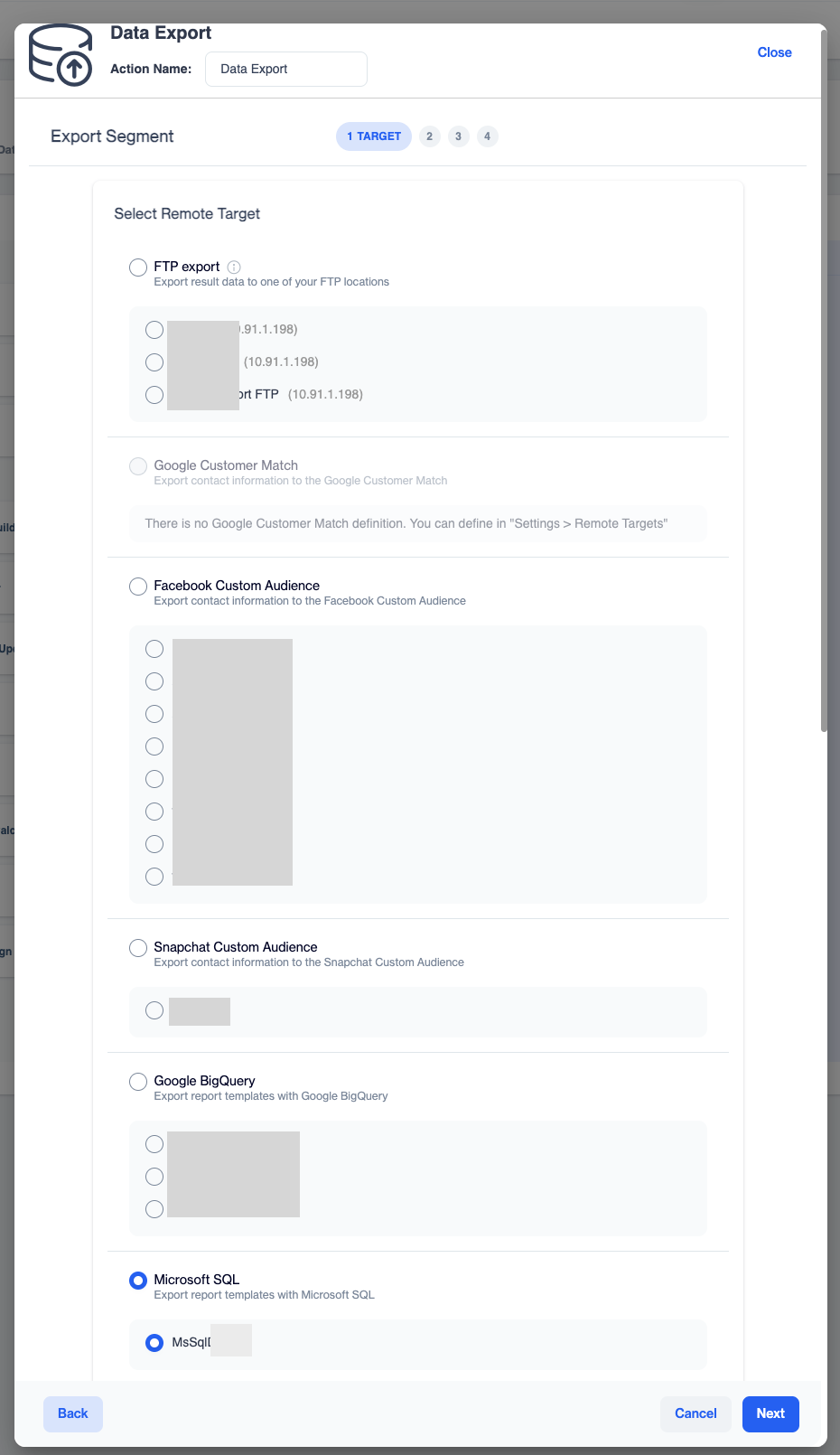
Select Microsoft SQL and one of your remote targets
How to Use
1: Select Permissions
The next screen, Export Wizard, displays different options depending on whether Dengage has SELECT permissions on your SQL server:
Scenario 1: SELECT Permissions Exist
- Select Schema and Table:
- Choose the schema from the Select Schema dropdown. Then choose the table you want to export data to from the Table Name dropdown, which lists the tables of that schema.
- Click Next to proceed to the mapping interface.
Scenario 2: No SELECT Permissions
- Manual Table Entry:
- If Dengage does not have SELECT permissions, enter the table name manually in the provided field.
- Click Next to continue.
Both fields are required. If you leave them empty, each field shows "The field is required" and a "Please select schema" message appears. Use a table that already exists in your Microsoft SQL database. The Export Wizard has no option to create one.
2: Data Mapping Interface
- Once you select or enter the schema and table, the Column Mapping screen opens.
- This interface mirrors the functionality found in the Data Space Update node, allowing you to map fields between the Dengage platform and the Microsoft SQL database.
- Complete the mapping by connecting the relevant Dengage platform fields to the corresponding Microsoft SQL table columns.
First, choose the Data Table Action:
- Append: appends all records from the source. This is the default.
- Truncate and Insert: truncates the table and inserts all the records from the source.
Then map the columns. Each row of the Columns table is a column of the Microsoft SQL table, shown with its data type and, where it applies, a Nullable or Has Default Value label, for example email_status_reason (TEXT - Nullable). In Target Column, choose what Dengage writes into it:
- --Ignore--: the column is not mapped.
- -- Constant Value --: opens an extra field under the dropdown, "Please click to set values", for a fixed value.
- A source column: a column of the data source you selected, for example contact_key.
A source column that has the same name as a column of the Microsoft SQL table is selected for you. The other columns start as --Ignore--. Check the mappings, then click Next.
3: Review the Summary and Export
The Summary step shows the Source (Data source), the Target (Target type and Target Name) and the columns to be exported. Check the details, and use Back to change a setting. Click Export to confirm your setup, and then save the flow.
Check the Export Runs
Go back to Data Space > Data Flow > Automated Flows to follow your flow:
- The Automated Flows tab lists each flow with its Last Run Time, Next Run Time and Update Date.
- The Running Flows tab lists the runs with Started On, Completed On and a status, for example Completed.
- The menu at the end of a row offers View Details, Move, Copy Public ID and Duplicate. Use Duplicate to create a similar export without starting from scratch.
For older runs, see Automated Flows History.
Prerequisite: Defining Microsoft SQL as a Remote Target
Before using features requiring Microsoft SQL as a remote target, follow these steps to configure it:
- Go to Settings > Integrations > Remote Targets.
- Click the Add button.
- In the pop-up window, fill in the Name of your remote target and select Microsoft SQL from the Type dropdown menu.
- Enter the Microsoft SQL Credentials:
- Server: the name or IP address of your Microsoft SQL server.
- Port (required): the port number for the connection.
- Db Name: the name of the database on the server.
- User Name (required): the user that Dengage connects with.
- Password (required): the password of that user.
- Click Save.
Your Microsoft SQL remote target is now listed under Microsoft SQL on the Select Remote Target screen. For the other remote target types, see Remote Targets.
Use Cases
- Keep a reporting table up to date: export a Dengage table to your Microsoft SQL database every night with a Recurring trigger and the Truncate and Insert action, so that reports always read the latest data.
- Share a segment with other systems: export the contacts of a segment to a Microsoft SQL table that your own applications read.
- Export a custom dataset: use SQL Editor to select only the columns and rows you need before sending them to Microsoft SQL.
- Collect message logs: export Incremental Logs, such as email sends and events, to Microsoft SQL for your own analysis.
FAQ
Which data can I export to Microsoft SQL?
Tables, segments, the result of an SQL Editor query and Incremental Logs. Permission Change Logs do not offer Microsoft SQL as a target.
Does Dengage create the Microsoft SQL table for me?
The Export Wizard has no option to create a table. Create the table in your Microsoft SQL database first, then select it.
Why does a "Please select schema" message appear?
Select Schema and Table Name are required. Fill in both fields on the Export Wizard screen, then click Next.
What is the difference between Append and Truncate and Insert?
Append adds all records from the source to the table. Truncate and Insert empties the table first and then inserts all the records from the source.
Do I have to map every column?
No. A column left as --Ignore-- is not mapped. To write the same value into a column for every record, choose -- Constant Value --.
Why is Incremental Logs disabled on the Select data source screen?
It works only with a Recurring trigger set to the Daily period. Configure the trigger first, then open the Data Export node again.
How often can the export run?
As often as the Recurring trigger allows: Daily, Weekly, Monthly or Yearly, and within a day either once at a set time or repeatedly at an interval. For Incremental Logs the minimum interval is 15 minutes.
Is there a size limit?
Yes. The maximum export size is 7168 MB.
Where do I see whether the export ran?
In Data Space > Data Flow > Automated Flows. The Automated Flows tab shows the last and next run time of each flow, and the Running Flows tab shows the runs with their status.
Updated 2 days ago