
Inbox
A persistent message center for every digital touchpoint. Messages accumulate in the user's Inbox, wait to be read, and live there until they expire, no notification permission required.
Inbox gives every message a permanent place. A sent message lands in the user's Inbox, appears whenever they open it, and stays there until it expires. Delivery does not depend on notification permission, users who have turned notifications off are still reached. Both anonymous users and contacts can receive messages.
An Inbox message is never pushed to a device. When a campaign runs, Dengage writes the message into a server-side store, one personal mailbox per user, and it becomes visible when your surface fetches and displays it. This pull-based design is why the channel works without notification permission, and why any system from a phone app to an ATM can use it. Publishing content does not send it, and sending a campaign does not display it by itself.
For Inbox to work:
- The Inbox feature (
inbox_enabled) must be activated for your account, the channel is off by default on every account - An integration path is in place: the Dengage SDK in your mobile/web app, or a Custom Inbox application for SDK-less surfaces
- Your UI fetches messages and reports events, nothing fires automatically
How the channel behaves
- Persistent, messages live in the Inbox until they expire. Expiry is selected on the flow; 7 days is both the default and the maximum. Expired messages are removed automatically.
- Permission-free, delivery is independent of notification permission. Users who disabled notifications still receive Inbox messages.
- Bound to the user, not the device, a contact's messages follow the user across mobile, tablet, and web. Whichever device they open, they see the same Inbox.
- Anonymous continuity, messages accumulated while the user was anonymous are not lost; they merge into the user's Inbox after sign-up.
- Deduplication is always on, a user cannot receive the same campaign message twice.
Where Inbox lives
The surface belongs to you, and it is not limited to a mobile app. Any digital touchpoint that reaches the user can host an Inbox: the "My campaigns" page of an e-commerce site, an internet banking screen, or a self-service device in a store.
Message content is deliberately generic in form, it isn't tied to any screen or template, so the channel also serves scenarios beyond marketing.
Integration paths
All paths use the same public endpoints; the SDKs simply wrap them with convenience methods. Pick per surface, you can use them together in the same campaign, but one node serves one path: SDK applications and Custom Inbox applications cannot be selected in the same campaign node, so delivering through both takes two Inbox Message nodes.
| Mobile SDK | Web SDK | Custom Inbox (server-to-server) | |
|---|---|---|---|
| For | iOS & Android apps | Websites | SDK-less surfaces: ATM, IVR, call center, chatbot, kiosk |
| How | getInboxChannelMessages / sendInboxChannelEvents | InboxMessageProvider (2.4.0+) | Direct REST calls with a Custom Inbox appId |
| Anonymous users | Supported | Supported | Not supported, contacts only |
Message anatomy
Every message can be prepared in multiple languages, and can:
- Be text, image, or image + text
- Carry CTA buttons that route the user to action
- Be pinned to the top of the list for important announcements
- Carry a priority, set at send time
Creating an Inbox Message
An Inbox Message is a reusable content item: you design it once, and any number of campaigns can send it.
How to Access
- Go to Content > Marketing > Inbox Message.
- Click + New.
The list page shows your existing messages with their status and languages. You can organize them in folders (All, Created by me, and your own folders), search, and filter. Each message has a context menu with Create Campaign, Edit, Duplicate, Move, Copy ID, and Delete.
How to Use
Step 1. General
This step is for organization only, end users never see it.
- Enter a Name (required).
- Select a Folder and add an optional Description.
- Click Next.
Step 2. Content
This step builds the actual message. The panel on the left defines it; the preview on the right updates live as you type.
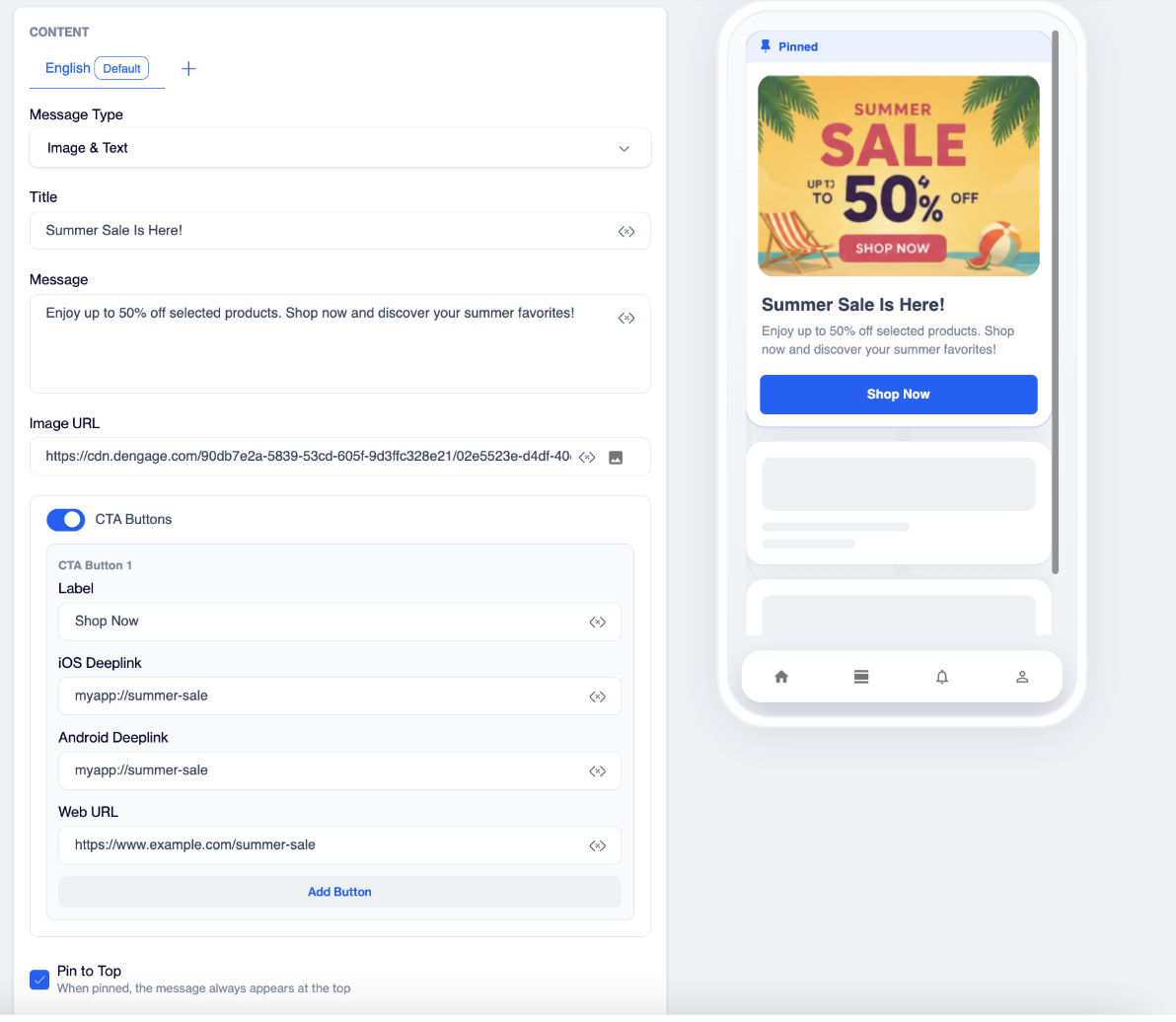
Inbox Content
- Select the language. Click + to add more languages and switch between the tabs. Each recipient receives the version matching their language, or the default language as a fallback.
- Choose the Message Type: Text (title + message), Image & Text (title + message + image), or Image (image only).
- Enter the Title and Message. Use the
<>icon to insert personalization variables (e.g., the user's first name). Variables are filled in per recipient at send time. - Optionally enable CTA Buttons. Each button has a Label and a destination per platform: iOS Deeplink, Android Deeplink, and Web URL. Button clicks are counted separately in reports.
- Optionally check Pin to Top to flag the message as pinned. Dengage delivers the flag; your app decides how pinned messages are displayed and ordered.
- Check the message with the Desktop / Mobile preview. The preview is a simulation, the final look depends on your app's Inbox screen.
- Finish with Test, Save Draft, or Publish.
Additional Info
- Test sends the message to test devices or contacts only. A test message lives 1 day and never appears in reports or segments.
- Save Draft stores your work without making it usable in campaigns. If the content was already published, the draft is saved as a separate version and the published version keeps working.
- Publish makes the content selectable in campaigns. Publishing does not send anything, delivery happens in the campaign.
Events
The channel is not one-way. Standard events carry back what the user did with each message:
| Code | Event |
|---|---|
IM | Impression |
OP | Open |
CL | Click |
DT | Delete |
For Custom Inbox applications, you can also define custom events in the panel and send them, for example, a completed call-center conversation. These events feed the channel's own report, and are available as segment filters for retargeting.
Campaign capabilities
For how to configure the Inbox Message node itself, content selection, application, expiry, and priority, see Inbox Message in Flow Campaigns > Action Nodes.
Supported Content: Content Version · Multi Language · Content Preview · Test Send Supported Campaign: Drop Condition · Google Analytics · Blackout · Priority · Random Split · Decision Split
Not available in this channel: Hourly Capping · Frequency Capping · Skip Permission · A/B · Optimize Channel / Optimize Time nodes · Transactional sends · Marketing Send Logs · Engagement Split · Conversion
FAQ
Do users need to grant notification permission?
No. Inbox delivery is independent of push permission, users who have turned notifications off are still reached. That is a core property of the channel.
What happens to messages received while the user was anonymous?
Nothing is lost. When the user later signs up, the messages accumulated anonymously merge into their Inbox. (Custom Inbox apps are the exception: they work over contacts only.)
Does the user see a different Inbox on each device?
No. A contact's messages are bound to the user, not the device, mobile, tablet, or web, the Inbox is the same.
How long do messages live?
Up to 7 days, the default and the maximum, selected on the campaign flow. Expired messages are removed automatically and never returned by the API.
What are IM, OP, CL, and DT?
The standard event short codes: IM (Impression), OP (Open), CL (Click), DT (Delete). Open and Click mark the message as read; Impression only feeds statistics; Delete removes the message from future responses. On Click, also send the tapped button's buttonId.
Why doesn't my test send appear in reports or segments?
Test messages (IDs prefixed B_TEST_) live for 1 day and are excluded from reports and segments by design. Use a real campaign send to verify reporting.
Is deduplication optional?
No, deduplication is always on. A user cannot receive the same campaign message twice.
What is messageDetails and what do I do with it?
messageDetails and what do I do with it?An opaque per-message server token returned with every message. Echo it back verbatim when reporting events for that message, otherwise the backend cannot attribute the interaction.
Why did my request return 400?
The most common causes: an invalid parameter value (limit, eventType), an unknown acc or appId, or the Inbox feature being disabled on the account. The response body's message field states the reason.
Why did I get an empty list?
Three legitimate reasons besides "no messages": the API returns 200 + empty list when data is temporarily unreachable; on mobile, the SDK returns an empty list when its prerequisites fail (SDK not started, no subscription, missing accountName, or inboxEnabled off); and on iOS specifically, if the SDK was never started the completion may never fire at all.
Why doesn't a deleted message disappear when I refetch?
Event processing is asynchronous, and the Web SDK additionally serves a 30-second cache. Remove the message from your local list the moment the user deletes it, that is the intended pattern on every platform.
Can I run A/B tests or transactional sends on Inbox?
No. A/B, Frequency Capping, Hourly Capping, Skip Permission, Optimize Channel/Time, Transactional sends, Marketing Send Logs, Engagement Split, and Conversion are not available in this channel.
Updated 2 months ago