
Time Zone Based Delivery
The Timezone Feature enables recurring campaigns to be delivered based on each recipient's local time zone, allowing for more personalized and timely communication. This feature is designed to improve user engagement by ensuring that messages, especially those that are time-sensitive like birthday greetings or special promotions, reach recipients at an optimal local time.
If a segment contains users in different time zones, the recurring campaign is sent according to the local time zone of each recipient.
In the app, this option is named Deliver in recipient's time zone and is part of the Trigger Periodically schedule of a recurring campaign.
How to Access
To set up timezone-based sending, follow these steps:
- Access Through Campaign Flows
- Go to Campaign > Flow Campiagns > Flows > New > Recurring.
- In the New Recurring Campaign screen, on the Settings step, locate Schedule Options.
- Select Trigger Periodically and tick Deliver in recipient's time zone.
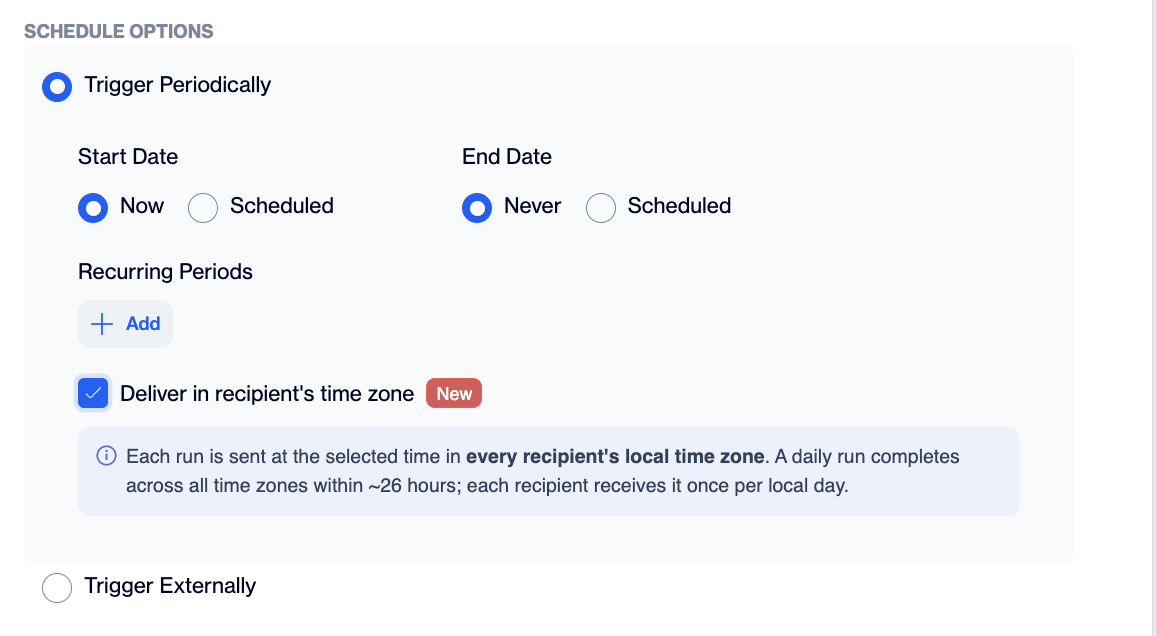
Deliver in recipient's time zone, Flows
- Access Through Content Section
- First, create and save your content.
- Once saved, publish the content, and click the Create Campaign button located in the upper-right corner.
- In the Scheduling Options section, select Time Zone - Based Delivery.
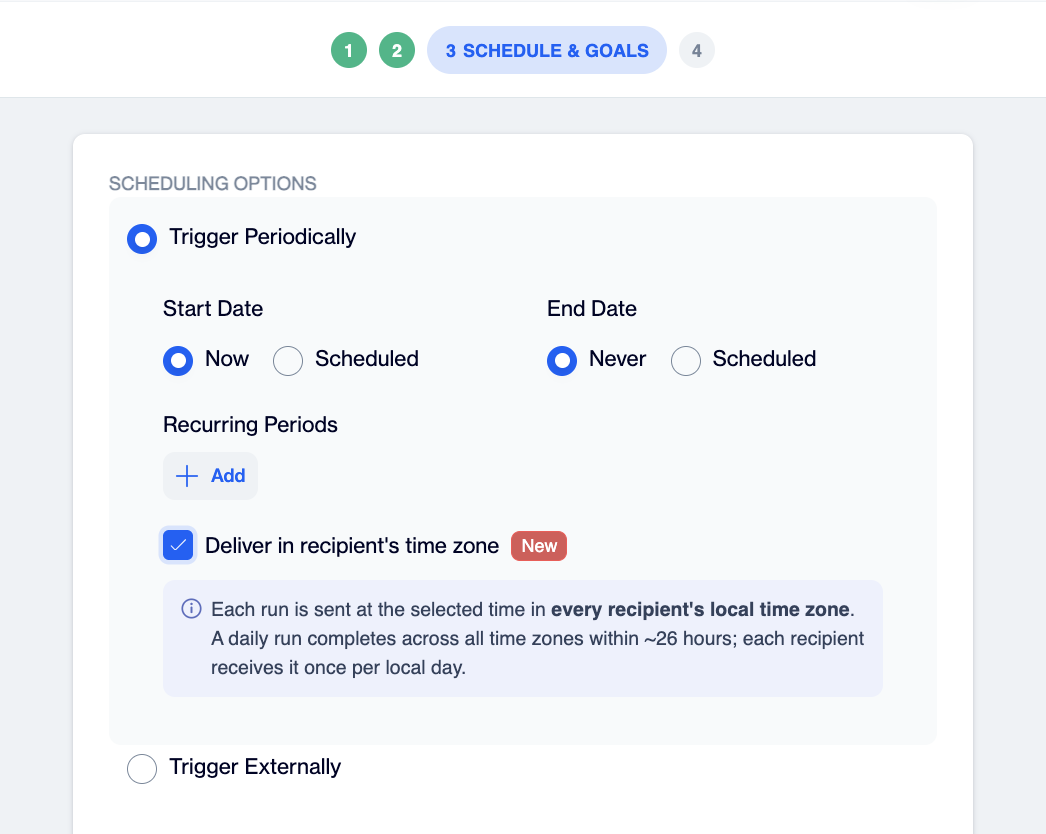
Time Zone - Based Delivery, Content
How to Use
You can enable delivery in the recipient's time zone from either the Flow Campaign screen or the Content Campaign Creation screen.
Initiate a New Recurring Campaign
- Start by navigating to Campaign > Flows > New > Recurring to create a new recurring campaign.
- Or start by navigating to Content > Create Campaign to create a new recurring campaign.
Enable Delivery in the Recipient's Time Zone
- In the campaign setup screen, go to Settings and locate the Schedule Options section.
- Select Trigger Periodically.
- Tick Deliver in recipient's time zone. When this option is enabled, each run is sent at the selected time in every recipient's local time zone. A daily run completes across all time zones within about 26 hours, and each recipient receives it once per local day.
Set the Schedule
The schedule of a time zone based campaign uses the same fields as any other periodically triggered recurring campaign:
- Start Date: Choose Now to activate the campaign immediately, or Scheduled to pick the date and time on which recipients in each time zone will begin to receive the campaign.
- End Date: Choose Never to keep the campaign running until you stop it manually, or Scheduled to pick the last date on which the campaign is sent, according to each recipient's local time.
- Recurring Periods: Click Add and set the frequency and the time of day. The time you select is applied in each recipient's local time zone.
No duration limitA time zone based recurring campaign can run for as long as you need. There is no maximum campaign duration, so a campaign that sends every morning in each recipient's local time can run for months without being re-created. Select Never as the End Date, or pick any end date you need.
Complete Campaign Setup and Launch
- Finalize Your Campaign;After configuring the scheduling, complete the remaining setup steps and review all campaign details. Once satisfied, finalize and launch your campaign, ensuring it will reach recipients at the intended times in their local time zones.
- Identify Timezone Campaigns;After launching the campaign, go to Campaign > Flows. In the campaign listing, look for the "world with clock" icon, which indicates that the campaign is set up as a time zone-based campaign.
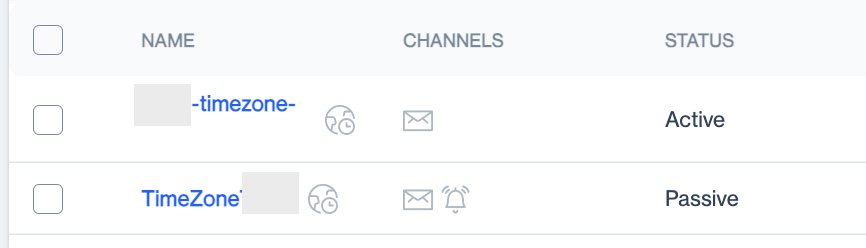
Time Zone Icon
- View Campaign Details;To see detailed information about the campaign:
- Click on the campaign in the listing.
- Navigate to the History tab.
- Review details such as, channels, start date, GMT, status, sent, and delivered metrics.
Positive GMT Offsets (Ahead of GMT)
- GMT+0: Greenwich Mean Time (Greenwich, London, Iceland)
- GMT+1: Central European Time (CET) - (Berlin, Paris, Madrid)
- GMT+2: Eastern European Time (EET) - (Athens, Istanbul, Cairo)
- GMT+3: Moscow Time (MSK) - (Moscow, Riyadh, Nairobi)
- GMT+4: Azerbaijan Time (Baku, Dubai)
- GMT+5: Pakistan Time (Islamabad, Karachi)
- GMT+6: Bangladesh Time (Dhaka)
- GMT+7: Indochina Time (Bangkok, Hanoi, Jakarta)
- GMT+8: China Time (Beijing, Hong Kong, Kuala Lumpur)
- GMT+9: Japan Time (Tokyo, Seoul)
- GMT+10: Eastern Australia Time (Sydney, Brisbane)
- GMT+11: Solomon Time (Solomon Islands, New Caledonia)
- GMT+12: Fiji Time (Fiji, New Zealand - Wellington)
Negative GMT Offsets (Behind GMT)
- GMT-0: Also Greenwich Mean Time (Greenwich, London)
- GMT-1: Azores Time (Azores Islands)
- GMT-2: South Georgia Time (South Georgia and South Sandwich Islands)
- GMT-3: Brazil Time (Buenos Aires, São Paulo)
- GMT-4: Atlantic Time (Caracas, Santiago)
- GMT-5: Eastern Time (EST) - (New York, Toronto, Lima)
- GMT-6: Central Time (CST) - (Mexico City, Chicago)
- GMT-7: Mountain Time (MST) - (Denver, Calgary)
- GMT-8: Pacific Time (PST) - (Los Angeles, Vancouver)
- GMT-9: Alaska Time (Anchorage)
- GMT-10: Hawaii-Aleutian Time (Honolulu)
- GMT-11: Samoa Time (Samoa, Midway Islands)
- GMT-12: Baker Island Time (Baker Island, Howland Island)
This list represents the standard fixed versions of time zones. Many countries observe Daylight Saving Time (DST), which may shift the time zone by one hour during specific periods.
Prerequisites
- A timezone column should be added to the master_contact and master_device_table tables.
- The timezone column must also be returned in the master_device view.
- Providing Timezone Data: Ensure that you include a valid IANA timezone name in the timezone column of the master_contact table. (You can use Zone_ID from the IANA Time Zone Database for reference.) If this column doesn’t contain a valid IANA timezone name for a segmented user, deliveries will default to the account’s defined timezone.
- Updating SDK Version: To populate the timezone column in the master_device table automatically, make sure you are using the latest SDK version.
- This timezone feature is specifically available for Recurring Campaigns only, with the Trigger Periodically option.
Updated 20 days ago