
Code Editor
The Code Editor is the full control option for building email content in Dengage. You write or paste your own HTML, watch a live preview as you type, and enrich the code with personalization tags, hosted images, dynamic content, unsubscribe links, and AMP interactivity. It is the right choice when your team already has coded templates or needs pixel level control that a drag and drop tool cannot give.
If you prefer designing without code, use the Email Builder or the Rich Text Editor instead.
This guide walks through creating an email with the Code Editor, every element of the screen, personalization, Gmail annotations, multi language versions, AMP emails, draft recovery, and the preview, test and publish flow.
Create a New Email with the Code Editor
- Go to Content > Marketing > Email. For transactional content, go to Content > Transactional > Email.
- Click New and choose Code Editor as the editor type.
- In the General step, enter a Name (required). The page title updates as you type.
- Optionally pick a Folder (default is Email Content; click Change Folder to move it) and add a Description.
- Click Next. The Content section unlocks and the Code Editor screen opens.
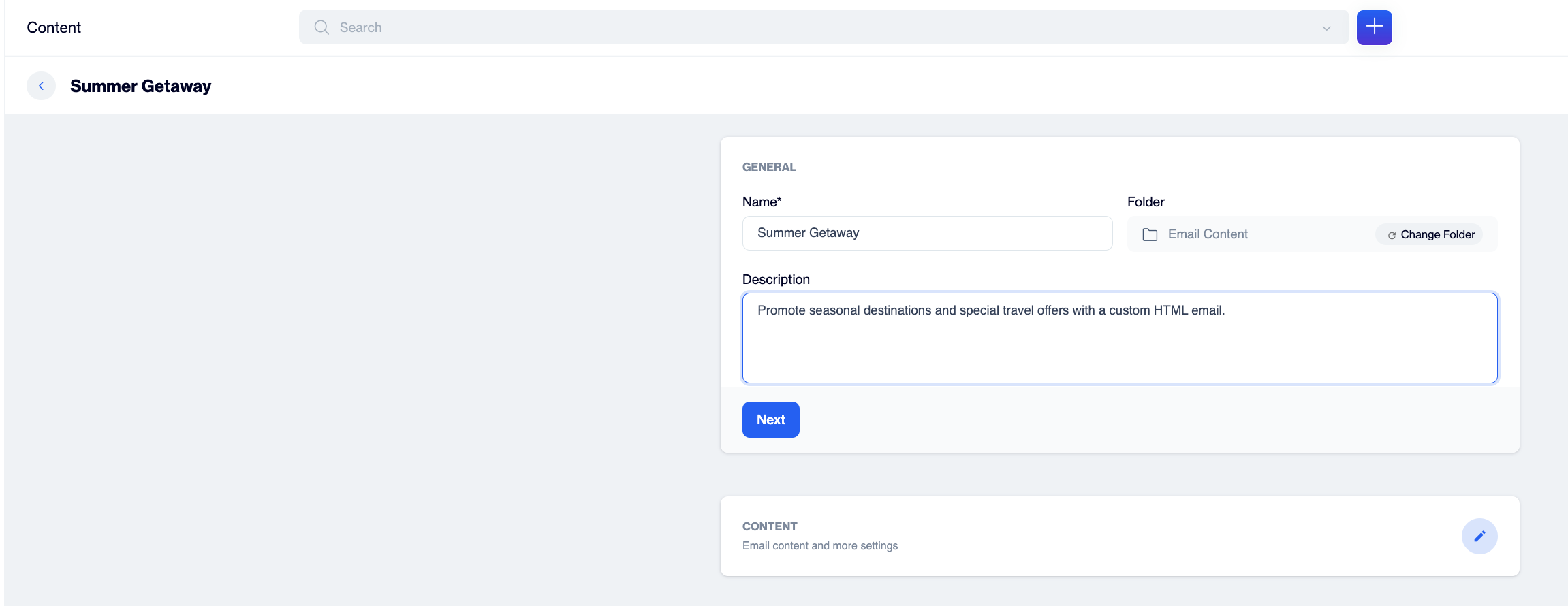
General step with Name, Folder and Description fields
NoteUntil the first save, the top of the screen reminds you that "There is no previously processed template saved in the system. After assigning a name to the content, you may proceed with your actions using this template." Give the content a name, then save a draft early so Preview & Test becomes available.
Get to Know the Screen
The screen has three areas: the action bar at the top, the content settings in the middle, and the code editor with its live preview at the bottom.
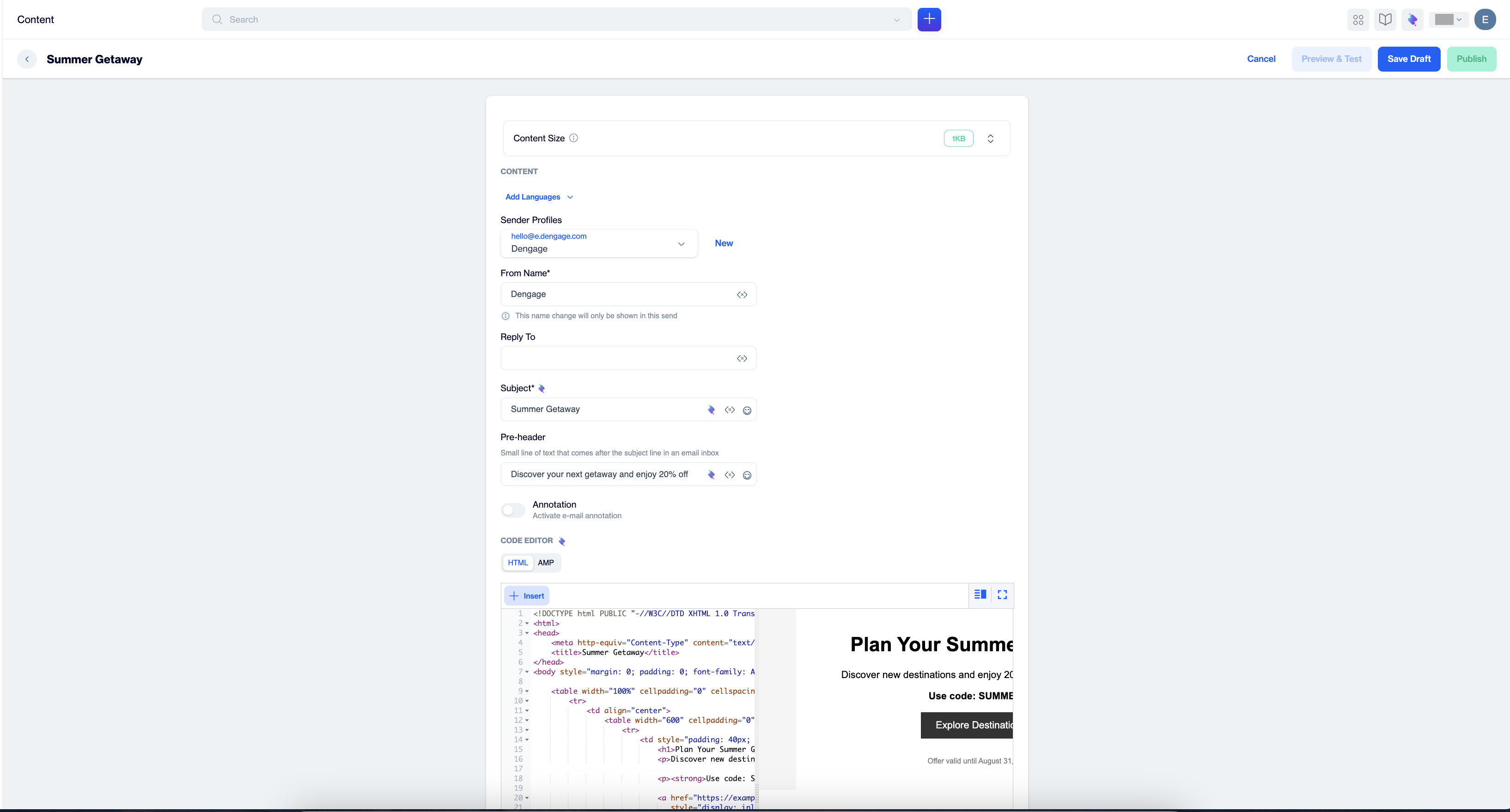
Code Editor
Action bar
Before the first save the bar shows Cancel, Preview & Test (inactive until a draft is saved), Save Draft and Publish.
After the first save the header gains more controls:
| Control | What it does |
|---|---|
| Pencil icon next to the name | Renames the content. |
| Info icon | Expands a metadata bar: Description (editable), Created By, Created On, Updated By, Updated On, and the content's Public ID with a one click copy button. |
| Folder chip | Shows the folder the content lives in. |
| Send for Approval | Starts an approval flow for this content. The dropdown also offers Open History to review past approval activity. Approval flows are configured under Settings > Approval Workflows. |
| More | Copy Public ID, Duplicate Template, and Delete. |
| Preview & Test | Opens the preview and test send window (see below). |
| Save Draft | Saves the template to the system. A toast confirms "Email template saved successfully". |
| Publish | Makes the content available for use in campaigns and flows. |
Content Size
The Content Size bar shows the current size of your email as a colored badge (for example 0KB when empty).
The info icon explains the limit: "Gmail clips emails larger than 102KB. Keep your content under this limit for best delivery."
Use the arrow control at the right of the bar to collapse or expand the panel.
Set Sender and Inbox Details
Sender Profiles
Choose which verified address the email is sent from. The dropdown is searchable and lists each profile as an email address with its display name. Click New to create a profile without leaving the editor. The New Sender Profile window asks for:
- Sender Domain: one of your verified sending domains.
- From Email: the local part; the domain is appended automatically.
- From Name: the display name recipients see next to the address.
From Name
Required. Prefilled from the sender profile, but you can override it. The note under the field is important: "This name change will only be shown in this send." The override does not change the sender profile itself. The </> icon lets you insert a customization tag, so the from name itself can be personalized.
Reply To
Optional address that receives replies. Also accepts customization tags via the </> icon.
Subject and Pre-header
Subject is required. Pre-header is the small line of text that appears after the subject line in the recipient's inbox; leaving it empty lets inbox providers pull random body text, so filling it is recommended. Both fields carry the same three icons:
| Icon | What it does |
|---|---|
| AI sparkle | Opens the AI Assistant. Type a prompt, optionally pick one of your AI Brand Personas (configured under Settings > AI Brand Persona), and click Generate to draft the text with Zeki AI. |
| </> | Opens the Customization Selector so the subject or pre-header can include personalized values such as the contact's name. |
| Emoji | Opens a searchable emoji picker with categories, and inserts the emoji at the cursor. |
Write Your HTML
The Code Editor section is where the actual coding happens. The HTML tab starts with a minimal XHTML skeleton; type or paste your full email HTML over it.
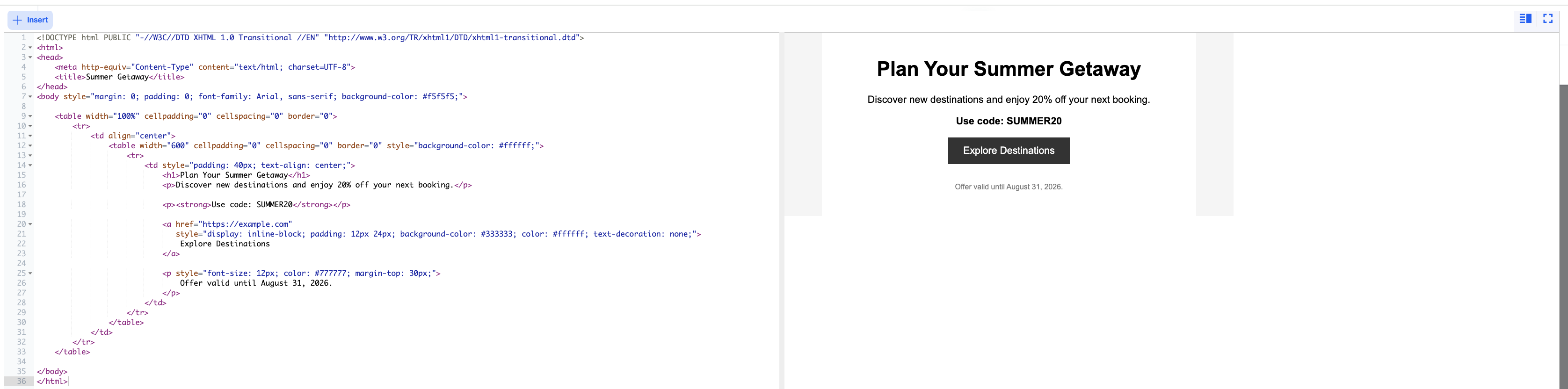
Code editor with live preview side by side
- Live preview: the rendered email appears next to the code and refreshes as you type.
- Editor comforts: line numbers, HTML syntax coloring, and code folding arrows for html, head and body blocks.
- View toggle: the split view icon switches between the default side by side layout and a horizontal layout with code above and preview below.
- Full Screen: expands the editor and preview to the whole window; the same icon returns to the normal layout.
- Size awareness: keep an eye on the Content Size badge while you work so the final email stays under the 102KB Gmail clipping limit.
The Insert Menu
Click + Insert in the editor toolbar to drop Dengage elements into your code. Position the cursor where the element should land before you insert; everything is inserted at the cursor.
| Menu item | What it does |
|---|---|
| Customization Tags | Opens the Customization Selector to insert personalized values. See the next section. |
| Unsubscribe Link | Inserts the unsubscribe link required in marketing emails. The tags are {{unsubscribe-link}} and, for brand level opt out, {{brand-unsubscribe-link}} (both also available under System Parameters in the Customization Selector). The unsubscribe page itself can be customized under Settings > Customized Unsubscribe Page. |
| View as Webpage | Inserts {{view-as-webpage-link}}, a link to the hosted browser version of the email. Wrap it in an anchor, for example <a href="{{view-as-webpage-link}}">View in browser</a>. |
| Image URL | Opens the Image Selector, a window into your Image Library: browse folders, page through images, or use Upload Image to add a new file on the spot. Select an image and click Add to insert its hosted URL at the cursor. |
| Dynamic Content | Opens Select a Dynamic Content with three tabs: Product Box, HTML and Plain Text. Pick a saved dynamic content to insert its reference, hover an item to edit it with the pencil icon, or click + to create a new one. Dynamic contents are managed under Content > Assets > Dynamic Contents. |
Personalize with Customization Tags
The Customization Selector opens from Insert > Customization Tags or from any </> icon (From Name, Reply To, Subject, Pre-header and the annotation fields). It has eight tabs; every tab has a search bar, and clicking a value inserts its tag at the cursor.
| Tab | What you insert |
|---|---|
| Contact Columns | Any column of your contact table, standard ones such as contact_key, email, name, surname, birth_date, plus every custom column your account has. |
| Device Columns | Device level attributes of the contact, for example device_type, device_brand, os, browser, app_version, last_activity_date. |
| Dynamic Contents (Plain Text) | Your saved plain text dynamic contents. |
| Columns From Segment | Click Select to pick a segment, then insert its columns. |
| Columns From Remote Segment | The same flow for remote segments. |
| Columns From Table | Click Select to pick a data table from your Data Space, then insert its columns. |
| System Parameters | Unsubscribe Link, Brand Unsubscribe Link, Campaign Name, Campaign Id and Send Id. |
| Coupons | Pick one of your coupon lists (the table shows Name, Description, Usable / Total, Creation Date and Status) to give each recipient a unique code. Coupon lists live under Content > Assets > Coupons. |
Flow and Targeting customizations do not mixThe selector warns: "This content already has Flow customization(s). You can only add Flow customizations, to add Targeting customizations you should remove existing Flow customizations." Decide which campaign type the content serves before you start tagging.
Gmail Annotations
Turn on the Annotation toggle ("Activate e-mail annotation") to enrich how the email appears in the Gmail Promotions tab, with deal badges, images or a product carousel.
The Annotation window first lists the prerequisites: the email should appear at the top of the promotion tab, and the official Gmail application must be used. A details link in the window leads to Google's documentation.
Pick one of four annotation types and fill its fields. Every field accepts customization tags through the </> icon, and dates can be picked from a calendar or supplied by a tag.
| Type | Fields |
|---|---|
| Deal | Description, Discount Code, Availability Start, Availability End. |
| Deal Card | Deal fields plus Offer Page Url and Merchant Home Page Url. |
| Single Image | One product card: Image URL (png or jpeg, aspect ratio 4:5, 1:1 or 1.91:1), Product URL, Short name, Price, Currency (ISO 4217 format such as USD), Discount. |
| Product carousel | The same card repeated for several products. |
Click Apply to attach the annotation to the email.
Create Multi Language Versions
Click Add Languages above Sender Profiles and choose how the new version starts:
- Copy from Content: start the new language from an existing content.
- Create Blank Email Content: start it empty.
The Select Language window then lists your account languages as checkboxes (English is the default variant). Tick the languages you need and click Apply; each language becomes its own variant with its own subject, pre-header and HTML. The available languages are managed under Settings > Campaign Configurations > Content Languages.
Preview, Test and Publish
- Save Draft. Preview & Test stays inactive until the system has a saved template.
- Click Preview & Test. Step 1, Preview, renders the email as an inbox would: subject line, from name with sender address, and the body. The Detailed Preview button opens a full page preview in a new browser tab.
- Click Next for step 2, Send Test. Choose Predefined Audience to send to one of your Testing Lists (managed under Audience > Testing Lists) or Type-in Addresses to enter recipients manually, then click Send Test Email.
- If your organization reviews content before sending, use Send for Approval; approvers are defined under Settings > Approval Workflows.
- When everything checks out, click Publish to make the content available to campaigns and flows.
Tips for Better Coded Emails
- Email clients render HTML very differently from browsers: prefer table based layouts and inline CSS, and always test in real inboxes through a Testing List before publishing.
- Keep the content under 102KB so Gmail does not clip it; the Content Size badge tells you where you stand.
- Marketing emails should always carry the unsubscribe link, and long emails benefit from a View as Webpage link at the top.
- Move repeated blocks (headers, footers, product boxes) into Dynamic Contents so one edit updates every email that uses them.
- Host images through the Image Library (Insert > Image URL) instead of linking external files, so URLs stay stable.
Frequently Asked Questions
Why is Preview & Test disabled?
The content has no saved template yet. Name the content and click Save Draft; the button becomes active immediately after.
Can I use both Flow and Targeting customizations in one content?
No. A content carries one family of customizations; to switch, remove the existing customizations first.
Why do some recipients not get my AMP version?
Their email client does not support AMP, so they automatically receive the standard HTML fallback. Also make sure the AMP code passed validation on save.
Can I personalize the subject line?
Yes. Use the </> icon next to the subject field to insert customization tags, or the AI sparkle to generate subject ideas with Zeki AI.
Where do the images, dynamic contents and coupons come from?
From your account assets: Image Library, Content > Assets > Dynamic Contents and Content > Assets > Coupons. The Insert menu only references them, so keep the assets themselves up to date.
AMP Email Editor
AMP email is a dynamic email format that lets recipients interact with content directly inside the message: filling out forms, answering surveys, browsing product carousels, or seeing live data, all without leaving their inbox (see AMP for Email). The Code Editor supports this through two tabs, HTML and AMP, so a single content carries both a standard version and an interactive AMP version, and each recipient automatically gets the version their inbox can display.
Prerequisites
- The AMP Email feature flag must be enabled for your account. Contact your account manager if the AMP tab is not active.
- Every AMP email needs a standard HTML version as a fallback. Build it first in the HTML tab; clients that do not support AMP receive it automatically. A fallback version is also a requirement of Google's approval program.
- To display AMP content to Gmail recipients, your sender address must first be approved by Google. This is a one-time registration per sender address; see Get Your Sender Address Approved by Google below. Until approval, Gmail recipients simply see the HTML fallback. Other providers that support AMP (Yahoo Mail, AOL Mail, Mail.ru) run their own separate approval programs; see Other Email Providers.
Build the AMP Version
- Build the standard version in the HTML tab first. As the banner in the AMP tab says, "In email clients that do not support AMP content, the standard HTML content will be used as a fallback." A View documentation button in that banner leads to further reading.
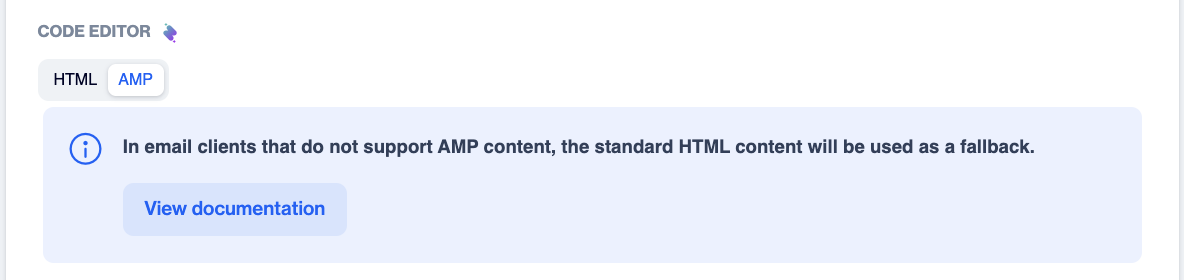
AMP tab with the fallback banner
- Switch to the AMP tab and write the AMP-compatible version. The AMP tab has its own Insert menu with Customization Tags, Unsubscribe Link, Image URL and Dynamic Content.
- Click Save Draft. The system validates the AMP code and shows validation messages that must be fixed before the AMP version is usable.
- At send time each recipient automatically gets the right version: AMP where the client supports it (and, for Gmail, once your sender address is approved), HTML everywhere else.
Test Your AMP Email
You do not need to wait for Google's approval to test AMP content on your own accounts:
- In Gmail, go to Settings > General > Dynamic email > Developer settings and whitelist your sender address for testing. This lets you verify that the AMP email renders correctly in your own inbox without waiting for approval.
- Send the test through your live (production) sending infrastructure; this also confirms that the production environment meets all of Google's requirements.
- In the editor, use Preview & Test to send to a Testing List or typed-in addresses, and check both versions: the AMP rendering in a whitelisted Gmail account, and the HTML fallback everywhere else.
NoteFor details on Gmail's testing options, see Google's guide Test dynamic email.
Get Your Sender Address Approved by Google
To send AMP-powered emails to Gmail users, senders must complete Google's approval (whitelist) process. It is a one-time application per sender address, and Google typically concludes its review within 5 business days. The process consists of the following steps.
Step 1: Define the sender address
Google grants approval on a per-sender-email-address basis, not per domain. Define a fixed sender address to be used for AMP sends (e.g. [email protected]). If emails will be sent from multiple addresses, a separate application is required for each one. In addition, the root domain of the sender address must serve a valid, accessible website belonging to your brand.
Step 2: Meet the technical prerequisites
The following conditions must be in place before applying for approval:
- SPF, DKIM, and DMARC authentication fully configured for the sender address
- Emails sent through production (live) servers consistent with these authentication records
- An HTML or plain-text fallback version included alongside the AMP content for clients that do not support AMP
- A low spam/complaint rate for the sender address
Step 3: Send a sample email to Google
As part of the application, send a real, production-quality AMP email to [email protected]. This email must not be a demo or "Hello World"-style example: it should reflect the content that will be used in real campaigns, work without bugs, and be sent from your production servers.
ImportantThe sample email must be sent directly to the address above. If it is forwarded, Gmail strips the AMP content and the sample becomes invalid.
Step 4: Complete the registration form
After the sample email is sent, complete Google's sender registration form (see also Google's Register with Google page). Google's review is typically concluded within 5 business days. Once approved, AMP-powered emails can be sent from the registered address to all Gmail users.
Step 5: Keep your approval
Whitelist approval is not a permanent right: keep spam rates low and maintain compliance with Google's sending policies. Google may revoke the approval in the event of policy violations or abuse.
Other Email Providers
The registration process above applies to Gmail only, and the resulting approval covers Gmail recipients only. Beyond Gmail, AMP for Email is also supported by providers such as Yahoo Mail, AOL Mail, and Mail.ru, but each of these providers has its own independent sender registration process, and being approved by Google does not enable AMP content on the others. A separate application must be made for each provider; if providers other than Gmail make up a significant share of your audience, we recommend planning their registration processes as well.
On email clients that do not support AMP, or where the sender address has not yet been approved, recipients always see the HTML/plain-text fallback version of the email, so delivery to the recipient is never disrupted.
Use Case
An online store promotes a product line: AMP-capable inboxes get an interactive email where recipients browse product details inside the message, while all other inboxes receive the standard HTML promotion.
Frequently Asked Questions
Why do some recipients not get my AMP version?
There are three usual reasons: their email client does not support AMP; the AMP code did not pass validation on save; or, for Gmail and similar providers, your sender address is not yet approved. In every case recipients receive the standard HTML fallback instead.
Can I test AMP emails before Google's approval?
Yes. Whitelist your sender address in your own Gmail account under Settings > General > Dynamic email > Developer settings, and send the test through your production infrastructure.
Do I need a separate approval for every sender address?
Yes. Google approves individual sender addresses, not domains, so submit a separate application for each address you will use for AMP sends. Other providers (Yahoo Mail, AOL Mail, Mail.ru) each require their own registration as well.
Updated about 1 month ago