
Using Recommendation Widgets in Email
The Recommendation Engine for Email allows you to include personalised product recommendations directly within your email campaigns. It helps you deliver relevant products to each recipient based on their behaviour, and defined recommendation rules.
With this feature, you can make your emails more dynamic and relevant by automatically displaying products that match each user’s interests and interactions. This helps increase engagement, improve click-through rates, and drive more conversions by presenting products that recipients are more likely to explore or purchase.
Prerequisites
Before using Recommendations, ensure that:
- The SDK is integrated.
- Analytics Event Definition is enabled.
- Product integration is completed.
How to Access
- Go to Content > Marketing > Email.
- Click the New button.
- Select the editor you want to use (Rich Text Editor, Code Editor, or Email Builder).
- Enter the required information such as Name and Description, then click Next to open the Content section.
To add the recommendation component:
- Rich Text Editor / Code Editor: Click Insert > Dynamic Content.Then, in the Dynamic Content panel, select Product Box from the first tab.
- Email Builder: Drag and drop the Dynamic Content component into the editor. Then select Product Box from the first tab.
After selecting Product Box, you can configure the Recommendation Engine to display personalised product recommendations in your email.
How to Use
To add a recommendation to your email, start by selecting Dynamic Content > Product Box. Here, you can either choose an existing Product Box or create a new one by clicking the + button.
Dynamic content can also be created from Content > Assets > Dynamic Contents. When creating a new dynamic content, enter a Name and click Next to start configuring it. The default Content Type is already set to Product Box.
Configure the Product Box
- Select a Layout
Choose how products will be displayed, such as 1 image, 2 images, 3 images, and so on. - Repeat Selected Layout
Define how many times the selected layout should repeat. - Product Source
Set the Product Source to Recommendation Dengage. - Recommendation Widget
Select the recommendation rule that will determine which products are shown.- Click Select to choose an existing rule.
- Click the + button to create a new rule.
- Use the pencil icon to edit an existing rule.
Recommendation rules can also be managed from Content > Assets > Recommendation Engine.
You can also control how the product box appears in the email with the following settings:
- Show Button – Toggle to display the action button.
- Show Price – Toggle to display the product price.
- Show Discounted Price – Toggle to display discounted prices.
- Text Align – Align text left, center, or right.
- Price Direction – Choose horizontal or vertical display for price information.
You can further customize the appearance using style settings: Title Style, Button Style, Padding, Margin, Price Style, and Discounted Price Style.
Once all settings are configured, make sure to click Save Draft to save your changes and Publish to make the product box available for use in your emails.
Configure the Recommendation Rule
When creating a recommendation rule, start by selecting the Strategy. The strategy defines how the system will generate product recommendations.
Recommendation Logic
Strategy
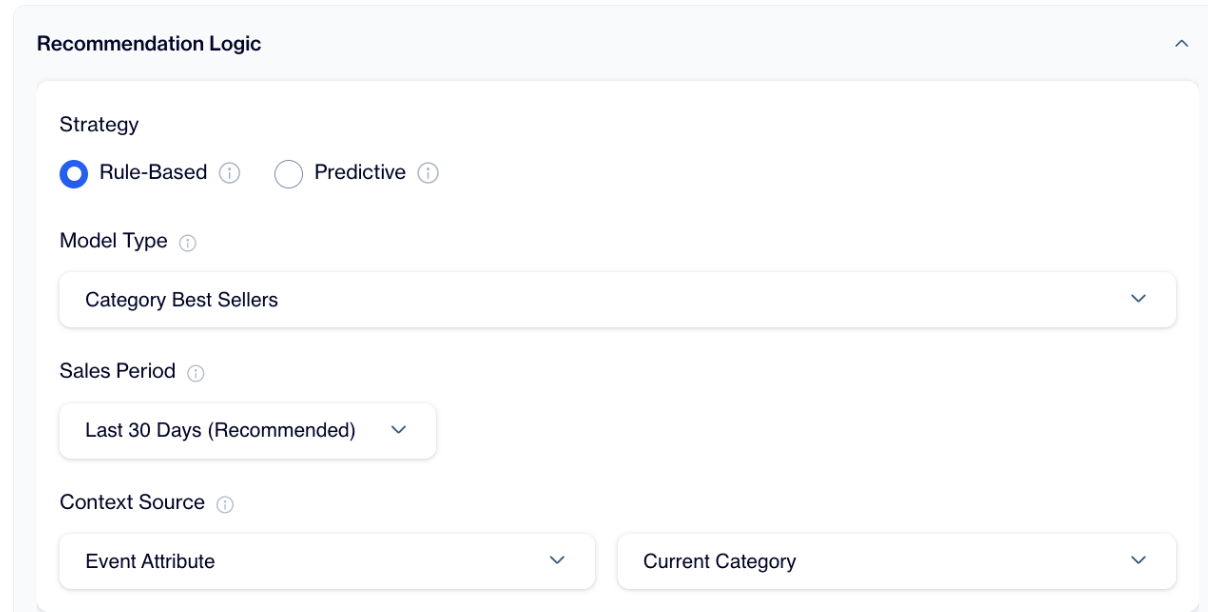
You can choose between Rule-Based and Predictive.
Recommendation Logic
Rule-Based recommendations use catalogue data and simple behavioural logic to determine which products should be displayed, such as best sellers, new arrivals, or discounted items.
Predictive recommendations use AI-powered models to analyse user and product behaviour and generate more advanced suggestions, such as similar items or products that are frequently bought or viewed together.
Model Type
After selecting the Strategy, choose the appropriate Model Type. The model type determines the specific logic used to select products. Some models work globally and do not require additional input, while others require a context to determine which product or category should be used as the reference for the recommendation.
For example, when selecting a category-based model such as Category Best Sellers, you must define a Sales Period to determine the time range used to calculate the best-selling products. The recommended option is Last 30 Days, which helps ensure that recommendations reflect recent product performance.
Context Source
For models that require context, you must also select a Context Source. This input is required and determines which product or category will be used as the reference for generating recommendations.
The context can be provided in different ways depending on the selected model type. You can define a static value, use a user attribute, or use an event attribute derived from user behaviour.
For category-based models such as Category Best Sellers, Category New Arrivals, or Category Discounted Products, the context must be a category. In this case, the category can be defined as a static category by entering a category path, selected from a user attribute such as Favourite Category, Last Viewed Product Category, or Last Viewed Category Page, or derived from an on-page event attribute such as the Current Category.
For product-based models such as Similar Items, Frequently Bought Together, or Frequently Viewed Together, the context must be a product. In this case, the product can be defined as a static product by entering a product ID, selected from a user attribute such as Favourite Product, Product in Cart, or Last Viewed Product, or derived from an on-page event attribute such as the Current Product.
Selecting the appropriate context source ensures that the recommendation engine generates relevant product suggestions based on either a specific product, a category, or user behaviour.
Output Settings
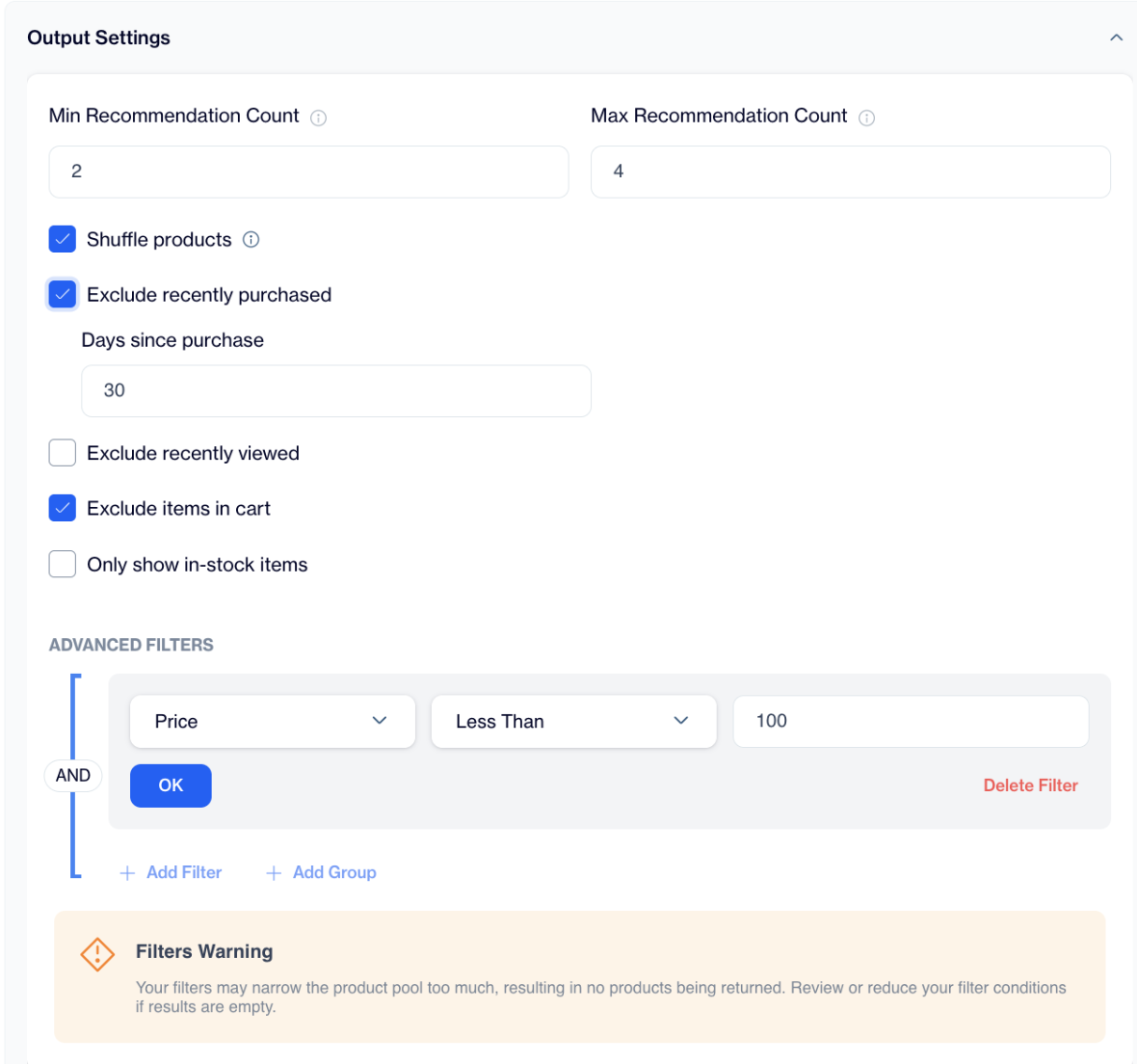
Define how many products will be displayed by setting the minimum and maximum recommendation count.
You can also decide whether to shuffle products, exclude recently purchased items, exclude recently viewed items, exclude items already in the cart or show only in-stock products.
Output Settings
These settings help you control product visibility and ensure users see relevant items.
If you need to narrow the product pool, use Advanced Filters.
Click Add Filter to define specific product conditions. You can also create filter groups and combine conditions using AND logic.
Keep in mind that adding too many restrictive filters may result in no products being returned.
Fallback Behaviour
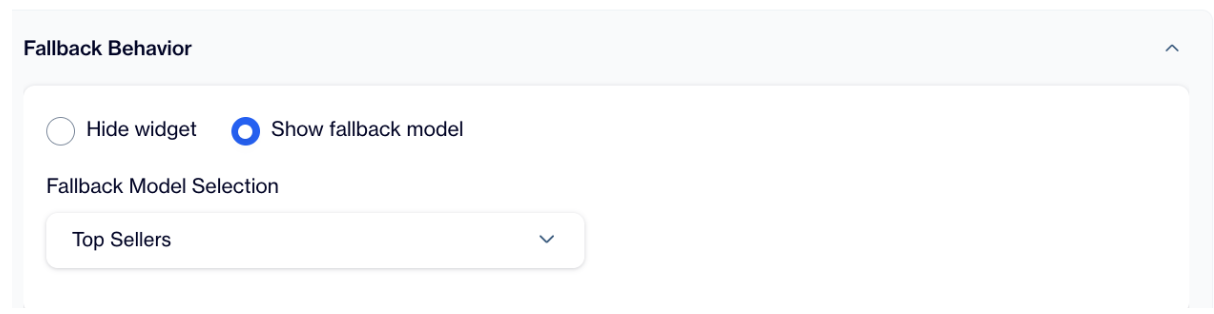
For email content, the recommendation block will always display products. To ensure relevant content is shown even if the primary recommendation model returns no products, you can select a Fallback Model from the dropdown menu.
Fallback Behaviour
This ensures that your email consistently displays products that are relevant to the recipient, maintaining engagement and improving the chance of conversions. Examples of fallback models include Top Sellers, New Arrivals, Discounted Products, or Last Visited Products, though other options are also available in the dropdown.
After configuring the recommendation logic, context, and any additional settings like sales period or filters, make sure to click Save & Publish. This ensures the recommendation rule is saved and immediately available for use in your product boxes.
The Recommendation Engine for Email lets you deliver personalised product recommendations that increase engagement and conversions. Once your product boxes and recommendation rules are saved and published, they are ready to use in your email campaigns.
Updated 3 months ago