
SmartTag with ZekiAI
Smart Tags group your customers automatically. Zeki AI, the AI engine in Dengage, reads your product catalog and your customer behavior. It then matches each customer with the tags that fit. You use these tags to build segments and target your campaigns.
You can work with Smart Tags in three ways:
- Use a tag that Zeki AI recommends, exactly as it is.
- Edit a recommended tag first, then use it.
- Create your own Smart Tag from scratch.
In this guide:
- How Smart Tags work
- How to create a Smart Tag
- How to use a recommended Smart Tag
- How to track the processing status
- How to edit, delete, and search Smart Tags
- How to use Smart Tags in segments
Before You Begin
- You need access to Audience > Tags. If you cannot see this menu, ask your account admin for permission.
- Your account needs product catalog data. Zeki AI tags products first.
- Your account needs customer behavior data, such as product views, add-to-cart actions, and purchases. Zeki AI uses this data to match customers with tags.
Key Terms
| Term | Meaning |
|---|---|
| Smart Tag | An AI-assisted tag. Zeki AI assigns it to products, then matches customers with it. |
| Tag Value | One category inside a Smart Tag. Each tag value has a label, a stored value, and an optional description. |
| Actively Used | The list of Smart Tags that are active in your account. |
| Recommended | The list of Smart Tags that Zeki AI suggests. These tags are inactive until you activate them. |
| Contact Count | The number of contacts that currently match the tag. |
| Status | The processing stage of the tag. |
| Nightly job | An automated process that runs once every night and matches contacts with Smart Tags. |
How Smart Tags Work
Smart Tags work in two phases.
- Product tagging. Zeki AI reads your product names, descriptions, and categories. It assigns the matching tag value to each product. This phase does not need any customer activity.
- Customer matching. Zeki AI follows customer behavior, such as product views, add-to-cart actions, and purchases. It links this behavior to the tagged products. It then places each customer under the matching tag values.
One customer can match several Smart Tags at the same time.
Example: You create a Smart Tag named product_interest with the tag values Electronics, Fashion, and Home. Zeki AI tags every product in your catalog with one of these values. A customer who views and buys headphones then matches the Electronics value.
Good to knowZeki AI builds recommendations from your own account data. Recommended tags and values differ from account to account.
Open the Smart Tag Tab
- In the left menu, click Audience.
- Click Tags.
- Click the Smart Tag tab. The other tab, List & Key Value, holds your standard tags.

The Smart Tag tab on the Tags page
The Smart Tag tab parts:
| Part | What it does |
|---|---|
| Actively Used | Lists the Smart Tags that are active in your account. |
| Search Smart Tag | Filters the Actively Used list by tag name. |
| Recommended | Lists the Smart Tags that Zeki AI suggests for your account. |
| + New | Opens the Select a type dialog to create a tag. |
Actively Used Columns
| Column | Description |
|---|---|
| Tag Name | The unique name of the tag. |
| Description | A short explanation of what the tag represents. |
| Tag Value | The labels of the tag values that belong to the tag. |
| Contact Count | The number of contacts that match the tag. The nightly job updates this number. |
| Status | The processing stage of the tag. See Track the Processing Status. |
| Three-dot menu | Opens the Edit and Delete actions for the tag. |
Create a Smart Tag
Create your own Smart Tag when you want full control over the name and the values.
- On the Tags page, click + New.
- In the Select a type dialog, click Smart Tag. The New Smart Tag page opens.
- In Tag Name, enter a unique name. Example:
product_interest. - In Description, explain what the tag represents. Example: "Groups customers by the product category that interests them most."
- Under Tag Value, fill in the first row. Enter the label in Enter tag label and the stored value in Enter tag value.
- Click + Add Tag and fill in the second row. Repeat for every value you need.
- To remove a row that you added, click the trash icon next to the row.
- Click Save in the top right corner. To leave without saving, click Cancel.
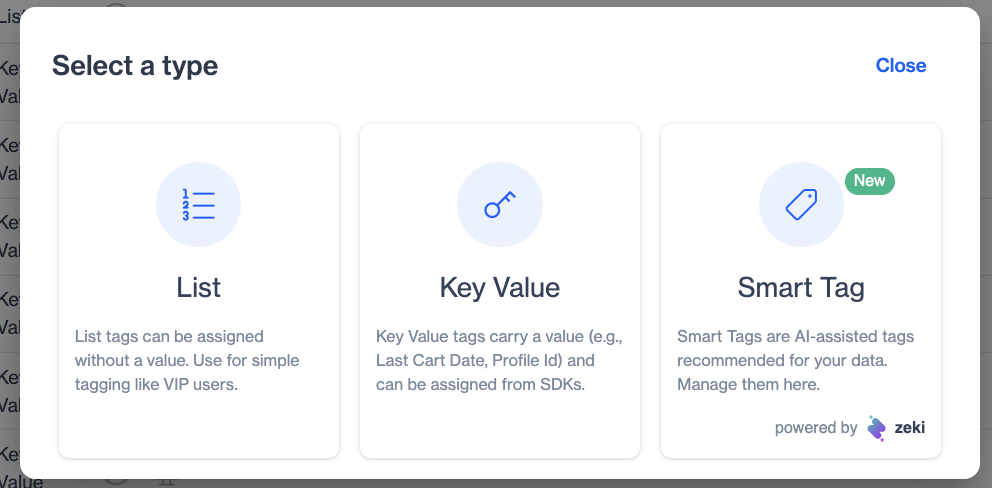
Choose Smart Tag in the Select a type dialog
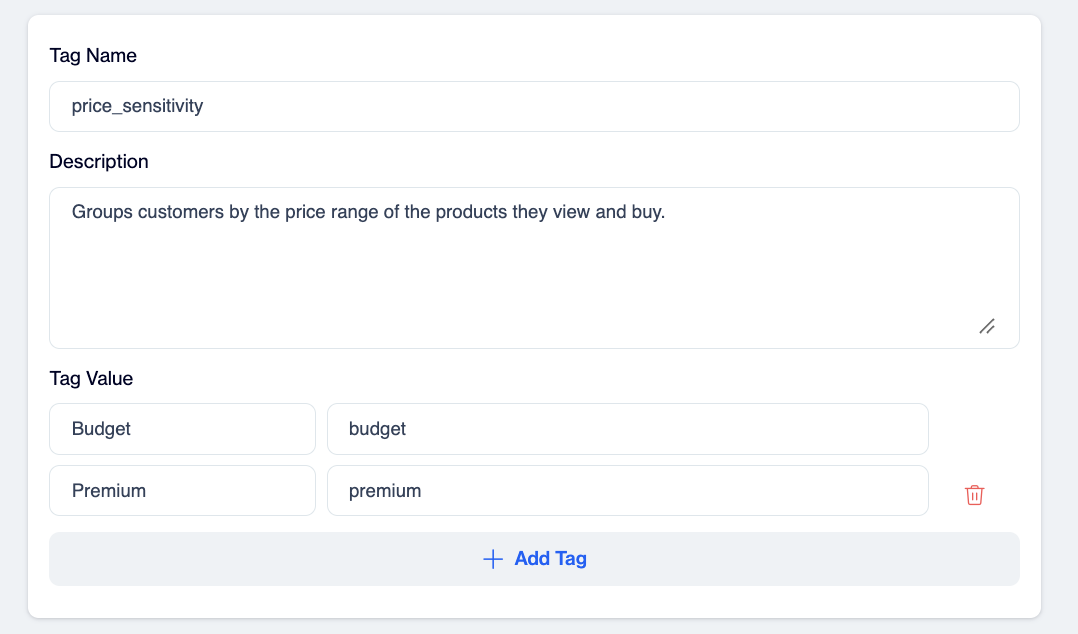
The New Smart Tag form
Field Reference
Tag Name: Enter a name that is unique within your account and clearly describes what the tag represents, so other users can easily understand its purpose. You cannot change the Tag Name after you publish the tag.
Description: Explain the meaning of the tag in more detail. Briefly describe how or why you use the tag. This field is required.
Tag Values: Smart Tags use a categorical structure, but the tag values are not predefined. Zeki AI analyzes your account's data and generates a list of recommended tag values dynamically. These recommendations vary by account because Zeki AI bases them on calculated insights. Review the suggested values and use the ones you need.
Define at least two tag values. The values represent the possible states or categories of the tag, such as different preferences or characteristics. For each value:
- Enter a label that users can easily recognize. The label supports up to 200 characters.
- Enter the value that the system stores.
- Optionally, add a description of up to 500 characters.
If you leave a required field empty, the form shows The field is required under that field.
Tips for Useful Tag Values
- Use categories that do not overlap. Example: Budget, Mid-range, and Premium.
- Use labels that match the words in your product catalog.
- Keep stored values short and consistent. Example: use lowercase letters and no spaces.
What Happens After You Save
- The tag appears in the Actively Used list.
- Dengage starts processing the tag in the background. You do not need to start anything.
- The Status column shows the progress until it reaches Done.
- The next nightly job matches contacts with the tag and fills in the Contact Count.
Use a Recommended Smart Tag
The Recommended section lists tags that Zeki AI suggests for your account. Each recommendation includes a name, a description, and example values. Recommended tags are inactive, so they do not affect your contacts or segments.
To activate a recommended tag:
- Scroll to the Recommended section.
- Check three things on the tag you want:
- The name and description match a customer group that you want to target.
- The tag values match categories that exist in your product catalog.
- No tag in the Actively Used list already covers the same group.
- Click Edit and Use.
- Change the name, the description, or the tag values if you need to.
- Click Save.
The tag moves to the Actively Used list, and Dengage starts processing it.
No recommendations yetIf the section shows this message, Zeki AI has no suggestions for your account at the moment. New recommendations appear here automatically. You can still create Smart Tags with + New.
How Smart Tag Processing Works
After you create or activate a Smart Tag, Dengage processes it automatically in the background. You do not need to trigger anything manually. Each tag moves through the stages below, and the Status column of the Smart Tag list shows its progress:
- The tag waits in the queue (NotStarted).
- Zeki AI updates the tag's product mappings (UpdatingMappings).
- Zeki AI tags the relevant products (TaggingProducts).
- The tag has processed all products and is ready (Done).
Processing time depends on the size of your product catalog and data. Accounts with very large catalogs can take up to a few hours.
The same cycle runs again when a tag changes. When you create or update a Smart Tag, Dengage reprocesses it automatically: the status moves to UpdatingMappings, then TaggingProducts, and returns to Done when all products are tagged.
An automated nightly job processes the tags that are defined as active and have the status Done, and matches them with the relevant users. This means:
- A Smart Tag does not match users instantly. Matching happens during the nightly run, after the tag reaches the Done status.
- The Contact Count of a tag fills in after the first nightly matching run and refreshes on later runs as user behavior changes.
Smart Tag Status Definitions
| Status | Description |
|---|---|
| NotStarted | The tag is queued and waiting for processing. |
| UpdatingMappings | Zeki AI is updating the tag's product mappings. |
| TaggingProducts | Zeki AI is tagging the relevant products. |
| Done | Zeki AI has tagged all products, and the tag is ready. |
UpdatingMappings and TaggingProducts are informational statuses and do not block usage: you can still use the tag while Zeki AI tags its products in the background. Statuses update automatically as processing progress.
Using Smart Tags in Segmentation
After you create Smart Tags, you can use them to build audiences in segmentation:
- Go to Audience > Segments and click New.
- Choose Interactive as the segment type, then enter a segment name and description.
- After you create the segment, click Add Inclusion Filter and select Smart Tag as the condition:
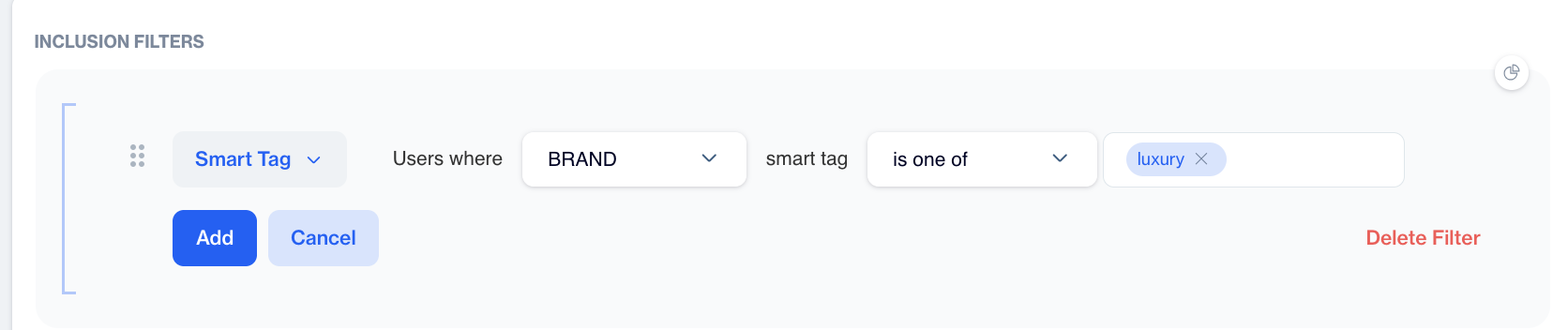
Adding a Smart Tag condition to a segment
- Save the segment to include the users who match the selected Smart Tag conditions.
Operators
| Operator | The filter selects |
|---|---|
| has any value | Contacts that match the Smart Tag with any of its tag values. |
| is one of | Contacts that match at least one of the tag values you select. |
| is not one of | Contacts that match none of the tag values you select. |
More Filter Options
- To remove contacts with a certain Smart Tag from the audience, click + Add Exclusion Filter and choose Smart Tag.
- To combine a Smart Tag with other conditions, click + Add Filter again or click Add Group.
- To remove a filter, click Delete Filter.
Example: To reach electronics fans who did not buy recently, add two filters. Include Smart Tag product_interest is one of Electronics. Then exclude contacts with a recent order event.
Troubleshooting
| Problem | Likely cause | Solution |
|---|---|---|
| The Contact Count is 0. | The tag is not Done yet, or the nightly job has not run since it reached Done. | Check the Status column. Check the count again the next morning. |
| The Contact Count is still 0 after two nights. | No customer behavior matches the tagged products, or no product matches the tag values. | Check that the tag values match your catalog. Check that product view and purchase events reach Dengage. |
| The form shows "The field is required". | A required field is empty. | Fill in Tag Name, Description, and both fields of every Tag Value row. Remove empty rows with the trash icon. |
| The Recommended section is empty. | Zeki AI has no suggestions for your account yet. | Create Smart Tags manually with + New. |
| The Smart Tag does not appear in the segment builder. | The tag is not in the Actively Used list. | Activate the recommended tag with Edit and Use, or create the tag. |
FAQ
Why is the Contact Count of my tag 0?
The tag may not have finished processing yet (check that its status is Done), or the nightly matching job has not run since the tag reached the Done status. Contact Count fills in after the first nightly run following completion.
Why don't I see any recommended Smart Tags?
Recommendations are generated by Zeki AI from your account's data and appear automatically when available. Until then, you can create Smart Tags manually with the + New button.
Can a customer belong to more than one Smart Tag?
Yes. Customers are grouped under every Smart Tag that matches their behavior across different product types.
Can I change the Tag Name after publishing?
No. The Tag Name cannot be changed after the tag is published. If you need a different name, create a new Smart Tag and delete the old one.
How often are users matched with Smart Tags?
Matching runs once a day: active tags with the status Done are processed by an automated nightly job and matched with the relevant users.
Updated 24 days ago