
Approval Workflows
he Approval Workflow ensures that campaigns and content created in Dengage pass through a defined approval process before they go live. The person who creates the content is separated from the people who review and approve it. Nothing can be published until every required approval level has signed off.
You can configure 1 to 5 approval levels (for example Team Lead, then Brand, then Legal), run them in sequential order or in parallel, and define a different flow for each area of the platform, all from a single settings screen.
- Fewer mistakes: content is reviewed before it reaches customers, reducing the risk of erroneous sends.
- Quality and brand compliance: every campaign gets a second (or fifth) pair of eyes.
- Governance and audit: enforces separation of duties and keeps a complete, timestamped approval history for every item.
- Flexibility: each module (Campaign, Marketing, Transactional) has its own independent flow, mode, and approvers.
Key terms
| Term | Meaning |
|---|---|
| Content creator | The user who creates or edits the content and sends it for approval. |
| Approver | A user assigned to an approval level who can approve or reject a submission. |
| Approval level | One review step (for example "Team Lead"). Each level has one or more approvers, and any one of them can approve on behalf of that level. |
| Sequential mode | Levels approve in order: Level 1 first, then Level 2, and so on. |
| Parallel mode | All levels are notified at once. Each level must still approve, in any order. |
Statuses at a Glance
Draft → Send for Approval → Waiting for Approval → all levels approve → Approved → Publish → Live
If any level rejects, the item returns to the content creator as Rejected, together with the rejection reason. After edits, it can be sent for approval again.
| Status | Color | Meaning | What you can do |
|---|---|---|---|
| Draft | Gray | Created, not yet submitted | Edit, send for approval |
| Waiting for Approval | Orange | In the approval process | Editing is locked; approvers act |
| Rejected | Red | Rejected at a level, back with the content creator | Edit and resubmit |
| Approved | Green | All levels completed | Publish (with Publish permission) |
Approved does not mean live. Publishing is a separate, deliberate step. In list views, an approved but not yet published item shows as Waiting Publish. After publishing, the campaign's normal operational statuses (Scheduled, Running, Completed and so on) take over. These are independent of the approval statuses.
Prerequisites
- The Approval Workflow feature must be enabled for your account. While it is off, the classic single-step publish flow applies and no approval UI is shown.
- The right permissions:
| To | You need |
|---|---|
| Configure workflows | Change account settings permission |
| Create or edit content | The usual Create and Edit permissions for that module |
| Approve | The module's Approve permission and assignment to an approval level |
| Publish | The module's Publish permission (separate from Approve) |
- Review the default flow after activation. When the feature is first enabled, Dengage automatically creates a single-level workflow for each tab, with all users who hold Publish permission assigned as Level 1 approvers. Items already pending approval carry over to this Level 1. Admins should tighten this default to the levels and approvers you actually want.
- Approvers are notified by email, so their user email addresses should be up to date.
Granting the Approve permission
To grant the Approve permission, go to Settings > Identity & Access Management > Roles and Permissions and open the role you want to edit. An Approve toggle is available under Campaign, Marketing Content, and Transactional Content; enable it in each module where the role's users should be able to review submissions. Only users holding a module's Approve permission can be assigned to that module's approval levels. For more details on managing roles, see the Roles and Permissions guide.
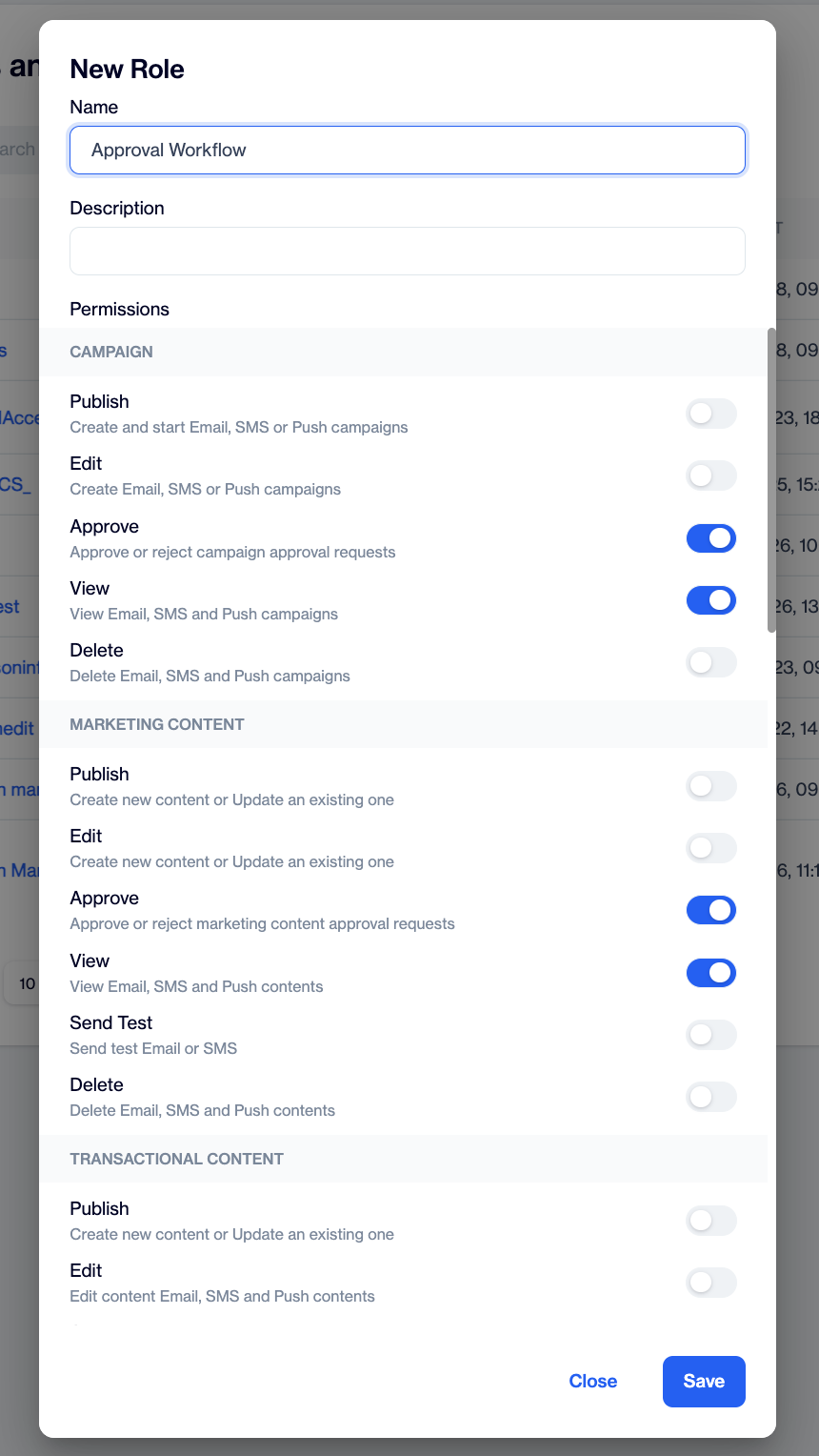
Role Details with the Approve toggle
How to Access
To open the configuration screen, go to Settings > Approval Workflows.
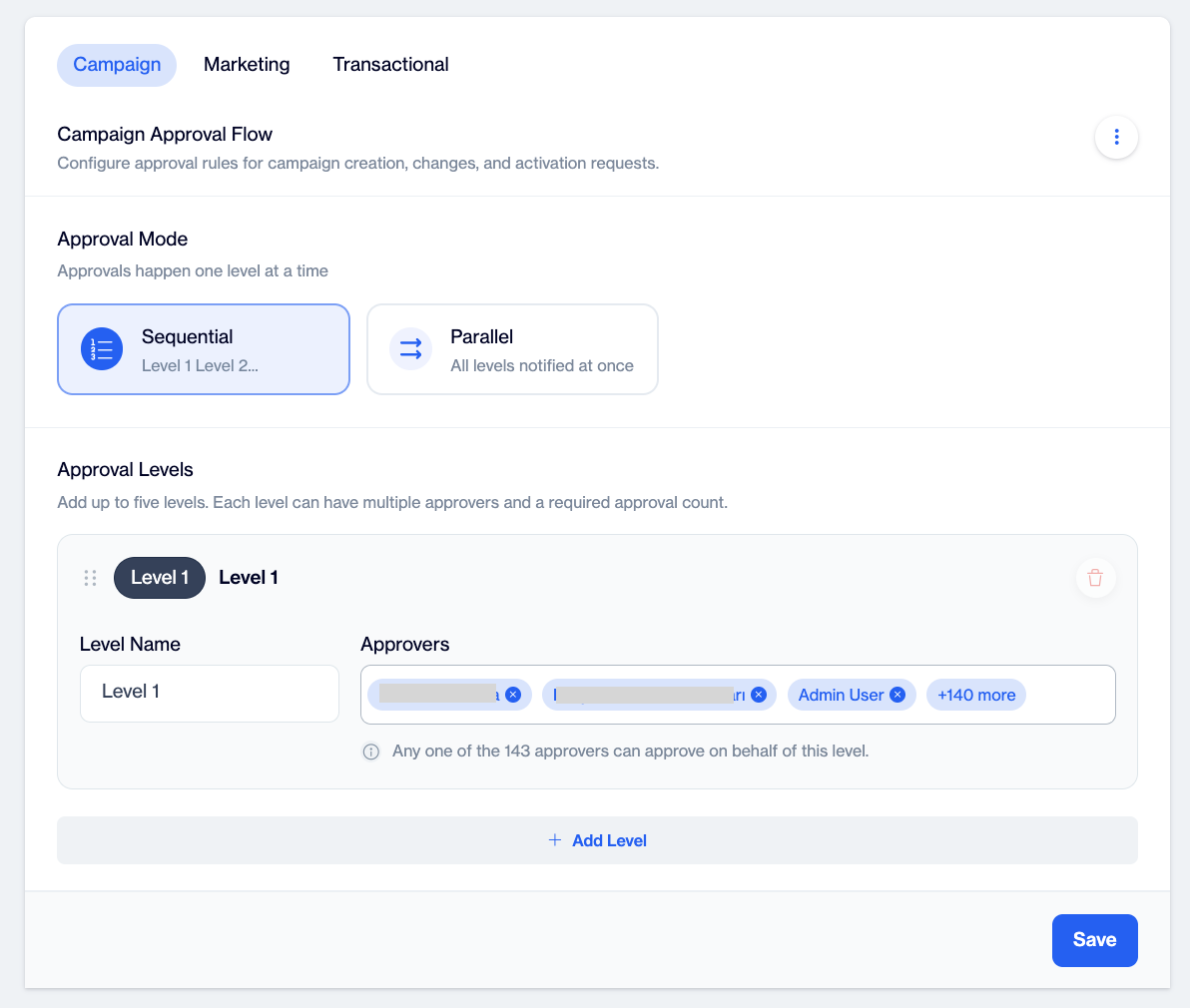
Approval Workflows settings screen
The screen has three tabs, Campaign, Marketing, and Transactional: one independent flow per module, covering all channels within that module. Each tab is configured and saved separately; changing one never affects the others.
Only users with Change account settings permission can open this configuration screen. Content creators and approvers do not need it; they work from the campaign and content editors described in the Sending Content for Approval and Reviewing a Submission sections.
Setting Up a Workflow (Admins)
- Pick the tab for the module you want to configure (Campaign, Marketing, or Transactional).
- Choose the approval mode:
- Sequential: each level is asked only after the previous one approves. Best when order matters (for example, Legal reviews last).
- Parallel: all levels are notified at once and review simultaneously. Every level must still approve.
- Build your levels (1 minimum, 5 maximum, via Add Level):
- Give each level a meaningful name (for example Marketing Lead, Brand, Legal).
- Add approvers. Only users holding that module's Approve permission can be assigned.
- Drag the handle to reorder levels; use the trash icon to remove one.
- Click Save. The tab saves only when every rule below is met:
- At least 1 level, at most 5.
- Every level has a name and at least one approver.
- The same user cannot sit in more than one level of the same flow.
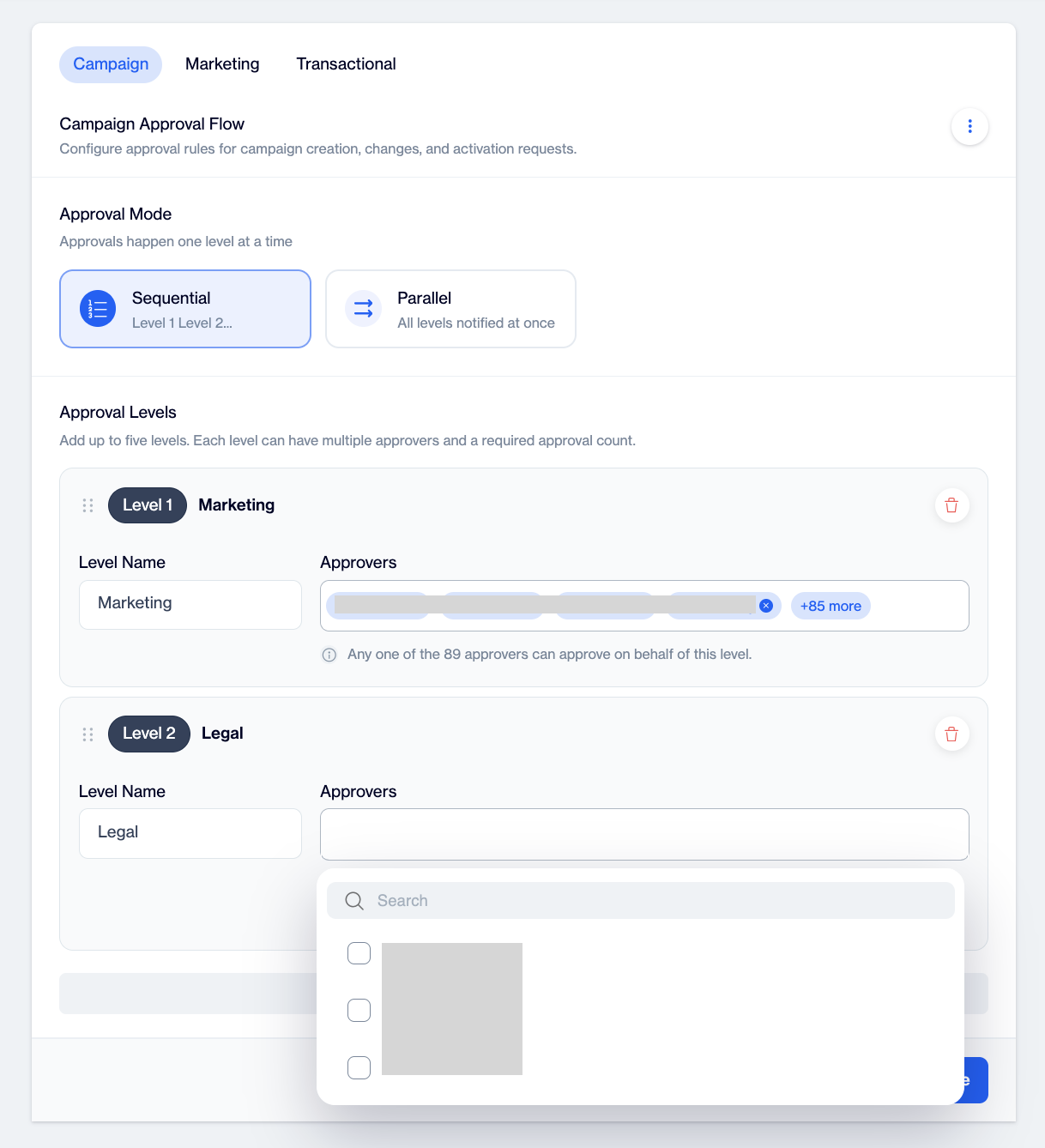
Workflow configuration with approval levels
Copying a flow between tabs: open the ⋮ menu on the flow header and choose Copy from another flow or Copy this flow to another. A picker shows each flow's summary (mode, level count, approver count). Copying overwrites the target tab's configuration; you are warned first, and nothing is stored until you click Save.
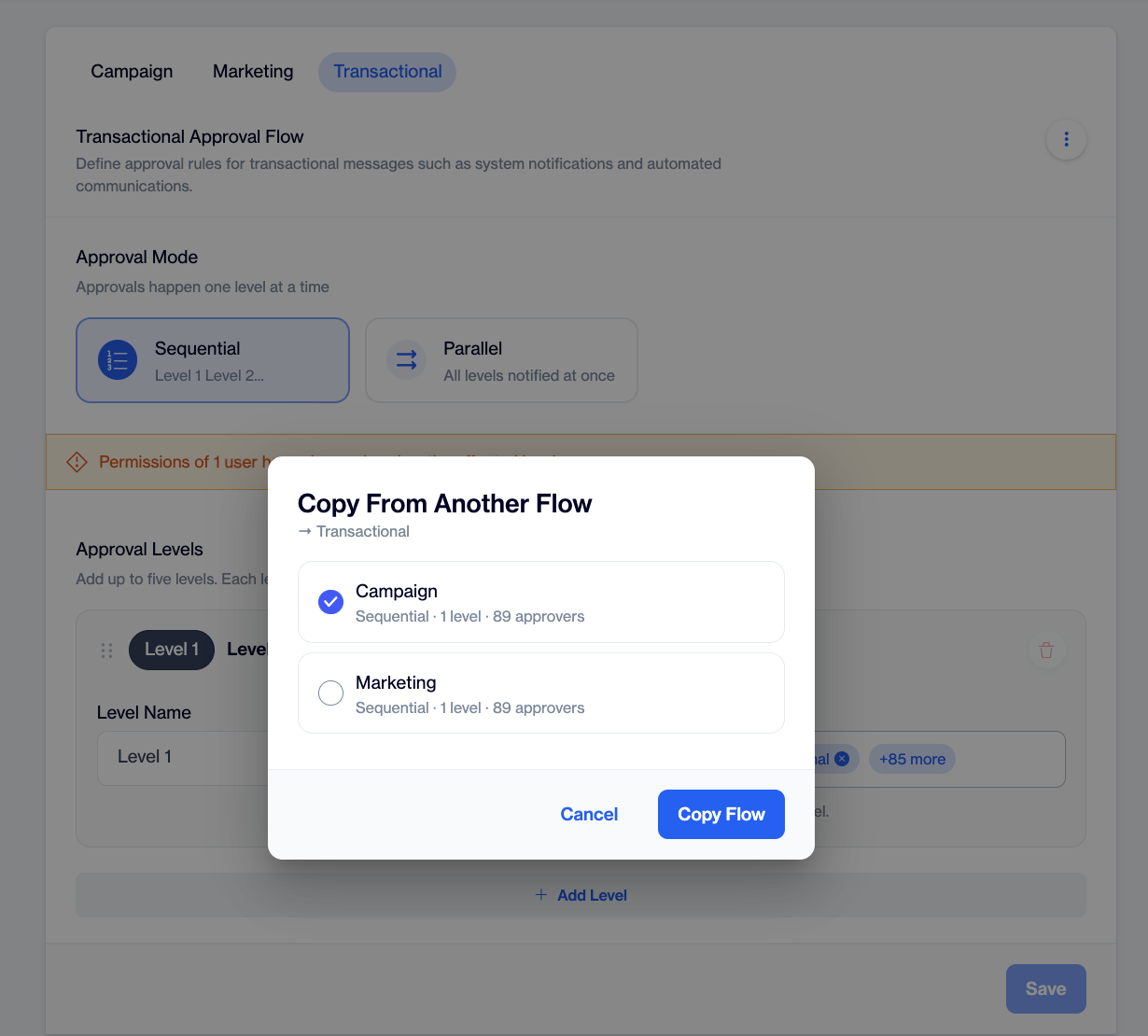
Copy flow
Sending Content for Approval (Content Creators)
-
Create or edit your campaign or content as usual. It starts as Draft.
-
When ready, click Send for Approval in the top action bar. A confirmation window shows the flow the item will enter and its approvers. Confirm to submit.
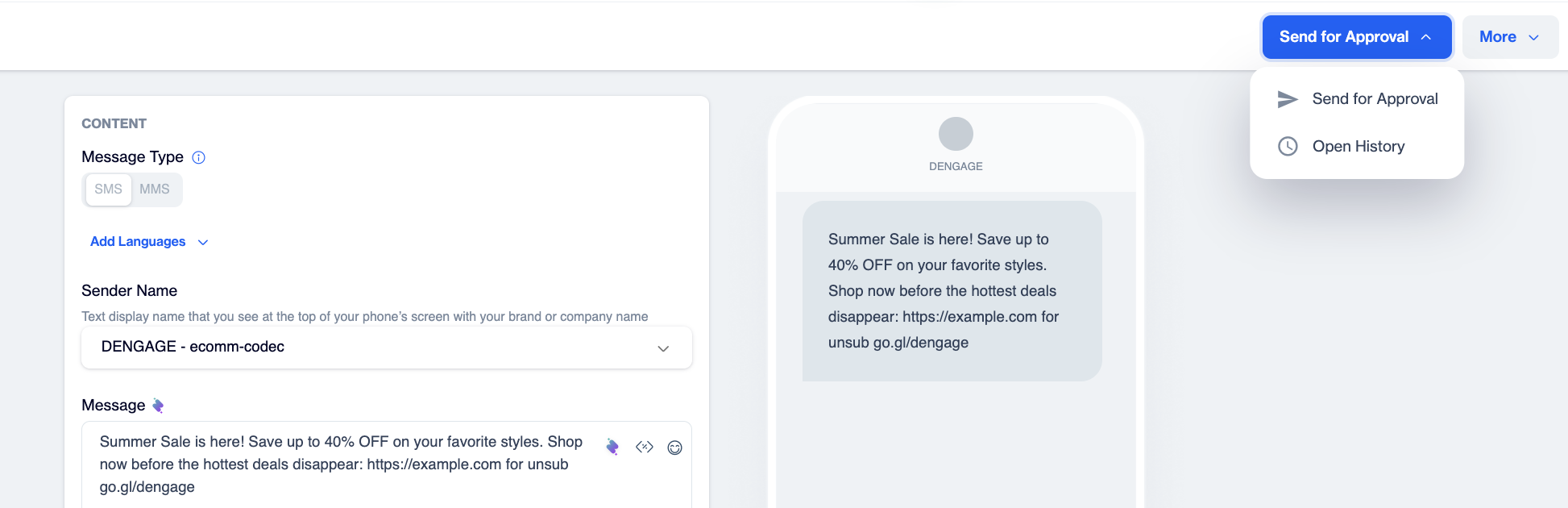
Send for Approval button
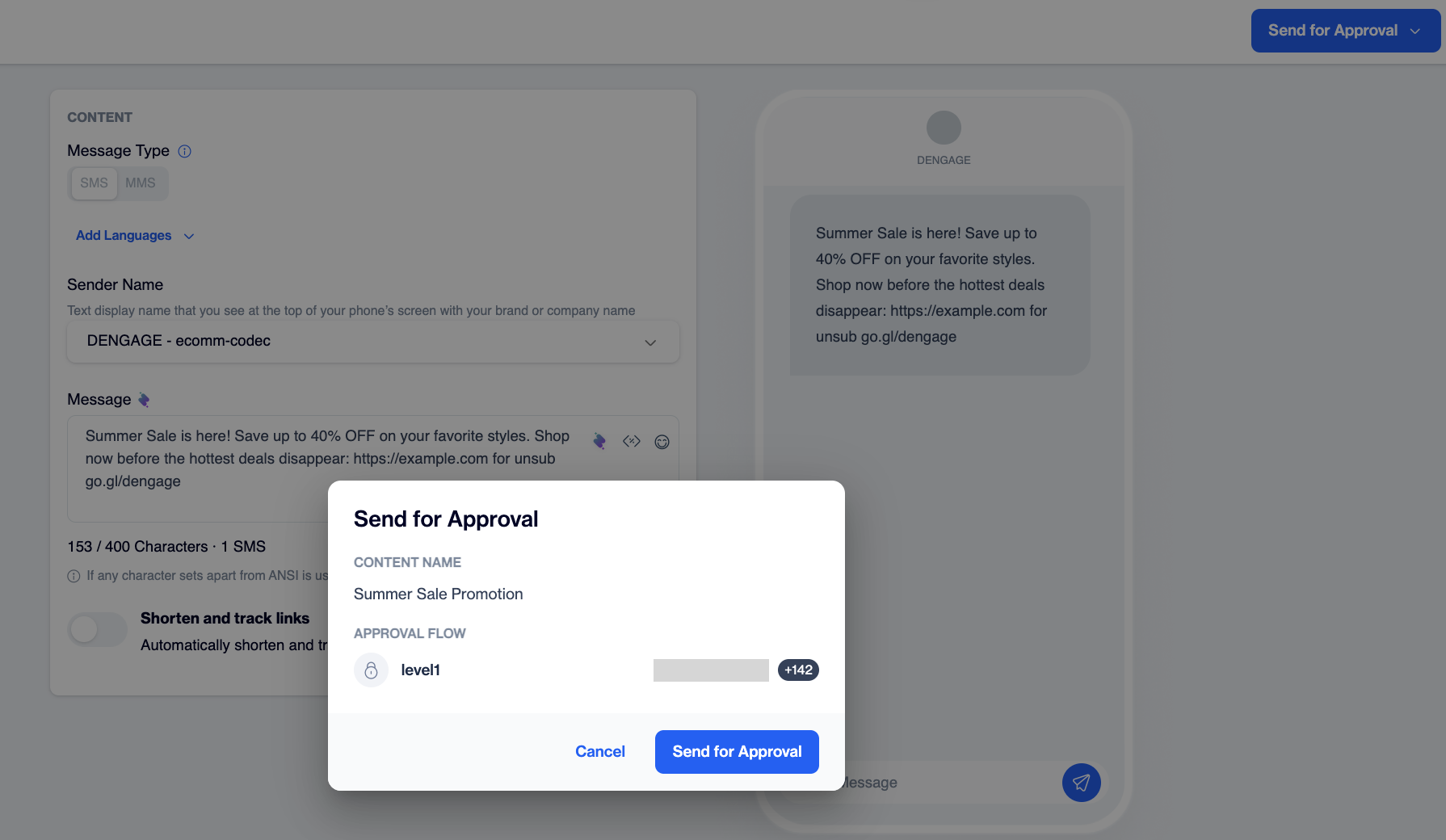
Confirmation window
-
The status badge changes to Waiting Approval (0/1) and the item becomes read-only; you cannot edit while it is in review. The counter updates as approvals come in.
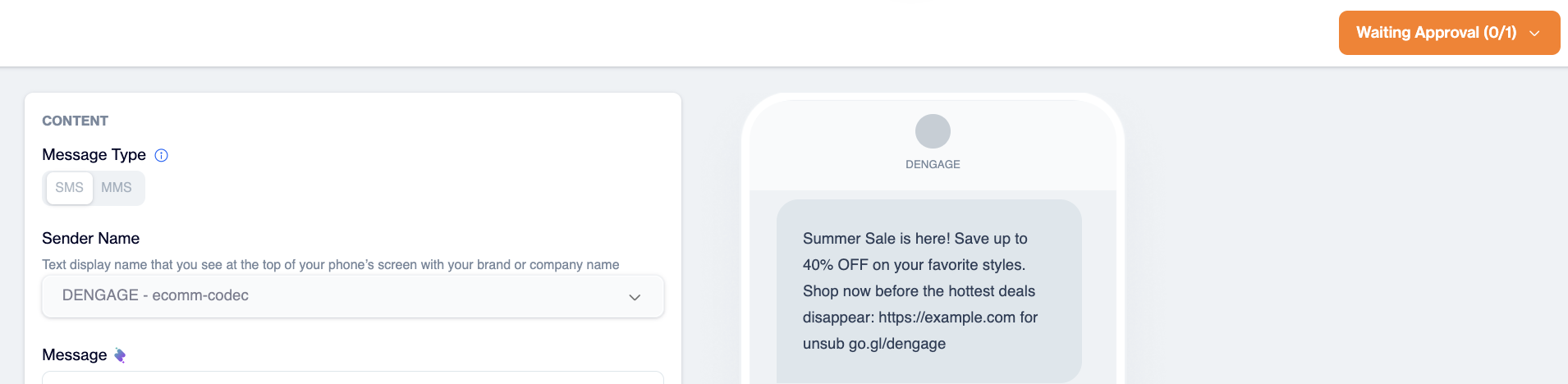
Waiting Approval (0/1)
-
Follow progress anytime via the status badge > History.
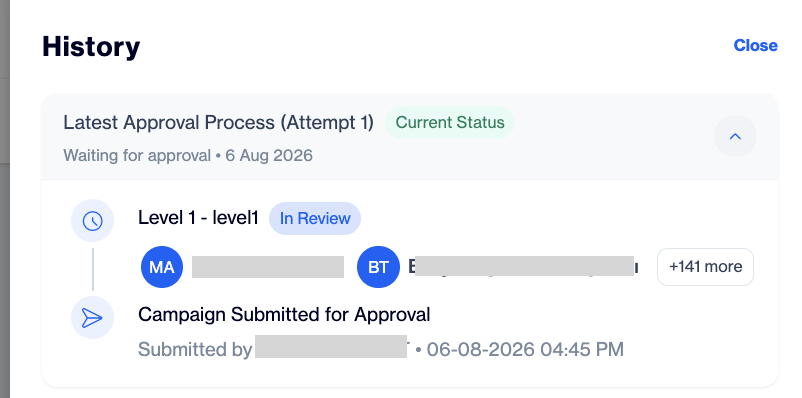
History
-
If it is rejected, the status turns Rejected and you are notified by email. Open History to read the rejection reason, make your edits (the item is editable again), and click Send for Approval to resubmit. The approval process restarts from the beginning, and earlier rounds stay in History.
-
If it is approved, the status turns Approved, and you (or a colleague) with Publish permission completes the final Publish step.
Reviewing a Submission (Approvers)
-
You receive an email when a submission needs you: immediately in Parallel mode, or when your level's turn comes in Sequential mode.
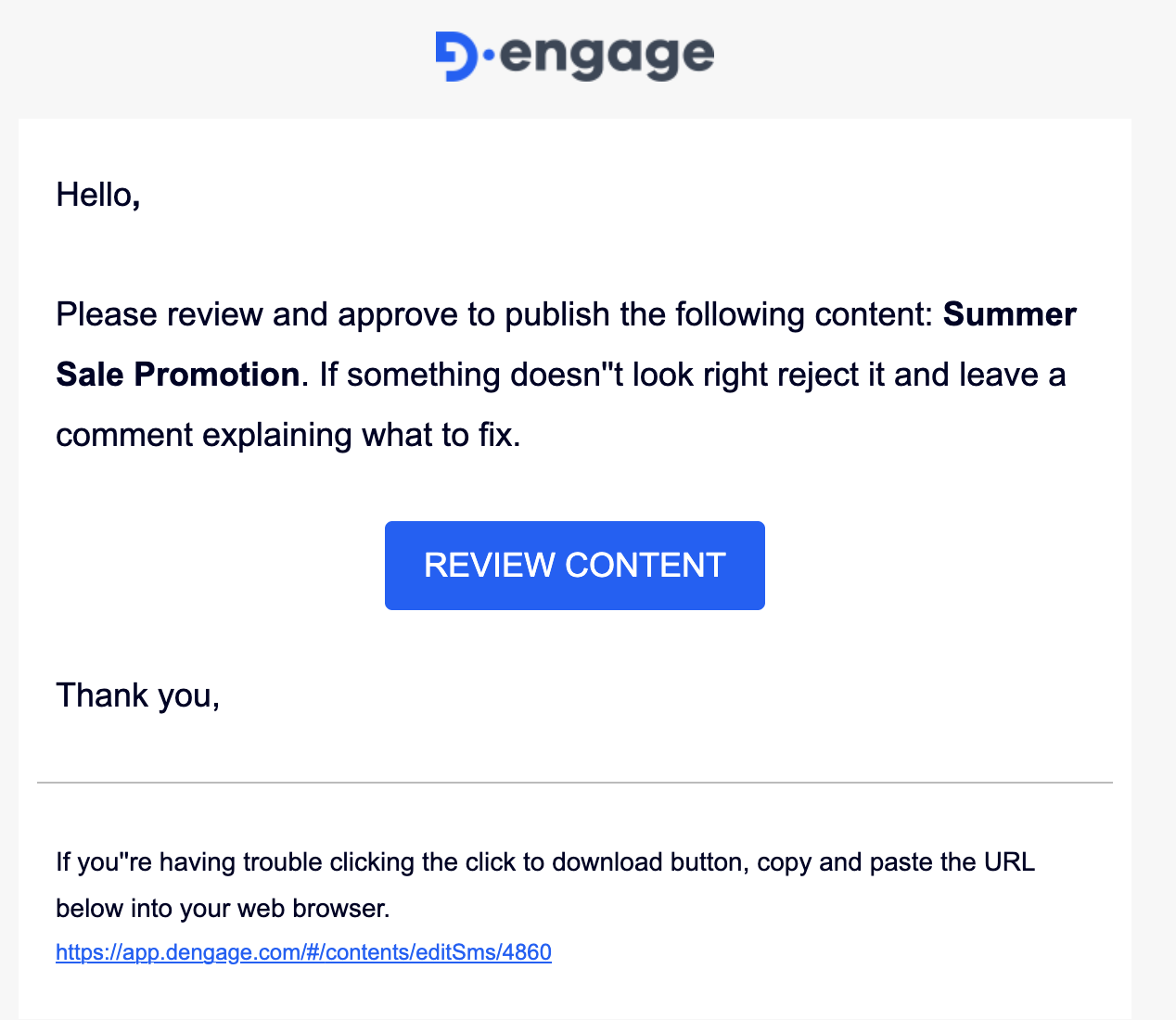
Email notification
-
Open the item and click the Waiting Approval (x/y) status badge. The dropdown offers Approve, Reject, and History.
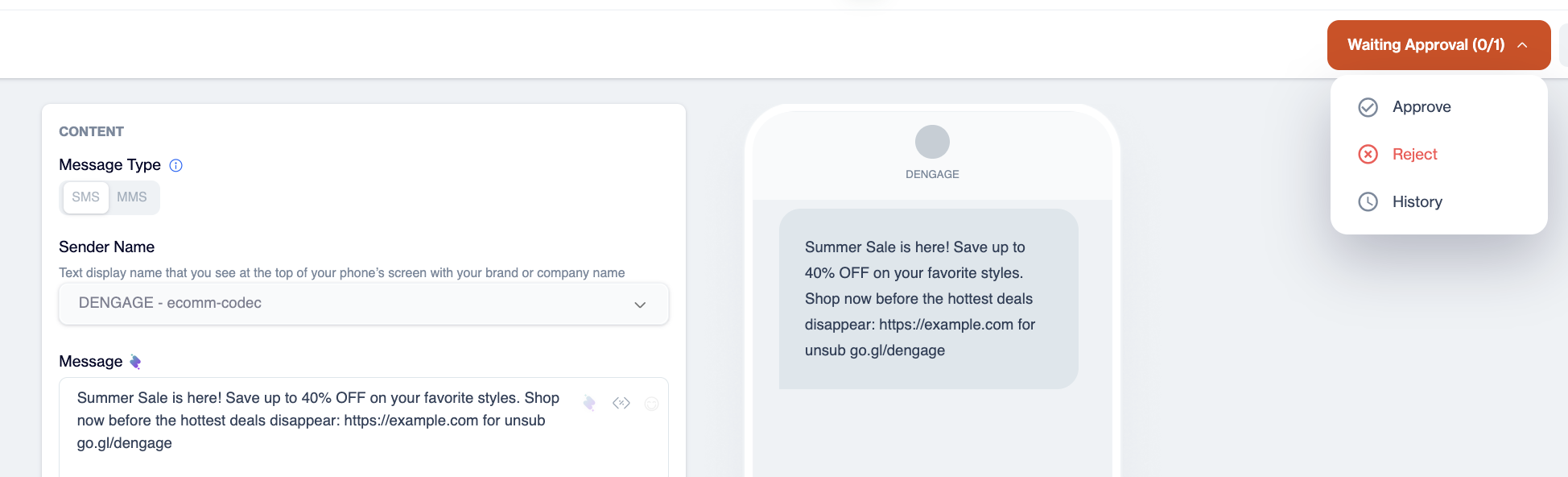
Status badge dropdown with Approve, Reject, and History
-
Approve: one click, no comment required. Your approval completes the level (any one assigned approver is enough), and the flow moves on.
-
Reject: a window asks for a mandatory reason ("Please provide a reason for rejecting"). Write it for the content creator; it is shown to them in the item's History and stays there permanently. The item returns to the creator as Rejected, and the creator and any earlier approvers are notified.
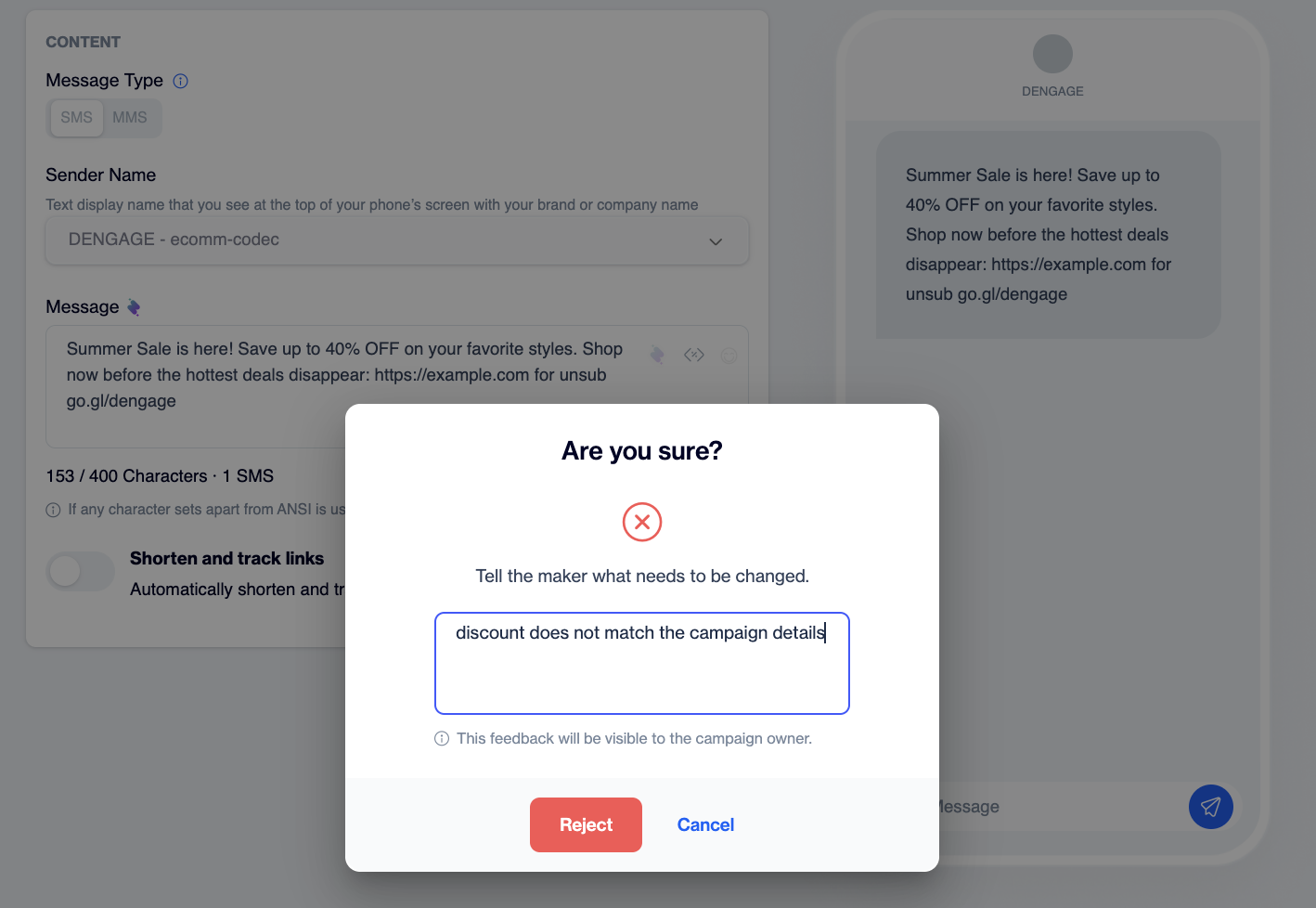
Reject window with reason field
-
In Sequential mode you can act only when your level is active. A disabled Approve button shows a tooltip such as "Currently waiting for {Level Name} approval."
Self-approval is allowed: if you are both the content creator and an approver at the pending level, you may approve your own content.
Publishing (Final Step)
- Once all levels approve, the item becomes Approved and the Publish button activates for users with Publish permission. Until then it is disabled with the tooltip "All approval levels must be completed."
- Publishing is what actually makes the content live or starts the campaign. Keep an eye on items sitting in Waiting Publish; approved items do not send themselves.
- If you edit and save an approved item before it is published, its approvals are cleared and it returns to Draft. Send it for approval again when it is ready.
- Note for transactional content: your systems keep using the most recently published version. Changes you make take effect only after the updated content is approved and published.
Approval History
Every item keeps a full audit trail. Open it from the status badge dropdown > History (or the item's Approval History tab). It is visible to anyone who can view the item; no approval rights are needed.
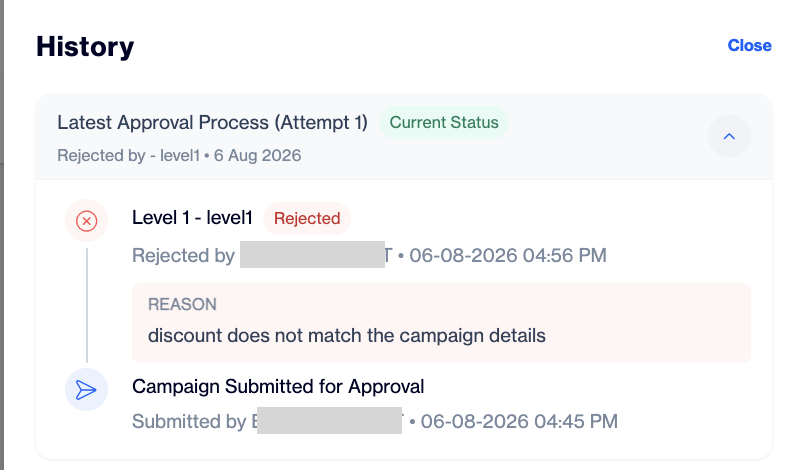
Approval History panel
Each entry records the Level, the User who acted, the Action (Submitted, Approved, Rejected, Published), the Date and time, and the Comment (shown for rejections: the rejection reason). When content is rejected and resubmitted, earlier rounds are preserved under Previous Approval Processes, so nothing is ever lost, including the names of levels that were later deleted from the workflow.
Email Notifications
| Who is notified | When |
|---|---|
| Approvers of the active level (Sequential mode) | When the submission reaches their level |
| Approvers of all levels (Parallel mode) | Immediately when the item is submitted |
| A user newly added to the currently pending level | Immediately: they are told they were added and that their approval is awaited |
| The content creator | When the item is fully approved, and when it is rejected (with the reason) |
| Approvers who had already approved | When the item is rejected at a later level |
Changing a Workflow That Is in Use
Editing a workflow that is already in use is safe and follows three rules: content already Approved or Published is never affected; Drafts simply use whatever structure exists when they are submitted; items currently in review adapt sensibly.
Approver changes: adding a user to the currently active level notifies them immediately, and they can act right away. Removing one of several approvers leaves the flow unaffected, and approvals already given remain valid and stay in History.
If an approver later loses their Approve permission, they are highlighted in red on the settings screen with a warning banner.
Example Use Case: Two-Level Campaign Approval at a Bank
Scenario: A bank's marketing team wants every campaign checked by the Marketing Lead and then by Compliance before it can be sent.
One-time setup (admin): In Settings > Approval Workflows > Campaign, the admin selects Sequential mode and creates Level 1, "Marketing Lead" (approvers: Ayşe, Mehmet) and Level 2, "Compliance" (approver: Deniz), then clicks Save.
The flow in action:
| Step | Who | Action | Status after |
|---|---|---|---|
| 1 | Selin (content creator) | Builds a loan-offer email campaign, clicks Send for Approval | Waiting for Approval, Level 1's turn |
| 2 | Ayşe (Level 1) | Gets the email, reviews, clicks Approve | Waiting for Approval, now Compliance's turn |
| 3 | Deniz (Level 2) | Spots an outdated interest rate, clicks Reject with the reason "The rate table is from last quarter. Please update it." | Rejected |
| 4 | Selin | Reads the reason in History, fixes the rate, resubmits | Waiting for Approval, restarts from Level 1 |
| 5 | Ayşe, then Deniz | Both approve | Approved |
| 6 | Mehmet (has Publish permission) | Clicks Publish | Published, campaign runs normally |
The History panel now shows both rounds: the first attempt with its rejection reason, and the second with both approvals and the publish action, a complete audit trail for the bank's records.
FAQ and Troubleshooting
I do not see Send for Approval or any approval statuses. The feature is not enabled for your account yet (see Prerequisites), or the item is already in a flow.
The Approve option does not work for me. You are not assigned to the level that is currently pending, or you lack the module's Approve permission. In Sequential mode, the tooltip tells you which level it is waiting for.
The item is Approved but Publish is still disabled for me. Publishing requires the separate Publish permission. Ask a publisher, or your admin.
Can I edit content that is waiting for approval? No, it is locked during review. It becomes editable again if rejected.
Do I have to comment when approving? No. A comment (reason) is required, and mandatory, only when rejecting.
Can an item be in two approval processes at once? No. An item can have only one active approval process at a time; it must be resolved before it can be submitted again.
Why did my approved item go back to Draft? It was edited and saved before it was published, which clears its approvals. Send it for approval again.
Our approver is on leave. Is everything stuck? Only if they are the sole approver of a pending level. Any other approver in the same level can approve; an admin can also add someone to the level (new approvers on the active level are notified immediately).
We changed the workflow while items were in review. Completed items are never affected; drafts use the structure at submission time; in-review items follow the rules in Changing a Workflow That Is in Use.
Does rejection delete the work? No. The content returns to the creator intact, together with the rejection reason. Edit and resubmit.
Updated 3 months ago