
Export to Amazon Redshift
The Amazon Redshift Data Export feature allows users to export data directly to an Amazon Redshift data warehouse from the Automated Flow module. You select the schema and the table in your Redshift database and the AWS S3 target that Dengage uses for the transfer, then map your Dengage columns to the columns of the Redshift table.
Before you start, define two remote targets: an Amazon Redshift target for the database and an AWS S3 target that Dengage uses when writing the data to Redshift. See Prerequisite: Defining the Remote Targets at the end of this page.
For a one-time export to Amazon Redshift, use the Export page instead. See Export.
Key Terms
- Amazon Redshift: Amazon's cloud data warehouse. Dengage connects to a Redshift cluster and writes the exported records into one of its tables.
- AWS S3 remote target: an Amazon S3 bucket defined under Settings > Integrations > Remote Targets. A Redshift export requires one; you select it in the Export Wizard together with the schema and table.
- Schema: a named group of tables in your database.
- Automated Flow: a flow in Data Space that combines triggers and actions to run data operations automatically. See Automated Flows.
- Data Export node: the action node of an Automated Flow that sends data to a remote target.
- Remote Target: an external destination, defined in Settings, that Dengage exports data to. See Remote Targets.
What You Can Export
The Data Export node offers Amazon Redshift as a remote target for these data sources:
- Table: an existing table, for example master_contact. After you select the table, Manage Filters lets you add filters.
- Segment: an existing segment, from the Segment or Predefined Segments tab.
Note: The maximum export size is 7168 MB.
What You Can Export
The Data Export node offers Amazon Redshift as a remote target for these data sources:
- Table: an existing table, for example master_contact. After you select the table, Manage Filters lets you add filters.
- Segment: an existing segment, from the Segment or Predefined Segments tab.
- Incremental Logs: transactional and marketing logs. This source works only with a Recurring trigger and the Daily period. With "Occurs every", the minimum interval is 15 minutes. See Exporting Incremental Logs to Databases via Remote Target.
Note: The maximum export size is 7168 MB.
Accessing the Feature
-
Open the Data Export node:
- From the main menu, go to Data Space > Data Flow > Automated Flows. Click New, select Automated Flow, name the flow and click Next.
- In the flow editor, first add and configure a Recurring trigger, then add the Data Export action and click View Detail on it. The Data Export dialog opens with an Action Name field and a four-stage wizard: Target, Settings, Columns and Summary.
-
Stage 1, Target:
- On the Select data source screen, choose Table or Segment and click Next. The screen also shows the maximum export size, 7168 MB.
- For a table, select it on the Source Table screen; Manage Filters lets you add filters. For a segment, select it from the Segment or Predefined Segments tab. Click Next.
- On the Select Remote Target screen, choose Amazon Redshift and one of your Redshift remote targets listed under it, then click Next.
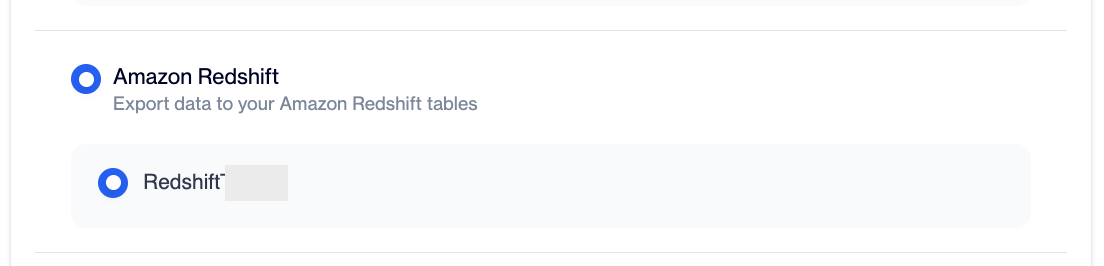
Select Amazon Redshift and one of your remote targets
-
Stage 2, Settings:
- The Export Wizard screen opens and Dengage reads the schemas of your Redshift remote target.
- Choose the schema from Select Schema and the table from Table Name. The table must already exist in your Redshift database.
- Under Amazon S3, select one of your AWS S3 remote targets. This field is required; if you leave it empty, the screen shows "The field is required" and a "Please select Amazon S3" message.
- Click Next.
-
Stage 3, Columns:
- On the Column Mapping screen, first choose the Data Table Action: Append (the default) appends all records from the source, and Truncate and Insert truncates the table and inserts all the records from the source.
- Then map the columns. Each row of the Columns table is a column of the Redshift table, with its type. In Target Column, choose --Ignore-- (the default), -- Constant Value -- for a fixed value, or one of the source columns. Click Next.
-
Stage 4, Summary:
- Check the Source (the data source and its filters), the Target (Target type and Target Name) and the mapped columns. Use Back to change a setting. Click Export to confirm the node, then save the flow with Save Job as Draft or Set Job as Active.
Check the Export Runs
Go back to Data Space > Data Flow > Automated Flows to follow your flow:
- The Automated Flows tab lists each flow with its Last Run Time, Next Run Time and Update Date.
- The Running Flows tab lists the runs with Started On, Completed On and a status, for example Completed.
- The menu at the end of a row offers View Details, Move, Copy Public ID and Duplicate.
For older runs, see Automated Flows History.
Prerequisite: Defining the Remote Targets
A Redshift export needs two remote targets: an Amazon Redshift target and an AWS S3 target. Define both under Settings > Integrations > Remote Targets.
Amazon Redshift
- Click Add.
- Fill in the Name of the remote target and select Amazon Redshift from the Type dropdown.
- Enter the Amazon Redshift credentials:
- Server: the server name or IP address of your Amazon Redshift cluster.
- Port (required): the port number of the cluster. The default port for Redshift is typically 5439.
- DB Name: the name of the database within your cluster.
- Username (required): the user that Dengage connects with.
- Password (required): the password of that user.
- Click Save.
AWS S3
- Click Add.
- Fill in the Name of the remote target and select AWS S3 from the Type dropdown.
- Enter the Bucket Name, Region, Access Key and Secret Key.
- Click Save.
Both targets are then ready for use in the Data Export node. See Remote Targets.
Use Cases
- Feed your data warehouse: export a Dengage table or segment to Amazon Redshift every night with a Recurring trigger, so your BI reports read the latest audience data.
- Share a segment with other teams: export the contacts of a segment to a Redshift table that your analytics or data science teams query.
FAQ
Which data can I export to Amazon Redshift?
Tables, segments and Incremental Logs.
Why does the Export Wizard ask for an Amazon S3 target?
Dengage needs an AWS S3 remote target to complete a Redshift export, so the Export Wizard requires one next to the schema and table. Define it under Settings > Integrations > Remote Targets before configuring the node.
Can I run a one-time export to Amazon Redshift?
Yes. Go to Data Space > Data Flow > Export, select a Table or a Segment as the source, and choose Amazon Redshift as the target. See Export.
Amazon Redshift is listed but I cannot select a target. Why?
You have no Amazon Redshift remote target yet. Define one under Settings > Integrations > Remote Targets, as described in the Prerequisite section.
How often can the export run?
As often as the Recurring trigger allows: Daily, Weekly, Monthly or Yearly, and within a day either once at a set time or repeatedly at an interval. For Incremental Logs the minimum interval is 15 minutes.
Is there a size limit?
Yes. The maximum export size is 7168 MB.
Where do I see whether the export ran?
In Data Space > Data Flow > Automated Flows. The Automated Flows tab shows the last and next run time of each flow, and the Running Flows tab shows the runs with their status.
Updated about 22 hours ago