
Customized Unsubscribe Page
The Customized Unsubscribe Page allows you to design and manage the unsubscribe experience for your contacts. Instead of using a default system page, you can customize the content shown to users when they choose to unsubscribe from your communications.
This helps you:
- Provide a clear and branded unsubscribe experience
- Collect user feedback
- Manage unsubscribe behavior separately for different channels
Customization is handled separately for Email and SMS/MMS channels
How to Access
You can access the Customized Unsubscribe Page settings by following this path:
Settings > Campaign Configurations > Customized Unsubscribe Page
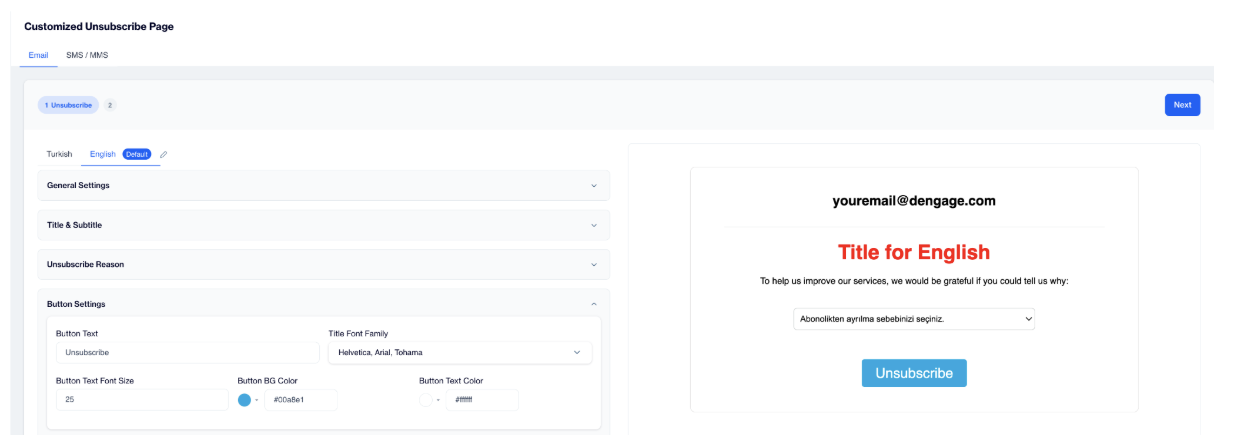
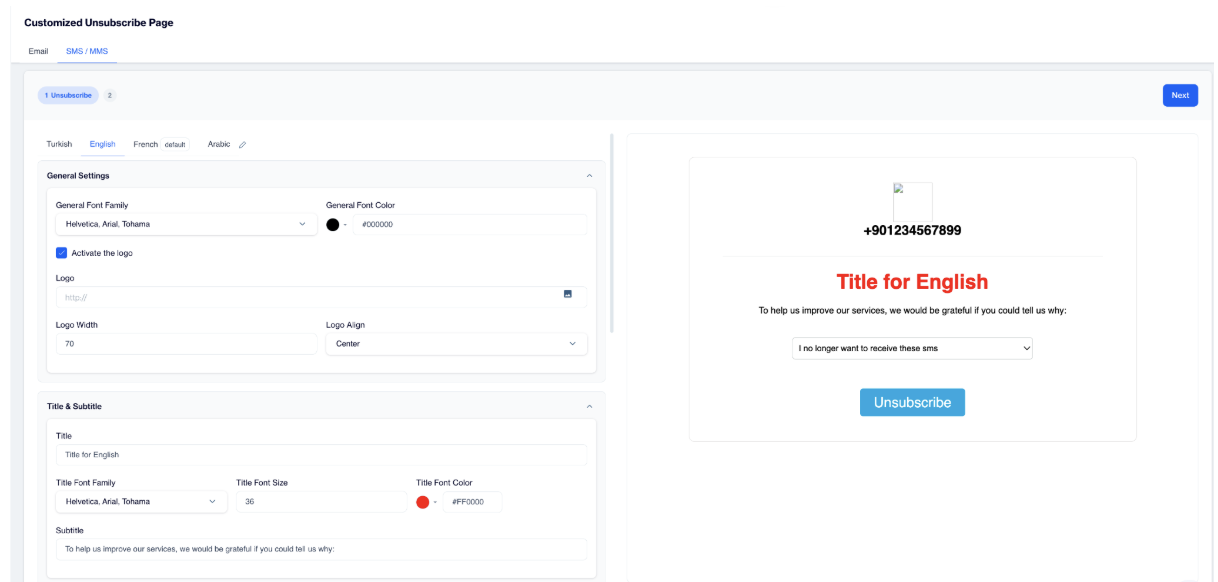
On this screen, you will see two tabs:
- SMS/MMS
Each tab allows you to configure unsubscribe settings specific to that channel.
SMS/MMS
Channel Structure (Email & SMS/MMS)
Both Email and SMS/MMS channels are organized into two internal tabs:
- Unsubscribe: displayed before the unsubscribe action is completed
- Success: displayed after the user successfully unsubscribes
Settings are managed per language and apply only to the selected channel.
Unsubscribe
Language Settings
English is set as the default language.
Click the pencil icon to open the Select Language window. From here, you can add new languages and choose which one should be used as the default.
Each language can have its own text and visual settings.
General Settings
This section controls the overall appearance of the unsubscribe page.
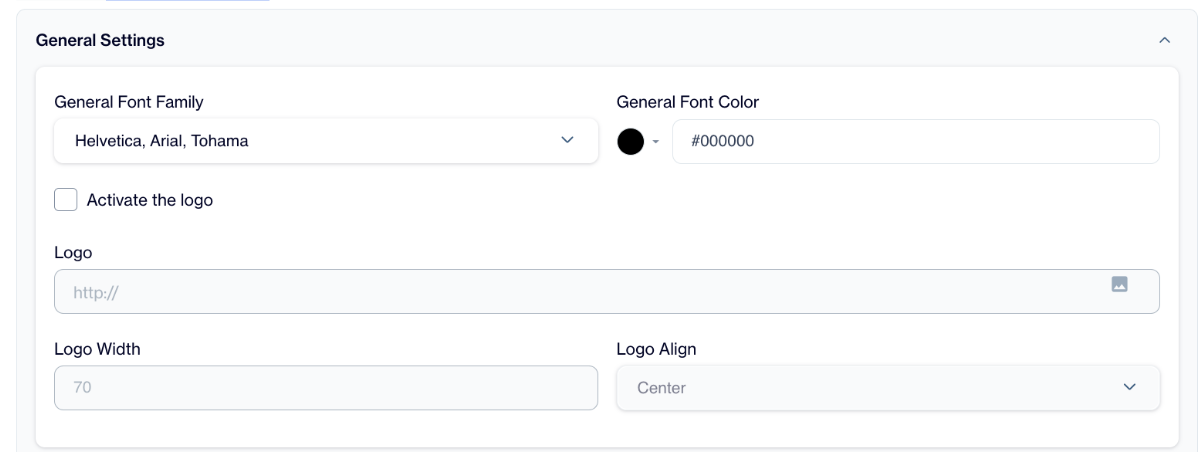
General Settings
You can select a general font family (Helvetica, Arial, Tahoma) and define the general font color used across the page.
You can also enable a logo. Once activated, provide the logo URL, set the logo width, and choose how it is aligned on the page.
Title & Subtitle
Use this section to define the main message shown to users.
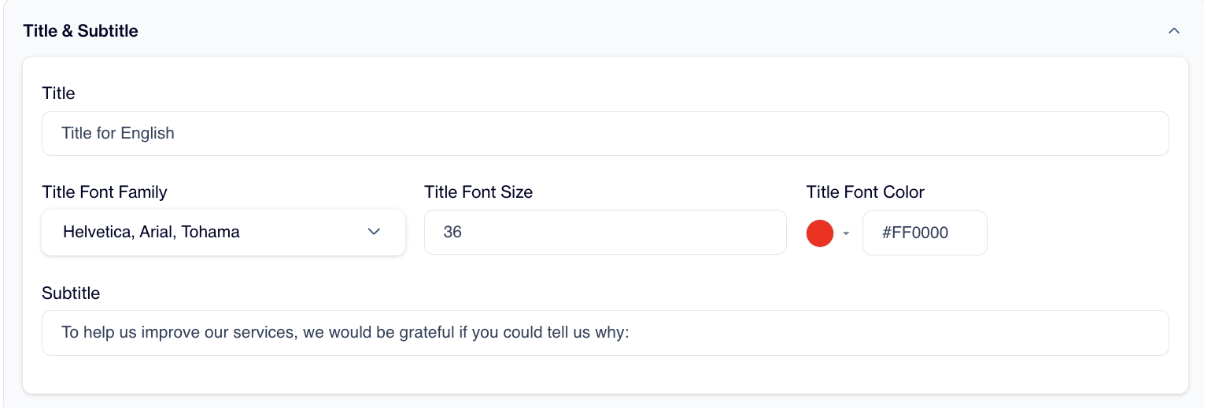
Title & Subtitle
You can enter a title for each language and customize its font family, size, and color.
Below the title, add a subtitle to explain why the user is being asked to unsubscribe or to request feedback.
Unsubscribe Reason
This section allows you to ask users why they are unsubscribing.
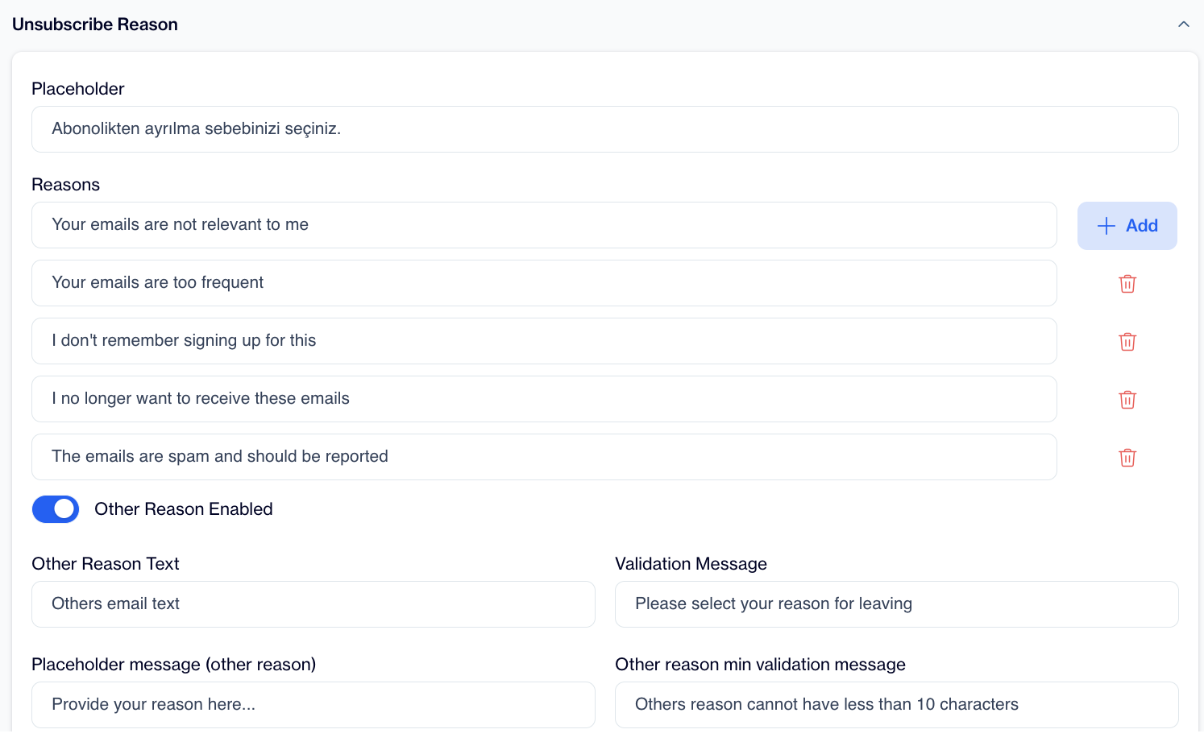
Unsubscribe Reason
You can define a placeholder text for the reason selection field and add predefined unsubscribe reasons.
An Other Reason option can be enabled to allow free-text input.
Button Settings
This section controls the unsubscribe action button.
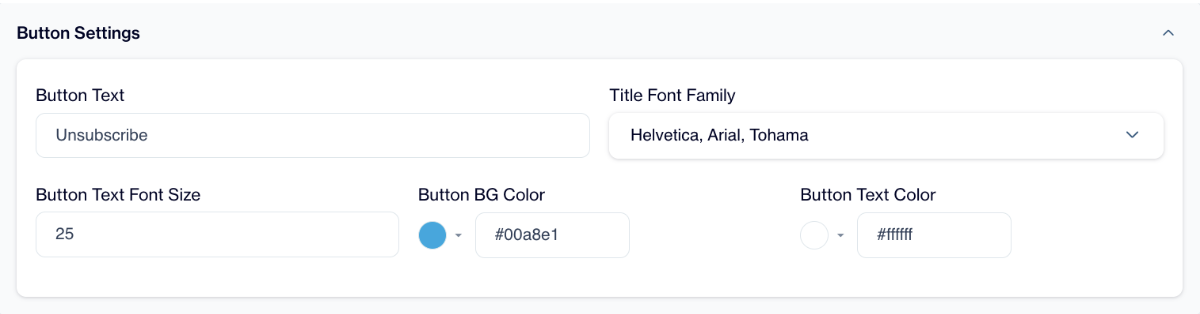
Button Settings
You can customize the button text, font family, font size, background color, and text color.
Success Tab
The Success tab controls the page shown after a user successfully unsubscribes from email communications.
General Settings
This section defines the overall appearance of the success page.
You can select a general font family (Helvetica, Arial, Tahoma) and set the general font color used on the page.
You can also activate a logo. When enabled, provide the logo URL, define the logo width, and choose the logo alignment.
Title & Subtitle
Use this section to define the confirmation message shown to users.
You can enter a title (e.g., “You have successfully unsubscribed”) and customize its font family, size, and color.
Below the title, add a subtitle to display a short confirmation or farewell message (e.g., “We’re sorry to see you go!”).
Email Resubscribe System
The Email Resubscribe System improves your subscription management experience by allowing users who previously unsubscribed to opt back in through a dedicated resubscribe page.
You can now design modern, branded unsubscribe and resubscribe pages, fully customize their content, and insert a Resubscribe Link directly into your emails. Resubscription actions are tracked in contact’s permission history, giving you full visibility into subscription changes.
Prerequisites
The Email Resubscribe System is controlled by feature flags. Components (Unsubscribe, Success, Resubscribe) can be enabled gradually.
How to Access
Go to: Settings > Campaign Configurations > Customized Unsubscribe Page
Open the Email tab.
You will now see three tabs:
- Unsubscribe
- Success
- Resubscribe
Each tab allows you to configure a different stage of the subscription experience.
How to Use
Each tab allows you to customize a different stage of the subscription journey. All changes are reflected in the live preview panel.
Configure the Unsubscribe Page
Design a branded unsubscribe page by configuring your logo, title, subtitle, unsubscribe reasons, and button styles.
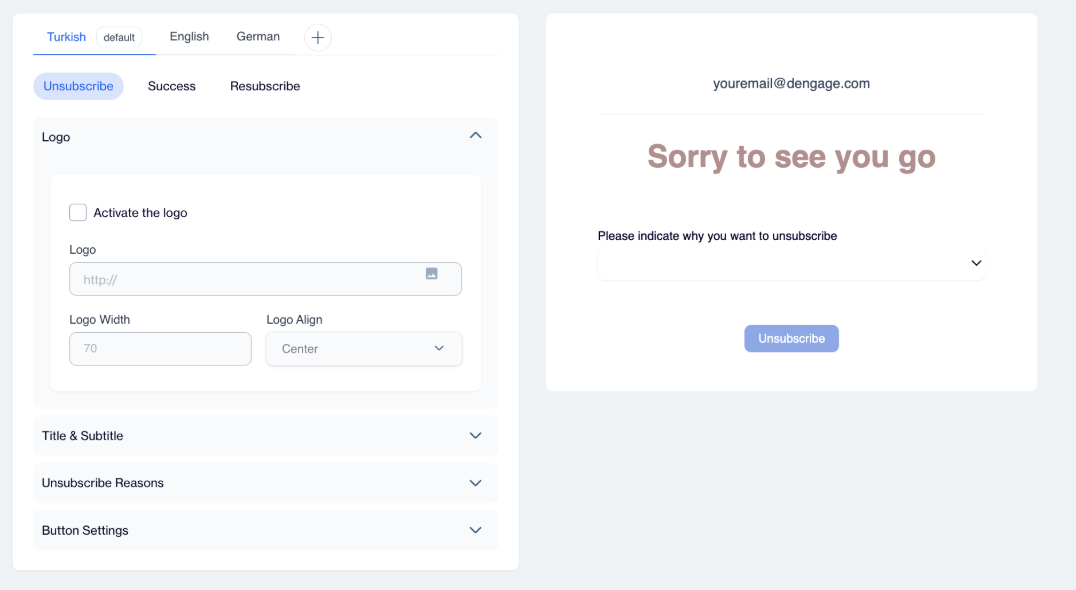
Unsubscribe Page
You can collect structured feedback by adding predefined reasons and enabling an “Other” option with validation rules.
Use case: A marketing team wants to understand why users leave and adjust communication strategy based on selected reasons.
Configure the Success Page
Configure the confirmation page shown after a user unsubscribes.
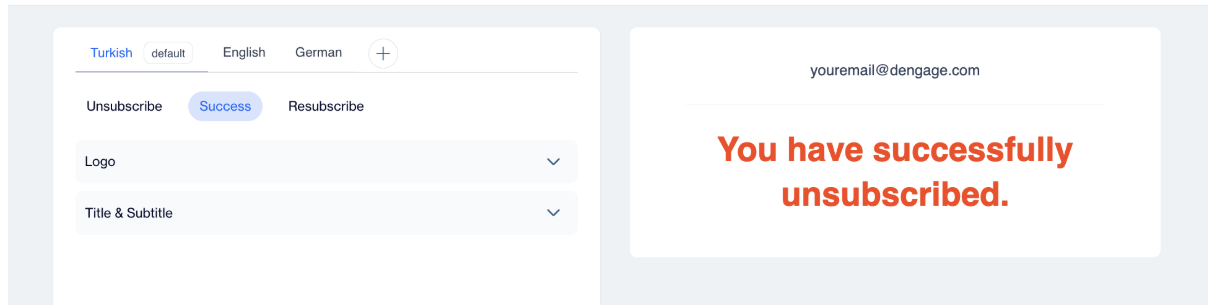
Success Page
You can customize the logo, confirmation message, fonts, and colors to keep the experience consistent with your brand.
Use case: A regulated company wants to clearly confirm the unsubscribe action for compliance and transparency.
Configure the Resubscribe Page
Create a dedicated “welcome back” page for users who want to opt back in.
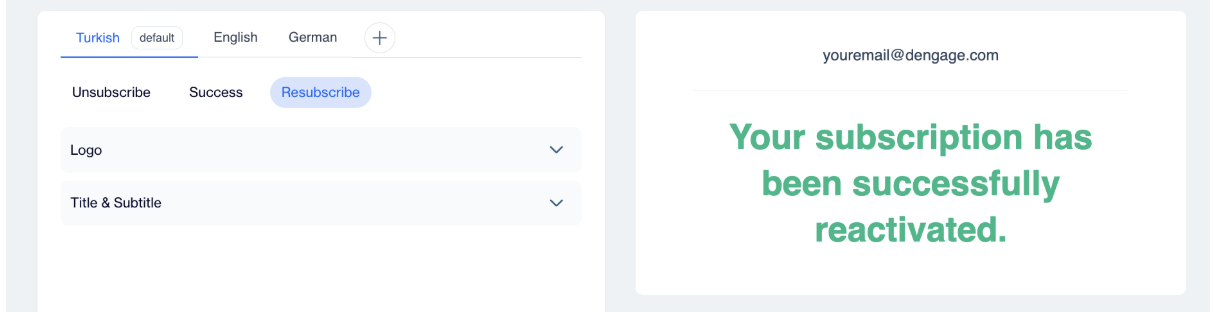
Resubscribe Page
You can customize logo, title, subtitle, and styling to create a positive re-engagement experience.
Use case: A bank includes a resubscribe link in compliance emails, allowing customers to easily rejoin communications when needed.
Insert Resubscribe Link into Emails
You can add a Resubscribe Link directly into your email content.
In the Email Editor, open the Insert menu and select Resubscribe Link. The system automatically adds a link that redirects users to your customized Resubscribe page.
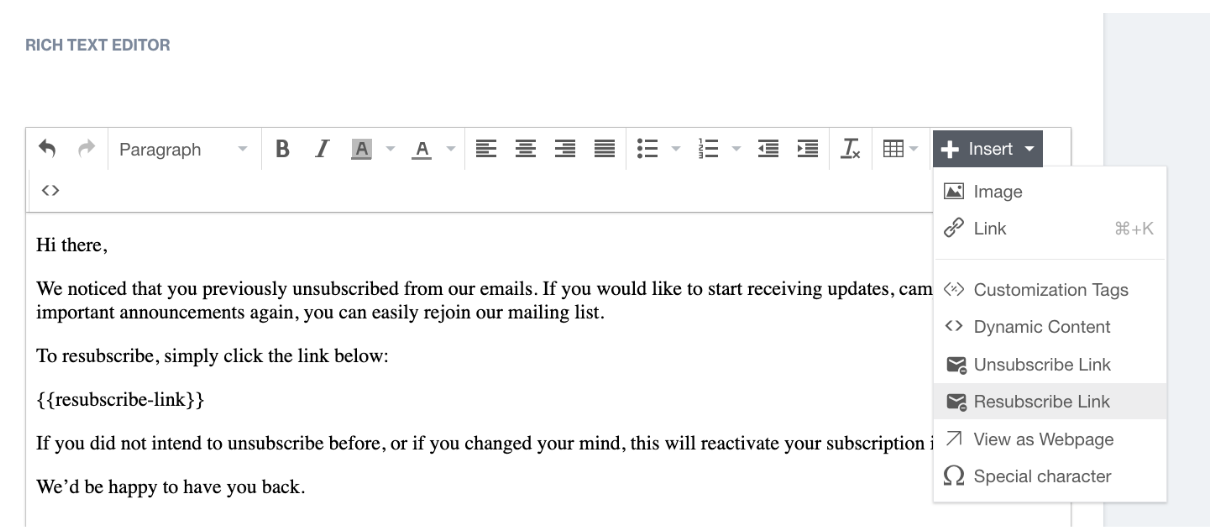
Insert Resubscribe Link
When a previously unsubscribed user clicks this link, they are taken to the branded resubscribe page you designed in the settings. After confirming, their subscription is reactivated.
This is especially useful for re-permission campaigns, compliance emails, or situations where users may want to easily opt back in.
Multi-Language Support
The Unsubscribe, Success, and Resubscribe pages support multiple languages.
You can configure the content separately for each language from the language tabs. The primary language is marked with a “Default” badge.
Each language version can be edited independently, allowing you to display localized titles, messages, and button texts based on the user’s language preference.
With the Email Resubscribe System, you can provide a cleaner unsubscribe experience and give users a clear way to subscribe again, all within a branded and fully customizable page experience.
Updated 3 months ago