
WhatsApp Analytics
WhatsApp campaigns give you two reports. The campaign's Analytics tab shows totals for the whole flow, covering every send and every channel it uses. The WhatsApp Detailed Report drills into one WhatsApp send and shows what happened to it: how many messages went out, how many were delivered or bounced, and how many recipients opened the message.
| You want to... | Use |
|---|---|
| See campaign totals, compare channels in the flow, or follow the trend over time | Campaign Analytics tab |
| See how one WhatsApp send performed: sent, delivered, opens, bounces, and the delivery funnel | WhatsApp Detailed Report |
1. Campaign Analytics Tab
How to Access
- Go to Campaign > Flows and select the One Time or Recurring tab.
- Click the three dots at the end of the campaign row and select Flow/Analytics. Alternatively, click the campaign name and then click the Analytics tab.
- For recurring campaigns, select the Job Version and set the Date Range, then press the Report button to generate the report.
What It Shows
- Total Sent: All messages sent by the campaign, split into Contacts (registered users) and Anonymous (unregistered or unidentified users), with Opens and Clicks beside it. Hover a card to see its Contacts and Anonymous split.
- Channel Comparison: Sends, Delivered, and Engagements for each channel, so you can compare WhatsApp against the other channels the campaign uses.
- Sends table: One row per send with Send Name, Channel, Audience (Contact or Anonymous), Delivered, Opens, and Clicks. Use the Percent / Number toggle to switch how values display, and the gear icon to configure columns.
- Performance chart: A time chart of Delivered or Engagement, switchable between daily, weekly, and monthly views.
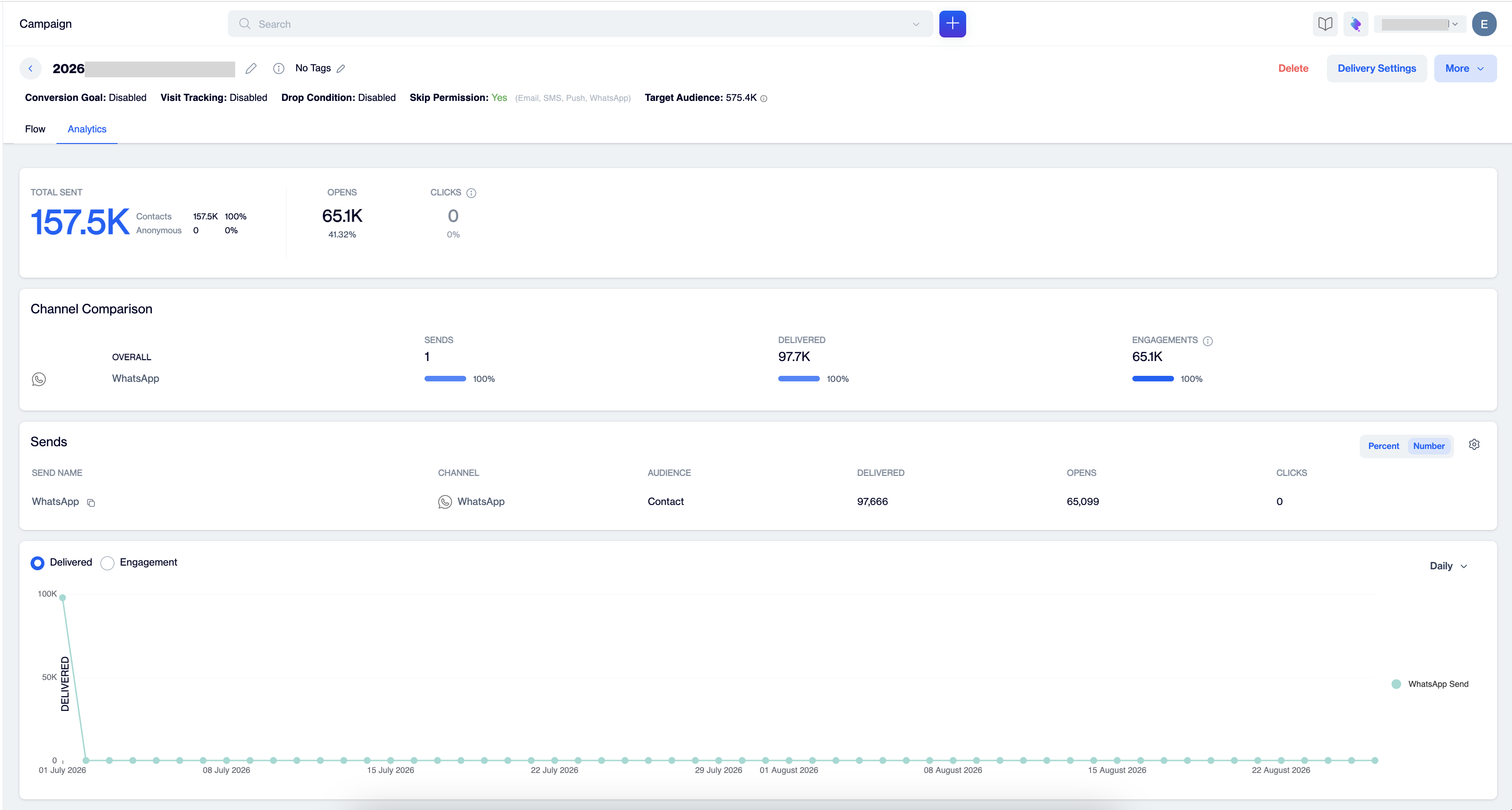
Campaign Analytics tab
The Analytics tab stops at campaign level numbers. To see what happened to one WhatsApp message, open its detailed report.
2. WhatsApp Detailed Report
How to Access
From the campaign flow:
- Open your campaign. It opens on the Flow tab.
- Click the WhatsApp node. A summary popover opens with the template, start and end times, and the send's key counts: Sent, Delivered, and Opens, together with the Delivery Rate.
- Click View report. The report opens in a new tab.
The report header displays the campaign name, the send status (for example, Completed), and Total Targeted, the number of recipients targeted by this send. The Public ID button copies the report's public ID to your clipboard for shareable report access.
What It Shows
The report is a single page with the delivery performance of the send:
- Content card: The Content Name, which is the WhatsApp template used by the send, and assigned Tags.
- Total Sent: The number of messages processed for this send, with an Unsent counter next to it. Click more to open the unsent breakdown: Excluded messages and messages with an Error.
- Delivered: Successfully delivered messages and the delivery rate.
- Unique Opens: The number of people who opened the message, with the open rate and the Total / Unique split.
- Bounced: Messages that could not be delivered, with the bounce rate.
- Delivery Status: A donut chart that splits the send into Delivered Count and Bounced Count, with the total in the center.
- WhatsApp Send Performance: A funnel from Total Target to Total Sent to Delivered, with the Delivery Rate beside it.
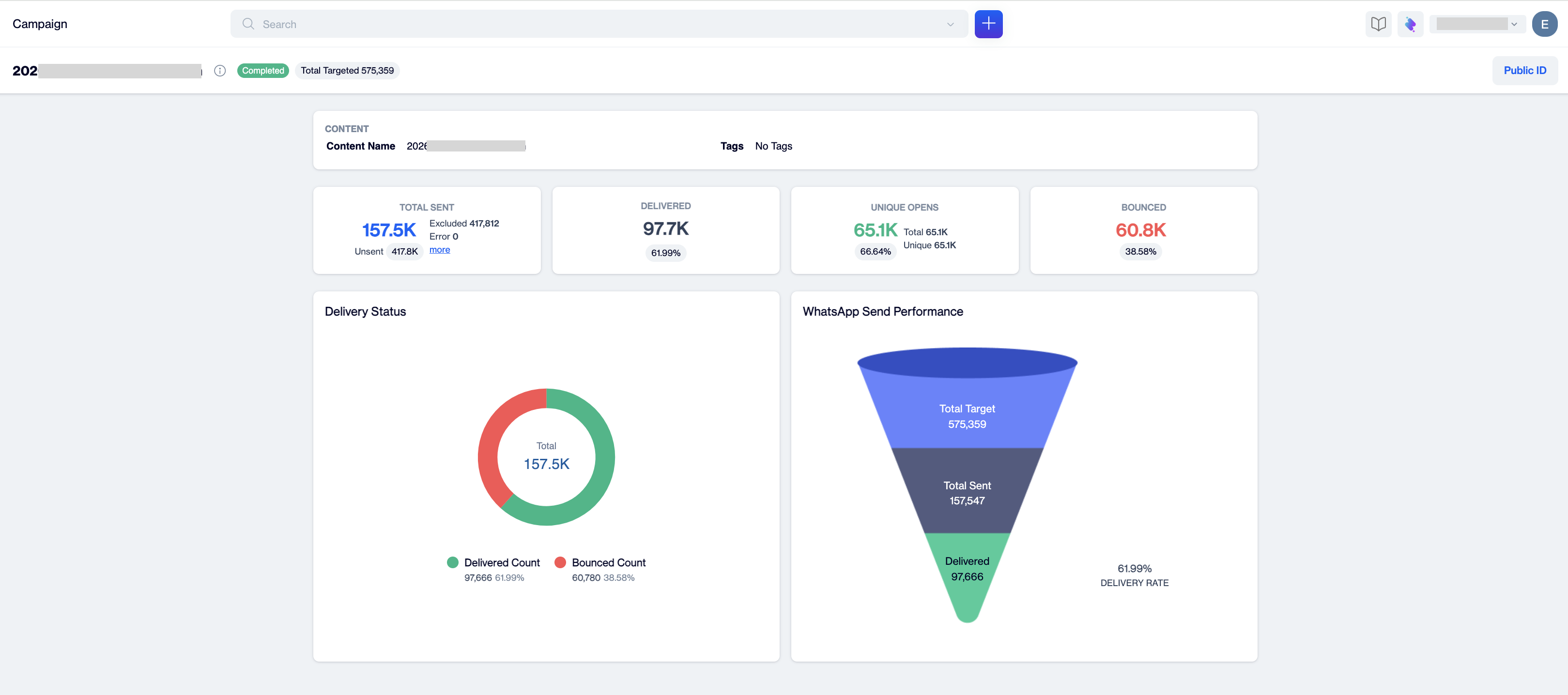
WhatsApp Detailed Report: delivery and open performance for one WhatsApp send
Metrics Reference Table
| Metric | Definition |
|---|---|
| Total Targeted | The number of recipients targeted by the send, shown in the report header. |
| Total Sent | Messages processed for the send. The Unsent breakdown shows Excluded messages and messages with an Error. |
| Delivered / Delivery Rate | Messages delivered to recipients' WhatsApp; Delivered / Total Sent. |
| Open / Unique Open | Total opens and unique opens (counted once per person). |
| Open Rate | Unique Opens / Delivered. |
| Bounced / Bounce Rate | Messages that could not be delivered and their share of the send. |
| Total Target | The starting stage of the WhatsApp Send Performance funnel: everyone targeted by the send. |
| Contacts / Anonymous | Registered users vs unregistered or unidentified users (campaign level Total Sent breakdown). |
Prerequisites
- WhatsApp campaigns require a connected WhatsApp Business API integration; the templates you send must be approved before they can be used in a campaign.
- The report becomes available after the send runs; delivery, open, and bounce metrics fill in as signals arrive from WhatsApp.
- Recurring campaigns require a Job Version and Date Range selection before generating the report.
Updated 2 months ago