
Frequency Capping
Frequency capping limits how many messages a contact receives in a day, week, or month. Use it to prevent over-messaging, reduce unsubscribes, and keep engagement healthy across Email, SMS, Push, and WhatsApp.
On the Frequency Capping page you can:
- Set General Rules that apply to all campaigns.
- Set Rules For Send Tags that override the general rules for specific campaign types.
- Build an ignore list of contacts who receive messages regardless of any limit.
Key terms
| Term | Meaning |
|---|---|
| Rule | A limit made of three parts: a timeframe, a channel, and a maximum message count. Example: 2 emails per day. |
| Timeframe | The calendar period the limit covers: Daily, Weekly, or Monthly. |
| Send tag | A label you attach to a campaign to describe its type, such as reminder or abandoned_cart. Send tags let you apply a different limit to one type of campaign. |
| Contact key | The unique identifier of a contact in your Dengage account. One contact key can have several devices and channels linked to it. |
| Ignore list | The contacts that frequency capping skips. The page shows this list as Selected Audience. |
Open the Frequency Capping page
- Go to Settings.
- Under Campaign Configurations, select Frequency Capping.
The page has three sections, from top to bottom: General Rules, Rules For Send Tags, and Ignore Frequency Capping. Each rules section shows when someone last updated it.
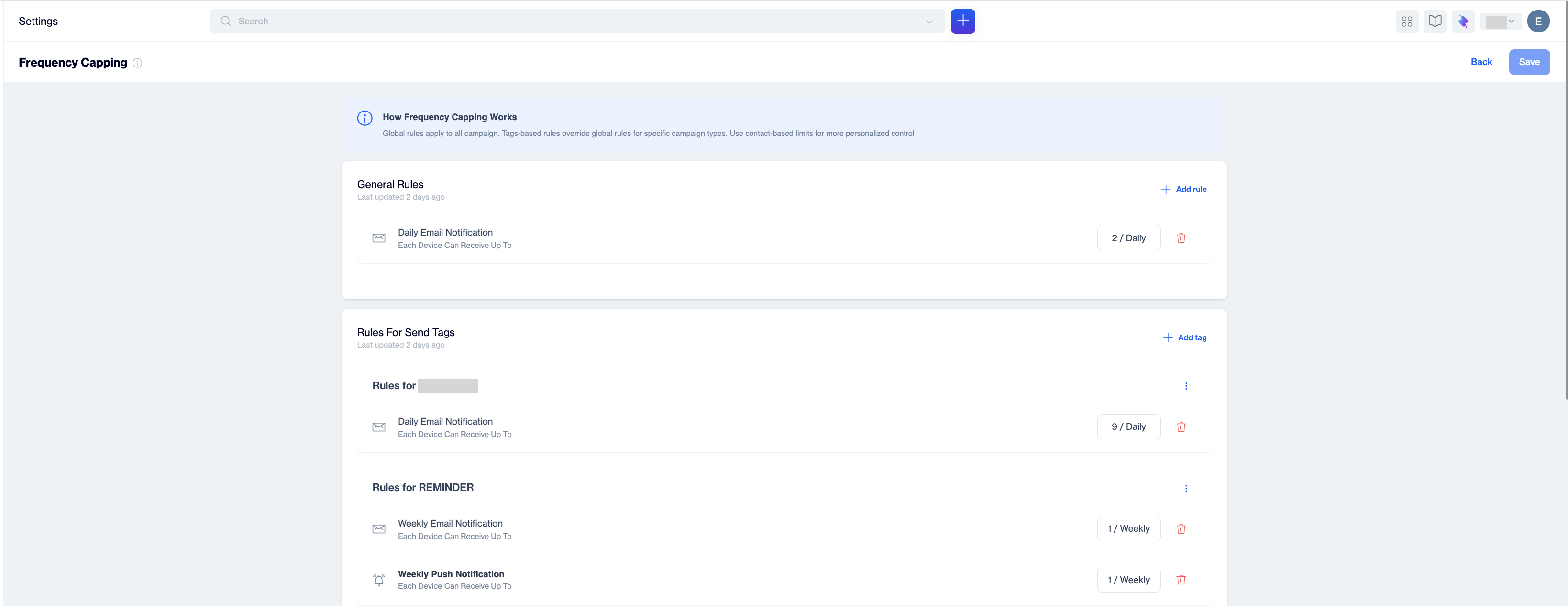
The Frequency Capping page
How the rules work together
- General Rules apply to every campaign.
- Rules For Send Tags override the general rules for campaigns that carry that send tag.
- The ignore list overrides both. Contacts on the list receive every message.
Limits count per contact, delivery happens per deviceDengage applies each limit to the contact. If one contact has several devices, such as a phone and a tablet, Dengage can deliver the same push message to each device. A contact with a limit of 1 daily push can therefore see the message on more than one device. This still counts as one message.
Add a general rule
- In General Rules, select Add rule. The Add Rule window opens.
- In the first list after Limit Number Of, choose the timeframe: Daily, Weekly, or Monthly.
- In the second list, choose the channel: Email, SMS, Push, WhatsApp, or Total Messages. Total Messages sets one combined limit across all channels.
- In Per Contact To, enter the maximum number of messages.
- Select Add. The rule appears in the list, for example Daily Email Notification with the limit 2 / Daily.
- Select Save at the top right of the page.
Save the page to apply your changesNew and removed rules take effect only after you select Save. The Save button becomes active when the page has unsaved changes. Select Back to leave without saving.
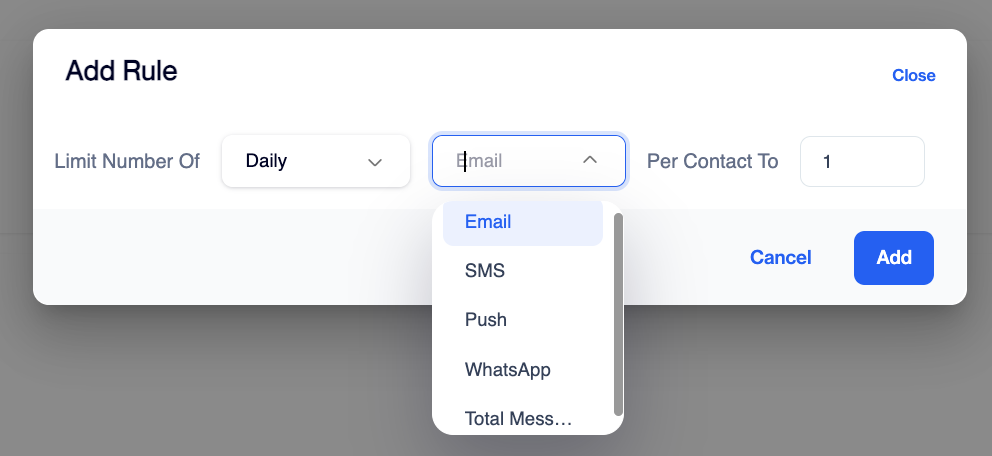
The Add Rule window
Add rules for a send tag
Use send tag rules when one type of campaign needs its own limit. For example, allow 1 reminder email per week while the general rule allows 2 emails per day.
- In Rules For Send Tags, select Add tag. The Tag Selector Table opens and lists your send tags.
- Select a tag. A new group named Rules for TAG_NAME appears.
- Open the three-dot menu on the tag group and select Add rule.
- Choose the timeframe, channel, and limit, then select Add.
- Repeat step 3 and step 4 to add more rules to the same tag, such as one rule for Email and one for Push.
- Select Save.
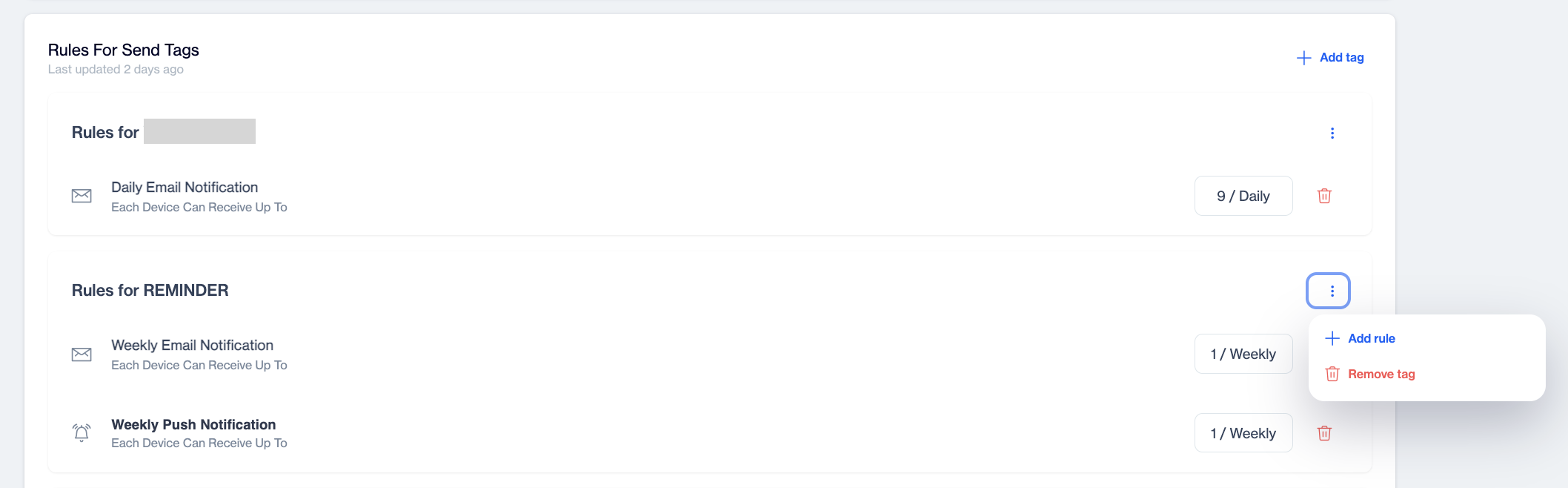
A send tag group with two rules and its menu
Remove a rule or a tag
- To remove one rule, select the delete icon at the end of its row.
- To remove a tag group and all of its rules, open the three-dot menu on the group and select Remove tag.
- To change a limit, remove the rule and add it again with the new value.
Select Save to apply the change.
Ignore frequency capping for specific contacts
Contacts on the ignore list receive messages regardless of any limit on this page. Use the list for test accounts, team members, or critical operational messages. Earlier versions of Dengage called this feature Frequency Capping Exclusion.
- Scroll to Ignore Frequency Capping at the bottom of the page.
- In Search and Add Contacts to Ignore List, type an email address or a contact key.
- Select the contact from the results. The contact appears under Selected Audience, and the number next to the heading shows how many contacts the list holds.
- To take a contact off the list, select the delete icon on its row.
- Select Save.
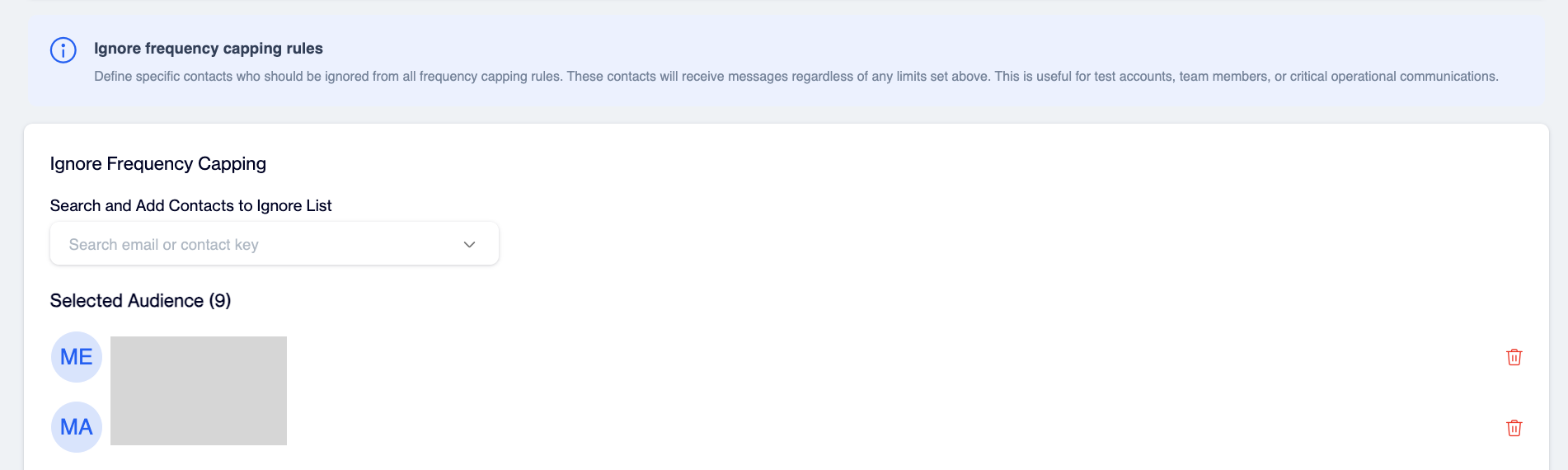
The ignore list under Ignore Frequency Capping
Timeframe logic
Frequency capping uses calendar periods, not rolling windows. Each counter returns to 0 when a new period starts.
| Timeframe | Period | Counter resets | Count data |
|---|---|---|---|
| Daily | 00:00:00 to 23:59:59 | Every day at 00:00 | Real time |
| Weekly | Calendar week, Monday to Sunday | Every Monday at 00:00 | Up to the previous day |
| Monthly | Calendar month, 28 to 31 days | On day 1 of the month at 00:00 | Up to the previous day |
Daily
Dengage counts daily sends in real time. Example: a contact with a limit of 1 daily email receives an email at 23:59. The same contact can receive another email at 00:01, because the daily counter resets at midnight.
- Daily limits reset at the beginning of each new day
Weekly
The weekly check reads the weekly send count of the contact, stored as this_week_send_count. Dengage refreshes this value once a day, so the weekly count includes sends up to the previous day. A message you send on Monday enters the weekly count on Tuesday. The delay affects timing only, and every send is counted.
-
On Monday, the weekly counter resets to
0 -
Messages sent on Monday begin appearing in reporting starting Tuesday because weekly statistics tables update with a 1-day reporting delay.
-
No data is lost during this process.
Monthly
The monthly check reads the monthly send count of the contact, stored as this_month_send_count. Dengage refreshes this value once a day, the same way as the weekly count.
The monthly window changes depending on the month:
- February: approximately 28 days
- January, March, etc.: 31 days
This is not a fixed 30-day rolling window.
- On the first day of the month, the counter resets to
0 - Messages sent on that day begin appearing in reporting the following day because monthly statistics tables update with a 1-day reporting delay.
- No data is lost during this process.
NoteDaily frequency checks use send tables for real-time counting. Weekly and monthly checks use statistics tables. Since statistics tables are updated daily, weekly and monthly counts may reflect data up to the previous day.
Best practices
- Start with a daily limit per channel, then add weekly limits after you review engagement and unsubscribe rates.
- Use Total Messages to protect contacts who subscribe to several channels.
- Give promotional send tags tighter limits than informational ones.
- Keep the ignore list short. Review it regularly and remove contacts who no longer need it.
FAQ
Which rule wins when a general rule and a send tag rule both match?
The send tag rule. It overrides the general rule for campaigns that carry that tag.
Why did a contact receive the same push on two devices with a limit of 1?
Limits count per contact. Dengage delivers one message to each device linked to the contact, and counts it as one message.
Why does a Monday send not show in the weekly count on Monday?
Weekly and monthly counts refresh once a day. The send enters the count on the next day.
I added a rule. Why is it not active?
Select Save at the top right of the page. Rules you add in a window stay as a draft until you save the page.
Updated 23 days ago