
SMS/MMS Analytics
SMS/MMS campaigns give you two reports. The campaign's Analytics tab shows totals for the whole flow, covering every send and every channel it uses. The SMS/MMS Detailed Report drills into one SMS/MMS send and shows how it performed: delivery, clicks, bounce reasons, and the delivery funnel.
| You want to... | Use |
|---|---|
| See campaign totals, compare channels in the flow, or follow the trend over time | Campaign Analytics tab |
| See how one SMS/MMS send performed: delivery, clicks, bounce reasons, funnel | SMS/MMS Detailed Report |
1. Campaign Analytics Tab
How to Access
- Go to Campaign > Flows and select the One Time or Recurring tab.
- Click the three dots at the end of the campaign row and select Flow/Analytics. Alternatively, click the campaign name and then click the Analytics tab.
For recurring campaigns, select the Job Version and set the Date Range, then press the Report button to generate the report.
What It Shows
- Total Sent: All messages sent by the campaign, split into Contacts (registered users) and Anonymous (unregistered or unidentified users), with Opens and Clicks beside it. Hover a card to see its Contacts and Anonymous split.
- Channel Comparison: Sends, Delivered, and Engagements for each channel, so you can compare SMS against the other channels the campaign uses.
- Sends table: One row per send with Send Name, Channel, Audience (Contact or Anonymous), Delivered, Opens, and Clicks. Use the Percent / Number toggle to switch how values display, and the gear icon to configure columns.
- Performance chart: A time chart of Delivered or Engagement, switchable between daily, weekly, and monthly views.
NoteSMS messages produce no open signal, so the Opens values stay at 0 for SMS sends. Engagement for SMS comes from link clicks.
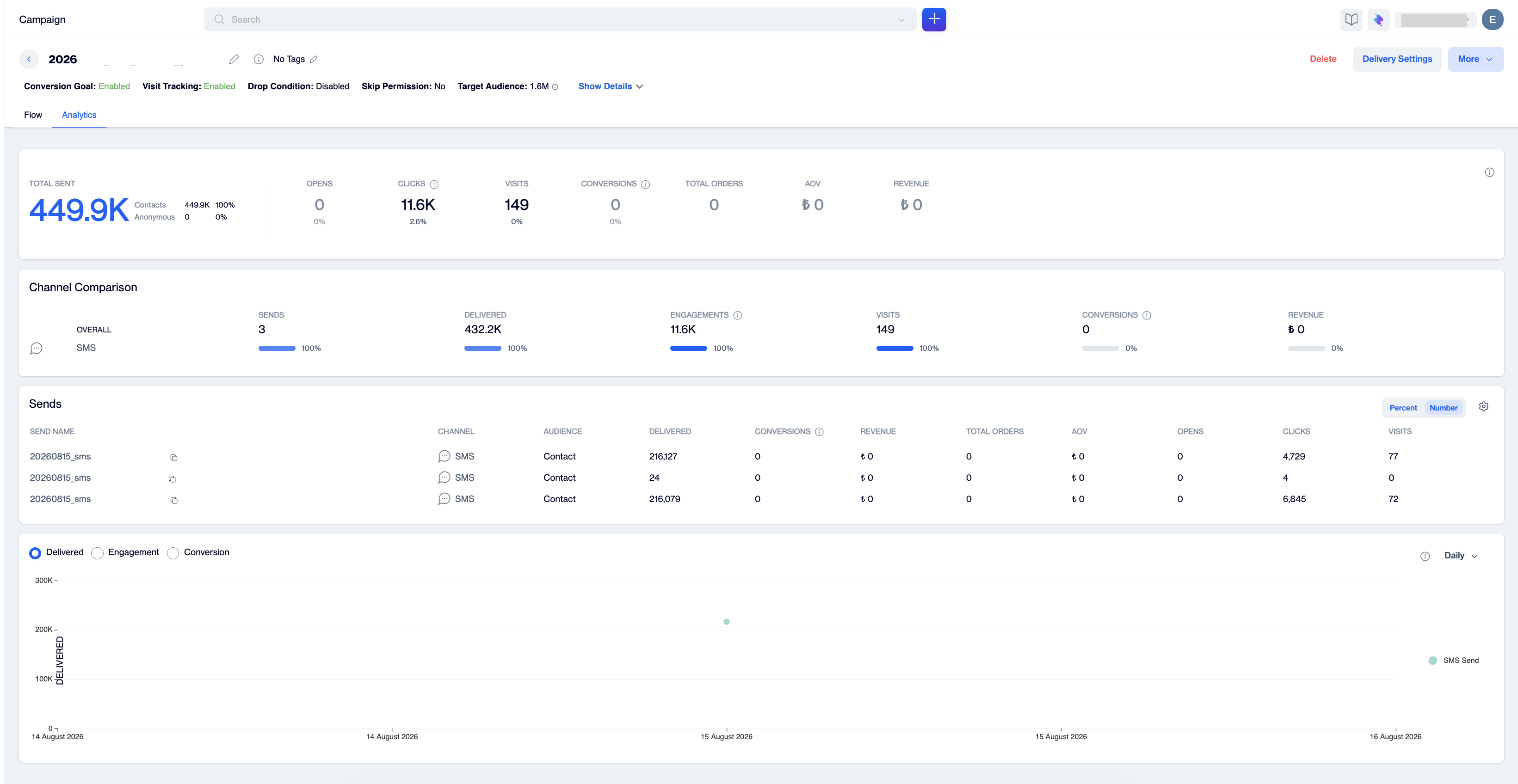
Campaign Analytics tab of an SMS campaign, showing the Total Sent, Opens, and Clicks cards, Channel Comparison, Sends table, and performance chart
The Analytics tab stops at campaign level numbers. To see how one SMS/MMS send was delivered and clicked, open its detailed report.
2. SMS/MMS Detailed Report
How to Access
From the campaign flow:
- Open your campaign. It opens on the Flow tab.
- Click the SMS/MMS node. A summary popover opens with the template, start and end times, and the send's key counts: Sent, Delivered, and Click.
- Click View report. The report opens in a new tab.
From the SMS Channel Report: go to Analytics > Report > Flow > Channel Report, filter the channel to SMS, and click a campaign name in the table.
The report header displays the campaign name, the send status (for example, Completed), and Total Targeted, the number of recipients targeted by this send. The info icon next to the campaign name expands the send's Created On and Updated On dates, and the Public ID button copies the report's public ID to your clipboard for shareable report access.
What It Shows
The report presents the send on a single screen:
- Content card: A preview of the message, the Sender Name, the full Message text, and assigned Tags.
- Total Sent: The number of messages processed for this send, with an Unsent counter next to it. Click more to open the unsent breakdown: Excluded messages with their reasons (for example, Contact Status Passive, Gsm Empty, Gsm Duplicate, Gsm Status Passive) and Error.
- Delivered: Successfully delivered messages and the delivery rate.
- Waiting Report: Messages that were sent but whose delivery report has not yet arrived from the operator, with their share.
- Unique Clicks: The number of people who clicked a link in the message, with the click rate and the Total / Unique split.
- Bounced: Undeliverable messages and the bounce rate, with Time Out and Failed shown on the card. Click more for the full breakdown: Time Out, Failed, Rejected, and Not Reported.
- Unsubscribed: Recipients who opted out, with the unsubscribe rate.
- Delivery Status: A donut chart that splits the send's total into Delivered Count, Waiting Report, and Bounced Count.
- SMS Send Performance: A funnel from Total Target to Total Sent to Delivered, with the Delivery Rate.
- Visit / Conversions / Total Orders / Revenue: Site visits, conversions, orders, and revenue attributed to the campaign. These cards appear when Visit Tracking or a Conversion Goal is enabled for the campaign.
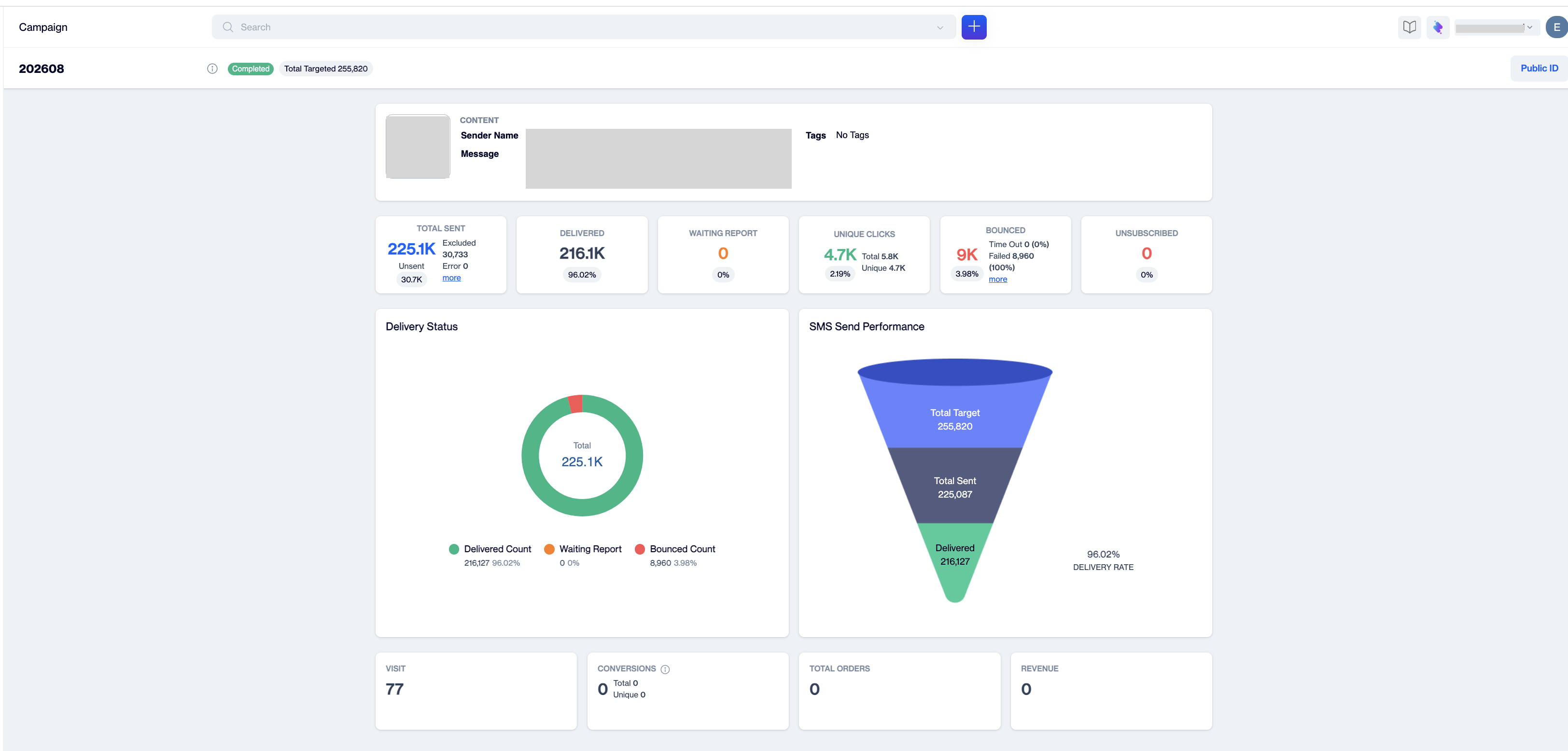
SMS/MMS Detailed Report, showing the content card, performance cards, Delivery Status donut, and SMS Send Performance funnel
TipA high Failed count usually points to invalid or inactive numbers in the audience, and the Excluded reasons (empty or duplicate GSM numbers, passive statuses) surface data quality issues before the send even happens. For provider specific failure reasons, see Viewing Turatel SMS Failed Reasons in Reports.
Metrics Reference Table
| Metric | Definition |
|---|---|
| Total Targeted | The number of recipients targeted by the send, shown in the report header. |
| Total Sent | Messages processed for the send. The Unsent breakdown shows Excluded messages with their reasons (passive contact status, empty GSM number, duplicate GSM number, passive GSM status) and Error. |
| Delivered / Delivery Rate | Messages confirmed as delivered by the operator; Delivered / Total Sent. |
| Waiting Report | Messages sent but with no delivery report received from the operator yet. |
| Click / Unique Click | Total clicks and unique clicks (counted once per person) on the links in the message. |
| Click Rate | Unique Clicks / Delivered. |
| Time Out | The message could not be delivered before its validity period expired. |
| Failed | The operator reported the message as failed. |
| Rejected | The message was rejected by the operator. |
| Not Reported | No delivery result was reported for the message. |
| Unsubscribed | Recipients who opted out of SMS messages. |
| Conversion / Revenue | Goal actions and revenue attributed to the campaign, shown when conversion tracking is enabled. |
| Contacts / Anonymous | Registered users vs unregistered or unidentified users (campaign level Total Sent breakdown). |
Prerequisites
- The report becomes available after the send runs; delivery and click metrics fill in as delivery reports and click signals arrive.
- Recurring campaigns require a Job Version and Date Range selection before generating the report.
- Click metrics require tracked (shortened) links in the message; a plain untracked URL produces no click data.
- SMS produces no open signal, so open based metrics are not available for SMS sends; engagement comes from clicks.
- The Visit, Conversions, Total Orders, and Revenue cards require Visit Tracking or a Conversion Goal to be enabled for the campaign.
Updated 2 months ago