
Survey
The In-App Survey feature is designed to collect visitor feedback directly within the app, enabling engagement and insights through a single-question format.
Creating a Survey
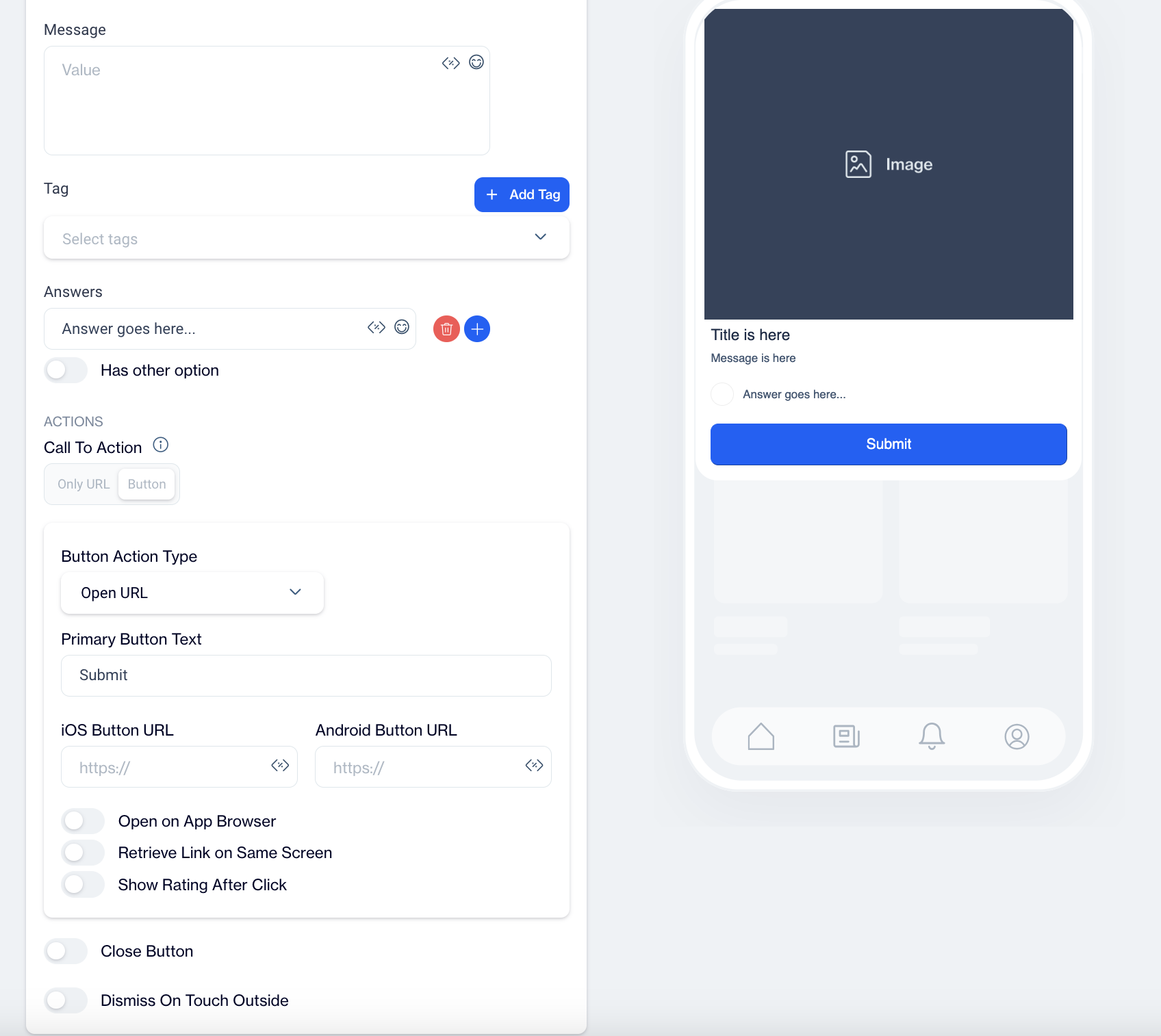
Name: Input the name for your In-App Survey to ensure it is easily identifiable and well-organized.
Preview on Mobile:
After selecting the In-App Survey template, users can preview the survey on the right side of the screen, showing how it will look on mobile devices.
Add Languages: For your In-App Survey, you can include multiple language versions to engage a diverse audience. When adding a new language, you have two options:
- Copy from Content: Duplicate the existing content in the new language to maintain consistency.
- Create Blank Content: Start with a blank template to create unique content for the selected language.
THEME
Edit Theme: In the Edit Theme section, you can customize the appearance of your In-App Survey by adjusting the following parameters:
General
- Font Family: Choose from options like Helvetica, or Roboto.
- Background Color: Set the background color.
- Card Radius: Adjust the radius of the survey card.
- Card Padding: Define the padding inside the card.
- Margin Top (px): Set the top margin.
- Margin Bottom (px): Set the bottom margin.
- Margin Right (%): Specify the right margin.
- Margin Left (%): Specify the left margin.
Message
- Message Color: Choose the text color for the message.
- Font Size: Set the font size for the message text.
- Text Align: Align the text (options include Left, Center, Right).
- Weight: Adjust the font weight (options include Normal, Bold).
Title
- Title Color: Set the color for the title text.
- Font Size: Define the font size for the title.
- Text Align: Align the title text (options include Left, Center, Right).
- Weight: Adjust the font weight for the title (options include Normal, Bold).
Buttons
- Font Family: Choose a font for the buttons (options include Helvetica, Arial, sans-serif).
- Font Size: Set the font size for button text.
- Button Radius: Adjust the button’s border radius.
- Weight: Choose the font weight for button text (options include Normal, Bold).
- Fit Content: Option to set the button width to fit the text.
Primary Button
- Background Color: Define the primary button's background color.
- Text Color: Set the text color for the primary button.
- Border Color: Choose the border color for the primary button.
- Border: Define the border thickness.
Close Button
- Icon Color: Set the color for the close button icon.
- Icon Size: Specify the size of the close button icon.
After clicking Save as New, a pop-up window will appear prompting you to name your new theme. Enter a unique name in the provided text field to identify your theme easily in the future. Once you’ve chosen a name, click OK to finalize your custom theme.
MESSAGE
Image: Add an image by using Image Selector, with option to Add Customization.
Message: Input your survey message with options to add Customization and Emojis to personalize the content.
Tag: Choose an existing tag from the Dropdown Menu or click Add Tag to create a new one.
Create a Tag
To set up and configure tags, follow these steps:
- Tag Name
- Enter a unique name in the Tag Name field.
- This field is required, so be sure to provide a clear, identifiable name for the tag.
- Tag Type
- Tag Type is set to Key Value. This setting allows you to create a custom key-value pair to categorize or identify specific data points.
- Value Type
- Choose the Value Type for the tag data:
- TEXT – For values containing text, such as names or labels.
- INTEGER – For numeric values, such as scores or counters.
- Choose the Value Type for the tag data:
- Description
- Provide a Description to explain the purpose or usage of the tag.
- This helps others understand the context of the tag in your system.
- Audience Type
- Select the Audience Type for the tag, determining if it is Contact-Specific or Device-Specific:
- Contact Specific – Use this option for tags that target individual user profiles.
- Device Specific – Select this for tags associated with devices rather than specific users.
- Select the Audience Type for the tag, determining if it is Contact-Specific or Device-Specific:
Answers:
- Input answer choices with options for Customization and Emojis.
- Has Other Option: Toggle this on to allow an open-ended response. Customize the Other Label and Other Placeholder text.
- Add additional answers with the +Button or remove them by clicking the Trash Can Icon.
ACTIONS
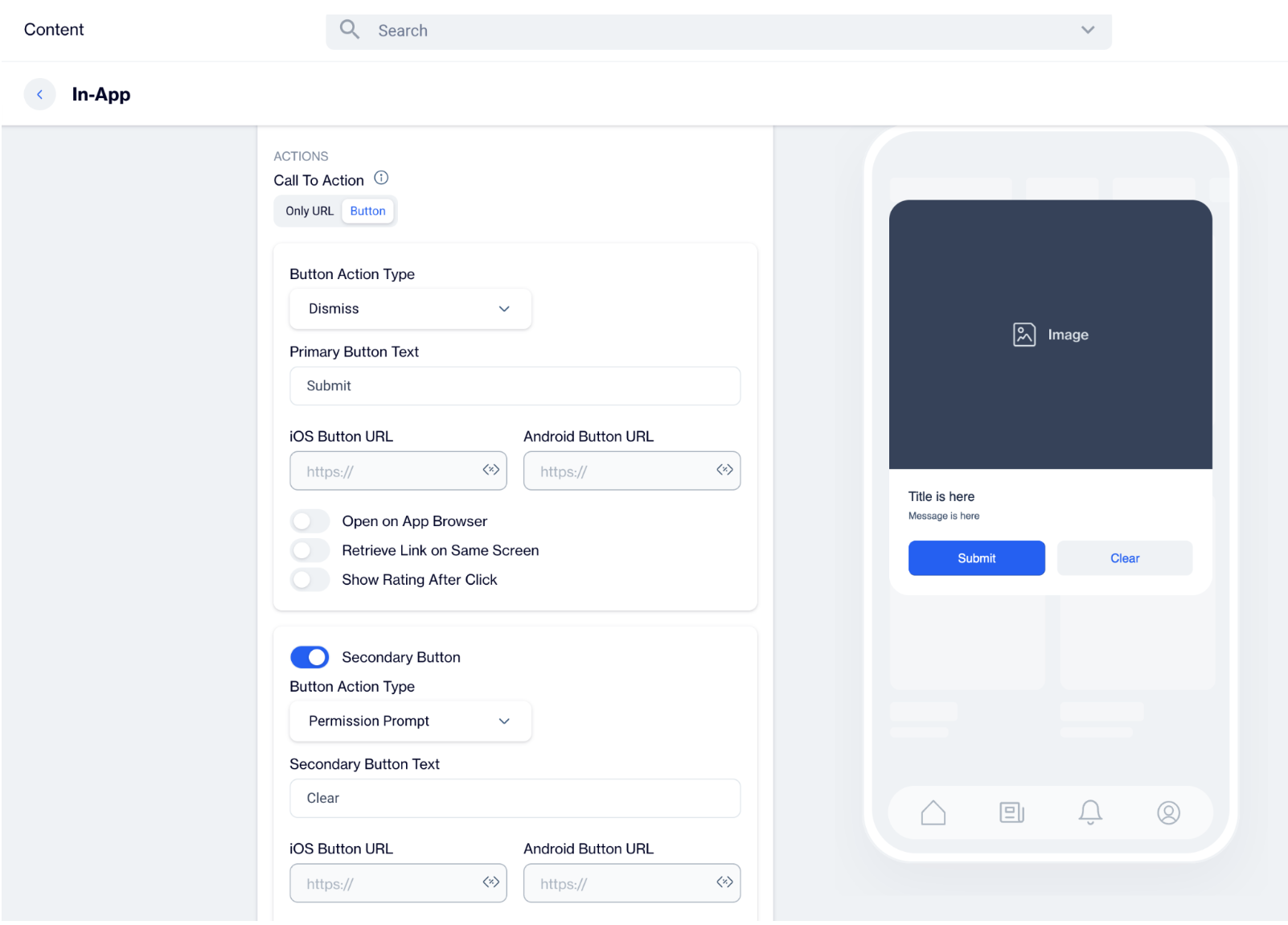
Button Action Type: Select what the button will do upon user interaction:
- Open URL: Directs users to a specified URL.Choose this to send users to a website or landing page.If you want users to visit your product page after the survey, enter the URL.
- Dismiss: Closes the survey. Use this option if the survey is for gathering quick feedback without any further action.
- Permission Prompt: Requests permissions from the user. If your survey leads to a feature that requires notifications, select this option to ask for notification permissions.
Permission Prompt
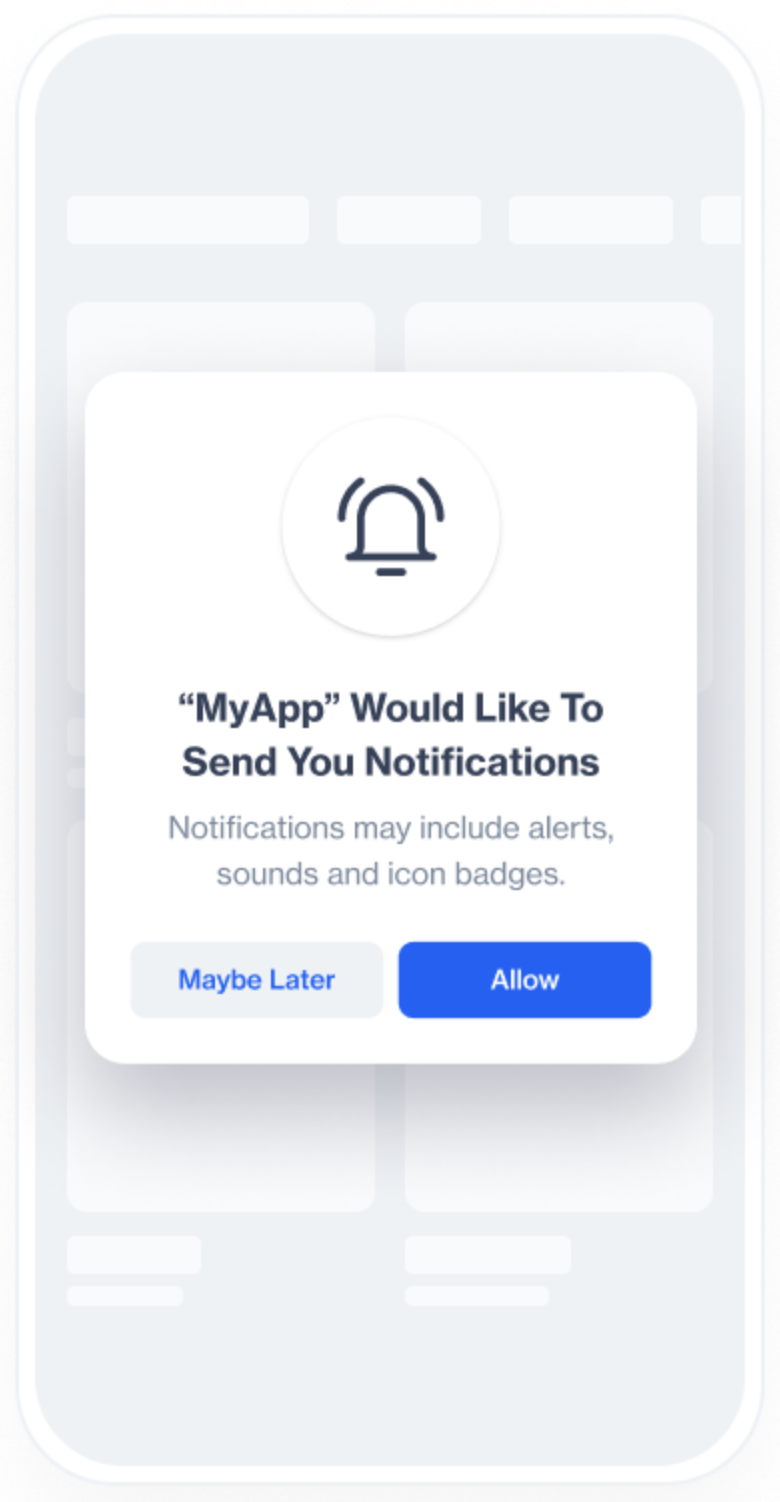
The Permission Prompt feature is designed to help companies secure push notification permissions from users who have downloaded their app but have not yet enabled notifications. By assigning the Permission Prompt button action in this template, you can present an in-app message that prompts users to grant permission for push notifications.
This two-step approach increases the chances of gaining notification permission by first showing an in-app request, followed by the system's native prompt. This method helps engage users before the system prompt, reducing the risk of losing future opportunities if they initially decline.
Building Your Message
In the message body, highlight the reasons why users should enable push notifications. Be clear and specific about the types of notifications you plan to send and the value they can offer.
- Example for a shopping app: "Stay updated with exclusive deals and product launches! Enable push notifications to never miss out on special offers."
- Example for a travel app: "Get real-time updates on your trips! Enable push notifications to receive flight alerts and travel tips directly to your device."
Configuring the Button Action
Add Button Text: Label the buttons with clear, actionable text. Common choices are "Allow Notifications" for the primary button and "Dismiss" for the secondary button.
Define Button Actions:
- Primary Button: Under the Button Action Type dropdown menu, select Permission Prompt. When users click this button, the SDK will check their current notification permission status.
- Secondary Button: Set the action to Dismiss. This option allows users to decline the prompt, closing the message without taking any further action.
Handling User Interaction:
- If the user clicks "Allow Notifications" and has not yet granted permission, the SDK will automatically guide them to their device's settings screen to enable push notifications for your app.
How Does the Permission Prompt Work?
Triggering the Prompt:
- When the Permission Prompt button is clicked, the SDK checks the user's current push notification permission status.
- If permission has already been granted, the SDK takes no further action.
- If permission has not been granted, the SDK will automatically navigate the user to the device's settings screen where they can enable push notifications.
Test Scenario:
- Within the Dengage Sample App, create an In-App message using this template and add a Permission Prompt (Allow Notifications) button.
- When the user clicks the Allow Notifications button, they are shown a message prompting them to enable push notifications. This action leads them to the Android or iOS notification settings screen.
- The user can then enable Show Notifications, granting the app permission to send push notifications.
Primary Text Button: Customize the button text (e.g., "Submit") to clarify its purpose.
iOS Button URL & Android Button URL: Provide URLs specifically for each platform if needed to direct users to platform-specific pages.
Toggles:
- Open on App Browser: Opens the link within the app's browser. Keeps users within the app while viewing content.
- Retrieve Link on Same Screen: Opens the URL on the same screen without navigating away. It is ideal for minimal screen transitions and user focus.
- Show Rating After Click: Displays a rating option after the button is clicked, useful for collecting additional feedback. Enabling this toggle can prompt users to rate their experience right after submission.
Clickable Image Support
Clickable Image Support allows you to assign a click action directly to the image in this template. With this feature, images are no longer limited to being visual elements.
This capability gives you the flexibility to use both clickable images and buttons within the same In-App message, each with its own destination. As a result, you can design more engaging layouts, guide users through multiple actions, and create richer interaction experiences without changing your existing template structure.
Enable Clickable Image
While configuring your content, scroll to the Action section, the Clickable Image toggle is located within this section. When the toggle is turned on, the image in the template becomes clickable and can trigger its own action independently from buttons.
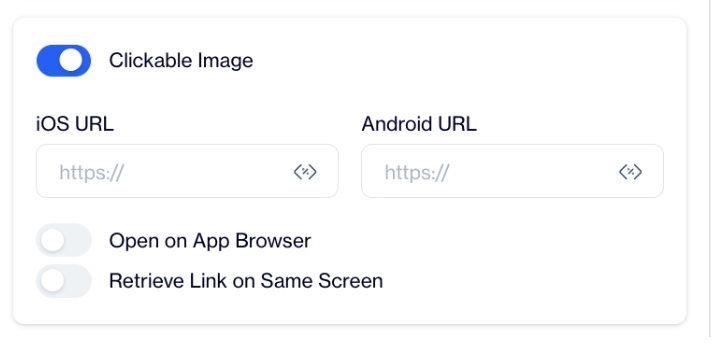
If the toggle remains off, the image will stay non-clickable, and only buttons will trigger user actions.
Configure Image Click Actions
After enabling the Clickable Image toggle, additional configuration fields become visible. You can enter separate destination URLs for iOS and Android platforms. You can also choose whether the link opens in the app browser and whether the link should be retrieved on the same screen.
These settings apply only to the image and do not affect any button configurations in the template.
Configure Buttons Independently
Buttons in the same template can be configured as usual and remain completely independent from the image. You can assign different destinations to buttons, or you can choose to send users to the same destination as the image.
Both images and buttons support Web URLs, Deep Links, and Custom Actions.
Use Cases
Clickable Image Support enables a wide range of design and interaction scenarios. For example, you can direct users to a product detail page by clicking the image, while using a button to add the product to the cart. This helps shorten the path to purchase while still offering clear call-to-action buttons.
You can also use the image to open content such as an article or campaign landing page, while buttons allow users to save, share, or take secondary actions. In cases where you want to increase the clickable area, both the image and buttons can lead to the same destination, making the experience more accessible.
Clickable Image Support allows images and buttons to work together in the same In-App message. This feature gives you greater co
Close Button: Adds a visible close (X) button on the popup or survey, giving users an easy way to close it. Enable this if you want users to have the option to dismiss the survey at any time without completing it.
Dismiss on Touch Outside: Closes the survey when users tap outside its boundaries.Use this for surveys where users might want to exit quickly if they’re not interested.
After creating your Survey content, you can save it as a draft or publish it for your in-app campaigns when ready.
Updated 3 months ago