
Identity & Access Management
Identity & Access Management is the group of settings that controls who can sign in to your Dengage account, what each person can see and do, and which systems can connect to your account. Use these settings to protect customer data and to give each team member only the access they need.
This page gives an overview of the Identity & Access Management features. Each feature has its own page with step-by-step instructions. Follow the links in the table below.
Where to find these settings
Go to Settings > Identity & Access Management. The Settings menu lists the eight pages under this heading.
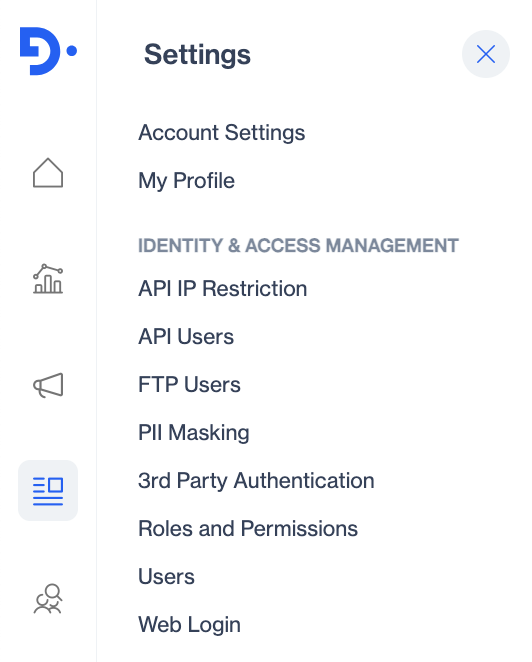
The Identity & Access Management section in Settings.
Before you start
You need a role that includes the Identity & Access Management permissions in the General permission group:
- Identity & Access Management View lets you open these pages and see the current settings.
- Identity & Access Management Edit lets you change them.
The Full Admin system role includes both permissions. See Role-Based Access for Settings.
What you can manage
| Feature | What it controls | Use it when |
|---|---|---|
| Users | The people who can sign in to your account. Invite new users, assign roles, set a temporary invitation with an expiry date and track pending invitations. | A team member needs access to the platform, or someone leaves the team. |
| Roles and Permissions | What each user can view, edit, publish, approve or delete. Roles group permissions for campaigns, content, analytics, data space, coupons and general settings. | You want to limit users to the parts of the platform they work in. |
| Web Login | How users sign in. Set the 2-Factor Authentication type, allow sign-in only from listed IP addresses, set an Auto Logout time and view the domains allowed for invitations and exports. | You want to control the sign-in process for everyone in the account. |
| PII Masking | Which contact and device columns hold personal data (PII) and appear masked to users without the Show PII permission. | Some users need to work with contact data without seeing email addresses, phone numbers or other personal details. |
| 3rd Party Authentication | Sign-in through your company's own directory. Dengage currently supports LDAP. | Your company manages user identities centrally and wants to use them for Dengage sign-in. |
| API Users | The credentials and permissions that your systems use to call the Dengage REST API. | You integrate Dengage with your own applications, for example to send transactional messages or import data. |
| API IP Restriction | The IP addresses and ranges allowed to call the REST API. API access stays blocked until you add at least one address. | You created an API user and want to open API access to your servers. |
| FTP Users | The accounts that upload files to Dengage over FTPS, for example for the File Drop step in automated flows. Each FTP user can have its own IP restriction. | You exchange data files with Dengage through secure file transfer. |
Setup order
Some features depend on others. Set them up in this order so that each step has what it needs.
- Set the Web Login options. Open Web Login, choose the 2-Factor Authentication type, enter the IP addresses allowed to sign in if you use IP Restrictions, and set the Auto Logout time. See Web Login.
- Create roles. Open Roles and Permissions and create a role for each job in your team. A role must have at least one permission. See Roles and Permissions.
- Mark the personal data columns. Open PII Masking and set Mask PII for the columns that contain personal data. Users whose role does not include Show PII see these columns masked. See PII Masking.
- Invite users. Open Users, click Invite, enter the email address, choose the login type and assign one of the roles you created. You can also set a temporary invitation with an expiry date. See Users.
- Connect your directory (optional). If your company uses LDAP, open 3rd Party Authentication and add your directory server so users can sign in with their company credentials. See 3rd Party Authentication.
- Set up API access (if you integrate by API). Open API Users and create a user with the permissions your integration needs. Then open API IP Restriction and add the IP addresses of your servers. Dengage blocks API calls until you add at least one IP address. See API Users and API IP Restriction.
- Set up file transfer (if you exchange files). Open FTP Users and create a user for each team or system that uploads files. You can restrict each user to a list of IP addresses. See FTP Users.
How the features work together
- A role defines a set of permissions. A user gets the permissions of the role you assign. When you change the role, every user with that role gets the change.
- PII Masking defines which columns are personal data. The Show PII permission in a role decides who can see them unmasked.
- Web Login settings apply to every user who signs in through the web interface, regardless of role.
- API Users and FTP Users are separate from the users on the Users page. They have their own credentials and their own permissions.
- API access, FTP access and web sign-in each have their own IP restriction list. A list on one page does not apply to the others.
Terms used on these pages
| Term | Meaning |
|---|---|
| Role | A named set of permissions that you assign to users. Dengage provides the system roles Full Admin, No Access and Restricted Access, and you can create your own. |
| Permission | A single right, such as viewing campaigns or exporting data. Roles are made up of permissions. |
| 2-Factor Authentication | A second check at sign-in, in addition to the password. Dengage supports a code sent by email or a code from an authenticator app (TOTP). |
| TOTP | Time-based One-Time Password. The codes generated by authenticator apps such as Google Authenticator. |
| IP address, IP range | The network address of a device or server. An IP range covers several addresses in a row (for example 185.11.21.80-185.11.21.85). |
| IP restriction | A list of allowed IP addresses. Dengage rejects connections from any other address. |
| PII | Personally Identifiable Information. Data that identifies a person, such as an email address, phone number or name. |
| REST API | The programming interface that your own systems use to send data to Dengage and read data from it. |
| LDAP | Lightweight Directory Access Protocol. A standard that lets Dengage check user credentials against your company's directory server. |
| FTPS | File Transfer Protocol Secure. An encrypted way to upload files to Dengage. |
Related pages
- Users
- Roles and Permissions
- Role-Based Access for Settings
- Web Login
- PII Masking
- 3rd Party Authentication
- API Users
- API IP Restriction
- FTP Users
Updated about 1 month ago