
SmartTag - Segment
Smart Tag Segmentation lets you create audiences using Smart Tags directly in segment filters.
With this update, you can filter users based on whether a Smart Tag is assigned to them or whether it matches specific Smart Tag values.
How to Access
To create a segment, go to Audience > Segments and click New. Choose Interactive as the segment type, then enter a segment name and description.
Once the segment is created, click Add Inclusion Filter.
How to Use Smart Tags in Segments
1. Add a Smart Tag Filter
- Click Add Inclusion Filter
- In the filter dropdown, type Smart Tag in the search field
- Select Smart Tag from the dropdown options
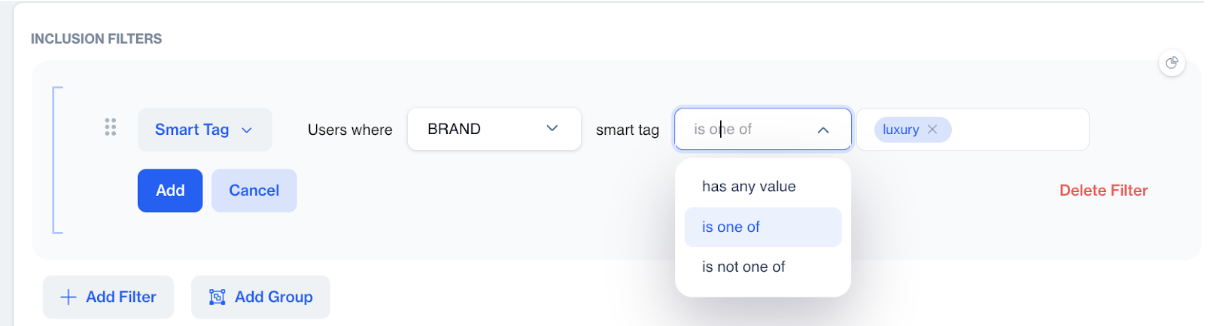
Smart Tags in Segment
2. Define the Smart Tag Condition
Once Smart Tag is selected, the following fields appear.
Available Conditions
- Has any value
- Includes all users who have any Smart Tag assigned
- The Tag Values field is not shown for this option
- Is one of
- Includes users who have one or more selected Smart Tag values
- Select one or multiple Smart Tags from the dropdown
- Is not one of
- Excludes users who have the selected Smart Tag values
3. Save the Segment
- Review your filter logic
- Save the segment
The segment will now include users based on the selected Smart Tag conditions.
Updated 3 months ago
Did this page help you?