
Alert Email
Alert Email
The Alert Email Configuration screen allows you to manage all campaign and flow-related alerts from a single subscriber-based structure.
You can add an email address once and assign multiple alert types to it. This prevents repetitive data entry and simplifies alert management.
The system supports notifications for one-time campaigns, recurring campaigns, import/export processes, and flow execution issues across all channels included in the communication.
How to Access
Go to: Settings > Campaign Configurations > Alert Emails
Click Add New Subscriber.
How to Use
1. Add Subscriber
- Enter the Email Address
2. Select Alert Type(s)
Under Alert Type, select the alerts this subscriber should receive.
You can assign multiple alert types to the same email address.
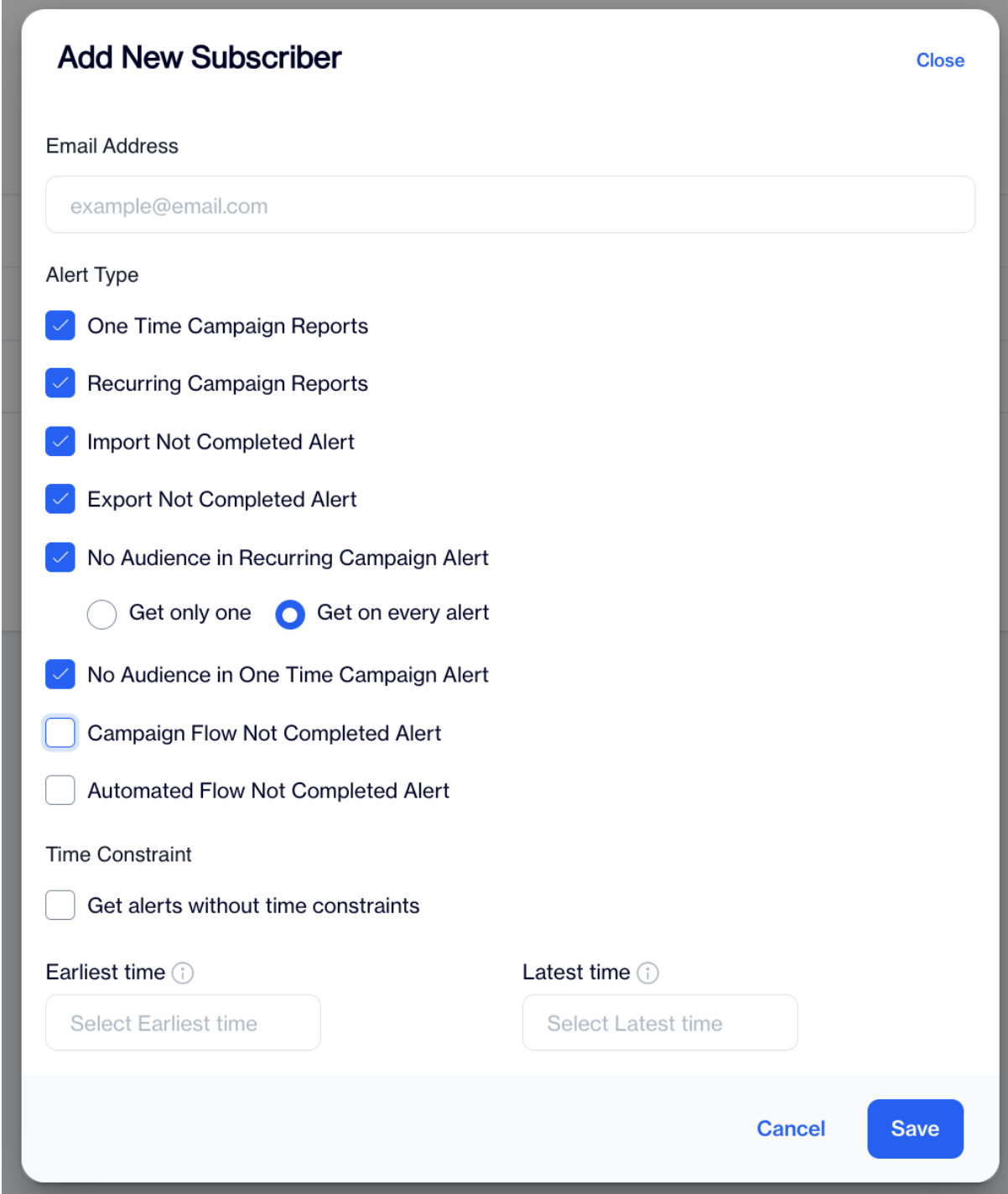
Alert Email
Under Alert Type, choose the notifications this subscriber should receive:
One Time Campaign Reports
Includes notifications related to one-time campaign execution:
- Notification 1: Sent when the flow is published.
- Notification 2: Sent when all communications in the flow are completed.
- No Audience in One Time Campaign Alert: Triggered when a one-time campaign segment returns zero audience.
Recurring Campaign Reports
Includes notifications for recurring campaign execution:
- Notification 1: Sent once per day at 08:00 AM (next morning, local time).
- No Audience in Recurring Campaign Alert: Triggered when a recurring campaign runs without an audience.If you select No Audience in Recurring Campaign Alert, you can choose how often notifications are sent:
- Get only one: Send a single notification for the issue.
- Get on every alert: Sends an email each time the recurring campaign runs without an audience.
System Alerts
- Import Not Completed Alert: Triggered when a data import process is not completed successfully.
- Export Not Completed Alert: Triggered when a data export process is not completed successfully.
- Campaign Flow Not Completed Alert: Triggered when a campaign flow does not finish execution.
- Automated Flow Not Completed Alert: Triggered when an automated flow does not complete successfully.
3. Time Constraint (Optional)
Under Time Constraint, you can:
- Select Get alerts without time constraints, or
- Define Earliest time and Latest time to restrict delivery hours.
Click Save to complete the setup.
Updated 3 months ago