
In-App Channel Report
The Channel Report page helps you track and analyze the performance of your in-app campaigns. This guide explains how to open the report and how to read each metric. It also shows how to open the Send Details page for a single in-app campaign.
1: Access the Channel Report
- Go to the Analytics section on the main page.
- Click Report > Flow > Channel Report.
2: Understand the Top Section of the Report
The Channel Report page opens with Email reports by default. To switch to the In-App channel:
- Click the Filter button at the top right of the table.
- Select In-App as the channel.
The report calculates all metrics from unique values for the selected channel. An information banner at the top of the report reminds you of this.
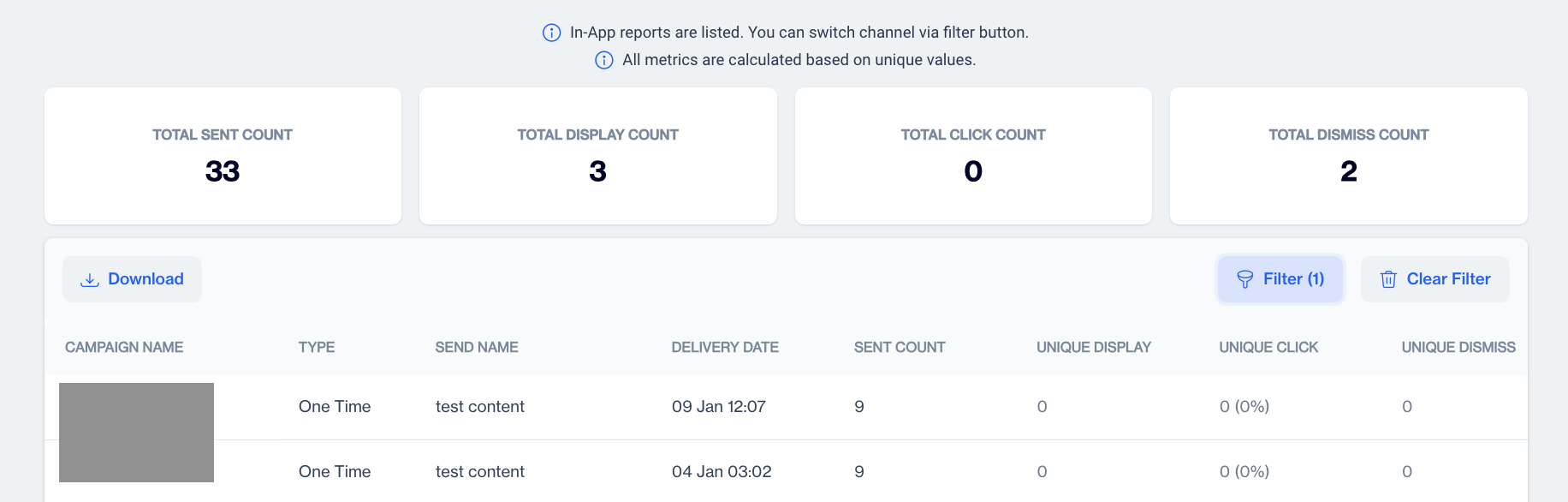
In-App Metrics
3: Review Overall Metrics
Below the information banner, four summary cards show the totals for all your in-app campaigns:
- Total Sent Count: The total number of in-app messages sent.
- Total Display Count: The total number of times users opened an in-app message.
- Total Click Count: The total number of clicks on links inside in-app messages.
- Total Dismiss Count: The total number of in-app messages that users closed without clicking.
4: View Campaign-Specific Details
Below the summary cards, a table lists each in-app campaign on its own row. The table has the following columns:
| Column | Description |
|---|---|
| Campaign Name | The name of the in-app campaign. |
| Type | Whether the campaign is a one-time or a recurring campaign. |
| Send Name | The sender name used for the campaign. |
| Delivery Date | The date and time the in-app campaign was sent. |
| Sent Count | The number of in-app messages sent. |
| Unique Display | The number of unique users who displayed the in-app message. |
| Unique Click | The number of unique users who clicked a link in the in-app message. |
| Unique Dismiss | The number of unique users who closed the in-app message without clicking. |
| Conversion | The number of conversions attributed to the in-app campaign. |
| Revenue | The total revenue attributed to the in-app campaign. |
| Tag | The tags applied to the campaign for categorization. |
5: View Campaign Reports
To review a single in-app campaign in more detail, double-click the Campaign Name in the table. The Send Details page for that campaign opens.
Send Details / Campaign Performance Details
The Send Details page provides a detailed breakdown of one in-app campaign. It has four parts: Content, Metrics, Clicks By Device, and In-App Send Performance.
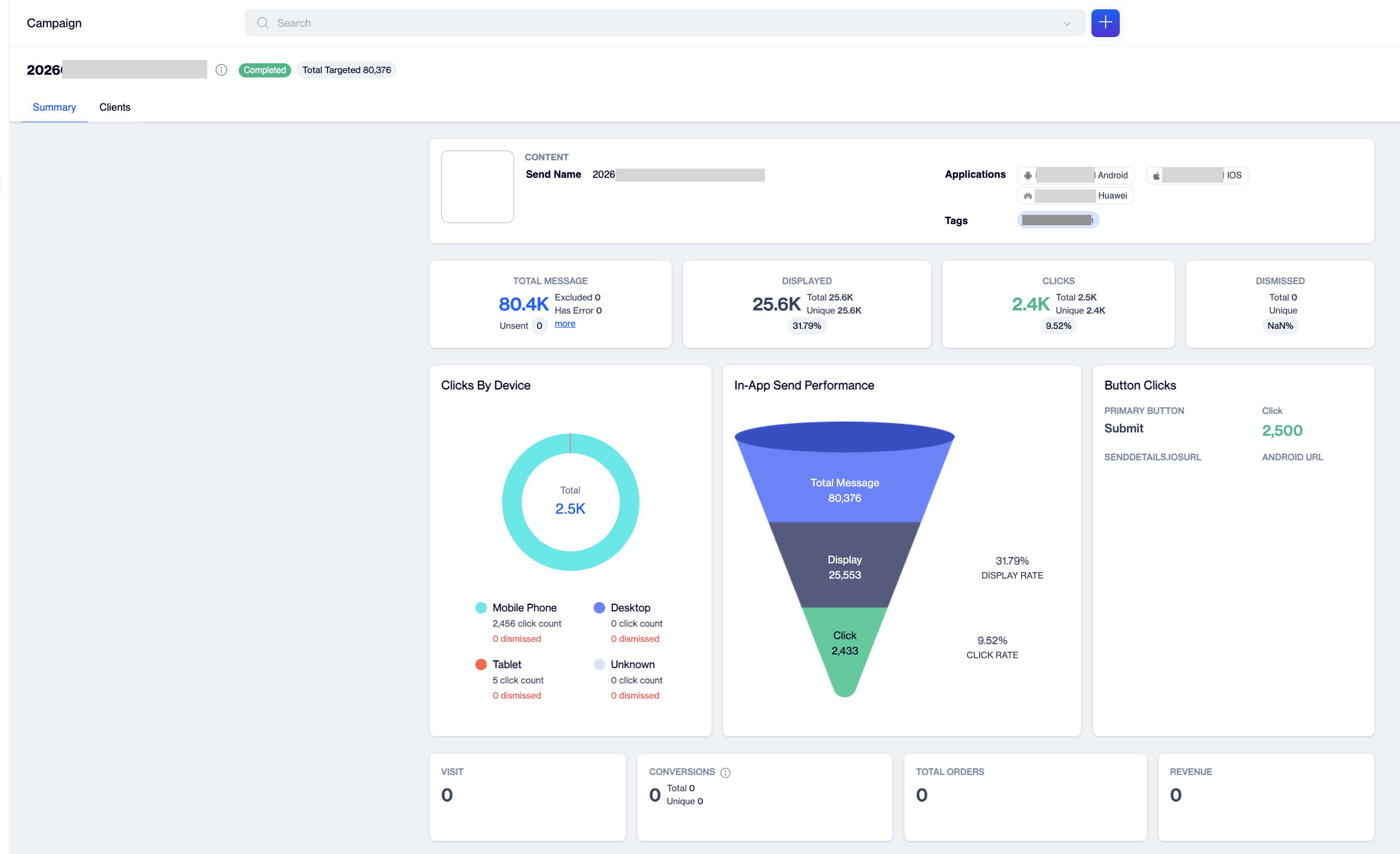
In-App Summary
Content
The Content section shows key information about the in-app campaign:
- Send Name: The name of the selected in-app campaign.
- Application: The application or platform where the in-app message is displayed.
- Tags: The tags associated with the campaign, used for categorization and tracking.
Metrics
The Metrics section shows the main performance statistics for the in-app campaign:
- Total Messages: The total number of in-app messages sent. This section also shows why some in-app messages were not sent:
- Excluded: In-app messages that were excluded by predefined rules or audience filters.
- Error: In-app messages that failed because of a delivery error.
- Displayed: The number and percentage of in-app messages that users opened.
- Clicks: The number and percentage of users who clicked a link in the in-app message.
- Dismissed: The number and percentage of in-app messages that users closed without clicking.
Clicks By Device
The Clicks By Device chart shows how clicks on the in-app campaign are distributed across device types. The circular chart includes the following device types:
- Mobile Phone
- Desktop
- Tablet
- Unknown
Use this chart to see which devices your audience uses most when they interact with your in-app messages.
In-App Send Performance
Next to the Clicks By Device chart, the In-App Send Performance cone chart summarizes the campaign funnel:
- Total Message: The total number of in-app messages sent for the campaign.
- Display: The number and percentage of in-app messages that users opened.
- Click: The number and percentage of in-app messages that users clicked.
Below the cone chart, the page shows the results attributed to the campaign:
- The number of visits.
- The number of conversions, as both total and unique conversions.
- The total number of orders.
- The total revenue.
Updated about 1 month ago