
Zeki AI Overview
Zeki AI is the artificial intelligence layer of Dengage. It works in different ways. You reach it through Zeki Assistant, the chat panel in the top bar. You also meet it directly inside the screens where you build campaigns, content, and audiences.
This page maps the whole family. Each feature has its own guide, linked below.
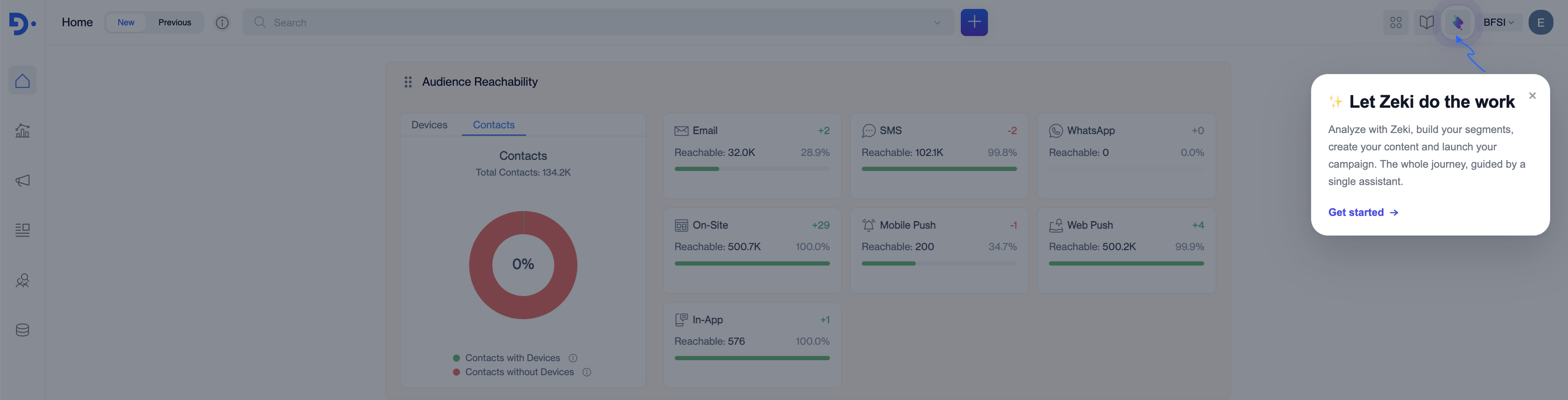
Zeki AI travels with you: the assistant opens from the top bar of every page
Where You Find Zeki AI
| Feature | Where it lives | What it does |
|---|---|---|
| Zeki Assistant | Top bar, on every page | Answers questions, analyzes your campaigns and segments, and creates content, segments, and campaigns through conversation |
| Writing assistant | Inside text fields | Rewrites, shortens, or lengthens the text you are working on, in your brand's voice |
| AI Design Studio | Content > Design > AI Design Studio | Generates and edits images from a written description |
| Segment Shaper | Audience > Segments > New | Builds a segment from a plain-language description of your audience |
| Smart Tags | Audience > Tags > Smart Tag | Tags products and groups customers automatically, ready for segment building |
| Brand Kit | Settings > Campaign Configurations | Defines how your brand looks |
| AI Brand Persona | Settings > Campaign Configurations | Defines how your brand sounds |
What the Zeki Icon Means
The Zeki icon marks every part of the platform where Zeki AI works. You see it in two positions.
Next to a label or a section header, it tells you that the area below supports Zeki AI.
Inside the right edge of a text field, it is a button. Select it to open the writing assistant and rewrite, shorten, or lengthen your text, or to write a new prompt of your own.
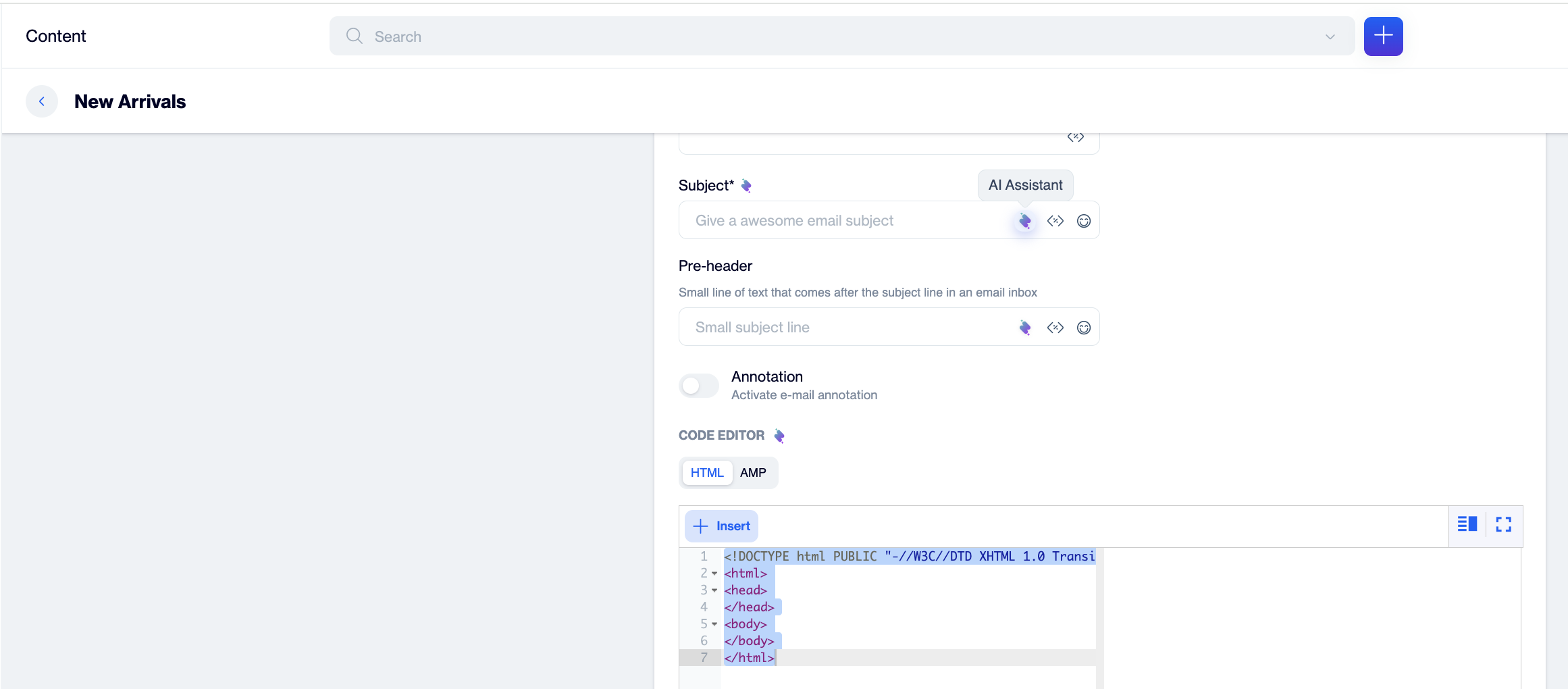
The icon beside the label marks the area. The icon inside the field opens the AI assistant.
Which one can you select?The icon inside a field is the one you select. The icon beside a label points out where Zeki AI is available.
Zeki Assistant
Zeki Assistant is the conversational side of Zeki AI. Open it from the top bar on any page and ask a question the way you would ask a colleague.
Use it to:
- Get documentation-backed answers without leaving your workflow
- Analyze campaign performance and segment sizes from your own account data
- Draft content, build a segment, or set up a single-channel campaign
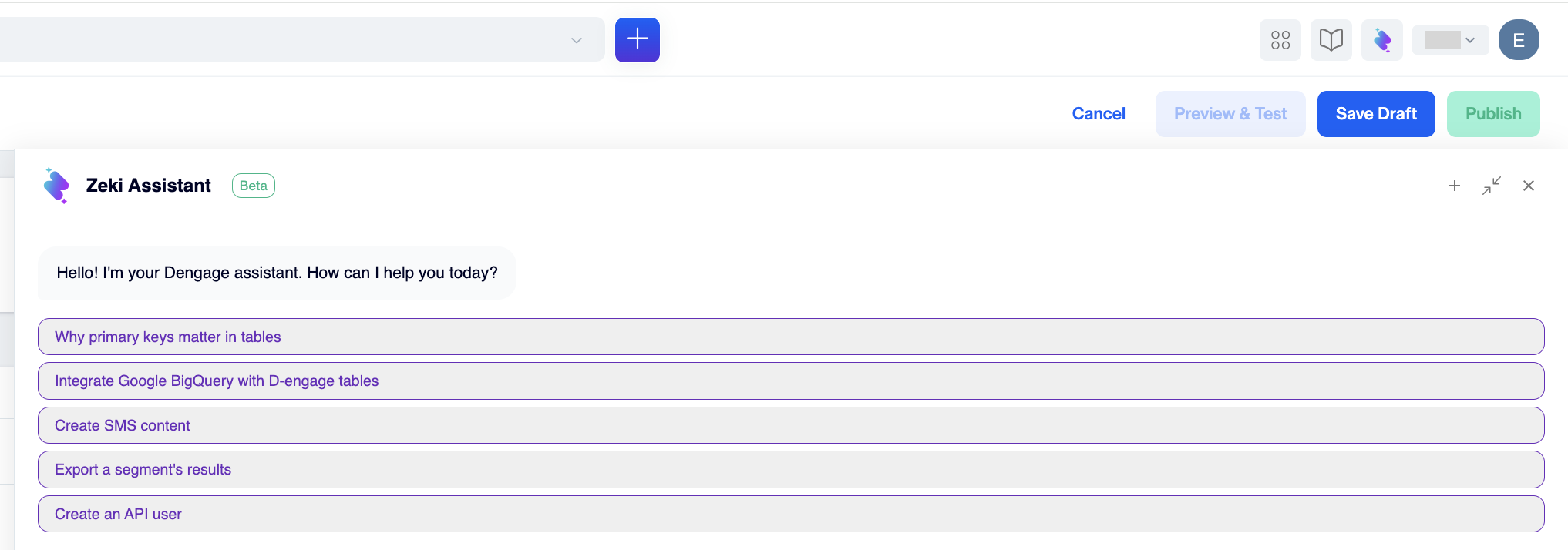
Zeki Assistant opens beside your work
See Zeki Assistant for the full guide, and Data Insights for everything you can ask about your data.
Zeki AI Inside Your Screens
Zeki AI also works where you build, without opening the chat panel.
In content fields
Select the Zeki icon inside a text field to open the writing assistant. Fields across the platform carry it, including the title and message fields of your content. Choose Improve Writing, Make Shorter, or Make Longer, pick the persona you want, or select Enter New Prompt to describe exactly what you need.
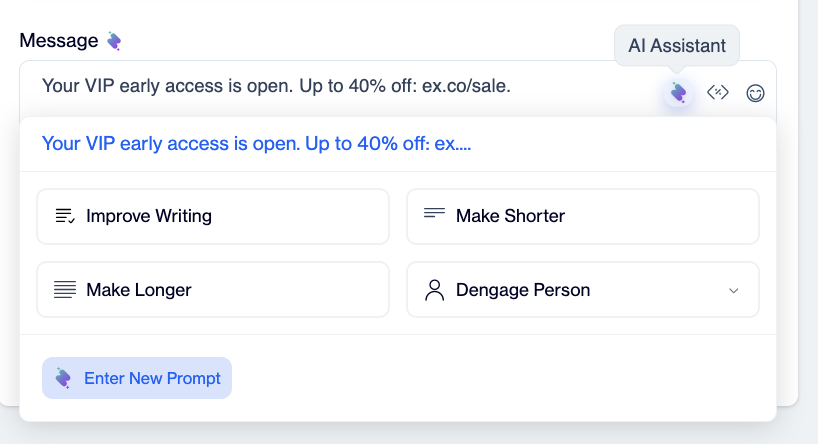
Rewrite in place: pick an action, or write your own prompt
In AI Design Studio
Describe the image you want and add up to three reference images. Then choose a style, an aspect ratio, and a Brand Persona. Zeki generates the image for you to use in your campaigns.
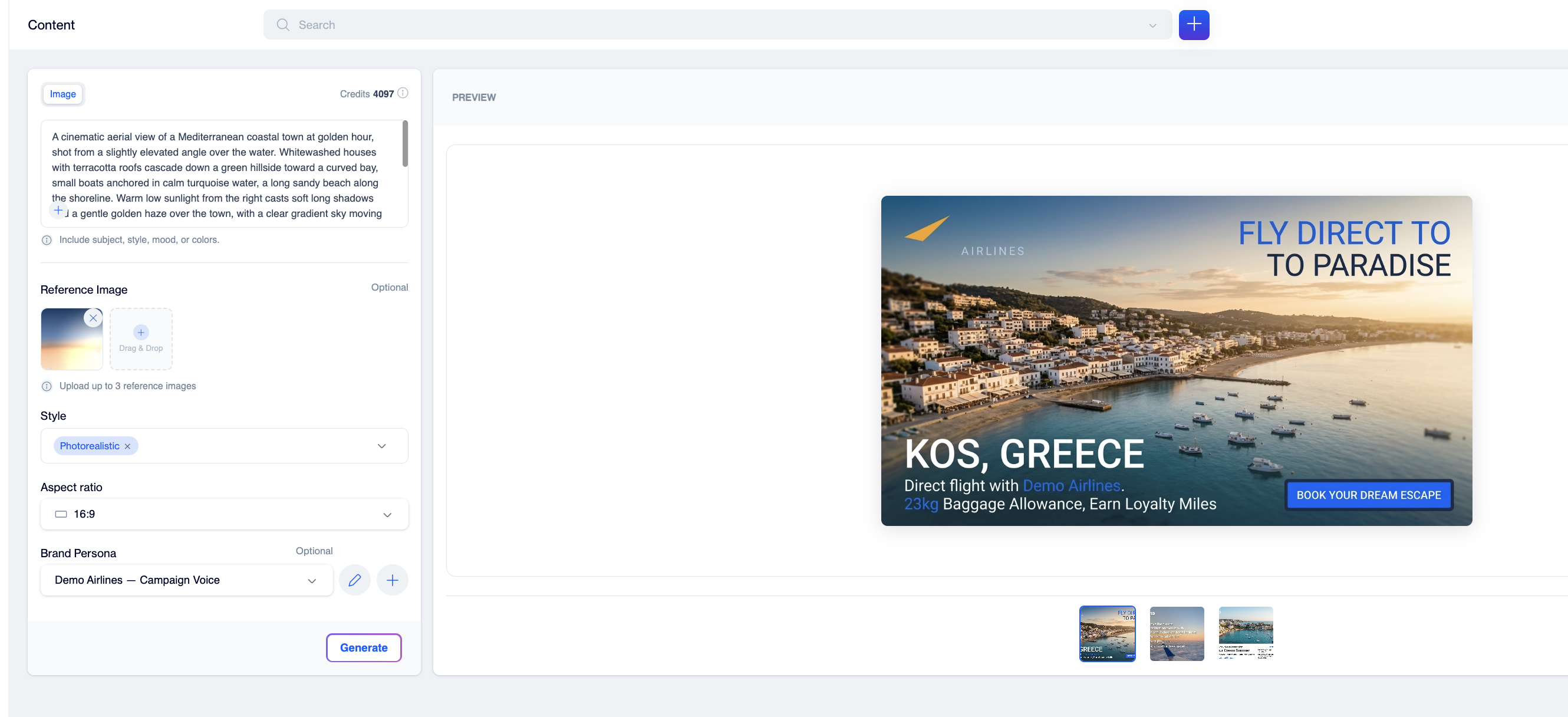
AI Design Studio turns a written description into campaign ready images
In the segment builder
Choose Segment Shaper when you create a segment, then describe your audience in one sentence. Zeki converts the description into segment rules for you to review and save.
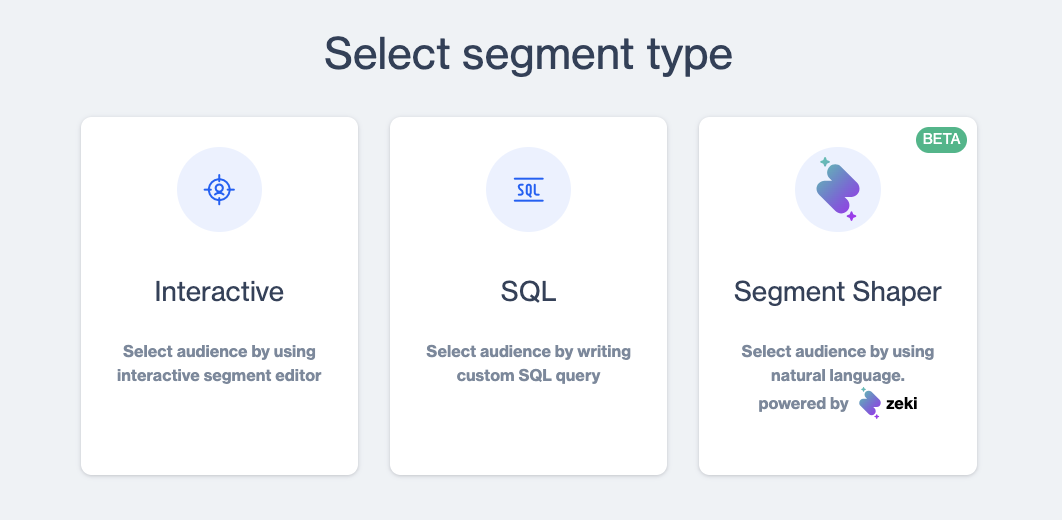
Segment Shaper sits beside the Interactive and SQL builders when you create a segment
How to Shape What Zeki Produces
Two settings control the output of every AI feature above.
Brand Kit defines how your brand looks: logo, colors, fonts, buttons, and layout components. Set it up in Settings > Campaign Configurations > Brand Kit.
AI Brand Persona defines how your brand sounds: tone, writing style, language, and the words to use or avoid. Each persona links to a Brand Kit, and the persona you mark as default applies wherever you do not choose another one. Set it up in Settings > Campaign Configurations > AI Brand Persona.
Set both up before you use the writing assistant or AI Design Studio. The output matches your brand from the first draft, so you spend less time editing.
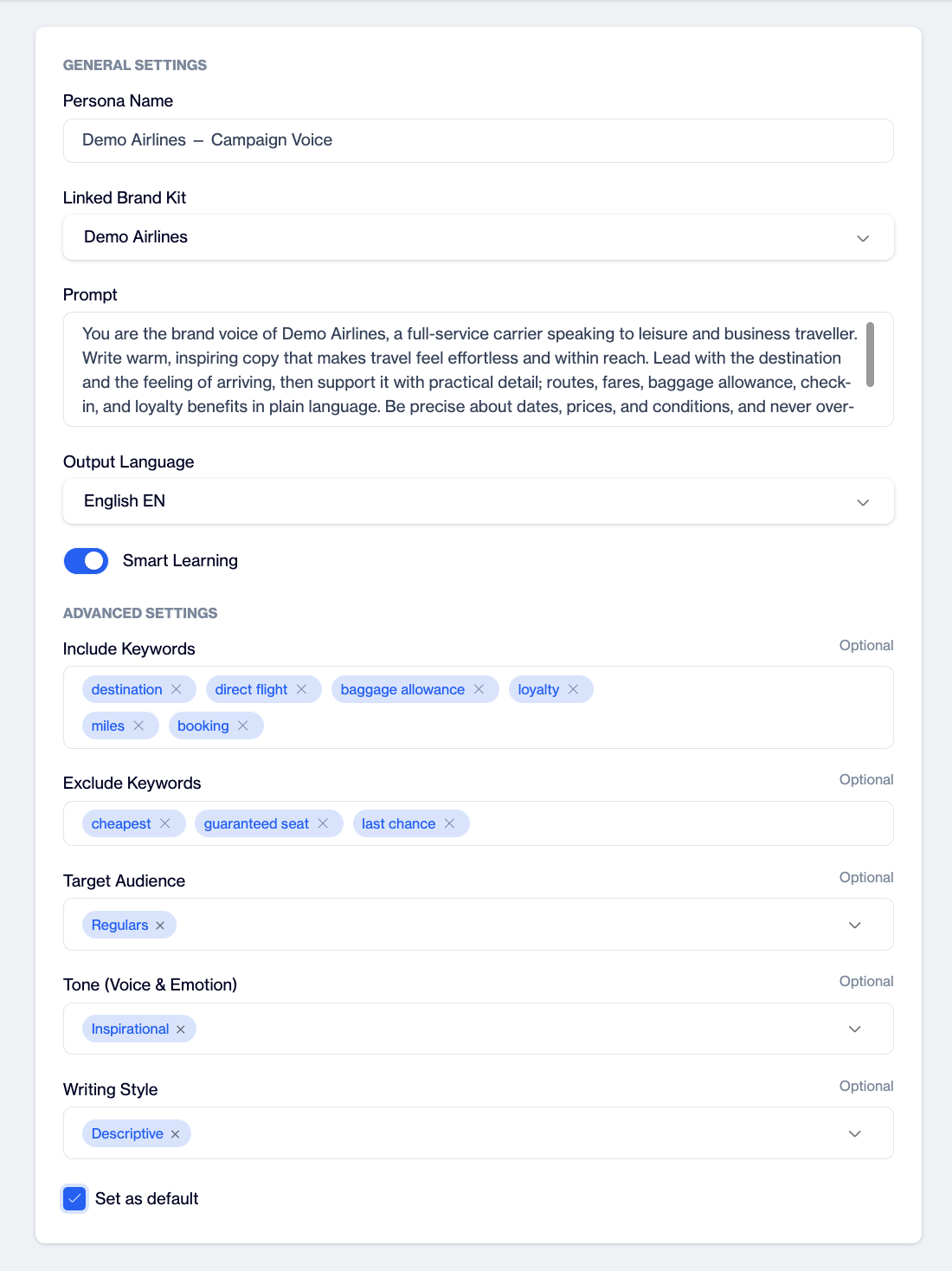
Each persona links to a Brand Kit, and one persona carries the Default label
See Brand Kit and AI Brand Persona for setup steps.
Where to Go Next
- Zeki Assistant: the chat panel, its capabilities, and how to get sharper answers
- Data Insights: every question you can ask about your account data
- Brand Kit: set up how your brand looks
- AI Brand Persona: set up how your brand sounds
- Smart Tags: AI-generated product and customer tags
Updated about 2 months ago