
AI Brand Persona
AI Brand Persona
An AI Brand Persona tells Zeki AI how your brand communicates: the tone, voice, language and writing style it uses when it generates campaign text. Zeki AI reads the persona every time it writes an email, SMS, push notification, WhatsApp message, in-app message or on-site message, so the wording stays consistent across channels.
The AI Brand Persona controls how your brand sounds. The Brand Kit controls how your brand looks. Set up both to get consistent AI-generated content.
Why create an AI Brand Persona
Without a persona, Zeki AI writes in a neutral, generic voice, and each campaign can sound different from the last. A persona fixes this in three ways:
- Consistency. Every generated message follows the same tone, vocabulary and language.
- Control. You decide which words always appear, which words never appear, and who the message speaks to.
- Flexibility. You can keep several personas in one account, for example one for onboarding and one for loyalty campaigns, and mark one as the default.
Before you start
Prepare the following so you can complete the persona in one sitting:
| Item | What to prepare | Example |
|---|---|---|
| Persona name | A name that says which voice this is, especially if you plan to create several. | Demo Airlines - Campaign Voice |
| Brand Kit | The Brand Kit you want to pair with this voice. Create it first under Settings > Campaign Configurations > Brand Kit. | Demo Airlines |
| Prompt | Three to eight sentences that describe how your brand speaks. See the example in Step 3. | "Write warm, clear copy that makes travel feel effortless..." |
| Output language | The language every generated message uses. | English EN |
| Keywords | Optional. Words to always include and words to never use. | Include: direct flight, loyalty miles. Exclude: cheapest, last chance |
Open the AI Brand Persona page
Go to Settings > Campaign Configurations > AI Brand Persona.
The page lists every persona in your account. A Default badge marks the persona that Zeki AI uses automatically.
| Column | What it shows |
|---|---|
| Persona Name | The name you entered. Click it to open the persona for editing. |
| Linked Brand Kit | The Brand Kit paired with this persona. |
| Update Date | Date and time of the last save. |
| Created By | The user who created the persona. |
Click the three-dot menu at the end of a row to Edit, Duplicate, Set as Default or Delete a persona. See Manage existing personas for details.
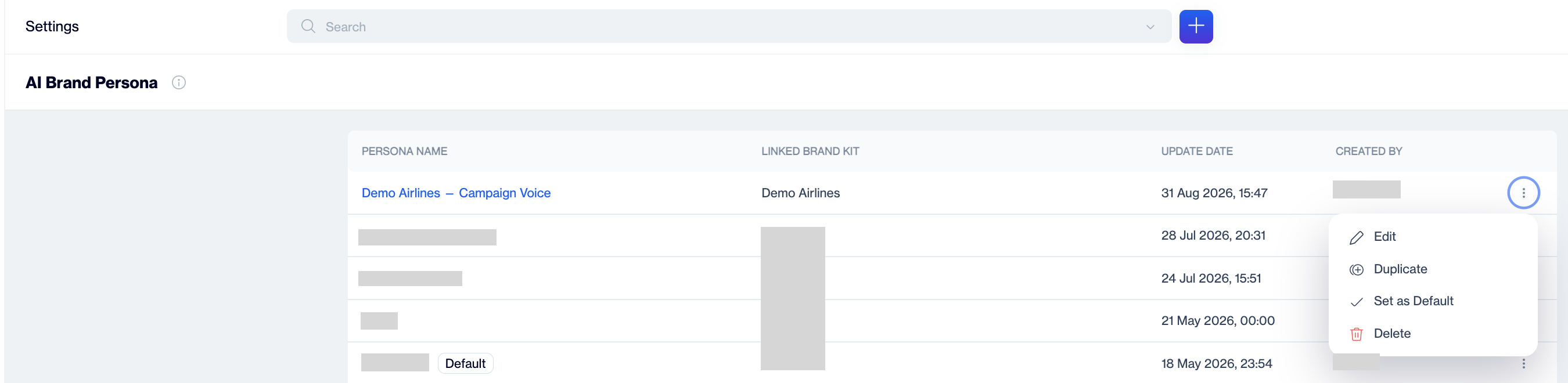
The AI Brand Persona list. The Default badge marks the persona that Zeki AI uses automatically.
Create an AI Brand Persona
Click New at the top right of the AI Brand Persona page. The Create AI Brand Persona screen opens with two sections: General Settings and Advanced Settings. Fill in General Settings first, refine the voice in Advanced Settings, then save.
Step 1: Name the persona
In Persona Name, type a name that describes the voice, for example Demo Airlines - Campaign Voice or Demo Airlines - Onboarding. The name appears in the persona list and in the persona selector when you generate content.
Step 2: Link a Brand Kit
In Linked Brand Kit, select the Brand Kit that belongs with this voice. The field opens with your default Brand Kit already selected. Linking keeps the visual identity and the tone together when Zeki AI builds a full template.
Step 3: Write the prompt
The Prompt is a free-text description of how your brand speaks. Zeki AI uses it as the base instruction for every message it writes. Describe the personality, the level of formality, what to lead with, and what to avoid. Write it as instructions to a copywriter.
Example prompt:
You are the brand voice of Demo Airlines, a full-service carrier that speaks to leisure and business travellers. Write warm, clear copy that makes travel feel effortless. Lead with the destination and the feeling of arriving, then add practical detail such as routes, fares, baggage allowance and loyalty benefits in plain language. Be precise about dates, prices and conditions, and never promise availability. Keep sentences short and easy to scan on a phone. Do not use exclamation marks or pressure tactics.
A good prompt answers four questions: who is speaking, who is listening, what the message should lead with, and what the brand never says. Three to eight sentences is enough. Zeki AI combines the prompt with the Advanced Settings below, so keep the prompt about personality and leave keyword lists and audience choices to the dedicated fields.
Step 4: Choose the output language
In Output Language, select the language for all generated content. Type in the field to filter the list. Zeki AI writes every message in this language, whatever language you use in the prompt.
Available languages: Afrikaans, Amharic, Arabic, Basque, Chinese, English, Faeroese, French, German, Greek, Hungarian, Icelandic, Irish, Italian, Kannada, Kirghiz, Portuguese, Russian, Siswati, Tamil, Thai, Turkish and Urdu.
Step 5: Turn on Smart Learning
Smart Learning lets Zeki AI study the campaigns you already sent and pick up your phrasing and structure. Turn the toggle on to let the voice improve over time.
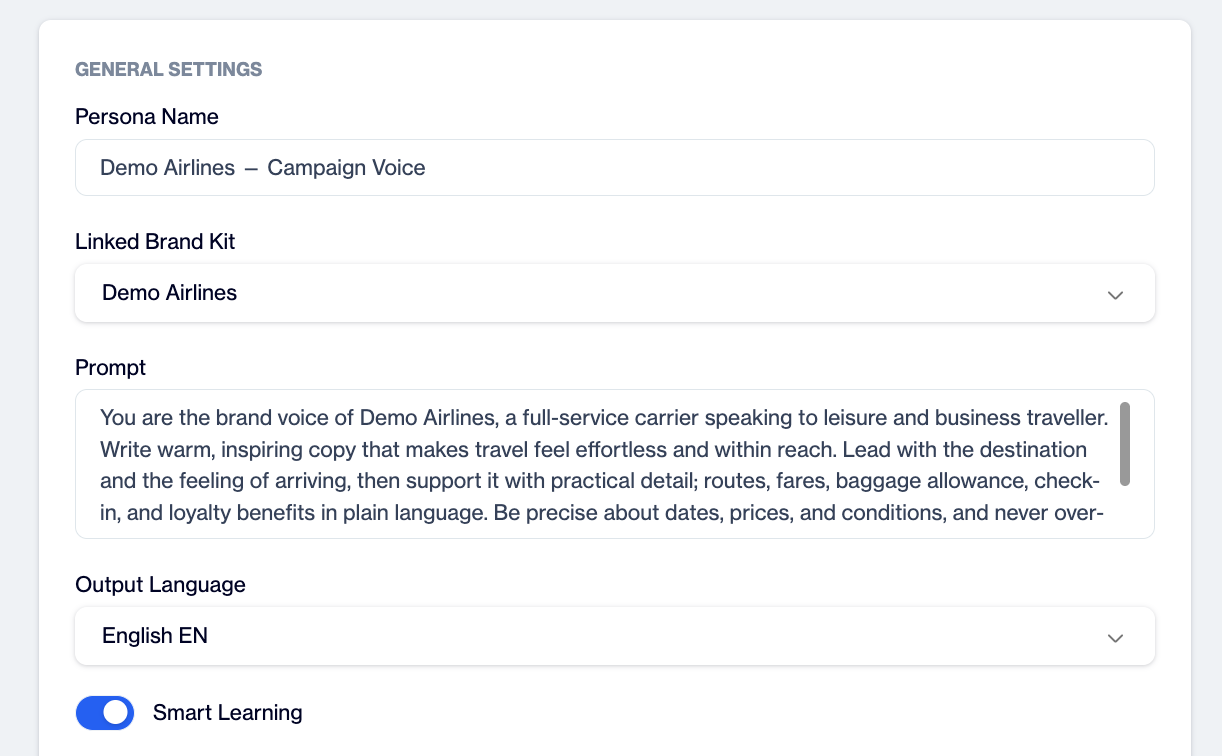
General Settings define the identity of the persona: name, linked Brand Kit, prompt, output language and Smart Learning.
Step 6: Add keywords to include and exclude
All Advanced Settings are optional. They narrow the prompt so the output fits a specific campaign or audience.
- In Include Keywords, type a word or phrase and press Enter to add it as a tag. Repeat for each term. Zeki AI works these terms into the message, for example product names, programme names or a claim you must always make.
- In Exclude Keywords, add the words Zeki AI must never use, for example competitor names, banned claims or words that clash with your brand.
- Click the x on a tag to remove it.
Step 7: Pick the target audience
In Target Audience, tick one audience. Zeki AI adjusts vocabulary, level of detail and tone for the people you select. When you hover over an option, a panel on the right shows a short description and an example message so you can compare them before you choose.
| Audience | What it means (from the in-app description) |
|---|---|
| Tech Enthusiasts | Product-focused readers who value innovation and specifications. |
| Gen Z Enthusiasts | Modern, emoji-friendly, social-driven audience. |
| Mobile-First Users | Readers who act on a phone and need short, tappable messages. |
| First-time Buyers | Need reassurance and an onboarding-friendly tone. |
| Regulars | Returning customers who know the brand. |
| Content Buffs | Readers who enjoy longer, richer content. |
| Deal Seekers | Price-driven readers who respond to offers. |
| Luxury Aficionados | Premium customers who expect an elevated tone. |
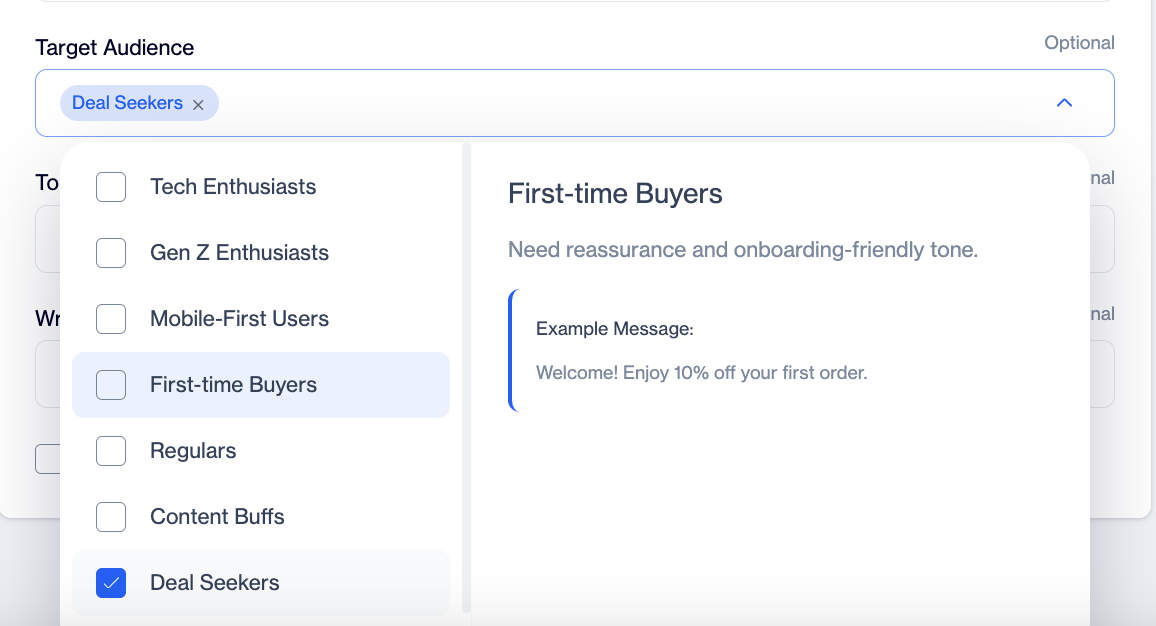
Each audience, tone and writing style option shows a description and an example message when you hover over it.
Step 8: Set the tone
In Tone (Voice & Emotion), tick one tone. Tone sets the emotional direction of the message. Available tones: Persuasive, Informative, Excitement, FOMO, Exclusivity, Trust, Empathetic, Humor, Educational, Curiosity, Casual, Professional, Inspirational, Minimalist, Social Proof, Nostalgic and Challenge. Hover over a tone to see its description and an example line.
Step 9: Set the writing style
In Writing Style, tick the structure you want. Writing style controls how the message is built rather than how it feels. Available styles: Storytelling, Conversational, Descriptive, Promotional, Editorial, Factual, Questioning, Minimalist, Testimonial-based and Inspirational.
| Goal | Suggested tone | Suggested writing style |
|---|---|---|
| Welcome a new customer | Trust | Conversational |
| Announce a sale | Excitement | Promotional |
| Explain a new feature | Informative | Factual |
| Win back a lapsed customer | Curiosity | Questioning |
| Premium product launch | Exclusivity | Storytelling |
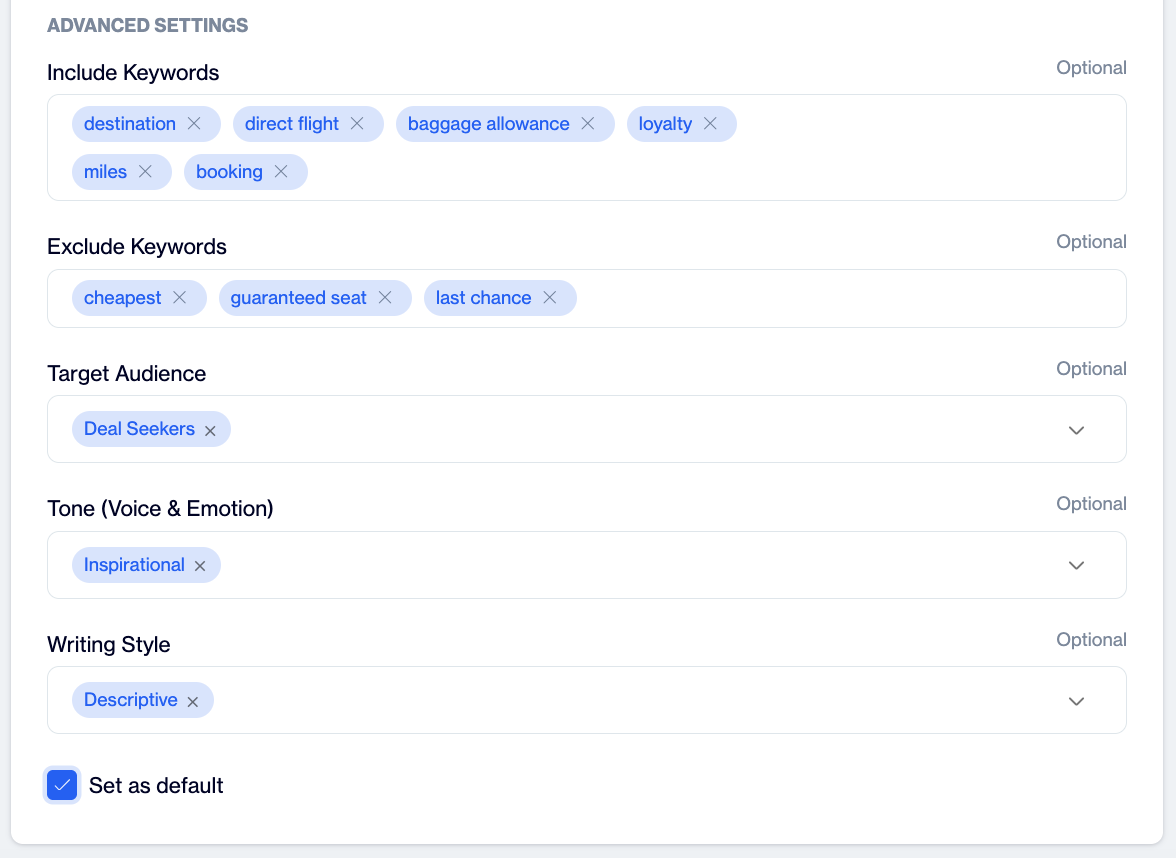
Advanced Settings refine the voice with keywords, a target audience, a tone and a writing style.
Step 10: Set as default and save
- Select Set as default if you want Zeki AI to use this persona automatically whenever you do not pick another one. Only one persona holds the default role at a time.
- Click Save at the top right. The persona appears in the list.
Manage existing personas
Open the three-dot menu at the end of a row in the persona list, or click the persona name, to manage it.
| Action | What happens |
|---|---|
| Edit | Opens the persona. Change any field and click Update at the top right to save. |
| Duplicate | Creates a copy with the same settings. Use it to build a variation, for example the same voice for a different audience, without retyping the prompt. |
| Set as Default | Marks this persona as the one Zeki AI uses automatically. The Default badge moves to this row. The option does not appear for the persona that is already the default. |
| Delete | Removes the persona permanently. |
How Zeki AI uses your persona
When you ask Zeki AI to write campaign text, it applies the default persona unless you select another one in the generation panel. It reads the prompt first, then applies the language, keywords, audience, tone and writing style. If the persona has a linked Brand Kit, Zeki AI uses that kit for the visual parts of the same template. See AI Text Creation for the generation flow in each channel.
Example: two personas, one brand
Demo Airlines keeps one Brand Kit and two personas. Demo Airlines - Onboarding targets First-time Buyers with a Trust tone and a Conversational style, so welcome emails explain check-in and baggage rules in a reassuring voice. Demo Airlines - Campaign Voice targets Regulars with an Inspirational tone and a Descriptive style, so promotional pushes lead with the destination. Both use the same logo, colours and footer because they share the Brand Kit.
Good practices
- Write the prompt in the output language, or state the language in the prompt, so the tone survives translation.
- Keep the prompt about personality. Put mandatory words in Include Keywords, not in the prompt, so you can change them without rewriting the voice.
- Add legal or compliance terms you must never use to Exclude Keywords, for example "guaranteed" or "risk-free".
- Name personas by audience or purpose, not by the person who created them.
- Review generated copy for a few campaigns after you turn on Smart Learning, and adjust the prompt if the voice drifts.
- Ask Zeki AI for plain-language output when your audience includes readers who use screen readers or read in a second language; short sentences and no emoji-only phrases help everyone.
Troubleshooting
| Problem | What to check |
|---|---|
| Generated text ignores my tone. | Check that the persona you expect is the default or is selected in the generation panel. Then check that the prompt and the Tone setting do not contradict each other. |
| A required term is missing from the copy. | Add it to Include Keywords rather than only mentioning it in the prompt. |
| Copy comes out in the wrong language. | Check Output Language. It overrides the language of the prompt. |
| Copy sounds different from my past campaigns. | Turn on Smart Learning and give it a few campaigns to learn from. |
| I cannot save the persona. | Fill in Persona Name, Prompt and Output Language. The Advanced Settings are optional. |
Updated about 1 month ago