
Role-Based Access for Settings
Role-Based Access is a security feature that allows you to control who can see and edit different areas of the platform. Instead of giving broad access to all users, you can now define permissions in detail and assign them through roles.
This helps you protect sensitive settings, avoid accidental changes, and give each user access only to what they need. Users see a cleaner interface, and administrators gain better control over access across the platform.
How to Access
This feature works in two steps. First, roles and their permissions must be configured. Navigate to Settings > Identity & Access Management > Roles and Permissions to create a new role or edit an existing one by selecting the appropriate permissions.
After roles are configured, they can be assigned to users. Go to Settings > Identity & Access Management > Users and click on the user’s name to open the user details modal. From there, select a role from the User Role dropdown. The dropdown lists the roles defined in the Roles and Permissions section.
How to Use
When creating or editing a role, go to the General permission section. The following permissions are newly added and provide more detailed access control:
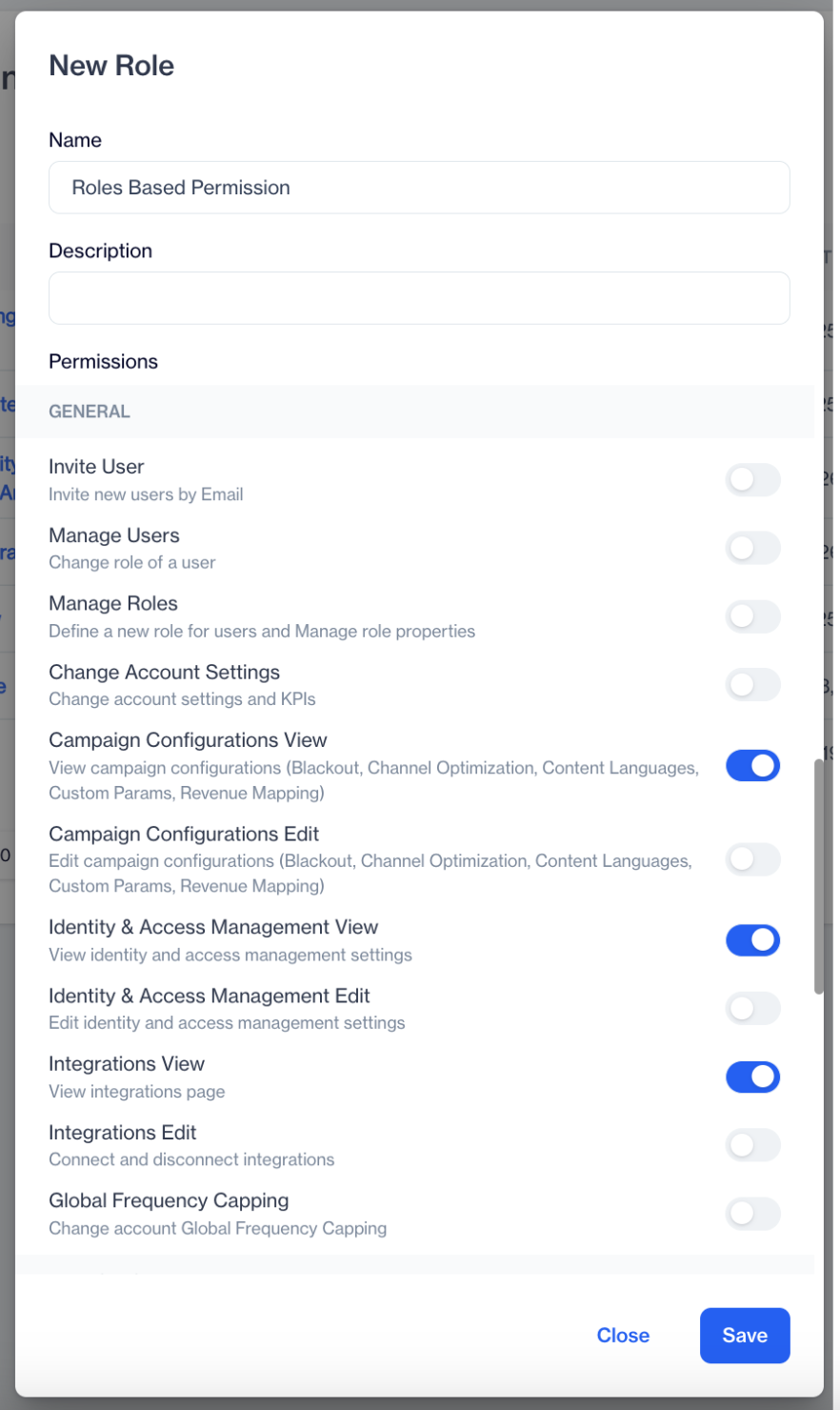
Role Based Permissions
Change Account Settings allows users to modify account-level settings and KPIs.
Campaign Configurations View allows users to view campaign configuration settings such as Blackout, Channel Optimization, Content Languages, Custom Parameters, and Revenue Mapping.
Campaign Configurations Edit allows users to modify these campaign configuration settings.
Identity & Access Management View allows users to view identity and access management settings without making changes.
Identity & Access Management Edit allows users to fully manage identity and access settings.
Integrations View allows users to see the integrations page.
Integrations Edit allows users to connect or disconnect integrations.
Global Frequency Capping allows users to change the account’s global frequency capping settings.
If a user does not have permission, the related section will not be visible to them.
Some features may require additional permissions to function properly. If access is restricted, you can check the related page to see which specific permission is required and update the role accordingly.
Use Case
You may want to give a marketing manager access to view campaign configurations, but prevent them from changing account settings or integrations.
In this case, you can enable Campaign Configurations View so they can review settings like Blackout periods or Channel Optimization rules, while keeping Campaign Configurations Edit, Integrations Edit, and Change Account Settings disabled. This ensures they can monitor and plan campaigns confidently without risking accidental configuration changes.
The new General permissions provide stronger security and clearer responsibility control. By configuring roles carefully, you can protect sensitive settings while giving each team member the exact access they need.
Updated 3 months ago