
Mixpanel
This guide explains how to connect a Mixpanel cohort to dEngage so that the cohort's users are continuously synced into a dEngage Segment and can be engaged through their preferred channels.
The sync is push-based: Mixpanel sends cohort membership to dEngage over a secure webhook. The first sync delivers the full membership; afterwards only the changes (users added/removed) are sent.
1. Prerequisites
A dEngage account with the Mixpanel integration enabled (Settings → Integrations).
A Mixpanel project on a plan that supports Cohort Sync to a custom webhook.
Administrator access to both dEngage and Mixpanel.
Your Mixpanel user profiles use a $distinct_id that matches your dEngage contact key, so that synced cohort members resolve to the correct contacts in dEngage.
2. Step 1 — Get Your Connection Details in dEngage
- In dEngage, go to Settings → Integrations.
- Find Mixpanel and make sure it shows Connected, then click Details.
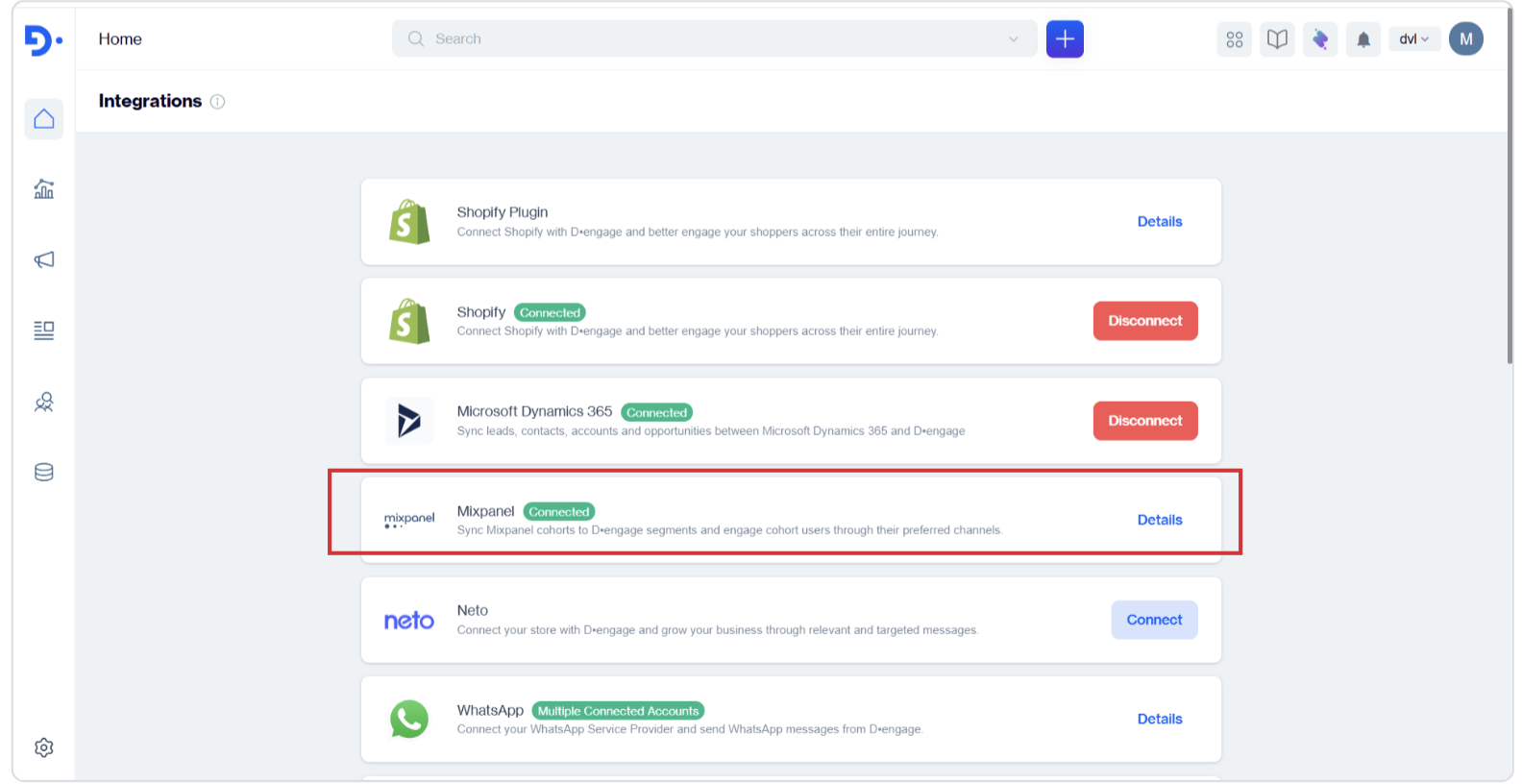
Mixpanel Integration
-
On the Mixpanel → Details screen, note the three values you will enter into Mixpanel: - Service Account Username - Service Account Password (click the eye icon to reveal) - Callback URL (unique to your account)
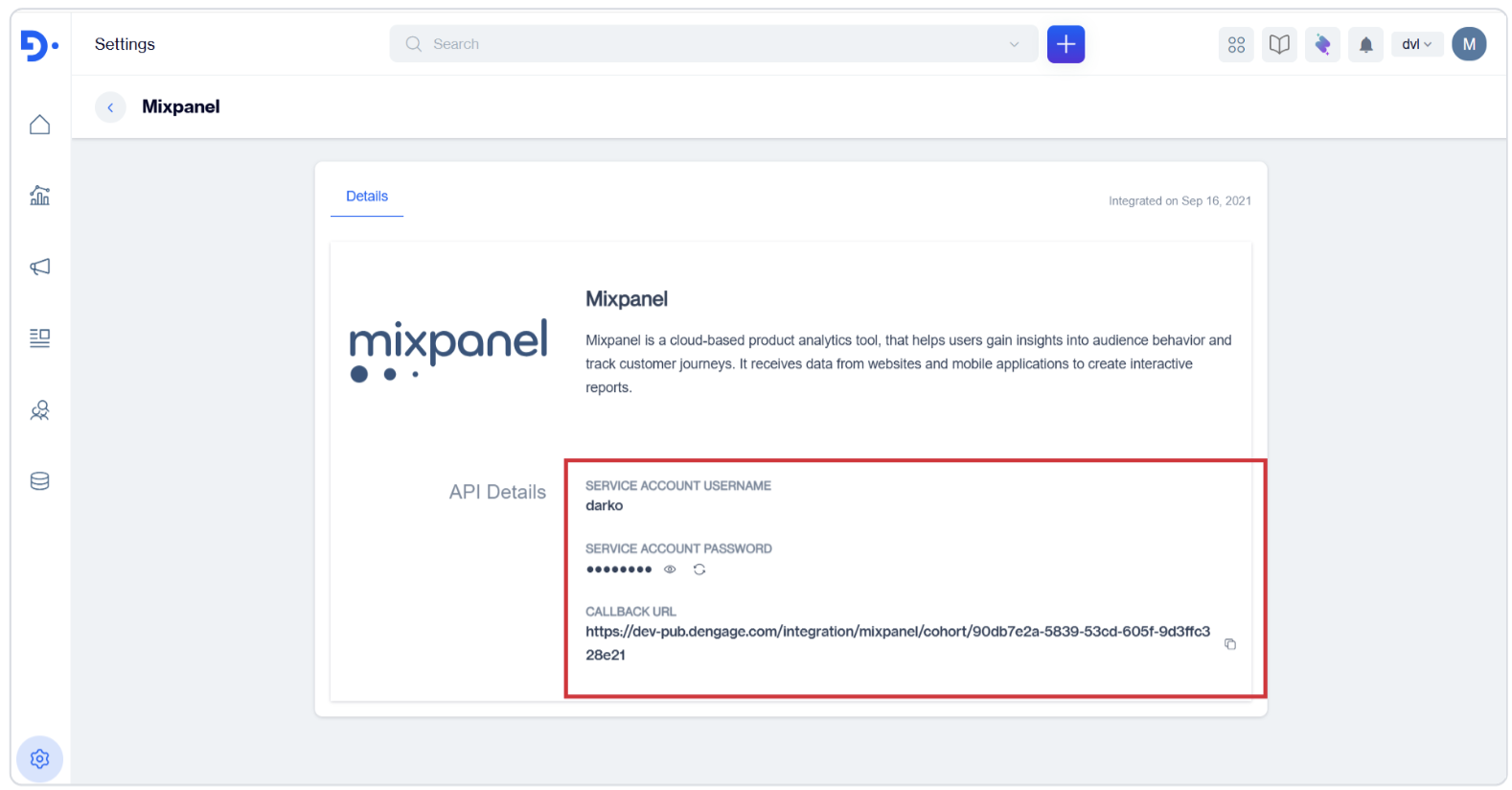
API Details
Keep these values confidential. The Callback URL together with the username/password is what authorizes Mixpanel to push cohort data to your dEngage account.
3. Step 2 — Create a Cohort in Mixpanel
- In Mixpanel, open Cohorts and click Create Cohort (or use an existing cohort).
- Define the cohort with the filter(s) you need (user property or behavioral conditions) and Save.
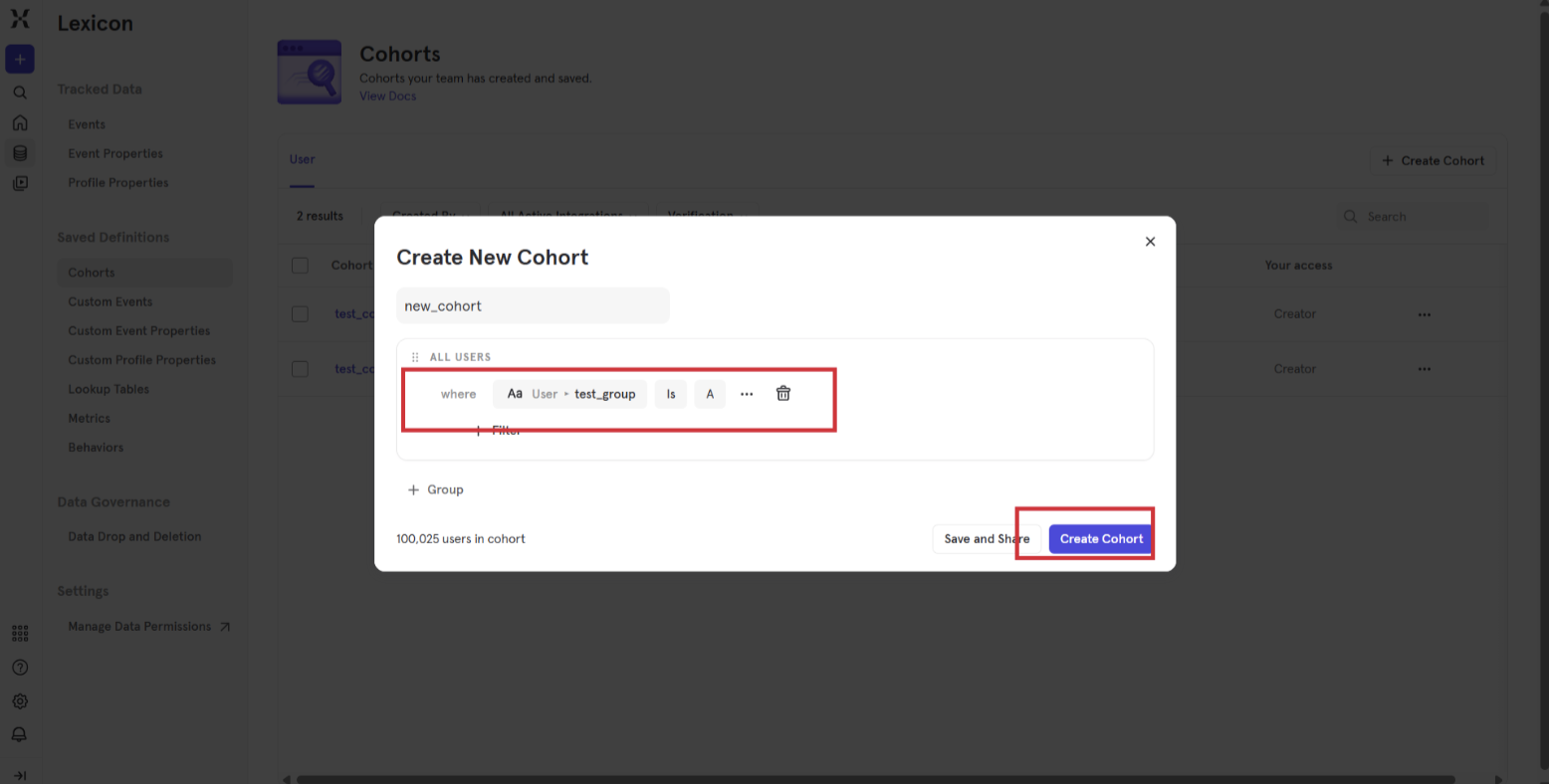
Create New Cohort
4. Step 3 — Set up the Custom Webhook Connection in Mixpanel
- In Mixpanel, go to Settings → Integrations, find Custom Webhook and click Add Connection. The Set up Custom Webhook dialog opens.
- Fill in the fields: - Connector Name → a recognizable name, e.g. dEngage . - URL → the Callback URL copied from dEngage (Step 1). - Properties to Export (optional) → leave empty. dEngage identifies users by the Mixpanel distinct_id only, so no extra columns are required. - HTTP BasicAuth → Username / Password → the Service Account Username and Service Account Password copied from dEngage (Step 1).
- Click Continue to save the connection.
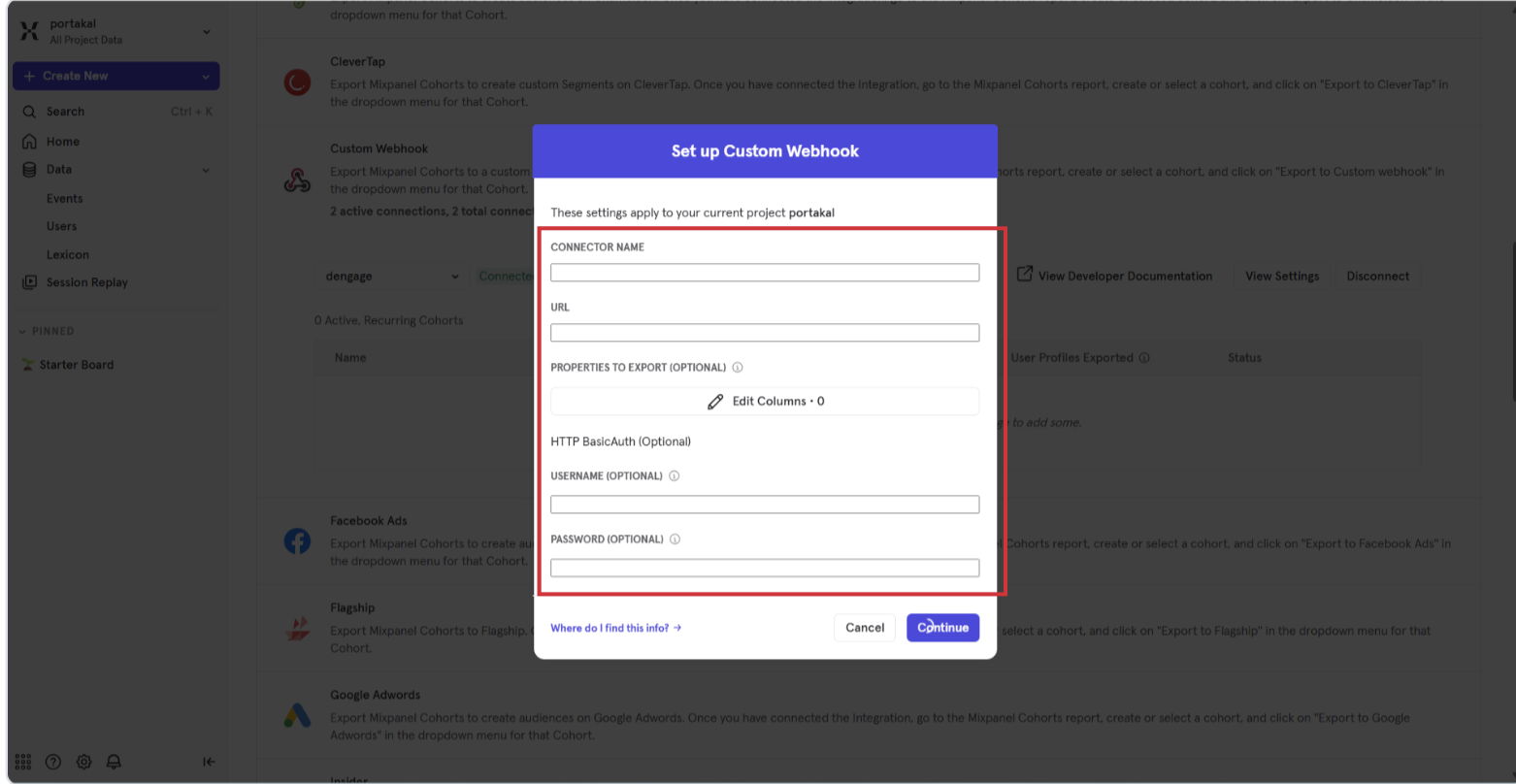
Set up Custom Webhook
5. Step 4 — Export Your Cohort to the Webhook
- Go to the Cohorts page, open your cohort's ⋯ (more) menu, choose Export to…, and select Custom Webhook (your connector name).
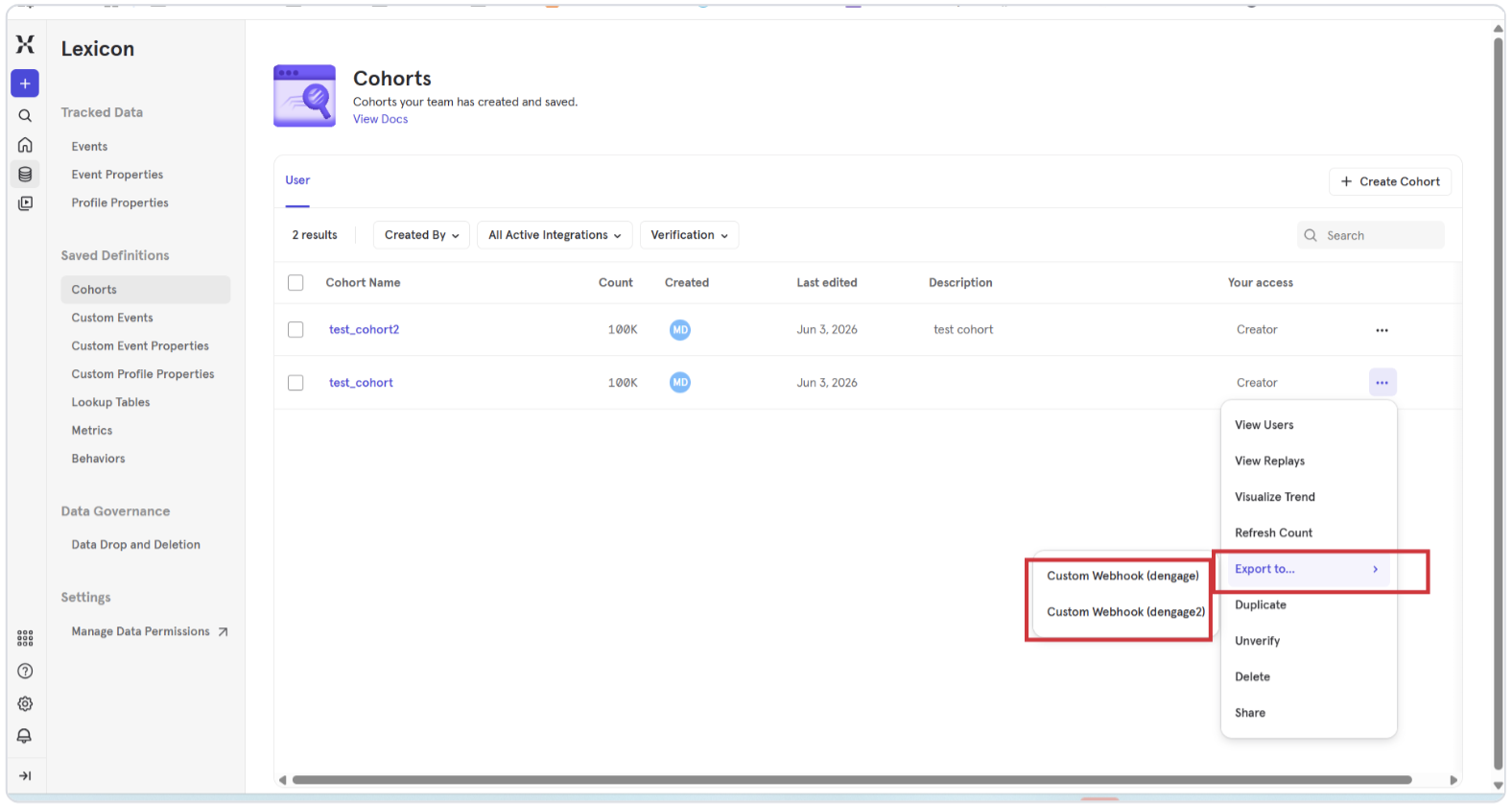
Export Cohort to Webhook
- In the export dialog choose the Export type: - Recurring sync (recommended) — Mixpanel updates dEngage roughly every 30 minutes with the current set of cohort members. - One-time export — sends the current members only once.
- Click Begin Sync.
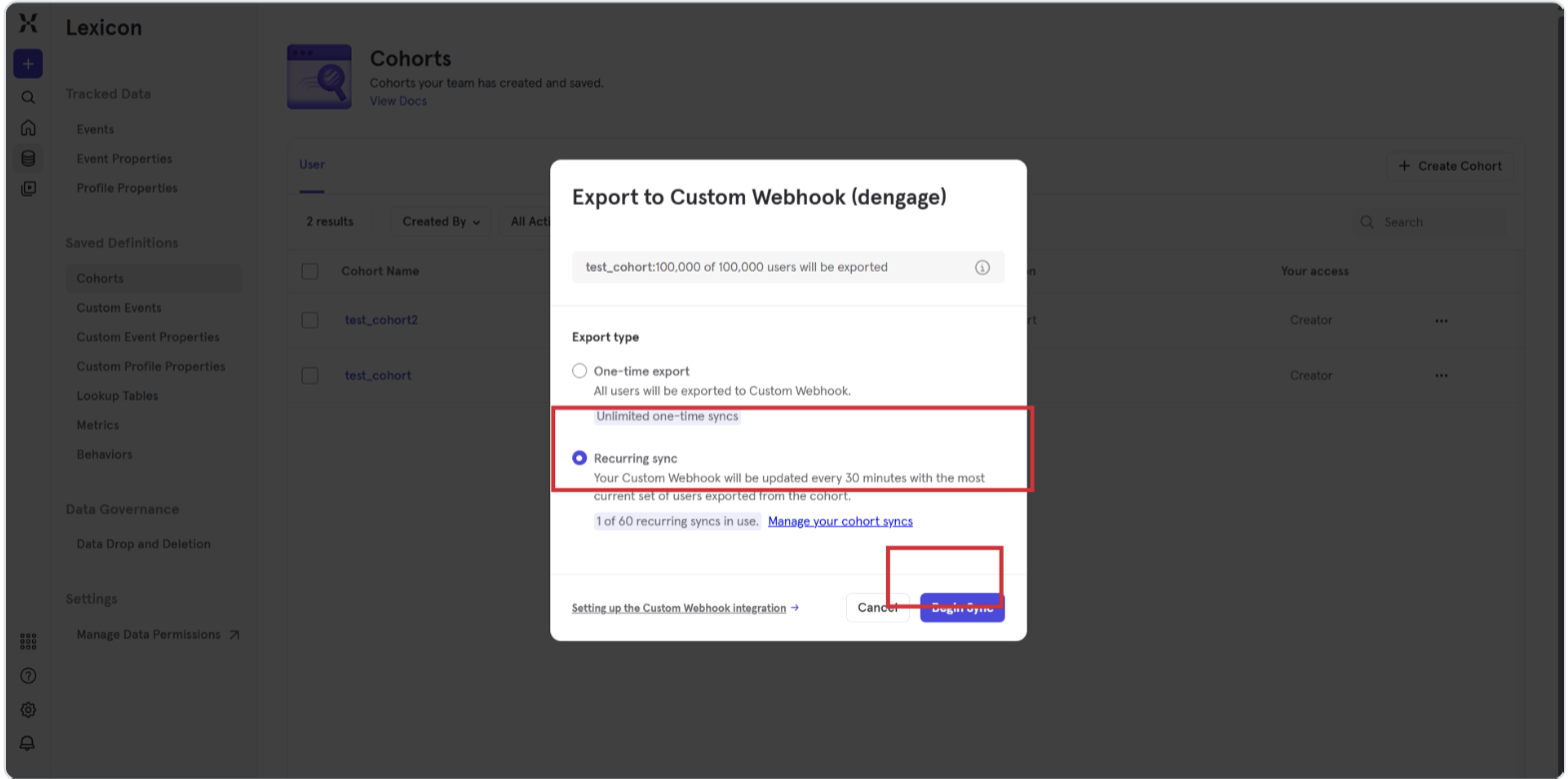
Begin Sync
Mixpanel now starts syncing the cohort to dEngage.
6. Step 5 — Use the Cohort as a Segment in dEngage
- In dEngage, go to Audience → Segments and create a New Segment.
- Add an Inclusion Filter and select Mixpanel Cohort.
- Choose your synced cohort, click Add, then Save.
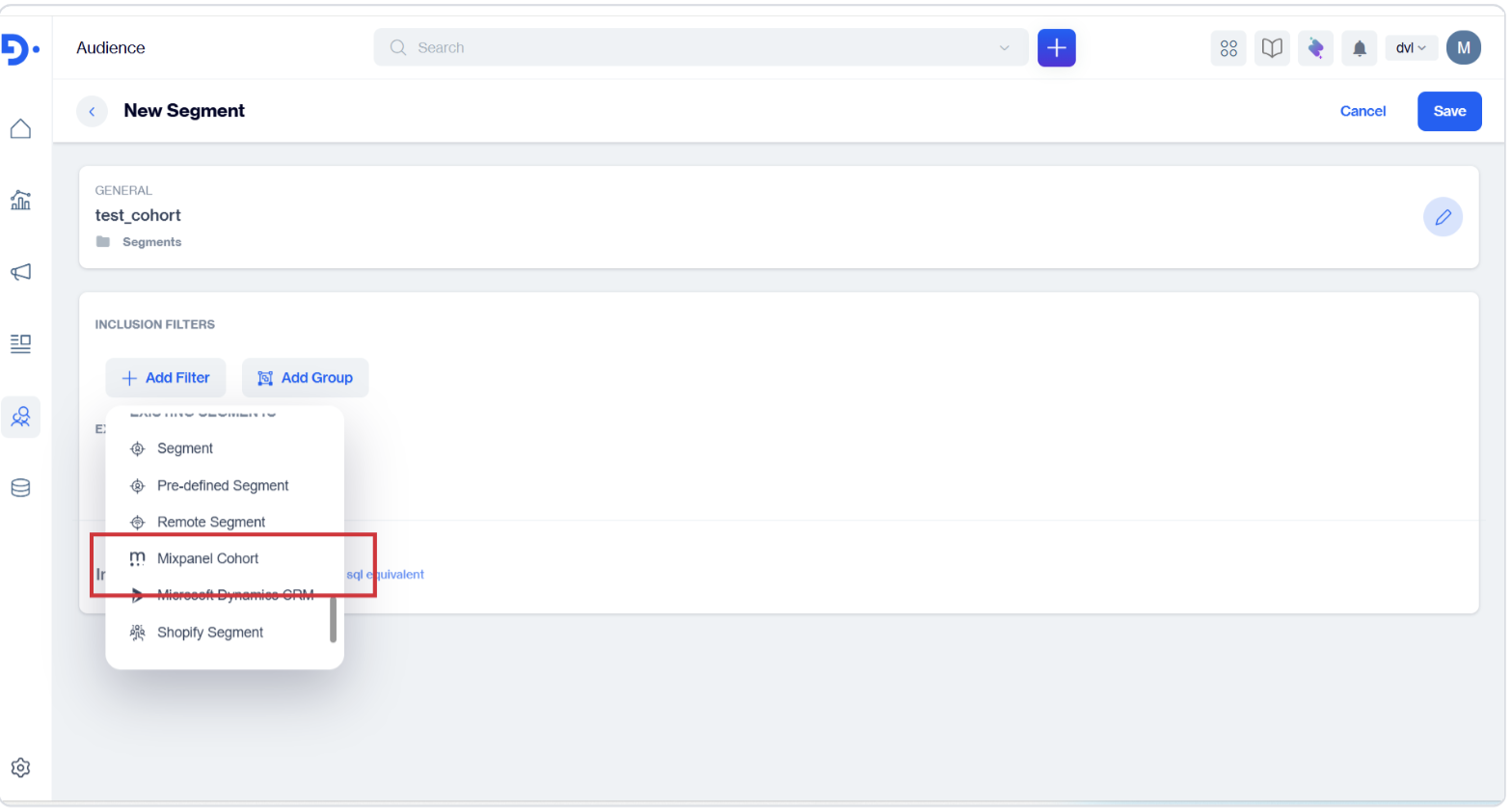
Use the Cohort in Segmentation
The segment now reflects the cohort's members and can be targeted in your campaigns and journeys.
7. How the Sync Works
First sync: the entire current cohort membership is delivered.
Subsequent syncs: only the differences are sent — users who entered (added) or left (removed) the cohort since the last sync.
Frequency: Mixpanel runs the sync on a recurring schedule (approximately every 30 minutes). A short delay between a change in Mixpanel and its appearance in dEngage is therefore normal.
8. Notes & Troubleshooting
Authentication mismatch: if the Username/Password entered in the Mixpanel webhook does not match the values on the dEngage Details screen, Mixpanel receives an authorization error and pauses the sync. Re-copy the values from dEngage and update the connection.
Identity mapping: only the Mixpanel $distinct_id is used to identify users in dEngage; make sure it matches your dEngage contact key.
Plan requirement: Cohort Sync to a custom webhook depends on your Mixpanel plan. If the Custom Webhook option is not available, contact Mixpanel to enable it.
Large cohorts: big cohorts are delivered in batches; the full first sync may take a little longer to fully appear in dEngage.
Updated 3 months ago