
Data Management
Data Management is the part of Dengage where you store, connect, move and monitor your customer data. It sits inside the Data Space section of the Dengage panel. Every audience you build and every campaign you send uses the data you manage here.
This page gives you an overview of each Data Management tool and links to the detailed guides. Read it first if you are new to Dengage or setting up a new account.
What Data Management does
Dengage works as a customer data platform (CDP). A CDP collects customer data from many sources, stores it and makes it available for marketing. Dengage combines this data layer with its marketing automation tools. You build a segment from your data and send a campaign to it in the same panel.
Data Management gives you the tools to:
- Design how your tables connect to each other (star schema).
- Create and edit the tables that hold your customer data.
- Bring data into Dengage from files and external systems (import).
- Send data out of Dengage to files and external systems (export).
- Schedule recurring data jobs without manual work (automated flows).
- Define geographic areas for location-based messaging (geofence clusters).
- Check what happened in your data jobs and API calls (internal logs).
Where to find it
- Sign in to the Dengage panel.
- In the left menu, select Data Space (the database icon).
- Under Data Management, choose one of the following pages: Star Schema, Tables, Import, Export, Automated Flows or Geofence Clusters.
- Under Internal Logs, choose Rest API or Automated Flow History.
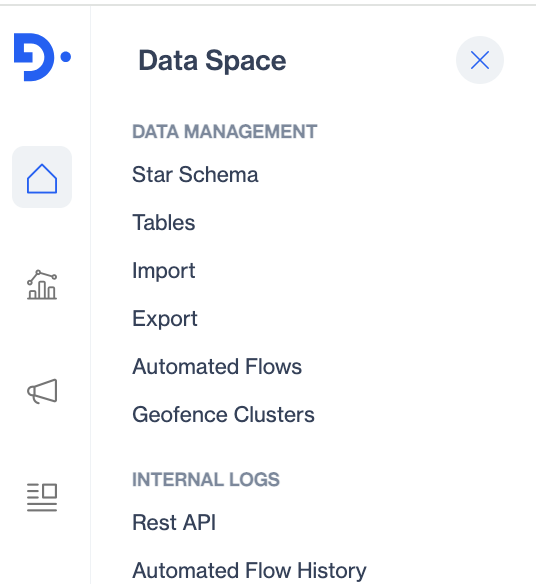
The Data Space menu in the Dengage panel, showing the Data Management and Internal Logs pages.
Data Management tools at a glance
| Tool | Use it to | Guide |
|---|---|---|
| Star Schema | View and manage the relationships between your tables | Star Schema |
| Tables | Create, edit and browse the tables that hold your data | Tables |
| Import | Load data into a table from a file or a remote source | Import |
| Export | Send segment or table data to a file or a remote target | Export |
| Automated Flows | Run imports, exports and other data jobs on a schedule | Automated Flows |
| Geofence Clusters | Draw geographic regions for location-based campaigns | Geofence |
| Internal Logs | Review REST API calls and automated flow runs | Internal Logs |
Star Schema
The Star Schema page shows all of your tables as a relationship map. Dengage stores your data in a relational database. This means each table can link to other tables through a shared key column.
The map places your two main tables in the centre:
- master_contact holds one row per contact. Its primary key is
contact_key. - master_device holds one row per device. It links to a contact through
contact_key.
Every other table connects to one of these central tables through a relation. Because the schema keeps these links, you can filter a segment on data in any related table. For example, you can target contacts whose last order in the orders table is older than 90 days.
On the Star Schema page you can:
- Search for a table by name.
- Open a table card and select Show All to see every column and its data type.
- Use the table menu (⋮) to Edit Table, add a New Relation or List Records.
To learn how relations work and how to add one, see Star Schema.
Tables
Tables are where your data lives. Each table has a name, a set of columns and a data type for each column, such as text, int, decimal, datetime or boolean.
When you create a table, you choose one of five table types:
- Regular Table stores relational data, such as products or orders, that you link to
master_contactwith a key column. Use it in segments. - Big Data Table stores high-volume event data, such as page views. It always has
keyandevent_timecolumns. - Sendable Contact List Table holds a ready-to-send list of contacts. It needs a
contact_key, email or phone column. - Sendable Token List Table holds a ready-to-send list of push tokens. It needs a
tokencolumn. - Remote Data Table reads data from your own database without copying it into Dengage.
On the Tables page you can create a table, rename it, add or drop columns and list its records.
To get started, see Creating a Table.
Import
Use Import to load data into a Dengage table. You can upload a file from your computer or pull a file from a remote source such as FTP. During import you map each file column to a table column, so the data lands in the right place.
Common uses of Import:
- Load your contact list into
master_contactfor the first time. - Update contact attributes, such as city or loyalty tier, from your CRM.
- Add new rows to an event table, such as offline purchases.
To run your first import, see Import.
Export
Use Export to send data out of Dengage. You can export any table or segment, the result of an SQL query, or permission change logs. Exports let your other systems use the audiences and data you build in Dengage.
You can send an export to:
- A file that you download.
- An FTP site or Amazon S3 bucket.
- An advertising platform: Google Customer Match, Facebook Custom Audience or TikTok Custom Audience.
- Your own web API or a Kafka topic.
To set up an export, see Export.
Automated Flows
Automated Flows run data jobs for you on a schedule. Each flow is an ETL job. ETL stands for extract, transform and load. In practice, a flow reads data from a source, changes it if needed and writes it to a target.
Use an automated flow when a data task repeats. For example:
- Import a fresh contact file from FTP every night.
- Export a segment to Google BigQuery every hour.
- Send campaign logs to your own database as they happen (incremental logs).
You define the source, the target and the schedule once. Dengage then runs the flow without manual work.
To build your first flow, see Automated Flows. The guide also covers the most common targets, including PostgreSQL, ODBC, MSSQL, MySQL and Google BigQuery.
Geofence Clusters
A geofence is a virtual boundary around a real-world location, such as a store or an airport. In Dengage, you group geofences into clusters. When a contact's device enters or leaves a geofence, Dengage can trigger a campaign.
Use geofence clusters to:
- Send a push notification when a customer walks near a store.
- Build a segment of contacts who visited a location in the last 30 days.
To create a cluster, see Geofence.
Internal Logs
Internal Logs show you what happened behind the scenes. Use them to confirm that a job ran or to find the cause of a failure.
- Rest API lists the calls made to the Dengage REST API, with their status and timing.
- Automated Flow History lists each run of your automated flows, with the result and any error message.
Check these logs first when data looks out of date or a flow did not deliver. See Rest API and Automated Flows History.
Key terms
| Term | Meaning |
|---|---|
| Star schema | A database design with a central table (such as master_contact) linked to related tables through shared keys. |
| Primary key | The column that uniquely identifies each row in a table, such as contact_key. |
| Relation | A link between two tables based on a shared column. Relations let segments use data from related tables. |
| ETL | Extract, transform and load. The steps a data job follows to move data from a source to a target. |
| Remote table | A table that reads data from your own database instead of storing a copy in Dengage. |
| Remote target | An external system, such as a database or API, that receives exported data. |
| Incremental logs | Campaign and event logs that Dengage exports continuously as new records arrive. |
| Geofence | A virtual boundary around a physical location used to trigger location-based messages. |
| Segment | A group of contacts that match filters you define, built from your tables. |
Updated about 1 month ago