
Adjust
The Adjust integration allows Adjust to share mobile app data with Dengage. After the integration is complete, the selected data, such as sessions, uninstalls, reinstalls, and mapped events, is sent to Dengage.
To complete the integration, first copy the integration details from Dengage, then configure Dengage as a partner in your Adjust account.
Before You Begin
Before starting, make sure you have:
- Access to your Dengage account.
- Administrator access to your Adjust account.
Step 1: Get the Integration Details from Dengage
- In Dengage, go to Settings > Integrations > 3rd Party Integration.
- Find Adjust in the integration list.
- Click Connect.
- On the Details page, under API Details, you will see:
- Region
- Access Token
- Callback URL
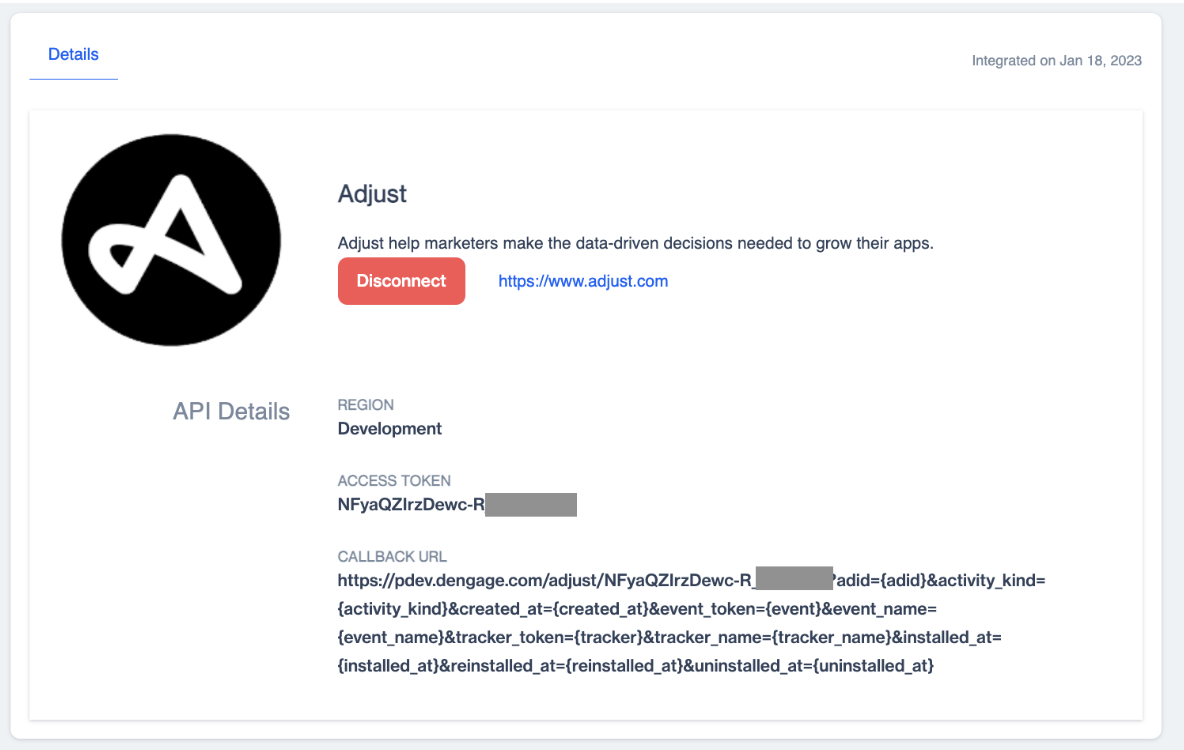
API Details
Note: You will use the Region and Access Token in the next steps. Keep this page open until you finish the setup in Adjust.
Step 2: Add Dengage as a Partner in Adjust
- Log in to your Adjust account.
- Go to Campaign Lab > Partners.
- Click New Partner.
- On the Partner Selection page, search for Dengage or select it from the list.
- Click Next.
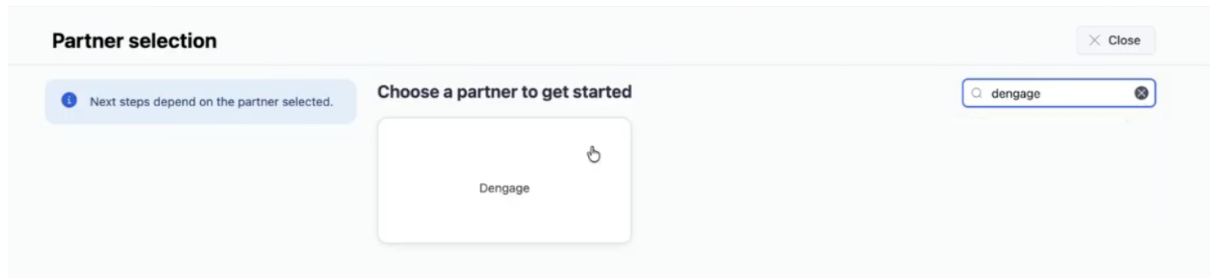
Partner Selection
Step 3: Select Your App
- On the App Selection page, select the app that you want to connect with Dengage.
- Click Next.
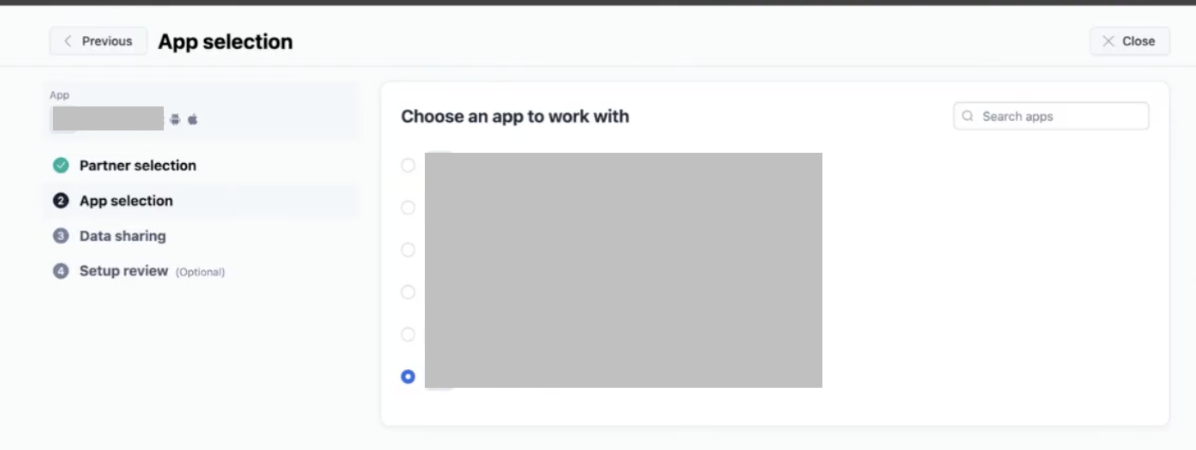
App Selection
Step 4: Enable Data Sharing
- On the Data Sharing page, find the Enable Data Sharing for Dengage section.
- Click Edit.
- In the pop-up window:
- Paste the Access Token from Dengage into the Customer Token field.
- Select your Region from the drop-down list.
- Click Enable.
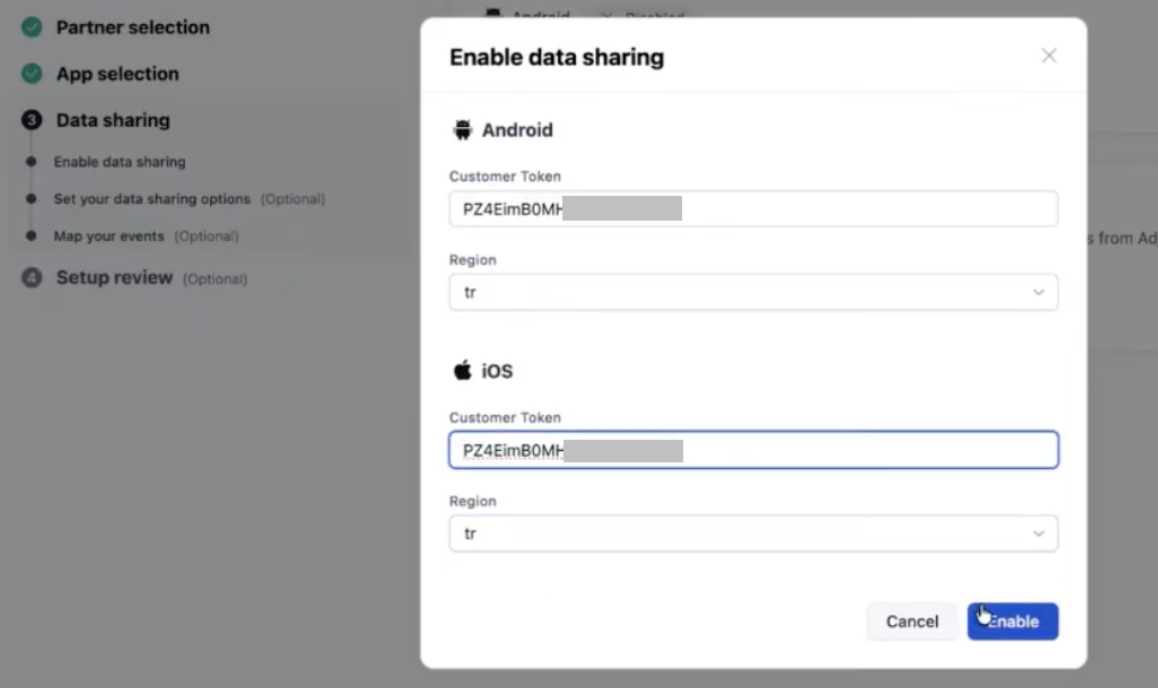
Data Sharing
Step 5: Configure Data Sharing Options
In the Set Your Data Sharing Options section:
- Choose one of the following:
- Use Global Settings
- Configure the settings separately for iOS and Android.
- Select the data that you want to share with Dengage.
The available options are:
- Sessions
- Uninstalls & Reinstalls
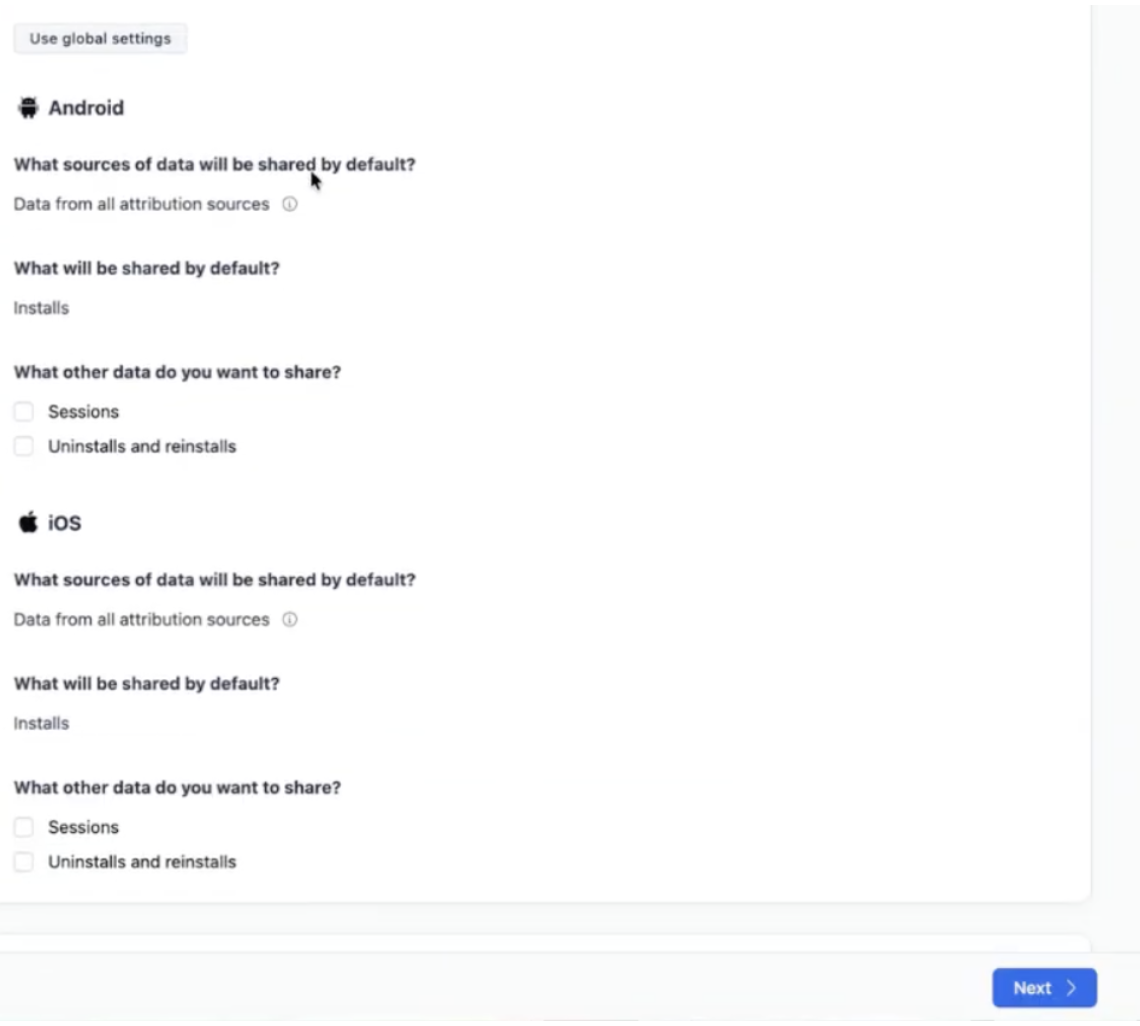
Data Sharing Options
3.(Optional) In the Map Your Events section:
- Click Map Event
- Select an Adjust Event
- Select a Partner Event
- Save the mapping
- Repeat for additional events if needed
Event mapping is optional. You can skip this part if you do not want to send custom events.
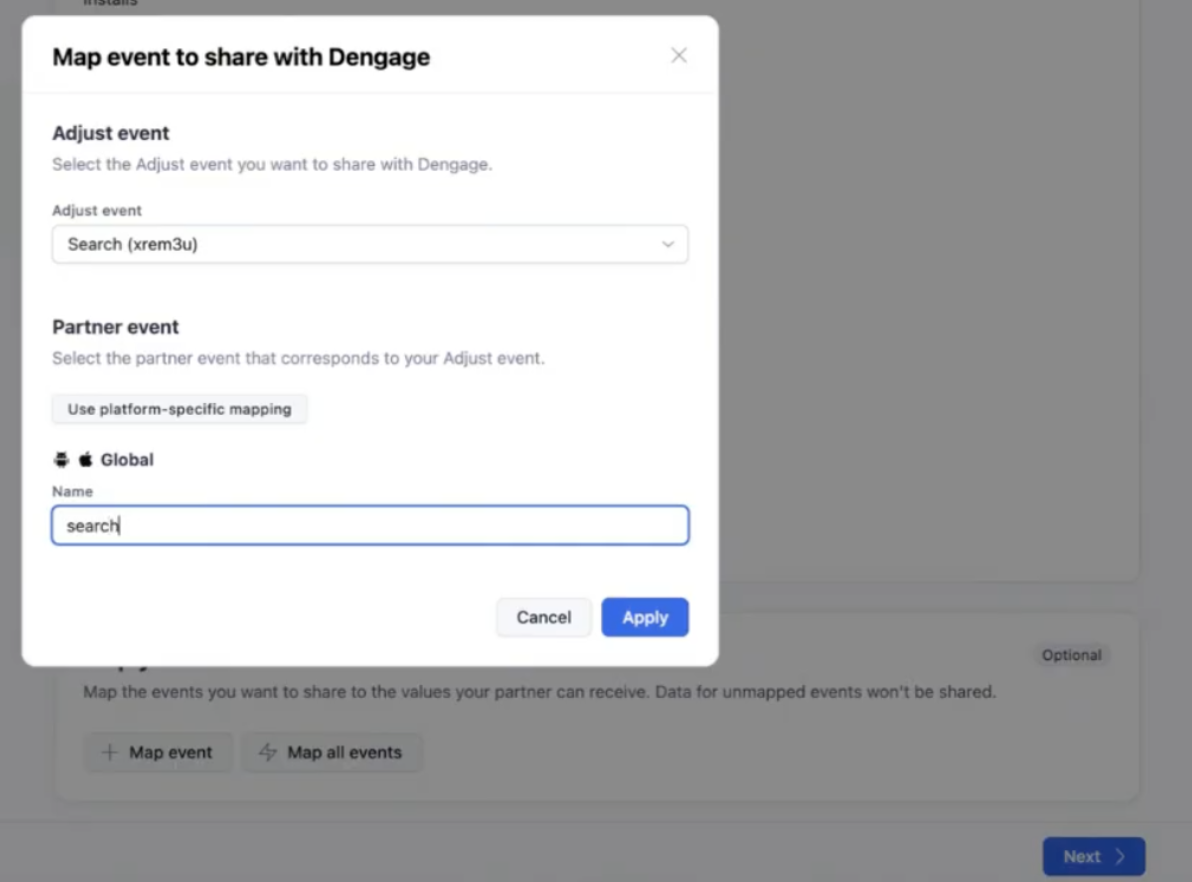
Event Mapping
After you finish, click Next.
Step 6: Review and Enable the Partner
- On the Setup Review page, review your settings:
- Partner Selection
- App Selection
- Data Sharing Options
- Click Enable Partner.
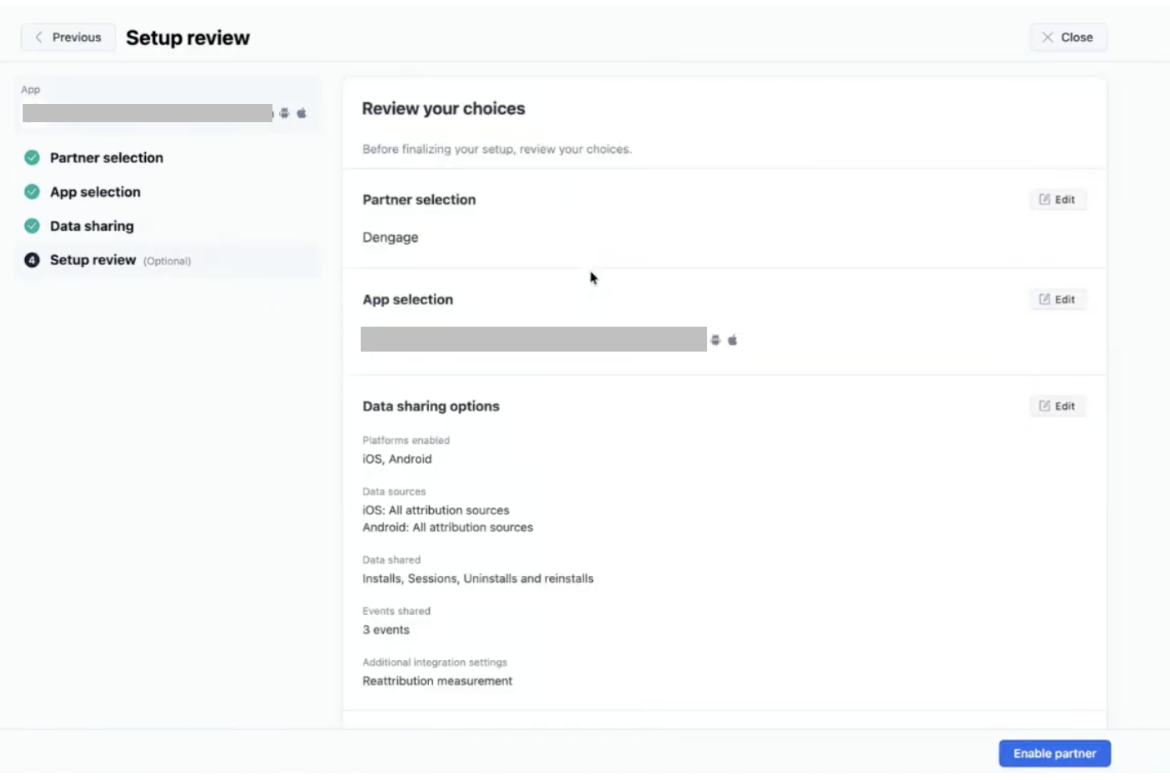
Setup Review
The integration is now complete. Adjust will start sending the selected data to Dengage.
Updated 3 months ago