
Export to TikTok
This feature allows users to send the contacts of a selected Segment to a TikTok Custom Audience using the Automated Flow structure. The flow's trigger starts the export, for example once a day, and the Data Export node adds the contacts to, or removes them from, a TikTok audience that you choose. This lets you schedule the export instead of running it manually from Data Space > Exports as described in TikTok.
Key Terms
- Segment: a group of contacts defined in Dengage. See Segments.
- Automated Flow: a flow in Data Space that combines triggers and actions to run data operations automatically. See Automated Flows.
- Data Export node: the action node of an Automated Flow that sends data to a remote target.
- Remote Target: an external destination, defined in Settings, that Dengage exports data to. See Remote Targets.
- TikTok Custom Audience: an audience in your TikTok for Business account that TikTok Ads Manager uses for targeting. Dengage adds your segment's contacts to this audience or removes them from it.
Prerequisites
- A TikTok Business Account.
- A TikTok remote target defined under Settings > Integrations > Remote Targets. To define it, click Add, enter a Name, select TikTok in Type, click Login with TikTok, sign in to your TikTok for Business account in the pop-up, choose the account you want to use, and click Save. See TikTok and Remote Targets.
- The segment whose contacts you want to send to TikTok.
- A TikTok audience to add the contacts to or remove them from. You can create one from the Data Export node (see step 7).
Note: The maximum export size is 7168 MB.
How to Access
Navigation Path: Data Space > Data Flow > Automated Flows
To access the export setup, go to Data Space, then click Data Flow, and select Automated Flows. This is where you can create new export flows and configure actions such as sending audiences to remote targets like TikTok.
How to Use
1: Create a New Automated Flow
To begin, navigate to the Automated Flows section and click the New button. From the options presented, select Automated Flow. Name your flow, define its Start Date and End Date, and then click Next to proceed to the configuration screen.
Start Date can be Now or Scheduled, and End Date can be Never or Scheduled. You can also add a Description and change the Folder.
2: Add the Trigger
The flow editor shows a canvas for building your automation. Start by dragging and dropping the trigger node onto the canvas. Click Configure on the node and set the frequency based on how often you want the TikTok audience to be updated.
The available triggers are Recurring, File Drop and API Trigger. For a scheduled export, use Recurring. In Recurring Settings, set Occurs to Daily, Weekly, Monthly or Yearly. With Daily, choose Occurs once at and a time, or Occurs every with an interval, a Starting at time and an Ending at time. The start time is required.
3: Add the Data Export Node
Next, drag the Data Export node into the Actions section of the canvas. This node lets you configure where and how Dengage exports the data. Click Configure on the Data Export node to open its configuration screen and begin setup.
The configuration screen has an Action Name field and a step bar with four steps: Target, Settings, Columns and Summary. For a TikTok target, the Columns step is skipped, because the exported columns are fixed (see step 8).
4: Choose the Data Source
The configuration opens on the Select data source screen. Choose Segment and click Next.
5: Select the Source Segment
In the following step, pick the segment from the Segment tab or the Predefined Segments tab of the Source Segment screen. The screen has Search and Filter to find the segment by name, and lists each segment with its Last Edit date and Creator. Once your segment is selected, click Next.
6: Choose TikTok as Remote Target
On the Select Remote Target screen, Tiktok Custom Audience appears as an available Remote Target, with the description "Export contact information to the Tiktok Custom Audience".
Select Tiktok Custom Audience, choose one of your TikTok remote targets listed under it, and click Next. If no TikTok remote target has been defined yet, the screen shows a message that points you to Settings > Remote Targets.
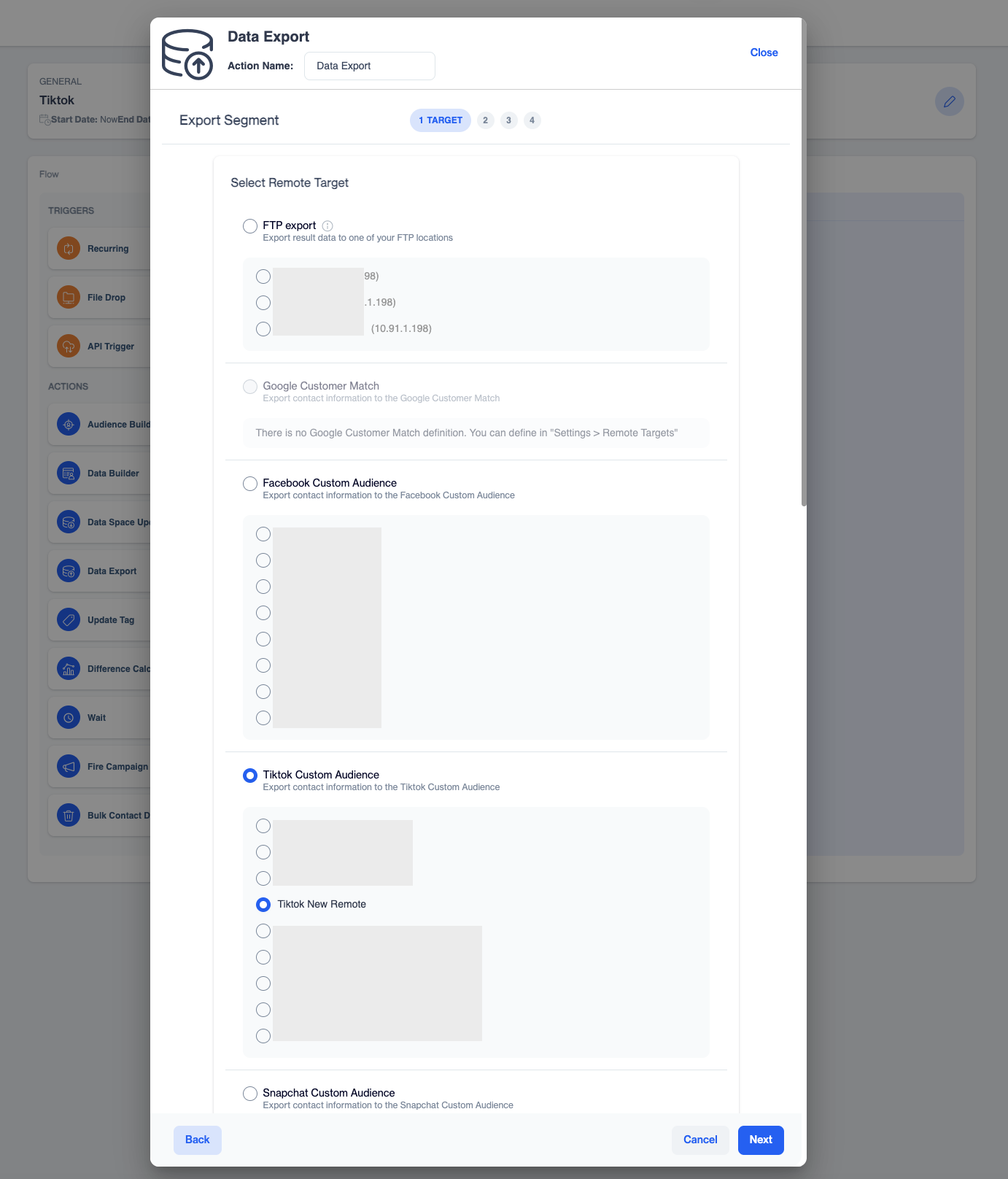
Select Tiktok Custom Audience and one of your defined remote targets
7: Select the Audience and the Action
In the Settings step, the Tiktok Audience screen asks which TikTok audience the segment's contacts go to and what happens to them there.
First, choose the Action:
- Add: adds the contacts of the segment to the selected TikTok audience. This is the default.
- Remove: removes the contacts of the segment from the selected TikTok audience. The segment in Dengage is not changed.
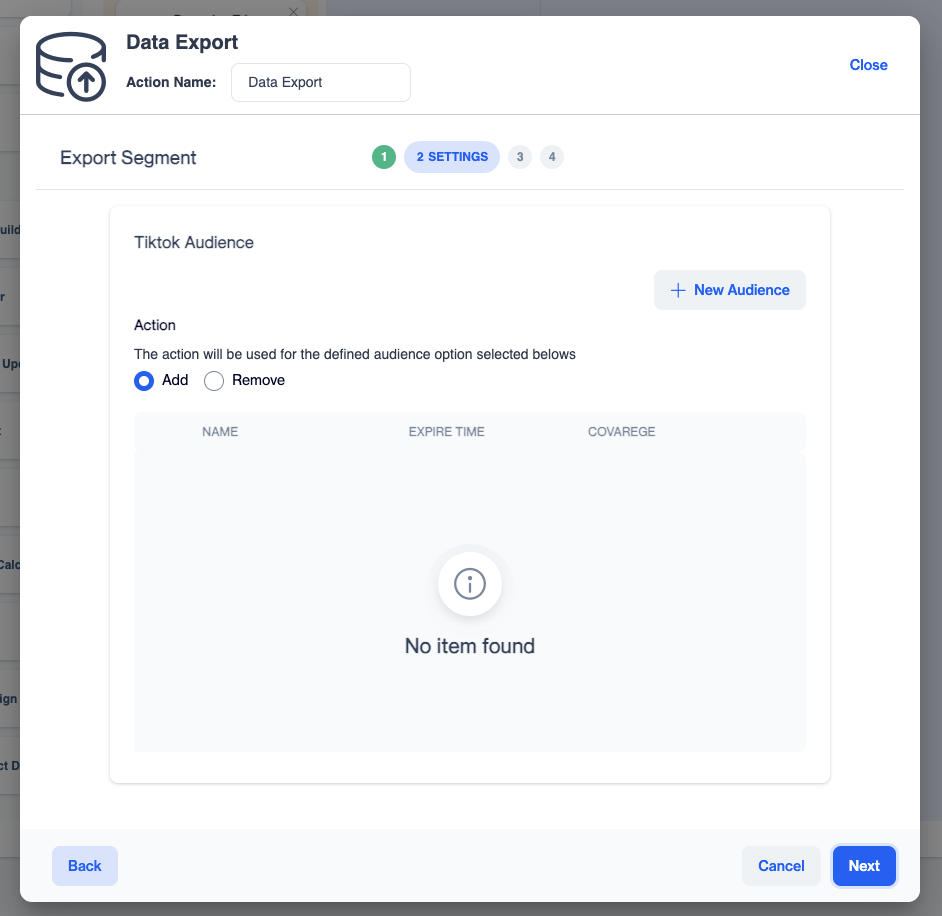
Choose Add or Remove and select the TikTok audience
Then select an audience. The table lists the audiences of the selected TikTok remote target with their Name, Expire Time and Coverage. Select one audience and click Next.
If the remote target has no audience yet, the table shows No item found. Click + New Audience, enter a Name in the Create New Tiktok Audience dialog, and click Add. The new audience appears in the table.
An audience is required. If you click Next without selecting one, the message "Please select or add Audience" appears.
8: Review the Summary and Export
The wizard moves directly to the Summary step. It shows the Source (the segment), the Target (Target type TikTok and the Target Name) and the Columns to be exported. For TikTok, the columns are set by the system: email and gsm from master_contact. Check the details, and use Back to change a setting. Click Export to confirm your setup, and then save the flow with Save Job as Draft or Set Job as Active.
Check the Export Runs
Go back to Data Space > Data Flow > Automated Flows to follow your flow:
- The Automated Flows tab lists each flow with its Last Run Time, Next Run Time and Update Date.
- The Running Flows tab lists the runs with Started On, Completed On and a status, for example Completed.
- The menu at the end of a row offers View Details, Move, Copy Public ID and Duplicate. Use Duplicate to create a similar export without starting from scratch.
For older runs, see Automated Flows History.
Use Cases
- Keep a TikTok audience in sync with a segment: run a daily Recurring trigger with the Add action, so that new contacts that enter the segment are added to the TikTok audience without a manual export.
- Stop targeting converted customers: build a segment of contacts who completed a purchase and run a flow with the Remove action, so that they are taken out of the TikTok audience after they convert.
- Build an audience for a seasonal campaign: create a new TikTok audience from the node, add the segment's contacts to it before the campaign starts, and remove them from it when the campaign ends.
FAQ
What is the difference between this page and Settings > Integrations > TikTok?
The TikTok integration page describes a one-time export from Data Space > Exports. This page describes the same export inside an Automated Flow, so that it runs on a schedule and can also remove the segment's contacts from a TikTok audience.
Does the Remove action change my segment?
No. Remove takes the contacts that are currently in the segment and removes them from the selected TikTok audience. The segment in Dengage stays as it is.
Can I use the Paid Social node in a campaign flow instead?
No. The Paid Social node supports Google Customer Match and Facebook Custom Audience only. TikTok audiences are managed with the Data Export node of an Automated Flow. See Paid Social.
The audience table shows No item found. What should I do?
The selected TikTok remote target has no audience yet. Click + New Audience, enter a name and click Add, then select the new audience.
Is there a size limit?
Yes. The maximum export size is 7168 MB.
Where do I see whether the export ran?
In Data Space > Data Flow > Automated Flows. The Automated Flows tab shows the last and next run time of each flow, and the Running Flows tab shows the runs with their status.
Updated about 4 hours ago