
AI Design Studio
AI Design Studio enables you to generate and edit campaign visuals directly inside Dengage using AI-powered text prompts. Instead of relying on designers or external tools, you can create images in minutes and use them immediately in your campaigns.
This feature reduces production time, removes workflow bottlenecks, and helps marketing teams move faster. It also supports brand consistency through AI Brand Persona selection. All generated assets can be saved directly to the Image Library, making the process seamless from creation to campaign launch.
Prerequisites
Before using AI Design Studio, ensure the following configurations are completed:
- A Brand Kit must be created.
- An AI Brand Persona must be created.
- The Image Generation feature flag must be enabled for your account.
How to Access
AI Design Studio is accessible based on content permissions and is located under:
Content > Design > AI Design Studio
How to Use
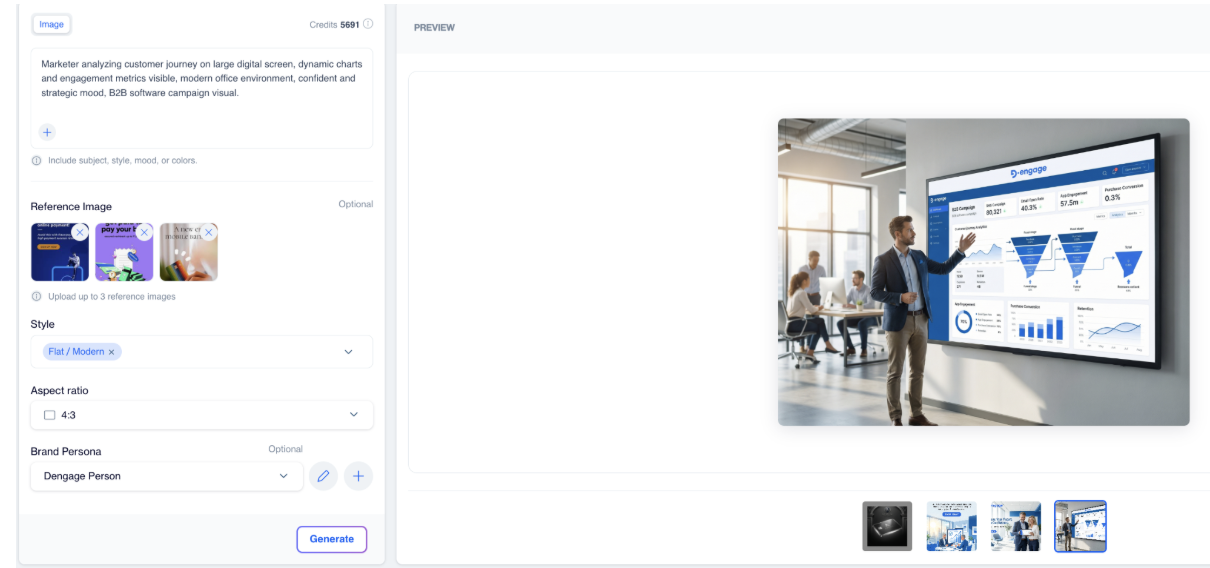
When you open AI Design Studio, the Image tab is selected by default, and your available credit balance is displayed at the top.
AI Design Studio
To create a visual, enter a detailed description in the prompt field. You can describe the subject, mood, style, colors, or any specific elements you want included.The clearer your description, the more accurate the result will be.
In the description area, there is a “+” button that allows you to upload an image. You can use this option if you want to start from an existing visual and improve it with AI. Once uploaded, the image appears in the preview area and can be edited using prompt-based instructions.
If you would like to guide the AI further during generation, you can upload up to three Reference Images in the Reference Image section. Simply drag files into the upload area or select them from your device. This step is optional but helpful when you want the output to follow a specific visual direction.
Then, choose a Style from the dropdown menu. Available presets may include options such as popup, black & white, watercolour, promotional, sale, or announcement/launch. Selecting a style helps define the overall tone and presentation of your visual.
After selecting a style, choose your preferred Aspect Ratio from the dropdown menu. Available options include 1:1, 2:3, 3:2, 3:4, 4:3, 4:5, 5:4, 9:16, 16:9, and 21:9. Select the ratio that best matches the channel where the image will be used.
You can also select a Brand Persona from the dropdown list to ensure the generated visual aligns with your brand identity. If needed, you can create a new persona directly from this screen. This step is optional but recommended for consistent campaign visuals.
Once your settings are ready, click the Generate button. The system will process your request and deduct credits from your balance. When generation is complete, the result appears in the preview area.
At the top of the preview section, you will see three action buttons: Download, Edit, and Regenerate.
- Download saves the current visual to your device.
- Edit allows you to enter a new prompt to modify the current version (for example, changing background color or adding an element).
- Regenerate creates a new variation using the same prompt and settings.
Each time you edit or regenerate, a new version is created and added to the history slider below the preview area. You can scroll through previous versions and select any of them to display again in the preview.
After generating or editing a visual, you can save it directly to the Image Library.
System Behavior & Limitations
- Each generation consumes 6 AI credits
- Editing or regenerating creates a new version
- A maximum of 3 reference images can be uploaded
Use Case
A marketing team preparing a campaign banner can instantly generate multiple visual alternatives by describing the product, campaign theme, and preferred style. Instead of waiting for design revisions, they can refine the visual with prompt-based edits, test variations, and finalize the most suitable version within minutes. The approved asset is then saved to the Image Library and used directly in email, push, or in-app campaigns.
AI Design Studio turns visual production into a fast, self-service workflow inside Dengage. You can generate, edit, and use brand-aligned images directly in your campaigns without leaving the platform, helping you launch faster and work more efficiently.
Updated 3 months ago