
Exporting Incremental Logs to Databases via Remote Target
Incremental Logs let you send Dengage campaign logs, such as send details, delivery and click events, send target lists and control group contacts, to your own database or FTP server on a daily schedule. You set this up with the Data Export node in an Automated Flow. Each log type is a ready-made template with a fixed set of columns, so you do not map columns yourself. The export writes into a table you create in a database that is defined as a Remote Target.
Supported targets are Google BigQuery, Microsoft SQL, PostgreSQL, Oracle, Amazon Redshift, Amazon S3, FTP and any database you can reach through ODBC, such as MySQL.
Key terms
- Incremental Logs: ready-made log templates (for example Email Events, Push Sends, Whatsapp Send Targets) that an Automated Flow exports on a schedule. The columns of each template are fixed and listed under Incremental Logs - Column Details.
- Remote Target: a saved connection to an external database, storage or FTP server. Connection details (host, credentials, database) live on the Remote Target, so the flow only needs to know which target to write to. See Remote Targets.
- Automated Flow: a scheduled data job built from a trigger and one or more action nodes under Data Space > Data Flow > Automated Flows.
Prerequisites
- A Remote Target must already be defined. The flow can only export data to databases that have been configured as Remote Targets. For setup instructions, refer to the Remote Targets page.
- Target tables must exist in your database. Before activating the flow, the tables where incremental data will be written must be created in your database. You choose the table name yourself and enter it in the flow. The column names and data types must match the template you export. You can see the required columns in two places:
- On the Incremental Logs - Column Details page.
- In the app, by clicking the eye icon next to a log type while you configure the Data Export node. The Column Details dialog lists the column name, type and length for that template and reminds you that the table must be created with these properties.
- The flow must use a Recurring trigger with a Daily period. Incremental Logs cannot be exported with other trigger types or other recurrence periods. See step 2 below.
How to Access
Navigation Path:
Data Space > Data Flow > Automated Flows
Go to Data Space, then click Data Flow, and open the Automated Flows section.
Here, you can create and configure flows that automatically export incremental logs to external databases via Remote Target.
How to Use
1. Create a New Automated Flow
In the Automated Flows section, click New, then select Automated Flow. Enter a name for your flow, optionally add a description and choose a folder, set the Start Date (Now or Scheduled) and End Date (Never or Scheduled), then click Next to continue.
2. Add the Recurring Trigger
Drag and drop the Recurring trigger onto the Triggers area of the canvas and click it to open Recurring Settings.
Incremental Logs can only be exported with the Recurring trigger and only when Occurs is set to Daily. Within the daily period you choose how often the export runs:
- Occurs once at: the export runs once a day at the time you set.
- Occurs every: the export runs repeatedly during the day at the interval you set, between the Starting at and Ending at times. The minimum interval is 15 minutes.
Click OK to save the trigger.
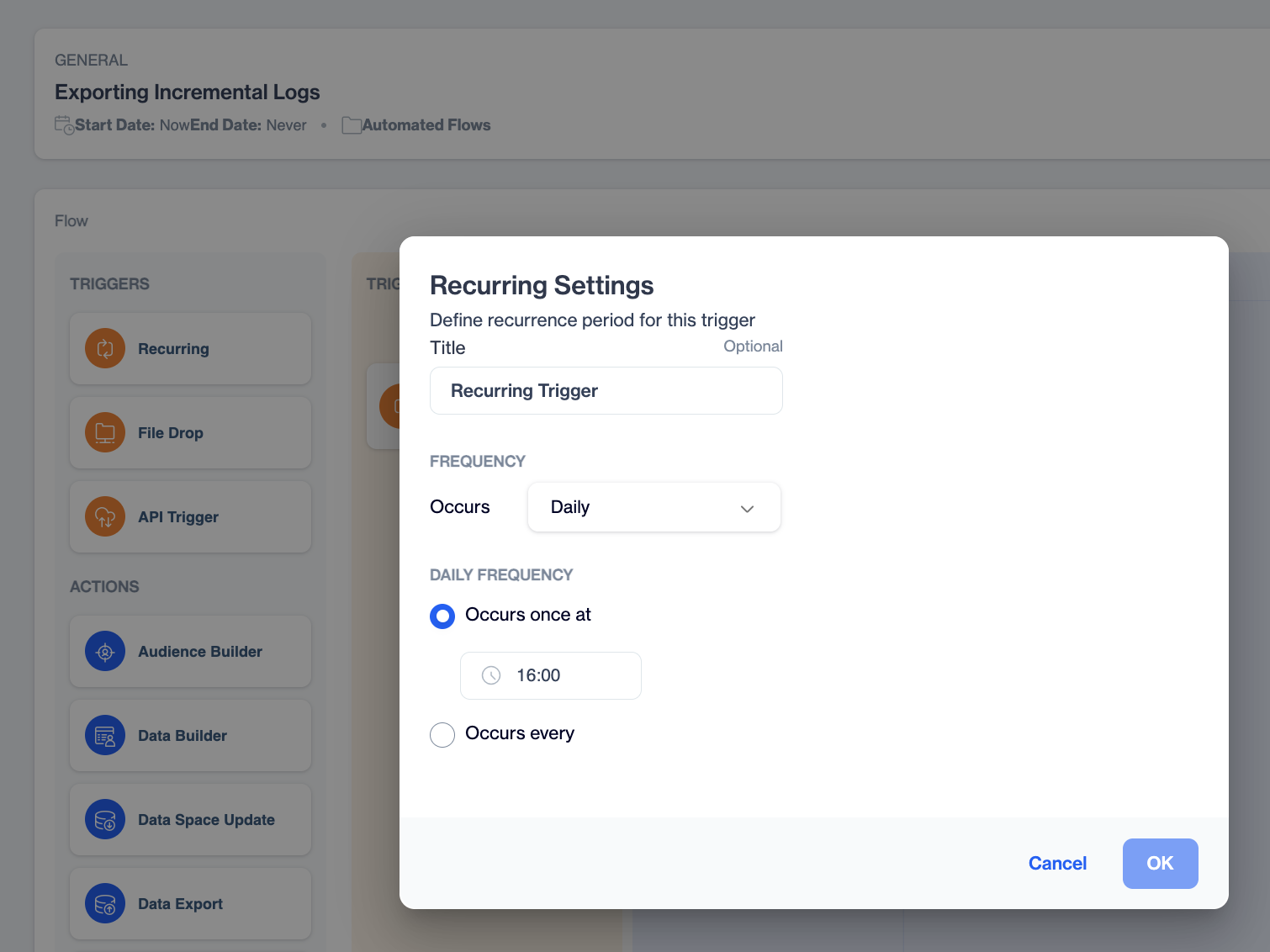
Incremental Logs require a Daily recurring trigger. Choose Occurs once at or Occurs every.
3. Add the Data Export Node
In the Actions section, drag the Data Export node into the flow. This node defines what data will be exported and where it will be sent. Click the node to configure its settings. You can give the node a name in the Action Name field. The configuration has four steps: Target, Settings, Columns and Summary.
4. Choose the Data Type
In the configuration window, under Select data source, select Incremental Logs. The screen also shows the maximum export size, which is 7168 MB. Click Next.
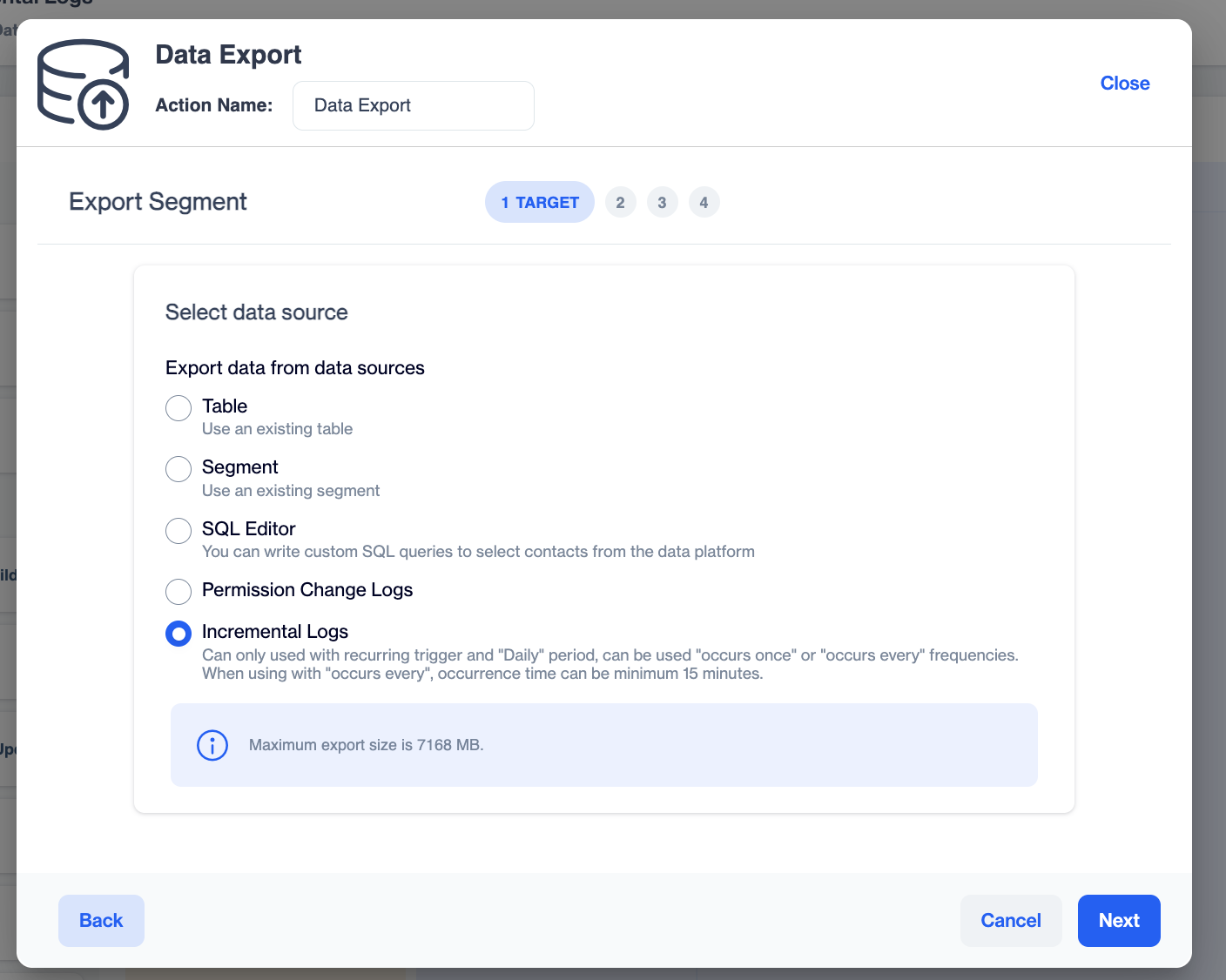
Select Incremental Logs as the data source.
5. Select the Log Type
When you select Incremental Logs, choose the relevant log type under Transactional or Marketing, depending on the data you want to export. Click the eye icon next to a log type to preview the columns it exports and the column types and lengths your table needs. Click Next to proceed.
Transactional log types
| Log type | What it exports |
|---|---|
| Push Events | Push events such as delivered, clicks and more |
| Push Sends | Send details such as content, token, app and more |
| Push Sends with Tags | Push send details with tags |
| Tag Push Events | Tag push events such as delivered, clicks and more |
| Email Events | Email events such as delivered, sent, opens, clicks and more |
| Email Sends | Send details such as from name, from address, subject and more |
| Email Sends with Tags | Email send details with tags |
| Sms Events | SMS events such as delivered, clicks and more |
| Sms Sends | Send details such as content, gsm, sender name and more |
| Sms Sends with Tags | SMS send details with tags |
| Panel Audit Logs | Panel audit logs |
Marketing log types
| Log type | What it exports |
|---|---|
| Email Events / Push Events / Sms Events / Inapp Events / Onsite Events / WhatsApp Events | Channel events such as delivered, sent, opens, clicks and more |
| Sms Events With Gsm | SMS events with the GSM number |
| Email Sends / Push Sends / Sms Sends / Inapp Sends / Onsite Sends / Whatsapp Sends | Send details for each channel, such as content, sender, subject and more |
| Email Send Targets / Push Send Targets / Sms Send Targets / Inapp Send Targets / Onsite Send Targets / Whatsapp Send Targets | The list of contacts targeted by each send |
| Sms Send Targets With Gsm | SMS send targets with the GSM number |
| Campaign Control Group Contacts | Campaign control group contacts (see Exporting Campaign Control Group Info via Incremental Logs) |
| Tags | Send tags information |
| Uninstalled Devices | Uninstalled device information |
Under Marketing, the Whatsapp Send Targets log type exports the list of contacts targeted by each WhatsApp send, including the contact key and the WhatsApp number the message was sent to. This lets you report, per contact, who received which WhatsApp message, as you can already do for Email, Push, SMS, In-App and Onsite sends. See the Whatsapp Send Targets table under Incremental Logs - Column Details for the columns to create in your database.
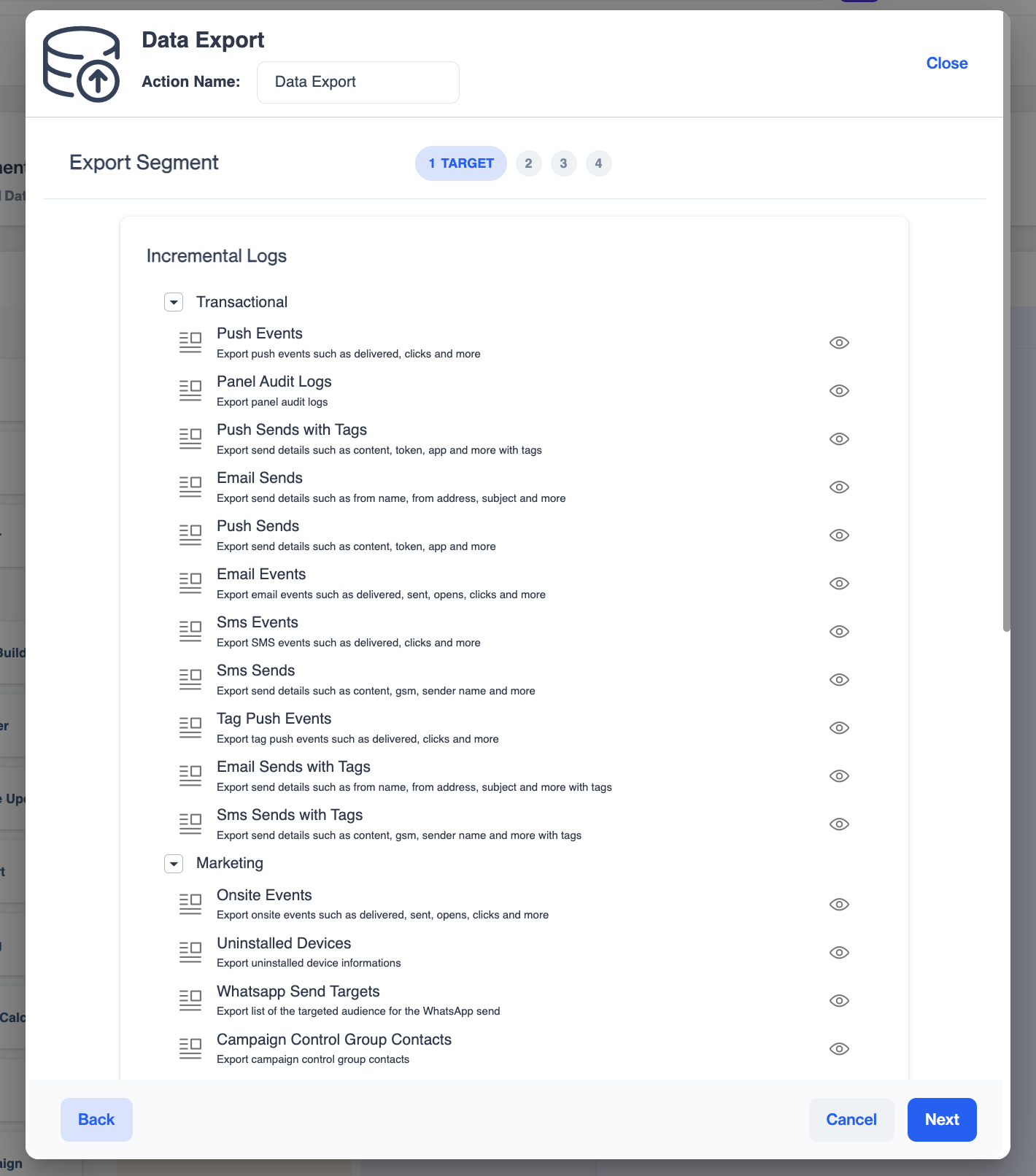
Pick a log type and use the eye icon to view its required columns.
6. Select the Remote Target (Database)
Under Select Remote Target, pick the target type and then the specific Remote Target you defined earlier. The target types are:
- Google BigQuery
- Microsoft SQL
- PostgreSQL
- ODBC (Generic): used for connecting to MySQL and other databases
- Oracle
- Amazon S3
- Amazon Redshift
- FTP export: exports the result as a file to one of your FTP locations. See FTP Export Support for Incremental Logs.
The same steps apply for all supported database types. Click Next.
7. Enter the Table Settings
In the Settings step, tell Dengage where to write the data:
- For Google BigQuery: select the Dataset and enter the Table Name.
- For SQL database targets such as PostgreSQL: enter the Schema Name and the Table Name.
Click Show Columns to see the columns the selected log type will write, and make sure your table matches. You do not enter connection details here; they come from the Remote Target. Click Next.
The Columns step is skipped for Incremental Logs because the columns are fixed by the template.
8. Review the Summary and Save
The Summary step shows the Data source (the log type), the Target type and the Target Name. Check them and click Export to save the node configuration.
To add more log types to the same flow, drag another Data Export node into the step and repeat steps 3 to 8.
Finally, click Set Job as Active to start the schedule, or Save Job as Draft to keep the flow without running it.
Monitoring the Export
Open the flow and switch to the Job History tab to see each run with its Started On and Completed On times and its status (Completed or Error). The Status toggle at the top of the flow shows whether the flow is active.
Use Cases
- Data warehouse reporting: export Email Events, Push Events and Sms Events daily to BigQuery or Redshift and build your own dashboards on campaign performance.
- Per-contact delivery records: export the Send Targets log types to keep a record in your database of which contacts were targeted by each campaign, for example for customer service or compliance.
- Control group analysis: export Campaign Control Group Contacts to compare the behaviour of contacts who received a campaign with those who were held out.
- Audit trail: export Panel Audit Logs to keep a record of panel actions in your own systems.
FAQ
Can I export Incremental Logs weekly or monthly? No. Incremental Logs only work with a Recurring trigger set to Daily. Use Occurs once at for one run per day, or Occurs every to run several times a day.
Do I need to map columns? No. Each log type has a fixed column set. Create your table with the columns shown in Column Details and the export writes into it.
Where do I enter the database connection details? On the Remote Target itself (see the Remote Targets page). The Data Export node only asks for the schema or dataset and the table name.
Can I export more than one log type in one flow? Yes. Add one Data Export node per log type to the same flow.
Can I export to a file instead of a database? Yes. Choose FTP export as the remote target. See FTP Export Support for Incremental Logs.
Is there a size limit? The maximum export size is 7168 MB per export.
Updated 17 days ago