
Alert Email
Alert Email
The Alert Email Configuration screen allows you to manage all campaign and flow-related alerts from a single subscriber-based structure.
You can add an email address once and assign multiple alert types to it. This prevents repetitive data entry and simplifies alert management.
Alerts cover one time campaigns, recurring campaigns, data import and export processes, campaign flows and automated flows. The alert is sent to the subscriber as an email.
Each alert email includes the Account Name, so subscribers who receive alerts from more than one account can see which account the alert belongs to. For example, a Campaign Send Completed email shows:
- Campaign Details: Account Name, Start Time, Flow Name, Target Segment and Communications (the channels in the flow).
- Campaign Team: Created By, Approved By and Published At.
- Send Summary: Targeted, Delivered and Rate for each communication, with a total row.
The email also links to the analytics of the campaign in your Dengage dashboard.
How to Access
Go to: Settings > Sending Rules > Alert Emails
Click Add. The Add New Subscriber dialog opens.
How to Use
1. Add Subscriber
- Enter the Email Address
2. Select Alert Type(s)
Under Alert Type, select the alerts this subscriber should receive. You can assign multiple alert types to the same email address.
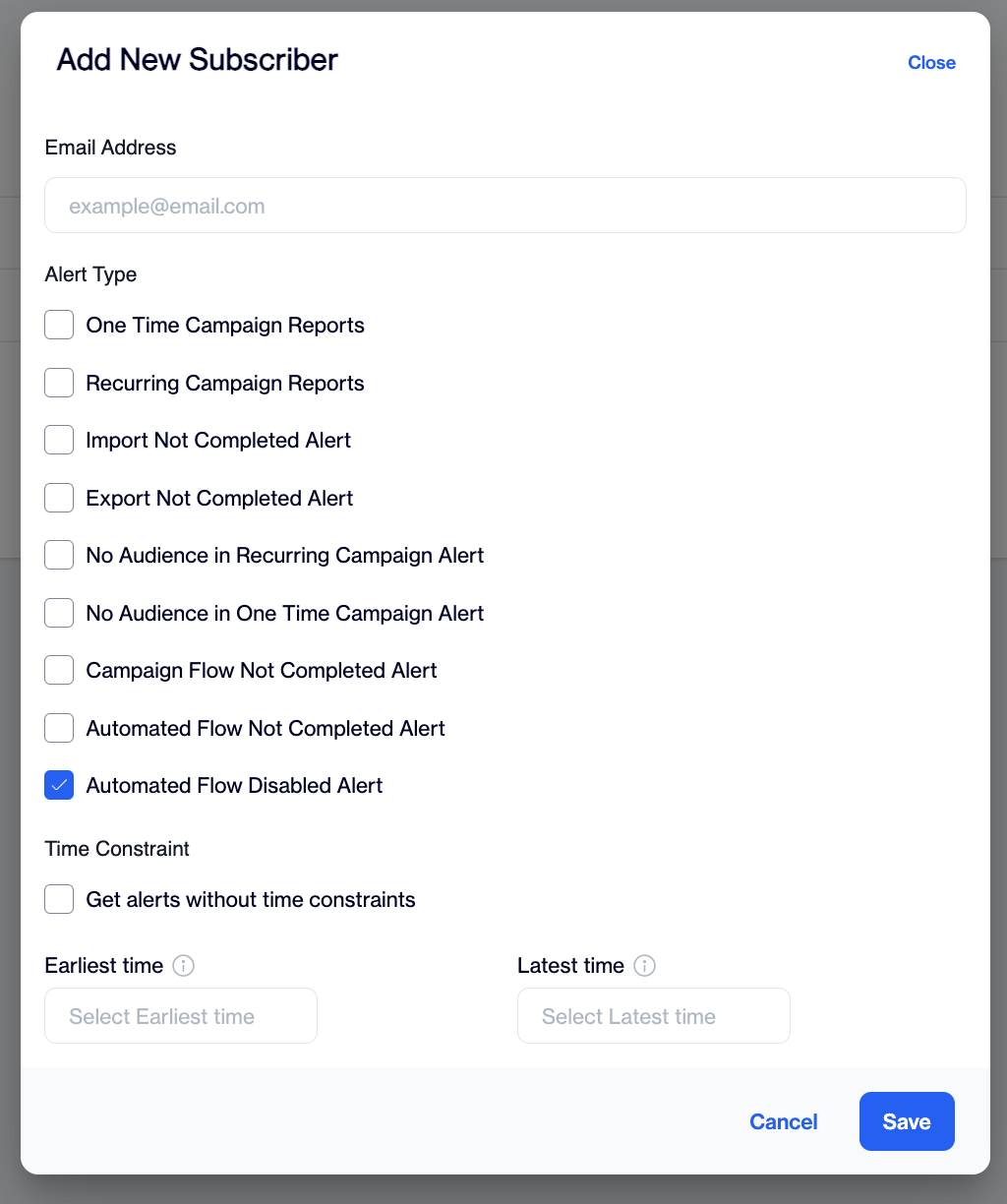
Select one or more alert types for the subscriber in the Add New Subscriber dialog.
Under Alert Type, choose the notifications this subscriber should receive:
One Time Campaign Reports
Includes notifications related to one-time campaign execution:
- Notification 1: Sent when the flow is published.
- Notification 2: Sent when all communications in the flow are completed.
- No Audience in One Time Campaign Alert: Triggered when a one-time campaign segment returns zero audience.
Recurring Campaign Reports
Includes notifications for recurring campaign execution:
- Notification 1: Sent once per day at 08:00 AM (next morning, local time).
- No Audience in Recurring Campaign Alert: Triggered when a recurring campaign runs without an audience.If you select No Audience in Recurring Campaign Alert, you can choose how often notifications are sent:
- Get only one: Send a single notification for the issue.
- Get on every alert: Sends an email each time the recurring campaign runs without an audience.
System Alerts
- Import Not Completed Alert: Triggered when a data import process is not completed successfully.
- Export Not Completed Alert: Triggered when a data export process is not completed successfully.
- Campaign Flow Not Completed Alert: Triggered when a campaign flow does not finish execution.
- Automated Flow Not Completed Alert: Triggered when an automated flow does not complete successfully. This alert is sent for a single failed run.
- Automated Flow Disabled Alert: Triggered when an automated flow fails three times in a row and is set to Passive (disabled). The flow will not run again until it is re-enabled. This alert uses its own email template, separate from the Automated Flow Not Completed Alert, so you can tell a one-off failure apart from a flow that has stopped. The Automated Flow Disabled email shows the Account, Flow Name, Disabled At (date and time with the GMT offset) and Status, and points you to Data Space > Logs > Automated Flows History for the execution details. In the subscriber list, this alert type is shown as the tag Automated Flow Inactive.
3. Time Constraint (Optional)
Under Time Constraint, you can:
- Select Get alerts without time constraints, or
- Define Earliest time and Latest time to restrict delivery hours.
Click Save to complete the setup.
Managing Subscribers
The Alert Email screen lists all subscribers. The Email Address column shows the address, and the Alert column shows the assigned alert types as tags.
- Use the Search box to find a subscriber by email address.
- To change a subscriber's alert types or time constraint, open the row menu (three dots) and click Edit.
- To remove a subscriber, open the row menu and click Delete.
- Use Page view at the bottom of the list to change how many subscribers are shown per page.
FAQ
Can one email address receive several alert types?
Yes. Select all the alert types the subscriber needs in the same dialog. You do not need to add the address more than once.
Why did a subscriber not receive an alert at night?
Check the subscriber's Time Constraint. If Earliest time and Latest time are set, alert emails are only sent within that window. Select Get alerts without time constraints to receive alerts at any time.
How do I stop a subscriber from receiving one alert type?
Open the row menu, click Edit, clear the checkbox for that alert type and click Save.
Which option should I choose for No Audience in Recurring Campaign Alert?
Choose Get only one if you want a single email about the issue. Choose Get on every alert if you want an email on every run without an audience.
Updated 16 days ago