
Geofence - Frequency Capping Update
The Geofence - Frequency Capping Update gives you more control over how often users receive messages in location-based campaigns.
Previously, frequency capping was mainly managed through campaign configuration rules. With this update, you can now apply frequency capping directly at the campaign level and control it based on:
- The entire campaign
- A geofence cluster
- A single geofence
This helps prevent users from receiving the same message too many times when they repeatedly enter or stay within a location.
How to Access
Navigation Path:
Campaigns > Targeting > Geofencing
How It Works
When creating a geofence campaign, frequency capping can now be configured during the Delivery step.
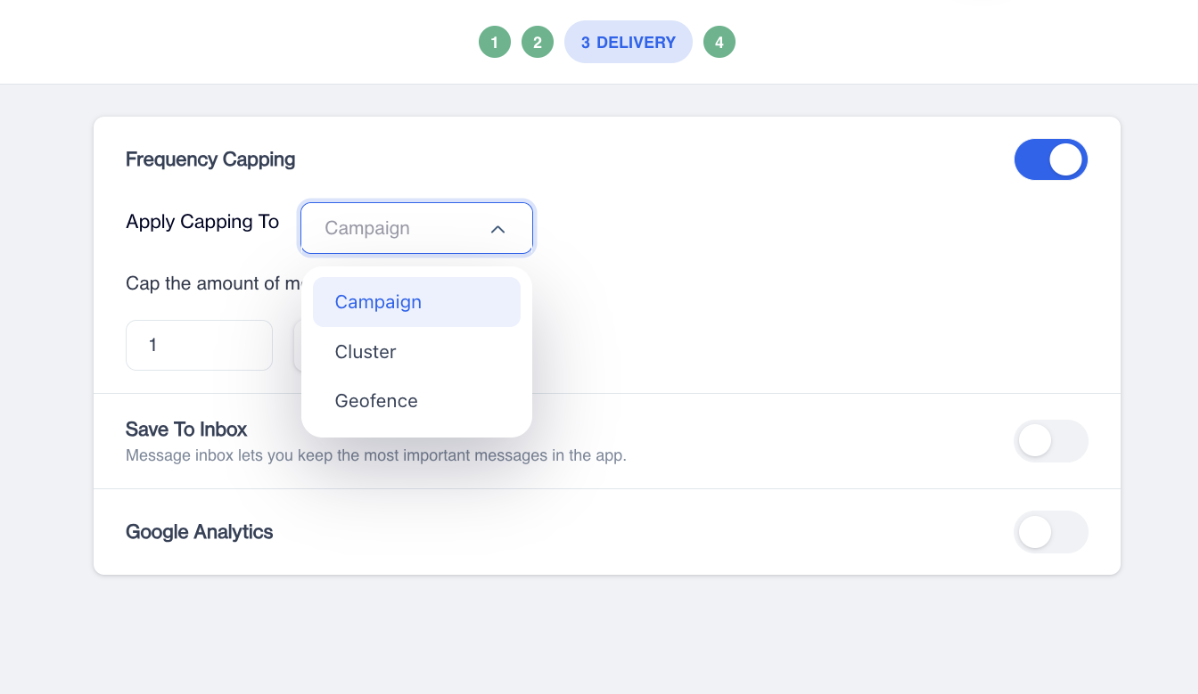
Frequency Capping
You enable frequency capping by turning it on and then defining:
- Where the rule applies (campaign, cluster, or geofence)
- How many messages a user can receive
- Within what time interval (hourly, daily, weekly, or monthly)
Once enabled, the system automatically limits message delivery according to these rules.
How to Use Geofence-Based Frequency Capping
Step 1: Create a New Geofence Campaign
- Go to Campaigns > Targeting > Geofencing
- Click New
- Select:
- Campaign type
- Channel
Step 2: Campaign Settings
In the Settings tab:
- Enter a campaign name
- Choose the campaign schedule
- Select the application
- Add a geofence cluster
- Define who should see the campaign
This step determines where and to whom the campaign will be shown.
Click Next to continue.
Step 3: Content Selection
In the Content tab:
- Choose the message or content you want to send to users
- Click Next
This is the message that users will receive when they enter the defined geofence.
Step 4: Delivery & Frequency Capping
In the Delivery tab, you will find the Frequency Capping section.
Enable Frequency Capping
- Toggle Frequency Capping ON
Once enabled, additional configuration options become visible.
Apply Capping To
From the Apply Capping To dropdown, select where the frequency limit should apply:
- CampaignLimits how often a user can receive messages from this campaign in total.
- ClusterLimits messages based on the selected geofence cluster.
- GeofenceLimits messages separately for each individual geofence.
This selection defines the scope of the frequency rule.
Define Message Limits
- Enter the maximum number of messages a user can receive (for example: 2)
- Select the time interval:
- Hourly
- Daily
- Weekly
- Monthly
Example:
If you set 1 Daily at the Geofence level, a user will receive only one message per day per geofence, even if they enter that geofence multiple times.
Common Use Cases
- Prevent sending multiple push notifications when users frequently enter the same location
- Apply stricter limits to busy or high-traffic geofences
- Run long-term location campaigns without overwhelming users
Updated 2 months ago