
Export
Export lets you send data out of the Dengage CDP. You can export any table, segment, SQL query result or permission change log, and send it to an FTP site, Amazon S3, Google BigQuery, a Kafka topic, your own web API, or an advertising platform such as Google Customer Match, Facebook Custom Audience or TikTok Custom Audience. You can also download the result as a file.
Use Export to share audiences with other systems, to feed data warehouses and dashboards, and to keep records of permission changes for compliance and auditing.
What you can export
- Any Table or Segment: the full data of a table, or the contacts of a segment, for analysis or targeted campaigns.
- SQL Query Outputs: the result of a custom SQL query, so you can shape the data before you export it.
- Permission Change Logs: the record of changes in email, SMS and push permissions, for compliance and auditing.
Where you can send it
- Download Directly: save the data as a file on your computer for quick access and offline analysis.
- FTP Site Integration: send the data to an FTP site of your choice.
- Ad Platform Integration: send contact data to Google Customer Match, Facebook Custom Audience or TikTok Custom Audience for ad targeting.
- Web API Export: push the data to your own web API for real-time integration with other applications.
- Amazon S3: store the exported data in Amazon S3.
- Google BigQuery: write the exported records directly into a table in your Google BigQuery dataset.
- Kafka Topic: send the data to a Kafka topic in your streaming pipeline.
Key Terms
- Remote target: an external destination that you define under Settings > Integrations > Remote Targets, for example an FTP site, an Amazon S3 bucket, a Google BigQuery project or a Kafka cluster. See Remote Targets.
- DSP: an advertising platform that receives an audience list for ad targeting. In Dengage these are Google Customer Match, Facebook Custom Audience and TikTok Custom Audience.
- Audience list: a list on a DSP that holds the contacts you export. You can add the export to an existing list or create a new one.
- Kafka topic: a named queue on your Kafka cluster that receives the exported records as JSON messages.
- Permission change log: the history of changes to contact and device permissions, stored in the master_contact and master_device tables.
How to Export Data
Go to Data Space > Data Flow > Export. The Export page lists all exports in the system.
-
Listing Overview: the list shows each export with these attributes:
- Type: the export target, such as FTP or Google Customer Match.
- Name: the name of the export.
- Created On: the date and time of the export.
- Created By: the user who started the export.
- Status: the current phase of the export: New, Processing, Completed or Error.
- Counts: the number of records in the export.
-
Search Bar: type the name of an export to find it in the list.
-
+ New: starts a new export. The first screen, Select data source, offers four sources:
- Table: export the data of an existing table.
- Segment: export the contacts of an existing segment.
- SQL Editor: write a custom SQL query and export its result.
- Permission Change Logs: export the changes in permissions.
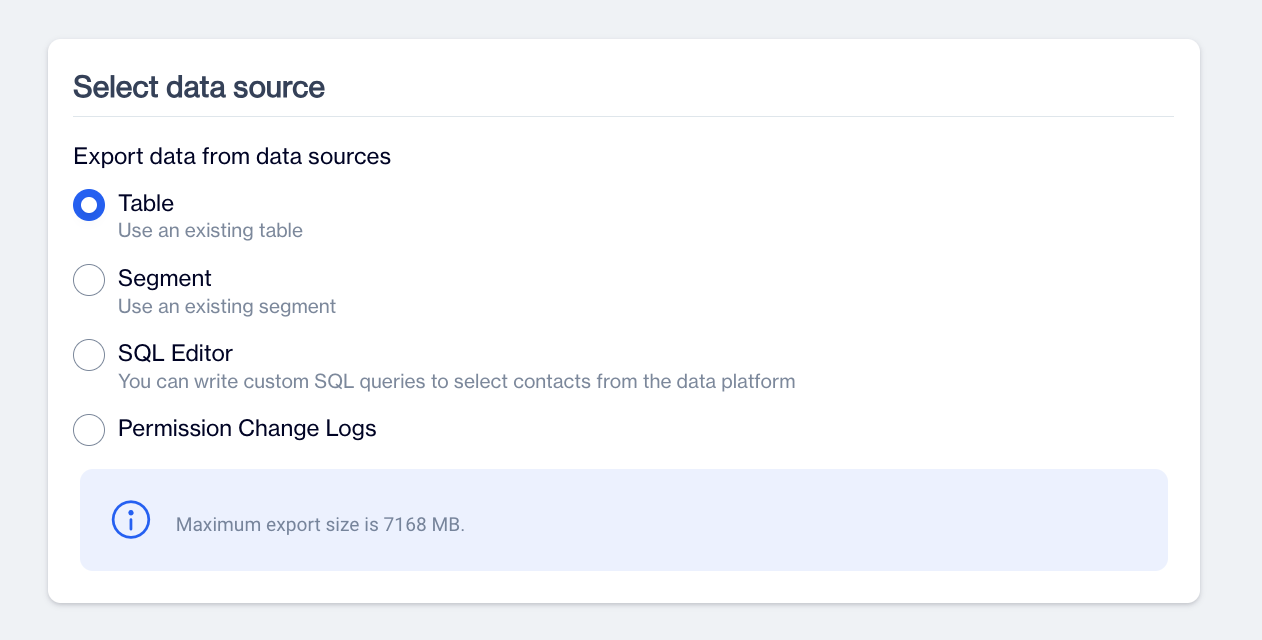
The screen also shows the maximum export size, which is 7168 MB.
-
Filter Option: narrows the list by:
- Source: all exports, or only the exports created by users.
- Table Type: the export target, such as FTP or Google Customer Match.
- Status: the export status, such as New or Completed.
- Date Range: a date range for the update or creation date.
- Filter by Update Date or Creation Date: which date the date range applies to.
- Apply: applies the selected filters to the list.
Filtering by Exported File NameThe search bar filters the list by the name of the export, so you can find a specific export quickly.
Selecting a Table or Segment as a Source
Select Table as Audience Source
The Source Table screen lists all available tables. Select the table you want to export.
Select Segment as Audience Source
When you choose Segment, the Source Segment screen opens. It has two tabs:
- Segment: the segments you created.
- Predefined Segment: the predefined segments of your account.
Select the segment you want to export.
Both screens have a Search Bar and a Filter Option:
- Search Bar: type the name of the table or segment. The list filters as you type.
- Date Range: a date range for the update or creation date.
- Filter by Update Date or Creation Date: which date the date range applies to.
- Apply: applies the selected filters to the list.
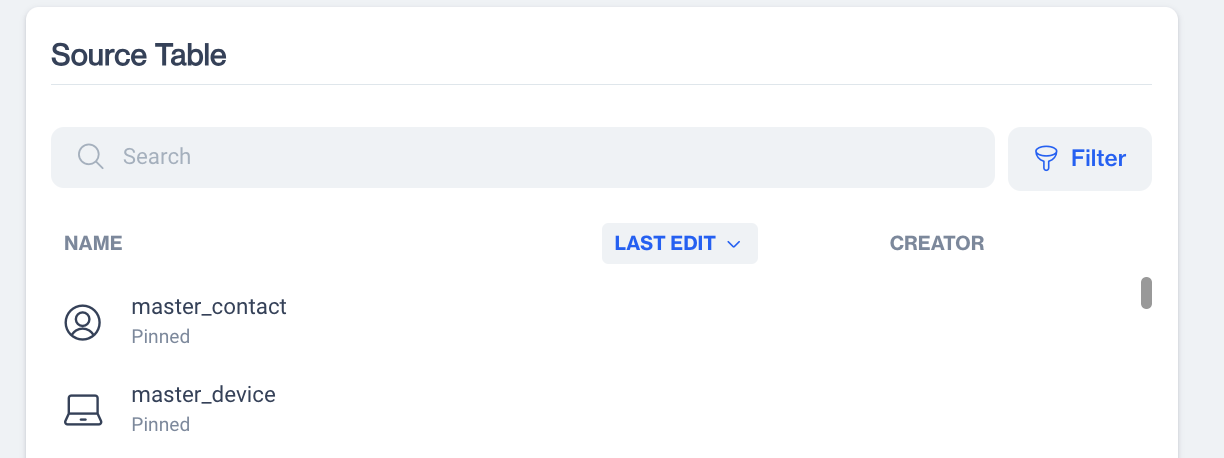
Source Table
Applying more than One FilterYou can add several filters to the same source table. Dengage joins them with the AND operator.
Important NoteManage Filters is available only when you export a table. When you export a segment, this option is not shown. Exclude is available for both tables and segments.
For example, if the table has a gender column, you can export only the Female audience with the filter 'gender'='Female'.
Using SQL Editor as Audience Source
The SQL Editor lets you write and run a custom SQL query inside Dengage and export its result. Use it when a table or segment does not give you the exact set of contacts you need, for example a selection by behaviour, demographics or engagement.
Write your query in the editor and click Next. The screen has four parts:
- Work Space to Write SQL Query: the editor where you write the query with standard SQL syntax.
- Validate and Preview the Result of That Query: checks the syntax and shows a preview of the result, so you can confirm the query returns the data you expect.
- Calculate and Get Insights from the Preview Result: runs calculations on the preview result.
- Next: moves to the Select Remote Target screen.
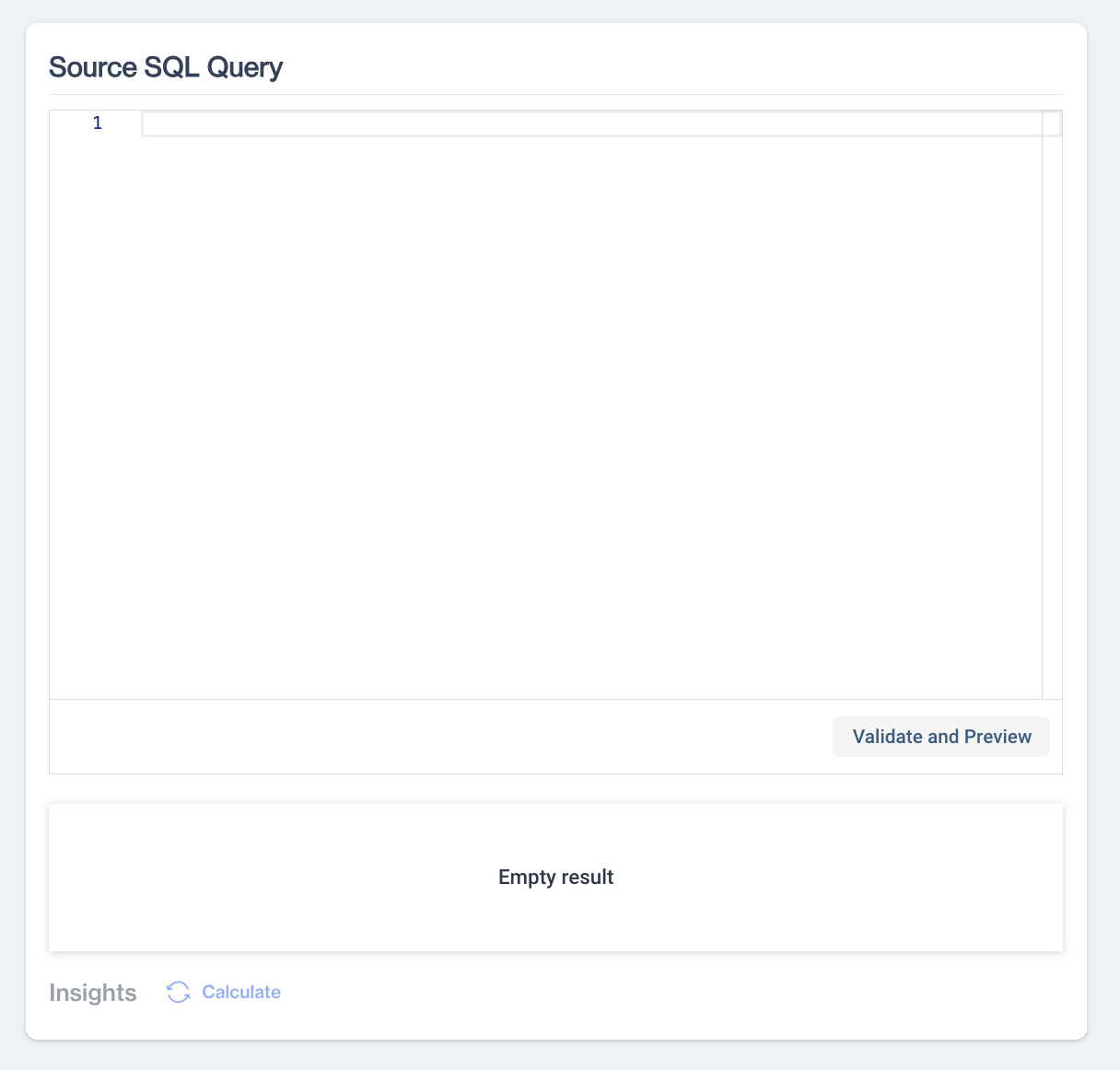
Source SQL Query
Selecting "Permission Change Log" as Audience Source
The Permission Change Log records when and how email, SMS and push token permissions change. Export it to prove compliance with data protection rules, to audit communication preferences, and to find and fix inconsistent permission settings.
The Change Log screen has four parts:
- Allow Selecting Two Tables: choose the table that holds the permissions you need.
- Master Contact: contact permissions, such as email addresses and GSM numbers.
- Master Device: push token permissions.
- Columns: choose the columns of the selected table that you want in the export, such as the columns that show whether a permission was granted or denied.
- Select Date Range: include only the permissions that changed within this period.
- Next: moves to the Select Remote Target screen.
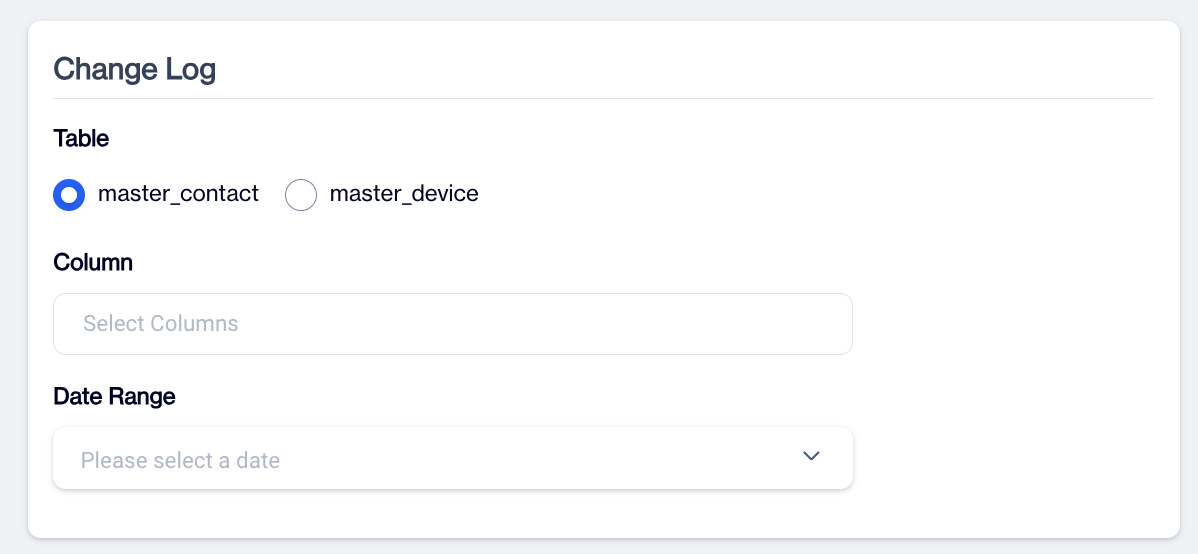
Change Log
Select an Export Target
After the data source, choose where Dengage sends the data. The Select Remote Target screen lists the available targets. Each target that needs a definition shows the remote targets you defined under Settings > Integrations > Remote Targets. If a target type has no definition yet, the screen shows a message that points you to Settings > Remote Targets.
- Select Remote Target: the options are:
- FTP export: sends the data to one of your FTP locations. Use it for automated transfers of large files to your own servers. Example:
dengage_ftp(ftp.sirv.com) - File Download: downloads the result as a CSV file to your computer.
- Google Customer Match: sends contact information to Google Customer Match for ad targeting on Google.
- Facebook Custom Audience: sends contact information to Facebook Custom Audience for ad targeting on Facebook.
- Tiktok Custom Audience: sends contact information to TikTok Custom Audience for ad targeting on TikTok.
- Snapchat Custom Audience: sends contact information to Snapchat Custom Audience.
- Google BigQuery: writes the result data into a table in a Google BigQuery remote target. See Export Audience to Google BigQuery below.
- Microsoft SQL, PostgreSQL, ODBC (Generic), Oracle: write the result data into a table in a database remote target of that type.
- Web API: sends the result data to one of your web APIs.
- Amazon S3: sends the result data to an AWS S3 bucket.
- Kafka: sends the result data to one of your Kafka topics.
- FTP export: sends the data to one of your FTP locations. Use it for automated transfers of large files to your own servers. Example:
- Next: moves to the settings of the selected target.
Targets by data sourceNot every target is available for every data source. Web API, Amazon S3 and Tiktok Custom Audience are available when the source is a Segment or SQL Editor, not when it is a Table. Google BigQuery is available when the source is a Table or a Segment, not when it is SQL Editor.
Additional Remote Targets for Segment and SQL EditorWhen you select a segment or SQL Editor, other export target options are also available.
TikTok Custom Audience Connection: This option allows you to export contact information directly to the TikTok Custom Audience platform, enabling you to tailor your advertising strategies by reaching specific audiences on TikTok.
Web API: Export result data seamlessly to a specified web API. This facilitates integration with various online services and applications, enhancing your operational efficiency by automating data transfers.
Amazon S3: Use this option to export report templates directly to AWS S3, providing a secure and scalable cloud storage solution for managing and accessing your data efficiently.
Target LimitationsSubscription Restrictions: Be aware that some export options may be disabled due to the current subscription level of the user.
Table Type: The availability of export options can also depend on the type of table selected. For instance, some export destinations may only be compatible with particular table types or data sources, which could restrict the available remote targets for a specific selection.
Export Audience to a FTP Site or Amazon S3 or Download a File
File exports follow the same steps:
- Choose an Export Option: FTP export, Amazon S3 or File Download.
- Define Remote Target: for FTP export and Amazon S3, select the remote target that receives the file. Define these targets beforehand under Settings > Remote Targets.
- Proceed: click Next.
- Configure File Settings: set the file options for the chosen target. See Format File to Export.
Export Audiences to Google, Facebook and Tiktok
Exporting an audience to a DSP has the same steps for all three platforms:
- Select an Export option: Google Customer Match, Facebook Custom Audience or Tiktok Custom Audience.
- You can define more than one Google, Facebook or TikTok account under Remote Targets. Select the remote target with its radio button.
- Click Next. The next screen depends on the platform, but its layout and function are the same for all DSP targets.
The example below is for Facebook Custom Audience. Dengage retrieves the existing lists from the platform, so you can:
Select an existing list: add the selected audience to an existing list on Facebook, Google or TikTok, or remove it from the list. The columns below are for Facebook; see the callouts for Google and TikTok.
- Name: the name of the audience list on the DSP.
- Description: the description of the audience list.
- Estimated Match Count: the number of contacts in the existing list.
Create a new audience: add a new audience list on Facebook, Google or TikTok and send the selected audience to it.
List Columns for Google Customer MatchUSER LIST TYPE: the type of user list, for example contacts or mobile numbers.
List Columns for Tiktok Custom AudienceEXPIRE TIME: the date and time when the custom audience stops being valid.
COVERAGE: the coverage of the custom audience, such as the target demographic.
Selecting Contacts (email/sms) or Advertising Ids for Facebook Custom Audience
- Export Contacts from Selected Segment: exports the contact information (email and SMS) of the segment.
- Export Devices from Selected Segment: exports the devices of the segment, including the advertising_id of registered devices.
- +New Audience: creates a new audience on any DSP. For Facebook:
- Name: the name of the new audience.
- Description: a short description of the new audience.
- Add: creates the audience. You can then send the selected audience to it.
- Next: moves to the next screen.
Additional Options for new Google Custom Audience
- Type: the type of audience to create:
- Contact: a contact-based audience that uses email addresses and GSM numbers.
- Mobile: a mobile-based audience that uses advertising ids.
Option for new Tiktok Custom Audience+New Topic: creates a new topic on TikTok.
Name: the name of the new audience.
Export Audience to Custom Web API
To export the selected audience to your own Web API, you must first define this Web API using the Remote Targets interface found under Settings.
Developing your own WEB APIThe Dengage WEB API call export feature enables the platform to invoke your WEB API and transmit the audience data. Your WEB API must be developed in accordance with the Dengage WEB API Call standards to ensure compatibility.
There are 3 important steps to export the selected audience from Dengage platform to your WEB API.
1.You can create multiple WEB APIs. To begin, select the specific WEB API to which you want the selected audience to be exported.Select next.
2.The system will ask you for an export name. Give a name to your export.
3.Hit next. You will be navigated to a page you can select either master_contact columns or master_device columns to your WEB API. Hit Next.
4.Schedule your export by Saving button.
Export Audience to Kafka
To export the selected audience to a Kafka topic, first define the Kafka cluster under Settings > Remote Targets.
Exporting an audience to Kafka has five steps:
- Select the Kafka remote target and click Next.
- Dengage lists the topics of the selected Kafka cluster. You can also create a topic with +New Topic, if the user of the remote target connection is allowed to create topics.
- Select the topic that receives the data and click Next.
- Select the columns to export from the segment.
- Click Save to schedule the export.
Understanding the data format on Kafka TopicDengage Platform will generate a specific JSON format tailored to your selected topic on Kafka. For instance, lets assume we have selected columns contact_key, email and birth_date columns in Step 4️⃣ above. Dengage Platform will insert as many items as in the segment to the topic you have selected and each of them will have the format below.
{
  "contact_key": "contacy_key_1",
  "email": "[email protected]"
  "birth_date": "1993-10-31 00:00:00"
}
Export Audience to Google BigQuery
To export the selected audience to Google BigQuery, you must first define a Google BigQuery remote target using the Remote Targets interface under Settings. The remote target is defined with your Google BigQuery credentials as JSON text. See Remote Targets.
Google BigQuery is available when the data source is a Table or a Segment. Exporting an audience to Google BigQuery has 4 basic steps.
-
On the Select Remote Target screen, select Google BigQuery, select one of your BigQuery remote targets listed under it, and click Next.
-
On the Export Wizard screen, select the schema in Select Schema and the table in Table Name. The Table Name list shows the tables of the selected schema; if the schema has no tables, the list shows No Data. Both fields are required. Click Next.
-
On the Column Mapping screen, choose the Data Table Action: Append (the default) appends all records from the source, and Truncate and Insert truncates the table and inserts all the records from the source. Then, in the Columns table, set the Target Column of each BigQuery column to --Ignore-- (the default), -- Constant Value -- for a fixed value, or one of the source columns. Click Next.
-
Check the Summary screen, which shows the Source, the Target type and Target Name, and the Columns to be exported. Click Save to run the export.
Scheduled export to Google BigQueryThe export created here runs once. For a repeating export, for example every night, use the Data Export node in an Automated Flow, which has the same target, schema, table and column mapping steps. See Export to Google BigQuery.
WhatsApp Unsubscribe Logs
WhatsApp Unsubscribe Logs allow you to retrieve, and report users who have opted out of WhatsApp communications. Since users can unsubscribe (opt-out) directly through the WhatsApp channel, these permission updates must be traceable within the system to ensure compliant and accurate communication management.
With this feature, unsubscribe records from the WhatsApp Business API channel can be listed and exported through the Permission Change Log structure. This gives your team full visibility into WhatsApp permission changes and ensures that opt-out data can be shared with external systems.
This feature is available only for WhatsApp Business API integrations.
How to Access
To access WhatsApp unsubscribe logs, go to Data Space > Data Flow > Export. From the Export screen, create a new export and select Export data from data sources. Then choose Permission Change Logs and proceed to the Change Log configuration screen.
How to Use
On the Change Log screen, you need to select the relevant table, either master_contact or master_device, depending on where your WhatsApp permission data is stored. After selecting the table, include the WhatsApp-related columns such as whatsapp_status and whatsapp_permission to capture unsubscribe and permission updates.
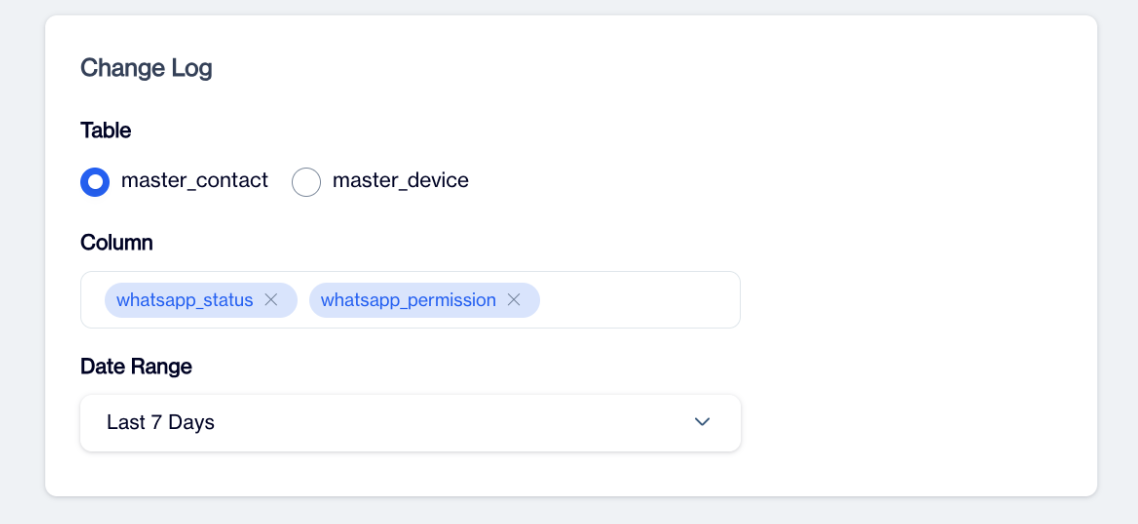
Whatsapp Change Logs
Next, define the date range from the dropdown menu to determine which permission changes should be included in the export, for example the last 7 days. Once you continue, select the remote target where the export file will be delivered.
In the file configuration step, define the file settings.Complete the configuration by setting the encoding to UTF-8, the delimiter to a comma, and the preferred date column format such as yyyy-MM-dd HH:mm. After reviewing the summary screen, save the export to activate it.
Use Case
A common use case is synchronizing WhatsApp opt-out users with external CRM systems or suppression databases. For example, if a customer unsubscribes from WhatsApp messaging, this change can be exported regularly and shared with other platforms to ensure that no further WhatsApp communication is triggered from external systems.
Another use case is compliance reporting. Teams can export WhatsApp permission changes within a selected date range to monitor consent updates and maintain proper audit records.
WhatsApp Unsubscribe Logs ensure that opt-out data is not only captured but also operationally manageable. By making WhatsApp permission changes exportable and traceable, the system helps you maintain compliant, accurate, and consistent communication across all connected systems.
Updated 5 days ago