
In-App Button Copy Functionality
The Copy to Clipboard button action allows you to let users copy a specific text directly from an in-app message with a single tap. Instead of redirecting users to another page or requiring them to manually select and copy a code, this action saves the defined text to the user’s clipboard instantly and shows a confirmation message.
This feature is especially useful for coupon codes, promo codes, or any short text that users need to reuse. By removing unnecessary steps, it improves user experience and increases the likelihood that users will actually use the provided code.
How to Access
To use this feature, navigate to: Content > Marketing > In-App
Create a new in-app content or open an existing one. While configuring your content, add a new button or edit an existing button. Under: Actions > Button Action Type
select Copy to Clipboard from the dropdown list.
How to Use
After selecting Copy to Clipboard, the button becomes fully dedicated to the copy action.
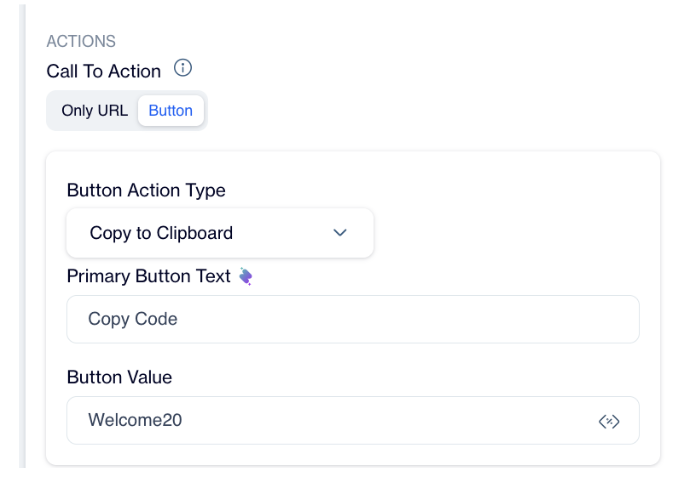
Copy to Clipboard
In the Primary Button Text field, enter the text that will appear on the button itself. For example, you may write “Submit”, “Copy Code”, or “Get Coupon”. This is the label users will see and tap.
In the Button Value field, enter the exact value that should be copied to the clipboard. This can be a coupon code such as WELCOME20, a referral code, or any custom text. When users tap the button, this value is automatically saved to their clipboard.
Once the in-app message is displayed and the end user taps the button, the system copies the defined Button Value and shows a short confirmation message on the screen. Users can then paste the copied text anywhere inside or outside the app.
This functionality works on both Android and iOS platforms.
Updated 4 days ago