
Design In-App Messages Without Code: Introducing the New In-App Builder
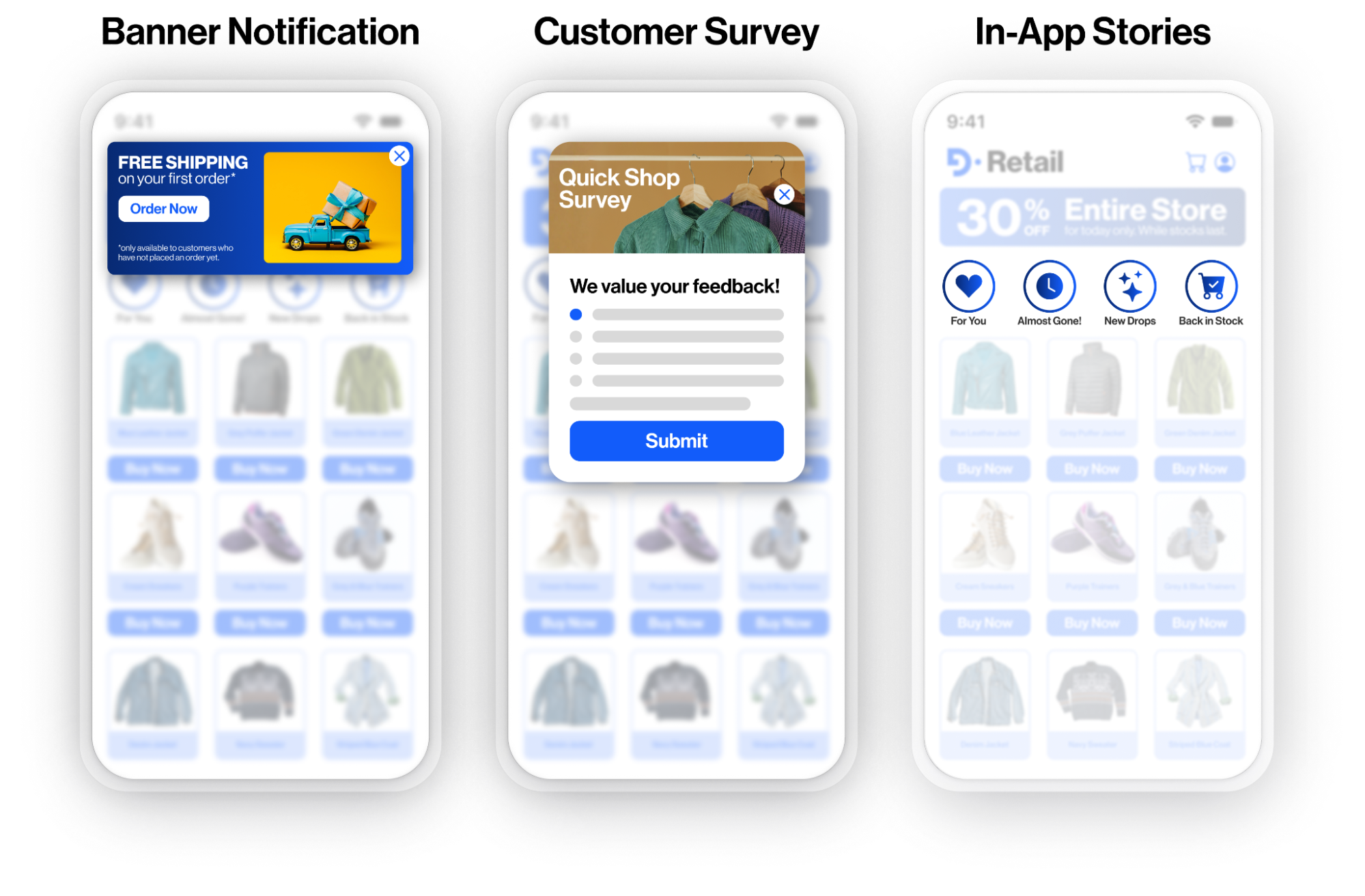
The In-App Builder introduces a drag-and-drop interface for creating in-app content such as banners, modals, and floating elements. It removes the need for HTML or coding skills, enabling marketers to design interactive in-app experiences quickly through an intuitive visual editor.
Why it matters
Personalized in-app messaging is one of the most effective ways to guide, engage, and convert users while they are active in your app. With the In-App Builder, non-technical users can:
-
Design professional-looking in-app experiences in minutes
-
Customize layouts, fonts, colors, and interactivity without coding
-
Use personalization blocks (e.g., Dynamic Content, Social Icons, Videos) to maximize engagement
-
Reuse templates and saved rows for consistency across campaigns
This makes in-app campaigns faster to launch, easier to manage, and more impactful for customer engagement.
How to get started
-
Access the Builder

-
Go to Content > Marketing > In-App in the navigation menu.
-
Click New and select In-App Builder (appears alongside Visual and HTML Editor).
-
-
Set up campaign basics

-
Enter a Name for your content.
-
Choose a Folder to organize it.
-
Optionally add a Description for internal clarity.
-
-
Use the Drag-and-Drop Editor

-
Add elements like Text, Images, Buttons, Social Links, Icons, Video, or Menus directly on the canvas.
-
Arrange blocks using Rows and Columns to control structure.
-
Customize colors, fonts, padding, and background images in Settings.
-
-
Preview & Test

-
Use Preview to see how the design appears across devices.
-
Send a Test Message to validate design and interactivity.
-
-
Save & Reuse

-
Export or save templates for future campaigns.
-
Reuse saved rows and elements for consistent branding.
-
Learn more in the In-App Builder Help Guide